manuals.online logo
Brands
  1. Home
  2. •
  3. Brands
  4. •
  5. CipherLab
  6. •
  7. Handheld
  8. •
  9. CipherLab 97 Series User manual

CipherLab 97 Series User manual

Other CipherLab Handheld manuals

CipherLab M0010 User manual

CipherLab

CipherLab M0010 User manual

CipherLab RS30 User manual

CipherLab

CipherLab RS30 User manual

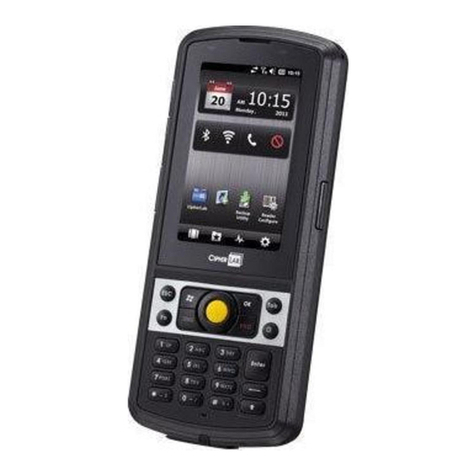
CipherLab CP60 User manual

CipherLab

CipherLab CP60 User manual

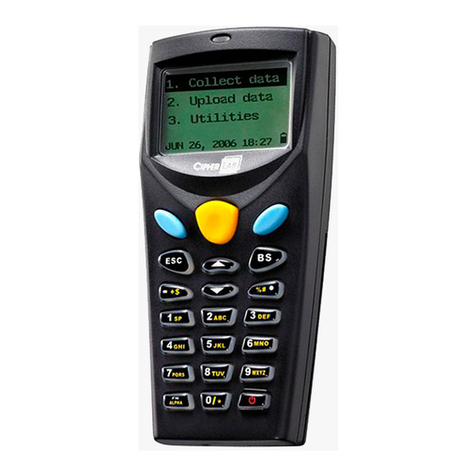
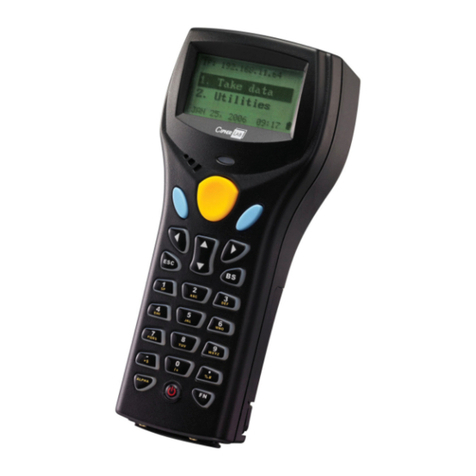
CipherLab 8000 User manual

CipherLab

CipherLab 8000 User manual

CipherLab RS31 User manual

CipherLab

CipherLab RS31 User manual

CipherLab CP50 G User manual

CipherLab

CipherLab CP50 G User manual

CipherLab 80 0 Series User manual

CipherLab

CipherLab 80 0 Series User manual

CipherLab 9400 Series User manual

CipherLab

CipherLab 9400 Series User manual

CipherLab 9400CE User manual

CipherLab

CipherLab 9400CE User manual

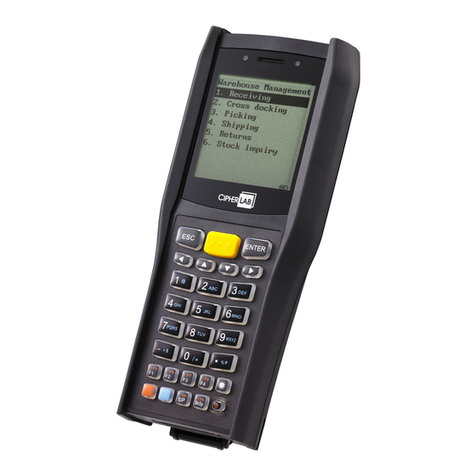
CipherLab 8300 User manual

CipherLab

CipherLab 8300 User manual

CipherLab RS50 User manual

CipherLab

CipherLab RS50 User manual

CipherLab CP60G User manual

CipherLab

CipherLab CP60G User manual

CipherLab 8700 Series User manual

CipherLab

CipherLab 8700 Series User manual

CipherLab 8200 User manual

CipherLab

CipherLab 8200 User manual

CipherLab 9200 User manual

CipherLab

CipherLab 9200 User manual

CipherLab 9300 Series User manual

CipherLab

CipherLab 9300 Series User manual

CipherLab RS51 User manual

CipherLab

CipherLab RS51 User manual

CipherLab 9300 Series User manual

CipherLab

CipherLab 9300 Series User manual

CipherLab 8001 User manual

CipherLab

CipherLab 8001 User manual

CipherLab 8000 User manual

CipherLab

CipherLab 8000 User manual

CipherLab 8300 User manual

CipherLab

CipherLab 8300 User manual

CipherLab CP60 User manual

CipherLab

CipherLab CP60 User manual

CipherLab 9700 User manual

CipherLab

CipherLab 9700 User manual

CipherLab 8200 User manual

CipherLab

CipherLab 8200 User manual

Popular Handheld manuals by other brands

Panasonic CF-VST332U How-to

Panasonic

Panasonic CF-VST332U How-to

Wasp WPA 1000II user manual

Wasp

Wasp WPA 1000II user manual

Hand Held Products Dolphin 9500 Software upgrade instructions

Hand Held Products

Hand Held Products Dolphin 9500 Software upgrade instructions

Honeywell Dolphin 9900 user guide

Honeywell

Honeywell Dolphin 9900 user guide

Intermec CK61 quick start guide

Intermec

Intermec CK61 quick start guide

Honeywell CN75 user guide

Honeywell

Honeywell CN75 user guide

Wasp WDT92 user manual

Wasp

Wasp WDT92 user manual

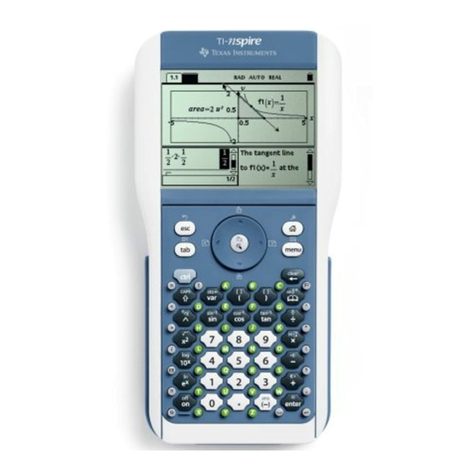
Texas Instruments TI-Nspire user guide

Texas Instruments

Texas Instruments TI-Nspire user guide

Docomo F-04H instruction manual

Docomo

Docomo F-04H instruction manual

Armstrong Brain Wave Hardware & software installation

Armstrong

Armstrong Brain Wave Hardware & software installation

Unitech TB128 user manual

Unitech

Unitech TB128 user manual

Symbol MC9000-G Product reference guide

Symbol

Symbol MC9000-G Product reference guide

Ingenico IWL220 GPRS Quick reference guide

Ingenico

Ingenico IWL220 GPRS Quick reference guide

Intermec CK61 user manual

Intermec

Intermec CK61 user manual

Symbol c2000 user manual

Symbol

Symbol c2000 user manual

Toshiba e350 Series user manual

Toshiba

Toshiba e350 Series user manual

Palm Tungsten E2 supplementary guide

Palm

Palm Tungsten E2 supplementary guide

MiTAC Mio 168 user manual

MiTAC

MiTAC Mio 168 user manual

manuals.online logo
manuals.online logoBrands
  • About & Mission
  • Contact us
  • Privacy Policy
  • Terms and Conditions

Copyright 2025 Manuals.Online. All Rights Reserved.

1. Status LEDs (left: scanning good read, middle: RF radio, right: charging)
2. Light sensor / Lichtsensor
3.
4.
5.
7.
Status LEDs (links: Scanner-LED, mitte: Wireless-LED, rechts: Lade-LED)
Touchscreen / Touchscreen
Scan Key / Scannertaste
Side Trigger (user definable) / Triggertaste (einstellbar)
Microphone / Mikrofon
Charging & Communication Port / Ladeanschluss / Datenschnittstelle
8. Power Button / Einschalttaste
6.
97xx Mobile Computer
Quick Start Guide
www.cipherlab.com
Open Your Box
EN DE
a
a
a
97xx mobiler Computer
Li-Ionen Akku
Stift für Touchscreen
a
a
a
a
Quick Start Guide
Snap-on Lade- und Komm. Kabel (optional)
Netzteil (optional)
Netzteilanschlusskabel (optional)
aAbdeckung für Headset Buchse
>
a97xx Mobile Computer
Rechargeable Li-ion battery
Stylus
Quick Start Guide
Snap-on Charging and Comm. Cable (optional)
Power Adapter (optional)
AC Power Cord (optional)
a
a
a
a
a
a
aEarphone Jack Cover
Power Supply
Battery Pack
(optional)
Charging Time
Important Charging Information
3.7V, 3600/5400mAh rechargeable Li-ion, CipherLab proprietary
Input: AC 100-240V, 50/60Hz; output: 5V/4A, CipherLab approved
Approx. 4/6 hours via adapter
9.
10.
11. Speaker / Lautsprecher
12.
13.
14.
Scan Window / Scannerfenster
Headset Jack / Buchse für Headset
Battery Pack / Akku
Side Trigger (user definable) / Triggertaste (einstellbar)
Stylus / Stift für Touchscreen
15. Handstrap / Handschlaufe
Netzteil
Akku
(optional)
Ladezeit
Wichtige Information zum Ladevorgang
3.7V, 3600mAh/5400mAh Li-Ion Akku, CipherLab Standard
Eingang: 100-240VAC, 50/60Hz; Ausgang: 5VDC, 4A, CipherLab zugelassen
Ca. 4/6 Std. mit Netzteil
99
10
11
12 13
14
15
1
2
3
4
5
7
68
Download the user manual and CD contents using GoBetween, available at:
.http://ccs.cipherlab.com
97xx mobiler Computer
Quick Start Guide
Install microSD Card & Battery
EN DE
>>
Unlock the microSD card socket hinged cover.
Step 2:
Insert microSD card in the socket as indicated.
Lock the card socket, and replace the rubber cover.
Step 3:
Unlock: Push right and swing open
Lock: Push left to lock
To install the battery:
Fix the top of the battery in the battery compartment with
the contact pins facing down.
Press the lower end in so the battery “clicks” into place.
Step 4:
To remove the battery:
Pull down the battery door latch and the battery will be
released automatically.
Entriegeln sie die klappbare Aufnahme für die microSD Karte.
Schieben sie die microSD Karte gemäß des Symbols
in die Aufnahme.
Verriegeln sie den Sockel und schließen ihn mit der
.Plastikabdeckung
Akku einlegen:
Legen sie den Akku mit den Kontakten nach unten, wie auf
dem Bild gezeigt, in das Akkufach ein.
Rasten sie den Akku mit einem deutlichen “Klick” ein.
Akku entfernen:
Ziehen sie den Verriegelungsknopf nach unten, der Akku
wird automatisch ausgeworfen.
Entriegeln: Nach rechts schieben und
aufklappen
Verriegeln: Zuklappen und nach links schieben
The microSD card socket is protected with a plastic cover.
Lift up the top of the plastic cover with a slotted screwdriver
(3 mm diameter).
Step 1:
Der Sockel für die microSD Karte ist mit einer
Plastikabdeckung geschützt. Öffnen sie die Plastikabdeckung
gemäß der Skizze mit einem Schlitz-Schraubendreher (3mm
breit).
Die Bedienungsanleitung, so wie die CD-Inhalte können via GoBetween herunter geladen werden
unter .http://ccs.cipherlab.com
Charging and data communication of the 97xx mobile computer can be performed via the Snap-on
Charging & Communication Cable or Charging & Communication Cradle.
Snap-On-Kabel am mobilen Computer anschließen. / Mobilen Computer in die Tischstation
stecken.
For data transfer, plug the opposite end of the cable to your PC.
Step 2:
For battery charging, insert adapter plug into power jack on the Snap-on Cable or Cradle.
Step 3:
Zur Datenübertragung das Kabel am PC anschließen.
Select power adaptor cord suitable for your country. Plug adaptor cord to electrical outlet.
The charging LED on the mobile computer lights up in red (battery low, charging) or orange
(battery charging), and turns green to indicate charging is almost complete.
Step 4:
Zum Laden des Akkus das Stromkabel vom Netzteil am Snap-On-Kabel oder der Tischstation
anschließen.
Ladevorgang und Datenübertragung vom 97xx können mit dem Snap-On-Kabel oder der Tischstation
gemacht werden.
2
3
4
Für den Ladevorgang das passende Netzkabel wählen und an die Steckdose anschließen.
Die Lade-LED leuchtet in rot (Akku leer, wird geladen) oder orange (Akku wird geladen) und
wechselt auf grün, wenn der Ladevorgang fertig ist.
Charging & Communication
EN DE
Attach the Snap-on Cable to the mobile computer. / Seat the mobile computer onto the Cradle.
Step 1:
See the respective Quick Start Guides for
information on the Snap-on Cable and Cradle.
Beachten sie die Quick Start Guides für das
Snap-On-Kabel und die Tischstation.
1
2
3
4
1

97xx 

 /   
a
a
a
97xx 



 
 
 
a
a
a
a
()
()
()AC
a 
>
a97xx
AC



  ( )
 ( )
 ( )
a
a
a
a
a
a


a
1.
2. /
3.
4.
5.
6.
 :;:;:
()
 /
()
 /
 /
()
8
 :;:;:
 /
 /
 /
(:   , :  , : )
 

 
   

  
 
  /
 /
 /
 
 /
 /
 ( ) /()/
7.
.
9.
10.
11.
12.
13.
14.
 /

 /
 
()
 /
 /
 /
 /
 ( )
 /
 
 


   

 
/
()/
 /  /
15. /  /



 
()
  ()
()



 / /   
3.7V, 3600/5400mAh
3.7V, 3600/5400mAh CipherLab
CipherLab 

   
: :AC 100-240V, 50-60Hz; 5V/4A; CipherLab 
: :AC 100-240V, 50-60Hz; 5V/4A; CipherLab 
 :  :AC100-240V, 50-60Hz 5V/4A CipherLab;;
 4/6
 4/6
   4/6
P/N: S9700AQG41025
9
10
11
12 13
15
1
2
3
4
55
7
68
9
14
 GoBetween :http://ccs.cipherlab.com  

a97xx
AC
 
  
  
  
 
 
()
()
()
a
a
a
a
a
a

a 
microSD ,
 () 。

()
,
(.
3 mm
microSD
3 mm
MicroSD
3mm
, 
   。
  
  )
Step 1:
 。microSD
 。microSD
MicroSD  
 .
Step 2:
:
:
 
 
:
.
: 
: 


:
.
Step 4:
:
,。
:
,。
97xx 

 /microSD MicroSD  
>>
。
,。
microSD
。
,。
microSD
MicroSD .
,.
   
  
Step 3:
    GoBetween :http://ccs.cipherlab.com
 
      
      

:
“”
.
 
    

:
.
 

:
, ,
「 」。


:
,,
「 。」
2
3
4
1
2
3
4
1
 /  
/。
。/
/
.
       

Step 1:
97xx  ,。
97xx
97xx
 ,。
      
 .
,
,。
   ,.
Step 2:
,。
,。
  .
Step 3:
,

。
,。
 、)(),
。
(
.
(, ) ()
.
    
      
 
 。
 、  (),

()
Step 4:

,

,。
。
Copyright ©2016 CipherLab Co., Ltd.
97xx   
 
GoBetween       CD
http ccs cipherlab com:// . .
   
 .
 
