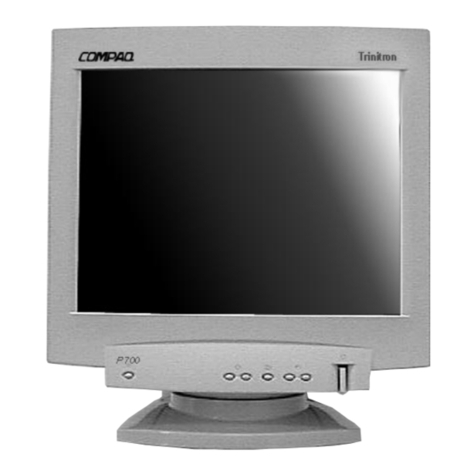
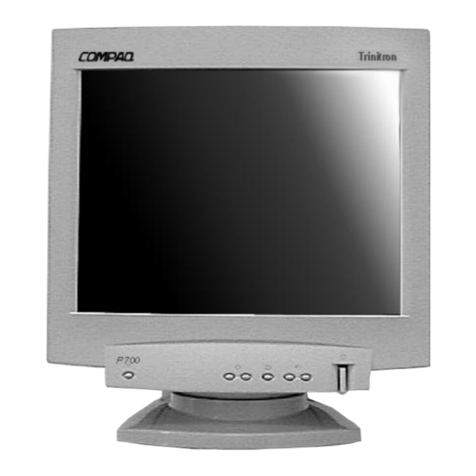
Compaq P700 User manual

Compaq P700 Color Monitor
User’s Guide
Compaq P700 Color Monitor
380213-001

Notice
The information in this guide is subject tochange without notice.
COMPAQ COMPUTER CORPORATION SHALL NOT BE LIABLE
FOR TECHNICAL OR EDITORIAL ERRORS OR OMISSIONS
CONTAINED HEREIN; NOR FOR INCIDENTAL OR
CONSEQUENTIAL DAMAGES RESULTING FROM THE
FURNISHING, PERFORMANCE, OR USE OF THIS MATERIAL.
This guide contains information protected by copyright. No part of this
guide may be photocopied or reproduced in any form without prior
written consent from Compaq Computer Corporation.
1999 Compaq Computer Corporation.
All rights reserved. Printed in Mexico.
Compaq and Deskpro are registered in the U. S. Patent and Trademark
Office.
Microsoft, MS-DOS, Windows, Windows NT, and other names of
Microsoft Products referenced herein are trademarks or registered
trademarks of Microsoft Corporation.
ENERGY STAR® is a U.S. registered mark.
FD Trinitronis a U.S. registeredmark.
Product names mentioned herein may be trademarks and/or registered
trademarks of their respective companies.
The software described inthis guideis furnished under a license
agreement or nondisclosure agreement. The software may be used or
copied only inaccordance with theterms of the agreement.
User’s Guide
Compaq P700 Color Monitor
First Edition (July 1999)
Part Number 380213-291
CD-ROM Part Number 387841-002
Compaq Computer Corporation

English 1-1
ttttt Part Number: 380213-001- Writer: JD Poteet - Saved by: JD Poteet
Pages: 15 Words: 2558 Saved date: 07/23/99 5:00 PM File Name:Andretti
English
Product Features
The Compaq P700 Color Monitor is a microprocessor-based, high-
resolution monitor with auto-scanning. The monitor features include the
following:
?# 17-inch (16.0-in/40.6 cm viewable) FD TrinitronCRT
?# 1600 × 1200 resolution, plus full-screen support for lower
resolutions
?# On-Screen Display (OSD) adjustments in nine different languages:
English, Dutch, French, German, Italian, Spanish, Russian,
Swedish, and Japanese for ease of set-up and screen optimization
?# Plug and Play capability if supported by your system
?# Tilt and swivel functionality
?# Kodak Color Profile (included on CD-ROM)
?# CD-ROM includes an information file (INF), Image Color
Matching file (ICM), and product documentation
?# Automatic scanning of all horizontal frequencies between 30 and
92 kHz, and vertical frequencies between 48 and 120 Hz
?# Asset Control
?# Energy Saver feature for Energy Star®compliance
?# Macintosh-compatible timing with optional connector∗
?# Compliance with the following regulated specifications:
❑ Swedish MPR II 1990
❑ EPA ENERGY STAR®
❑ European Union CE Directives
❑ Swedish TCO 1999 for all models
∗A Macintosh-compatible connector is not supplied with this monitor.

1-2 English
Part Number:380213-001 - Writer: JD Poteet- Saved by: JD Poteet
Pages: 15 Words: 2558 Saved date: 07/23/99 5:00 PM File Name:Andretti
✎Depending on the content of the screen, at times the shadows of
two small horizontal lines may appear on the screen. This is not
a defect and is normal for all aperture grille type displays. The
shadows are two damper wires that reduce the monitor's
susceptibility to vibration.
Universal Driver Manager
This monitor may require a graphics driver (and/or .INF file) that is
compatible with your computer’s graphics adapter. A CD-ROM
containing an .INF file is included with this monitor (see the section on
Information Files). Compaq has also created a Universal Driver
Manager (UDM) release that supports all graphics adapters found on
Compaq Deskpro and Compaq Workstation products. The UDM eases
graphics driver deployment across Compaq platforms ensuring cross-
compatibility and backward-compatibility. The resulting solution
enables customers to manage and control ongoing software maintenance
costs. The UDM is available on the Compaq Support Software CD for
Compaq Desktop, Portable, and Workstation Products and the Compaq
web site (www.compaq.com).
Information Files
This monitor includes a CD-ROM with two information files that should
be installed onto your computer—an .INF file and an .ICM file. The
.INF file defines monitor resources and provides specifications used by
Microsoft Windows 95/98 to install support software for certain
hardware devices. The .INF file ensures monitor compatibility and
optimization with your computer’s graphics adapter.
The .ICM file provides color matching consistency from monitor screen
to printer and is activated from within the graphics programs that have
this feature. To install these files on your computer, insert the Compaq
CD-ROM into the computer's CD tray and follow the instructions from
the menu that appears on the monitor screen. The CD-ROM is located in
the Program License Agreement packet. INF file updates are
downloadable by clicking on:
www.compaq.com/products/monitors/index.html

English 1-3
Part Number: xxxxxx-001 - Writer: JD Poteet by: JD Poteet
Saved date: 07/23/99 4:56 PM - File Name:Andretti
Setting Up the Monitor
To set up the monitor, ensure that the power is turned off to the monitor,
computer system, and other attached devices, then follow these steps:
1. Place the monitor in a convenient, well-ventilated location near
your computer.
2. Connect the monitor signal cable 3to the 15-pin connector on

the rear panel of the computer and tighten the screws.
✎Be sure the signal cable aligns with the 15-pin connector. Do
not force the cable onto the connector or you may damage the
signal cable.
3. Connect one end of the monitor power cord 1to the connector
on the back of the monitor and the other end 2to an electrical
outlet that is easily accessible and close to the monitor.

1-4 English
Part Number:380213-001 - Writer: JD Poteet- Saved by: JD Poteet
Pages: 15 Words: 2558 Saved date: 07/23/99 5:00 PM File Name:Andretti
!WARNING: To reduce the risk of electric shock or damage to
your equipment:
„#Do not disable the power cord grounding plug. The
grounding plug is an important safety feature.
„#Plug the power cord into a grounded (earthed) electrical
outlet that is easily accessible at all times.
„#Disconnect power from the monitor by unplugging the
power cord from the electrical outlet.
„#Do not place anything on power cords or cables.
Arrange them so that no one may accidentally step on or
trip over them. Do not pull on a cord or cable. When
unplugging from the electrical outlet, grasp the cord by
the plug.

English 1-5
Part Number: xxxxxx-001 - Writer: JD Poteet by: JD Poteet
Saved date: 07/23/99 4:56 PM - File Name:Andretti
Adding a Compaq Powered USB Hub
The monitor base is designed to house an optional Compaq Powered
USB Hub. The Compaq Powered USB Hub is not included with the
monitor. It is sold separately. For information on purchasing the
Compaq Powered USB Hub (part. No. 138638-xxx), call your Compaq
authorized dealer, or reseller. To locate a reseller near you, call Compaq
at 1-800-AT-COMPAQ or visit the Compaq web site at
http:www.compaq.com.
The following are required to operate the USB hub:
■ Your computer must be fitted with a USB port.
■ Your computer must have Microsoft Windows 95 OSR2.1 or
later, or Microsoft Windows 98 as the operating system.
USB connectors are used to connect USB-compatible devices such as a
keyboard, mouse or joystick to the hub.

1-6 English
Part Number:380213-001 - Writer: JD Poteet- Saved by: JD Poteet
Pages: 15 Words: 2558 Saved date: 07/23/99 5:00 PM File Name:Andretti
Operating the Monitor
Front Panel Controls
No./Icon Control Function
1Reset Button Pressing this button resets the following items:
Contrast, brightness, size/center, geometry, screen,
zoom, and color. OSD Position and Language can not
be reset.
2Brightness or OSD
Select Button Down arrow decreases brightness or is used to select
menu adjustment.
3Brightness or OSD
Select Button Up arrow increases brightness or is used to select OSD
menu adjustment.
4Menu and Select
button Launches on-screen menus and selects the functions.
Also, exits menus and on-screen display.
5Contrast button Left arrow decreases contrast or is used to adjust
selected OSD adjustment item.
6Contrast button Right arrow increases contrast or is used to adjust
selected OSD adjustment item.
7Power Switch Turns the monitor on and off.
8LED Indicates monitor mode.
1. Green LED indicates monitor is turned on.
2. Alternating Amber/Green LED indicates Standby/
Suspend.
3. Amber LED Indicates Sleep Mode.

English 1-7
Part Number: xxxxxx-001 - Writer: JD Poteet by: JD Poteet
Saved date: 09/13/99 2:45 PM - File Name:Andretti
On-Screen Display Settings
To adjust screen settings, press the Menu button to launch the on-screen
display (OSD). The OSD can be viewed in nine available languages. The
following menu shows the functions at each level:
Menu Level 1 Menu Level 2
Size/Center Horizontal Centering
Vertical Centering
Horizontal Sizing
Vertical Sizing
Zoom
Geometry Rotation
Pincushion
Pin Balance
Keystone
Key Balance
Color 9300 K
5000 K
Variable Color
Convergence Horizontal Convergence
Vertical Convergence
Language English
Francais
Deutsche
Espanol
Italiano
Nederlands
Svenska
Ðóññêèé (Russian)
(Japanese)
Option Degauss
Cancel Moire
OSD Horizontal Position
OSD Vertical Position
Control Lock
Help Return to Main Menu
Recommended Resolution
Flicker
Thin Horizontal Line
Distorted Shape
Out of Focus
Discoloration
Information* Model
Serial Number
Date of Manufacture
* To get this data, press the Menu button for 5 seconds while the monitor picture is stable.

1-8 English
Part Number:380213-001 - Writer: JD Poteet- Saved by: JD Poteet
Pages: 15 Words: 2558 Saved date: 07/23/99 5:00 PM File Name:Andretti
How to Adjust Settings
To launch the on-screen display Main Menu:
1. Press the Menu button 3on the monitor front panel. The Main
Menu will display on the monitor screen.
2. To select an item from the Main Menu, scroll down by pressing
the down arrow button 1located on the monitor front panel. To
reverse or back up, press the up arrow button 2.
3. The item to be selected will be highlighted in yellow. Press the
Menu button 3again.
Monitor with On-Screen Display
✎The bar on the bottom of the OSD menu shows the current
operating frequency (and resolution if VESA standard).
Other manuals for P700
2
Table of contents
Other Compaq Monitor manuals

Compaq
Compaq 7500 Series User manual

Compaq
Compaq MV 540 User manual

Compaq
Compaq 2025 User manual

Compaq
Compaq Compaq M720 User manual

Compaq
Compaq P75 User manual

Compaq
Compaq Compaq P1610 User manual

Compaq
Compaq 5700 User manual

Compaq
Compaq ProLiant 5500 User manual

Compaq
Compaq TFT500 User manual

Compaq
Compaq S900 User instructions

Compaq
Compaq TFT1701 User manual

Compaq
Compaq 151FS - QVision - 15" CRT Display User manual

Compaq
Compaq MV7540 User manual

Compaq
Compaq 1825 User manual

Compaq
Compaq W19Q User manual

Compaq
Compaq V50 User manual

Compaq
Compaq V1100 User manual

Compaq
Compaq TFT 5000R User manual

Compaq
Compaq P1220 User manual

Compaq
Compaq S500 User manual