manuals.online logo
Brands
  1. Home
  2. •
  3. Brands
  4. •
  5. Curtis
  6. •
  7. DVD Player
  8. •
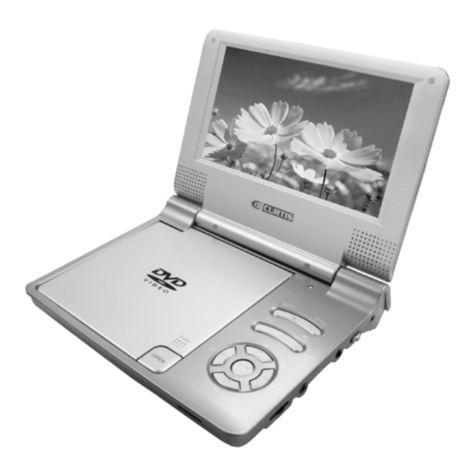
  9. Curtis DVD8009 User manual

Curtis DVD8009 User manual

Other manuals for DVD8009

2

Other Curtis DVD Player manuals

Curtis DVD1066 User manual

Curtis

Curtis DVD1066 User manual

Curtis DVD1041 User manual

Curtis

Curtis DVD1041 User manual

Curtis DVD1096 User manual

Curtis

Curtis DVD1096 User manual

Curtis DVD1093B User manual

Curtis

Curtis DVD1093B User manual

Curtis DVD1057 User manual

Curtis

Curtis DVD1057 User manual

Curtis DVD1047 User manual

Curtis

Curtis DVD1047 User manual

Curtis DVD1093 User manual

Curtis

Curtis DVD1093 User manual

Curtis DVD1055 User manual

Curtis

Curtis DVD1055 User manual

Curtis DVD1098C User manual

Curtis

Curtis DVD1098C User manual

Curtis DVD1044 User manual

Curtis

Curtis DVD1044 User manual

Curtis DVD1098B Simple manual

Curtis

Curtis DVD1098B Simple manual

Curtis DVD9009UK User manual

Curtis

Curtis DVD9009UK User manual

Curtis DRC8335 User manual

Curtis

Curtis DRC8335 User manual

Curtis DVD2070SUK User manual

Curtis

Curtis DVD2070SUK User manual

Curtis DV1054HDUK User manual

Curtis

Curtis DV1054HDUK User manual

Curtis DVD1098B User manual

Curtis

Curtis DVD1098B User manual

Curtis DVD7015UK User manual

Curtis

Curtis DVD7015UK User manual

Curtis DVD1053 Simple manual

Curtis

Curtis DVD1053 Simple manual

Curtis SDVD6655PL User manual

Curtis

Curtis SDVD6655PL User manual

Curtis DVD1025 User manual

Curtis

Curtis DVD1025 User manual

Curtis DVD1053D User manual

Curtis

Curtis DVD1053D User manual

Curtis DVD1096B User manual

Curtis

Curtis DVD1096B User manual

Curtis DVD1072 User manual

Curtis

Curtis DVD1072 User manual

Curtis DVD1093 User manual

Curtis

Curtis DVD1093 User manual

Popular DVD Player manuals by other brands

Yamaha DVD S540 - Progressive Scan DVD Player Service manual

Yamaha

Yamaha DVD S540 - Progressive Scan DVD Player Service manual

Yamakawa DVD-MP12i user manual

Yamakawa

Yamakawa DVD-MP12i user manual

Philips DVP3042/12 user manual

Philips

Philips DVP3042/12 user manual

Philips DVP5900/37B Quick use guide

Philips

Philips DVP5900/37B Quick use guide

Roadstar DVD-2020H Service manual

Roadstar

Roadstar DVD-2020H Service manual

Beko DVD 2006 user manual

Beko

Beko DVD 2006 user manual

Atak DVDA2015 instruction manual

Atak

Atak DVDA2015 instruction manual

LG DV257K owner's manual

LG

LG DV257K owner's manual

auna 10005069 manual

auna

auna 10005069 manual

Philips MCD700/61 user manual

Philips

Philips MCD700/61 user manual

Sony DVP-F11 Service manual

Sony

Sony DVP-F11 Service manual

Toshiba SD-2300U owner's manual

Toshiba

Toshiba SD-2300U owner's manual

LENCO DVP-740 X2 user manual

LENCO

LENCO DVP-740 X2 user manual

Tevion 44330 user guide

Tevion

Tevion 44330 user guide

Aiwa XD-DV370 operating instructions

Aiwa

Aiwa XD-DV370 operating instructions

Sony DVP S530D operating instructions

Sony

Sony DVP S530D operating instructions

Denon DVM-1805 - DVD Changer operating instructions

Denon

Denon DVM-1805 - DVD Changer operating instructions

Toshiba SD-3815 owner's manual

Toshiba

Toshiba SD-3815 owner's manual

manuals.online logo
manuals.online logoBrands
  • About & Mission
  • Contact us
  • Privacy Policy
  • Terms and Conditions

Copyright 2025 Manuals.Online. All Rights Reserved.

All manuals and user guides at all-guides.com
all-guides.com
A. Introduction 1
B. Cautions and Warnings 1
C. Important safety instructions 1
D. Contents 2
E. Powering and installation 2
F. Controls,Indicators, and Connectors 2
G. Loading and Playing a Disc 4
H.Setup 4
I. Basic Operation 8
J. Playing Mp3 Audio CD Discs 12
K. Playing JPG files 12
L. Connecting to TV or another monitor 13
M. Rechargeable battery use 13
N. Specifications 14
O. Troubleshooting 14
All manuals and user guides at all-guides.com
A. Introduction
Thank you for choosing our portable DVD player. The main features include a
7" Wide Screen (16:9 Aspect Ratio) Liquid Crystal Display (LCD) monitor and a
DVD player. The unit applies the latest state of art electronics and is designed
for use in hotels, offices or homes. The unit is constructed to provide years
of reliable, trouble-free service,and is compact to take it with you anywhere
and is designed for quick and easy installation. Prior to use please read the
entire instruction manual supplied with this product . Please save this manual
for later use.
B. Cautions and Warnings
C. Important safety instructions
) .
) .
) .
) .
) .
) .
) a , u -
' .
) , , ,
( ) d .
) The power swich
) .
, .
) / .
) This is a
) .
) ,
, - -
, ,
, , .
5 Cleaning Unit
When cleaning, make sure the system is unplugged from the power source.
Do not use liquid cleaners or aerosol cleaners. Use a cloth lightly
dampened with water for cleaning the exterior of the system only.
6 Disc
Do not use irregular shaped discs such as heart or star-shaped discs as
they may cause the unit to malfunction. Do not stick paper, tape or glue on
the disc. Do not expose the disc to direct sunlight or heat sources. Do not
Warning: To reduce the risk of fire or electric shock, do not expose
this apparatus to rain or moisture.
Caution: Danger of explosion if battery is incorrectly replaced.
Replace only with the same or equivalent type.
1 Read these Instructions
2 Keep these Instructions
3 Heed all warnings
4 Follow all instructions
5 Do not use this unit near water
6 Clean only with dry cloth
7 Do not block ny ventilation openings Install in accordance with the man fa
cturer s instructions
8 Do not install near any heat sources such as radiators heat registers stoves
or other apparatus including amplifiers that pro uce heat
9 mains is used as the disconnect device. It shall remain readily
operable and should not be obstructed during intended use.
10 Protect the power cord from being walked on or pinched particularly at plugs
convenience receptacles and the point whee they exit from the unit
11 Only use attachments accessories specified by the manufacturer
12 Replace only with the same or equivalent type. danger of explosion if
battery is incorrectly replaced.
13 Unplug this unit during lightning storms or when unused for long periods of time
14 Refer all servicing to qualified service personnel servicing is required when the
unit has been damaged in any way such as power suppli cord or plug is dama
ged liguid has been spilled or objects have fallen into the unit the unit has been
moisture does not operate normally or has been dropped
1 )
1 )
RISK OF EL ECTRIC SH OCK
DO NOT OPE N
1
All manuals and user guides at all-guides.com
touch the surface of disc. Handle the disc by its edge. Clean the disc by
wiping the disc from the center out with a cleaning cloth. Remove the
disc from the unit and store it in its case after playing. Some playback
operations of discs may be intentionally fixed by software producers.
Since this unit plays discs according to the disc contents the software
producers designed, some playback features may not be available.
Also refer to the instructions supplied with the discs.
D. Contents
1. 1 x 7'' LCD Monitor & DVD Player Combo with built-in rechargeable
lithium Polymer battery
2. 1 x Remote Control with battery
3. 1 x Audio/Video Cable
4. 1 x AC/DC Adapter
5. 1 X Cigarette Lighter Adapter
6. 1 x Instruction Manual
7. 1 X Earphone
E. Powering and installation
1. Powering the system indoors
Plug one end of the AC to DC adapter into the DC input jack on the back of
the main unit, then plug the other end into the AC power receptacle.
2. Powering the system in a car
Plug one end of the cigarette lighter adapter into the DC input jack on the
unit, then plug the other end into the cigarette lighter socket
F. Controls, Indicators, and Connectors
1. Unit View
2
All manuals and user guides at all-guides.com
1.LCD Panel Shut Off Switch
2.SETUP
3.MENU
4.STOP
5.PLAY/PAUSE
6. BUTTON
7. BUTTON
8.OK BUTTON
9.OPEN
10.DC IN
11.POWER ON/OFF SWITCH
12.AV OUT
13.HEADPHONE
14.VOLUME
1.Number buttons
2.Zoom(To zoom in/out picture)
3.Title
4.Audio
5.Setup
6.Enter
7.Previous/Next(when playing)
Fast backward/FF
(when playing)
Direction buttons
(when at menu setup)
8.OSD
9.Play/Pause
10.Stop
11.Slow
12.Subtitle
13.Menu
14.A-B
15.Angle
16.Repeat
17.Mute
18.Return
19.Volume + -
3
2.Controls
All manuals and user guides at all-guides.com
G. Loading and Playing a Disc
a. After connecting power to the unit, turn on DVD player with the ON/OFF
switch. The power indicator will light.
b. Open the disc tray by "OPEN" , and place a disc into the tray with the label
side facing up.
c. Close the tray.The unit will load the disc and start playing.
d. Adjust picture quality by entering into video quality setup via SETUP
button on the unit or from the remote control.
e. To stop playing a disc, press STOP.
H. Setup
Press 'SETUP' to display the Main screen of the Setup Menu on the screen.
Press 'SETUP' again to exit the Setup Menu and the unit will resume its last
playback mode.
1) Press SETUP , the 'General Setup Page' will display on screen.
a).Select 'Angle Mark' using the / button, and then press the button
to enter the submenu. Choose Angle Mark on or off using the / button
and then press OK to confirm the setting. Press the button to return.
* On: The screen will show the angle mark icon. (*If an angle option is
available).
* Off: The screen will not display the Angle Mark
NOTE: Not all discs contain above features. The above features are disc
dependent.
b). Select 'Screen Saver' using the / button, and then press the button
to enter the submenu. Choose Screen Saver on or off using the /
button and then press OK to confirm the setting. Press the button
to return.
*On: Enables screen saver
*NOTE: The DVD player will enter the Screen Saver mode after ap-
proximately five minutes if the same image remains on the screen.
*Off: Disables screen saver (off)
C) Select 'OSD LANG' by / button ,and then press the button to enter
the submenu
*Note:OSD language is also available with the others than the listed
4
General Video Password Preference Exit
--General Setup Page–-
TV Display WIDE
Angle Mark ON
TV Type PAL
Screen Saver ON
OSD Lang ENG
Go To General Setup Page
All manuals and user guides at all-guides.com
all-guides.com
General Video Password Preference Exit
--Video Setup Page–-
Brightness 00
Contrast 00
Go To Video Setup Page
2) Select Video Quality Setup by using the / button, press OK to enter
the video quality setup page.
a).Select 'Contrast' by using the / button, then press OK. You can adjust
the Contrast by pressing the / button.
To exit 'Contrast' Setting, press OK again to return.
b).Select 'Hue' by using the / button, then press OK. You can adjust
the Hue by pressing the / button.
To exit 'Hue' Setting, press OK again to return.
C).Select 'Saturation' by using the / button, then press OK. You can
adjust the Saturation by pressing the / button.
To exit 'Saturation' setting, press OK again to return.
3) Select Password using the / button, then press the OK button to enter
the submenu.
Press OK twice to enter the Password Change Page. Input the Old
Password or the Default Password, the New Password, and the Confirmed
New Password. Press OK to confirm the change.
5
General Video Password Preference Exit
--Password Setup Page–-
Password
Change password
All manuals and user guides at all-guides.com
Note: The default password is 8888.
4).With no disc inside the player or open operation, select 'Preference Page'
using the / button, then press OK to enter the preference page.
a. Select 'Audio' using the UP/DOWN button, then press to enter
the submenu. Select the audio language you desire using the /
button, then press OK to confirm the setting. Press to return.
b. Select 'Subtitle' using the / button, then press to enter the
submenu. Select the desired subtitle language or Subtitle Off using the
/ button, then press OK to confirm the setting. Press to return.
c. Select 'Disc Menu' using the / button, then press to enter
the submenu. Select the Disc Menu Language you desire using the
/ button, then press OK to confirm the setting. Press to return.
Note: Language and subtitle selection are only available for discs that are
recorded in the above listed languages. If the selected language is
not available, the player will display the original recorded
language contained in the disc on the screen.
6
General Video Password Preference Exit
Old Password
New Password
Confirm PWD
OK
General Video Password Preference Exit
--Preference Setup Page–-
Preference Audio Language
Audio ENG
Subtitle Off
Disc Menu ENG
Parental
Default
English
Fench
Spanish
General Video Password Preference Exit
--Preference Setup Page–-
Preference Subtitle To Language
Audio ENG
Subtitle Off
Disc Menu ENG
Parental
Default
English
Fench
Spanlsh
Off
All manuals and user guides at all-guides.com
General Video Password Preference Exit
--Preference Setup Page–-
Set KID SAF
Audio ENG
Subtitle Off
Disc Menu ENG
Parental
Default
1 KID SAF
2 G
3 PG
4 PG 13
5 PGR
6 R
7 NC 17
8 ADULT
d. Select 'Parental' using the / button, then press to enter the
submenu.
Select the parental level you desire using the / button for discs
with lock-out function or multiple rating levels. These are listed from the
lowest level (1 Kid Safe) to the highest level (8 Adult). Press OK and
input 4 digit password, then press OK again to con- firm the parental
level setting.
NOTE: The level of 8 Adult is the factory default.
e. Select 'Default' using the / button, then press to enter the
submenu. Press OK to make the setting return to the factory-set mode.
NOTE: The parental setting is not affected by the default reset function.
NOTE: The Default Password is 8888.
To avoid the possibility of the others using the default password to
set the parental level and change the password, you can record this
default password in another area and delete it from this manual.
Some discs can be limited depending on the age of users while some
discs cannot.
7
General Video Password Preference Exit
--Preference Setup Page–-
Preference menu Language
Audio ENG
Subtitle Off
Disc Menu ENG
Parental
Default
English
Fench
Spanish
General Video Password Preference Exit
--Preference Setup Page–-
LOAD Factory setting
Audio ENG
Subtitle Off
Disc Menu ENG
Parental
Default Reset
All manuals and user guides at all-guides.com
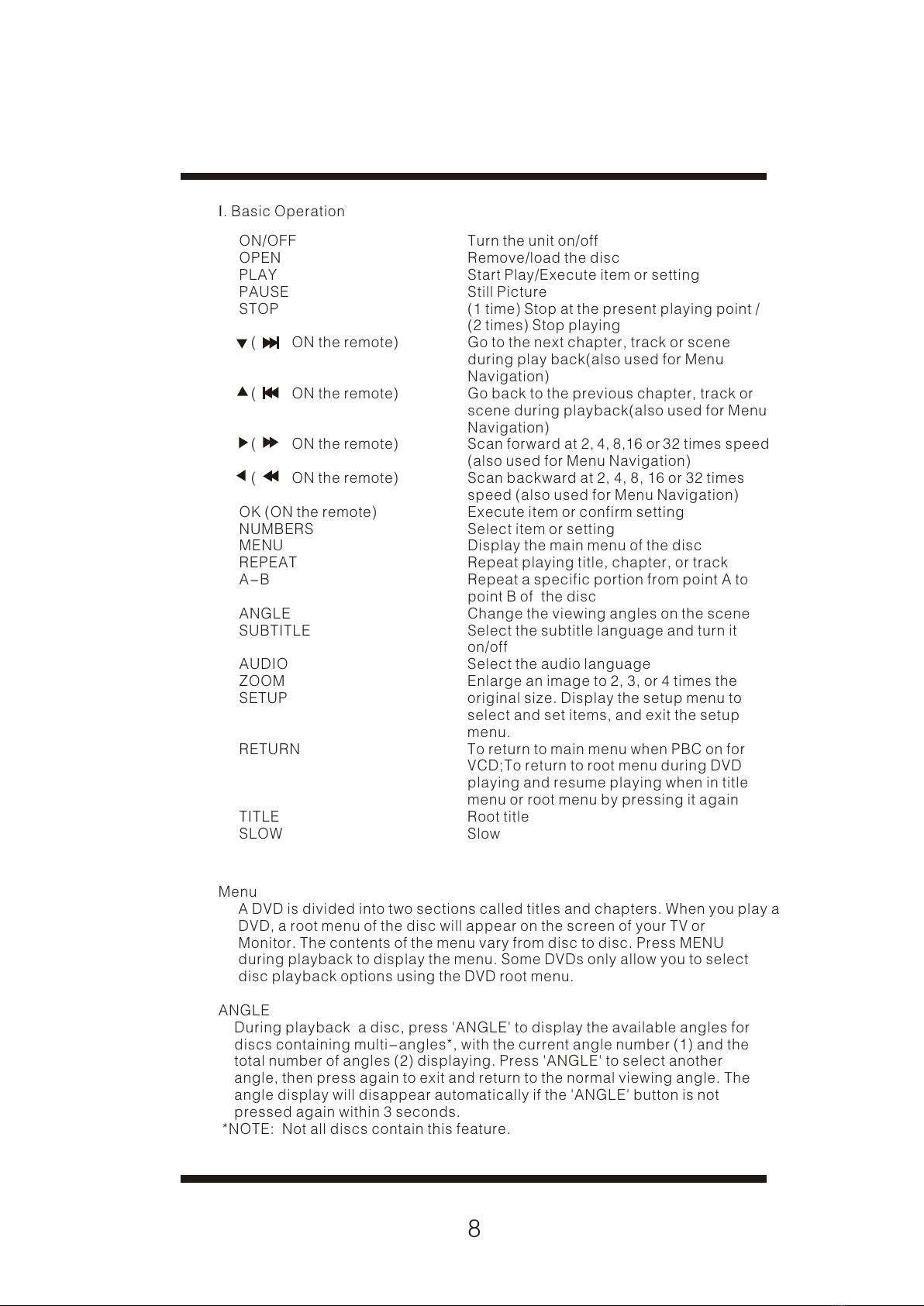
I. Basic Operation
ON/OFF
OPEN
PLAY
PAUSE
STOP
( ON the remote)
( ON the remote)
( ON the remote)
( ON the remote)
OK (ON the remote)
NUMBERS
MENU
REPEAT
A-B
ANGLE
SUBTITLE
AUDIO
ZOOM
SETUP
RETURN
TITLE
SLOW
Turn the unit on/off
Remove/load the disc
Start Play/Execute item or setting
Still Picture
(1 time) Stop at the present playing point /
(2 times) Stop playing
Go to the next chapter, track or scene
during play back(also used for Menu
Navigation)
Go back to the previous chapter, track or
scene during playback(also used for Menu
Navigation)
Scan forward at 2, 4, 8,16 or 32 times speed
(also used for Menu Navigation)
Scan backward at 2, 4, 8, 16 or 32 times
speed (also used for Menu Navigation)
Execute item or confirm setting
Select item or setting
Display the main menu of the disc
Repeat playing title, chapter, or track
Repeat a specific portion from point A to
point B of the disc
Change the viewing angles on the scene
Select the subtitle language and turn it
on/off
Select the audio language
Enlarge an image to 2, 3, or 4 times the
original size. Display the setup menu to
select and set items, and exit the setup
menu.
To return to main menu when PBC on for
VCD;To return to root menu during DVD
playing and resume playing when in title
menu or root menu by pressing it again
Root title
Slow
Menu
A DVD is divided into two sections called titles and chapters. When you play a
DVD, a root menu of the disc will appear on the screen of your TV or
Monitor. The contents of the menu vary from disc to disc. Press MENU
during playback to display the menu. Some DVDs only allow you to select
disc playback options using the DVD root menu.
ANGLE
During playback a disc, press 'ANGLE' to display the available angles for
discs containing multi-angles*, with the current angle number (1) and the
total number of angles (2) displaying. Press 'ANGLE' to select another
angle, then press again to exit and return to the normal viewing angle. The
angle display will disappear automatically if the 'ANGLE' button is not
pressed again within 3 seconds.
*NOTE: Not all discs contain this feature.
8

All manuals and user guides at all-guides.com