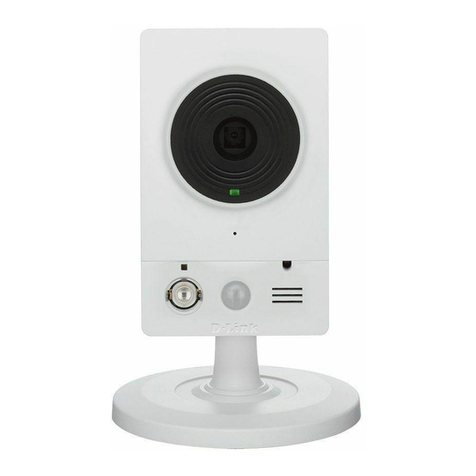
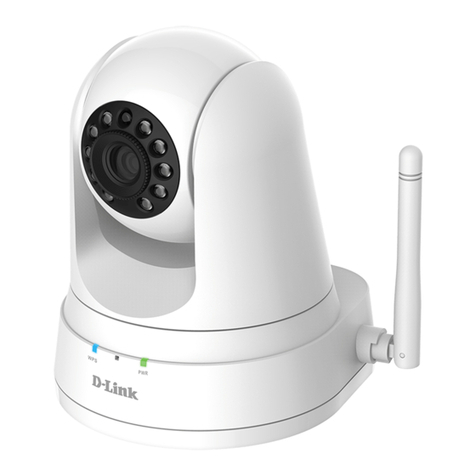
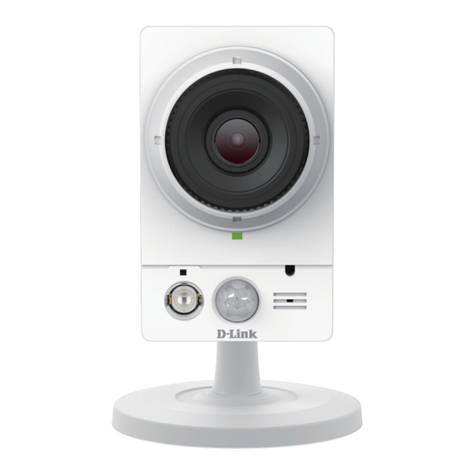
D-Link DCS-5025L User manual

HD Pan, Tilt & Zoom Wi-Fi Camera
DCS-5025l
QUICK
INSTALLATION
GUIDE
КРАТКОЕ РУКОВОДСТВО ПО УСТАНОВКЕ
GUÍA DE INSTALACIÓN RÁPIDA
GUIA DE INSTALAÇÃO RÁPIDA
快速安裝指南
PETUNJUK PEMASANGAN CEPAT
クイックインストールガイド
快速安裝指南
DCS-5025l
2
ENGLISH
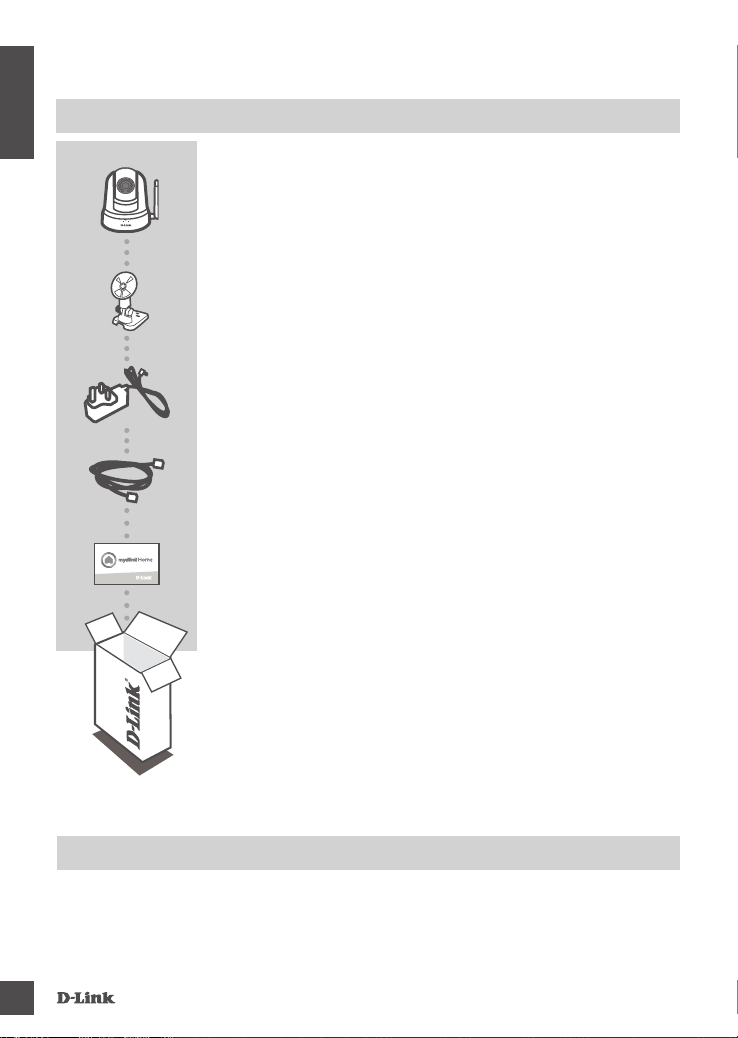
CONTENTS OF PACKAGING
HD PAN & TILT WI-FI DAY/NIGHT CAMERA
DCS-5025L
POWER ADAPTER
MOUNTING KIT
ETHERNET CABLE (CAT5 UTP)
CONNECTS THE CAMERA TO YOUR ROUTER DURING SETUP
If any of these items are missing from your packaging, contact your
reseller.
SYSTEM REQUIREMENTS
• 802.11ac/n/g wireless router
• A broadband Internet connection
• iPhone, iPad, or Android smartphone or tablet
QUICK INSTALL CARD
DCS-5025l 3
ENGLISH
PRODUCT SETUP
SeTTing UP yOUr Camera
Please follow the instructions below to set up your mydlink camera.
Congratulations, your DCS-5025L is now ready to use! Be sure to check the support.dlink.com
website periodically for the latest rmware updates to keep your product secure and up to date with
the latest features.
Note: If you experience issues registering this camera with your mydlink account, or if you
purchased an open box or resold unit, perform a hard reset by pressing and holding the reset button
on the device for 10 seconds while the device is powered on. If you are returning the device to
the place of purchase, please perform the hard reset procedure to clear the device of any
personal data.
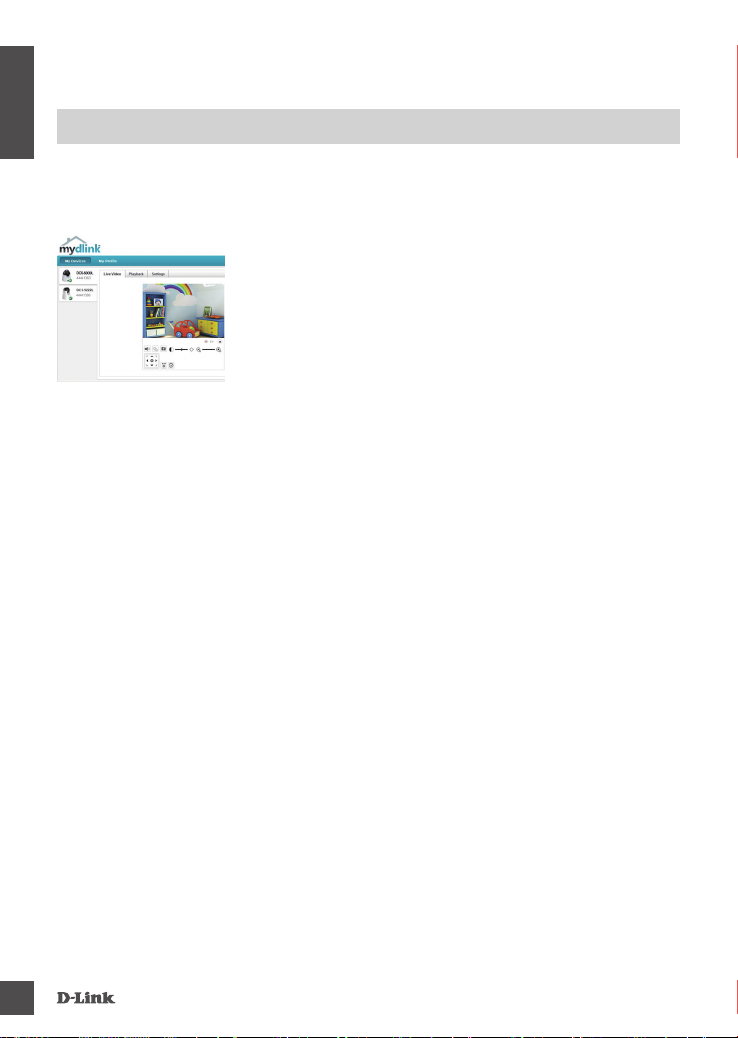
Step 1: On your mobile device, download mydlink Home by going to mydlinkhomeapp.dlink.com,
or by searching for mydlink Home in the iTunes App Store or Google Play.
Step 2: Launch the mydlink Home app and create a new account or sign in to your existing
account.
iOS: If you are asked about allowing the app to access your
location, select Allow.
Android: Make sure location services are turned on in your phone’s
settings.
Step 3: After logging in, tap the Settings icon in the top-left corner, select Add New Device,
and follow the instructions.
When you are asked to scan a QR code, use the code on the Quick Install Card in your
package, or on the label attached to your device.
DCS-5025l
4
ENGLISH
• Ensure that your browser supports both Java and ActiveX, and that these features have been
installed and enabled.
• Windows does not have Java installed by default. You can download the latest version from
http://www.java.com
• In Mac OS X 10.7.x, Java applets are disabled by default. To enable Java applets, click the Finder
> Applications > Utilities > Java Preferences and check the Enable applet plug-in and Web
Start applications option.
• The ActiveX®controls in IE will install automatically if needed. We suggest that you make sure that
you have enabled the related options in Tools > Internet Options > Security > Custom Level.
GETTING STARTED WITH mydlink
mydlink is a web-based service which allows you to view and control your mydlink-enabled devices
through any computer connected to the Internet. If you have cameras linked to your mydlink account,
you will be able to see their live views using the mydlink website. Follow the instructions below to
access your mydlink account.
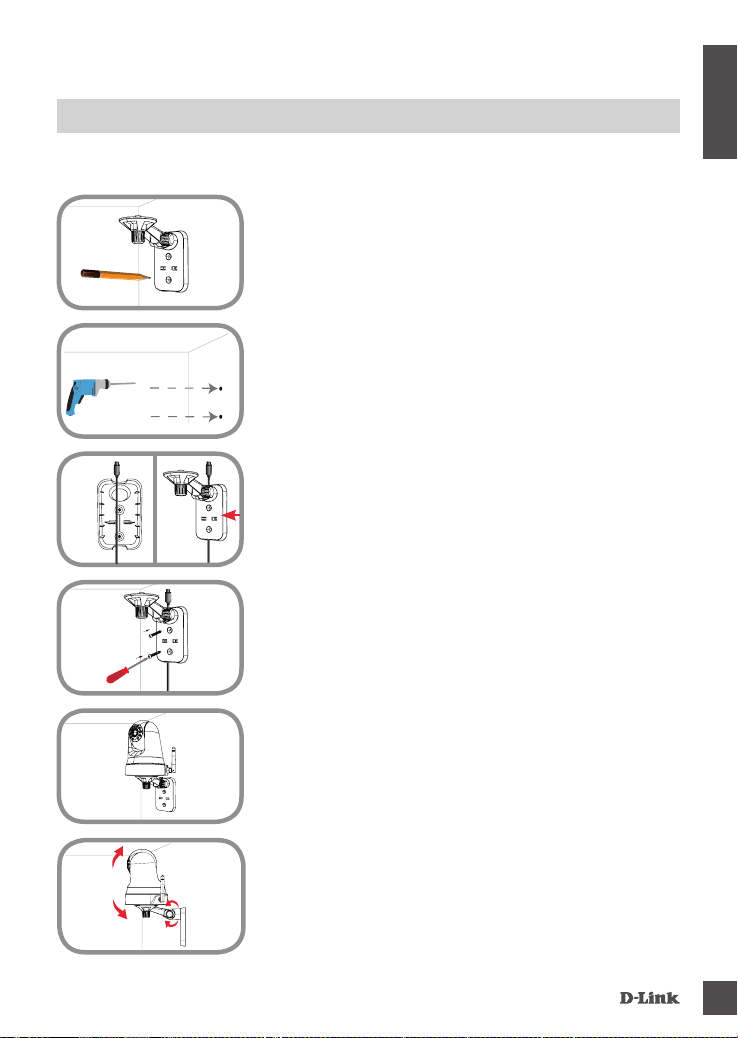
• Open a web browser on any computer connected to the Internet.
• Type http://www.mydlink.com in the address bar and press
Enter.
• Sign in using your mydlink account.
• From the home screen, you will be able to view all devices which
have been linked to your mydlink account.
DCS-5025l 5
ENGLISH
MOUNTING THE CAMERA
Please refer to the steps below to assist you with mounting the camera using the arm mount. We
suggest that you congure the camera before mounting.
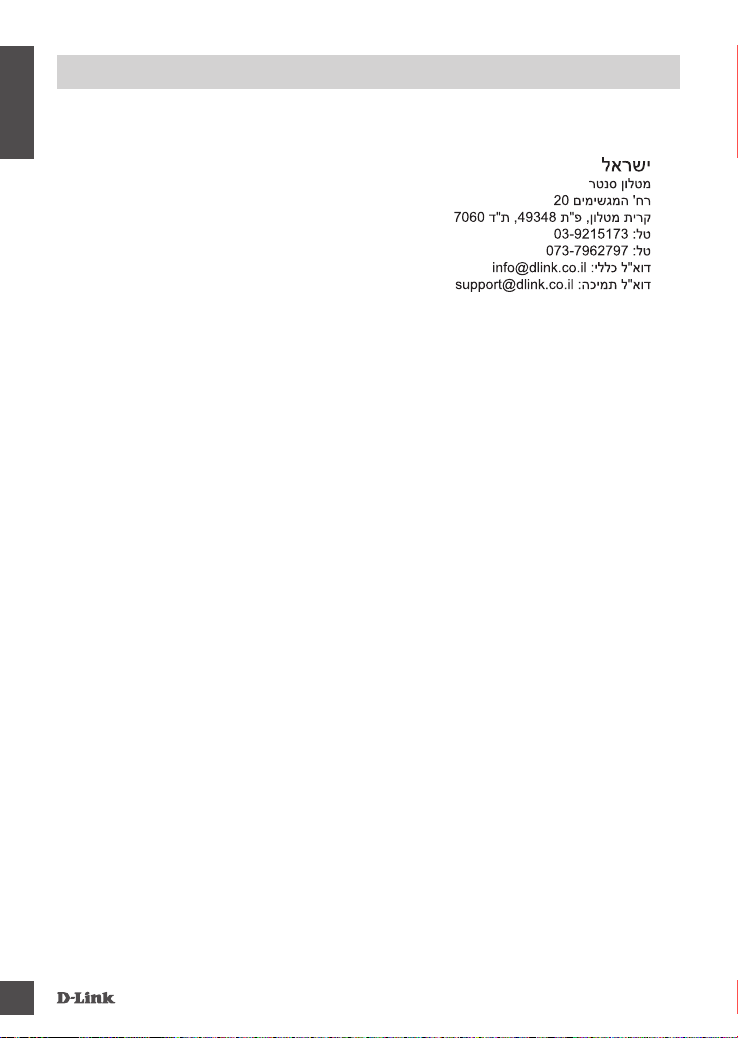
Step 1:
Place the arm mount where you want to position the camera and
use a pencil to mark the holes. Ensure the arm mount is oriented
correctly with adequate space for the camera to be mounted and
necessary cables to be routed.
Step 2:
Depending on the material of the wall or ceiling, use proper tools to
drill two holes 25mm deep with a 6mm drill bit where you marked.
After drilling the holes, insert the plastic anchors to support the
screws.
Step 4:
Fasten the mounting bracket to the wall using the screws provided.
Step 5:
Using the supplied thumbscrew, fasten the camera to the mounting
bracket. Connect the power cable to the camera.
Step 3:
If desired, the cable can be concealed behind the mounting bracket.
Run the cable through the back of the mounting bracket, securing
it with the built-in guides. Be sure to leave enough cable length
protruding to allow connection to the camera.
Step 6:
Adjust the angle of the arm on the mounting bracket as required.
Tighten the thumbscrew to lock the arm in place.

DCS-5025l
6
ENGLISH
TROUBLESHOOTING
SeTUP anD COnFigUraTiOn PrOBlemS
1. THE IMAGE IS OUT OF FOCUS.
You can turn the focus ring on the front of the camera to adjust the focus.
2. WHY IS THE CAMERA VIEW HAZY OR BRIGHT WHEN USING NIGHT VISION MODE?
The IR night vision lights on the camera may be reecting off of a nearby surface or window. Try
repositioning your camera to avoid reections or glare.

DCS-5025l 7
ENGLISH
TeCHniCal SUPPOrT
Australia:
Tel: 1300-766-868
24/7 Technical Support
Web: http://www.dlink.com.au
E-mail: [email protected]
India:
Tel: +91-832-2856000
Toll Free 1800-233-0000
Web: www.dlink.co.in
E-Mail: [email protected]
Singapore, Thailand, Indonesia,
Malaysia, Philippines, Vietnam:
Singapore - www.dlink.com.sg
Thailand - www.dlink.co.th
Indonesia - www.dlink.co.id
Malaysia - www.dlink.com.my
Philippines - www.dlink.com.ph
Vietnam - www.dlink.com.vn
Korea:
Tel : +82-2-2028-1810
Monday to Friday 9:00am to 6:00pm
Web : http://d-link.co.kr
New Zealand:
Tel: 0800-900-900
24/7 Technical Support
Web: http://www.dlink.co.nz
E-mail: [email protected]
South Africa and Sub Sahara
Region:
Tel: +27 12 661 2025
08600 DLINK (for South Africa only)
Monday to Friday 8:30am to 9:00pm South
Africa Time
Web: http://www.d-link.co.za
E-mail: [email protected]
D-Link Middle East - Dubai, U.A.E.
Plot No. S31102,
Jebel Ali Free Zone South,
P.O.Box 18224, Dubai, U.A.E.
Tel: +971-4-8809022
Fax: +971-4-8809066 / 8809069
Technical Support: +971-4-8809033
Egypt
1, Makram Ebeid Street -
City Light Building - oor 5
Nasrcity - Cairo, Egypt
Tel.: +2 02 23521593 - +2 02 23520852
Technical Support: +2 02 26738470
Kingdom of Saudi Arabia
Ofce # 84 ,
Al Khaleej Building ( Mujamathu Al-Khaleej)
Opp. King Fahd Road, Olaya
Riyadh - Saudi Arabia
Tel: +966 1121 70008
Technical Support:
+966 1121 70009
General Inquiries: info.sa@ dlinkmea.com
Tech Support: support.sa@ dlinkmea.com
Pakistan
Islamabad Ofce:
61-A, Jinnah Avenue, Blue Area,
Suite # 11, EBC, Saudi Pak Tower,
Islamabad - Pakistan
Tel.: +92-51-2800397, 2800398
Fax: +92-51-2800399
Karachi Ofce:
D-147/1, KDA Scheme # 1,
Opposite Mudassir Park, Karsaz Road,
Karachi – Pakistan
Phone: +92-21-34548158, 34326649
Fax: +92-21-4375727
Technical Support: +92-21-34548310, 34305069
You can nd software updates and user documentation on the D-Link website.
Tech Support for customers in
DCS-5025l
8
ENGLISH
TeCHniCal SUPPOrT
Iran
Unit 5, 5th Floor, No. 20, 17th Alley , Bokharest
St. , Argentine Sq. ,
Tehran IRAN
Postal Code : 1513833817
Tel: +98-21-88880918,19
+98-21-88706653,54
Morocco
M.I.T.C
Route de Nouaceur angle RS et CT 1029
Bureau N° 312 ET 337
Casablanca , Maroc
Phone : +212 663 72 73 24
Lebanon RMA center
Dbayeh/Lebanon
PO Box:901589
Tel: +961 4 54 49 71 Ext:14
Fax: +961 4 54 49 71 Ext:12
Email: [email protected]
Bahrain
Technical Support: +973 1 3332904
Kuwait:
Technical Support: + 965 22453939 / +965
22453949
Türkiye
Büyükdere Cad. Ferro Plaza No:155
D: 1 K: 1 Zincirlikuyu / Istanbul
Tel: +90 (212) 289-56-59
Email: [email protected]

DCS-5025l 9
NOTES
WIRELESS NETWORK REMINDER
Wireless Network Name (SSID)
Wireless Network Password
Ver.1.00(DI)_130X183 2015/03/26
Other manuals for DCS-5025L
1
Table of contents
Other D-Link Network Camera manuals