
Datalux TM110 User manual

EN-1
TM110

Page 2
Table of Contents
BEFORE YOU START......................................................................................4
PACKAGE CONTENTS.....................................................................................4
PRODUCT OVERVIEW ....................................................................................5
Front View ............................................................................................................. 5
Back View.............................................................................................................. 6
Bottom View .......................................................................................................... 7
Left View ............................................................................................................... 7
Right View ............................................................................................................. 8
STATUS INDICATORS.....................................................................................8
GETTING STARTED .................................................................. 9
INSTALLING THE BATTERY ...............................................................................9
Charging the Battery............................................................................................... 9
When to replace the Battery Pack ........................................................................... 10
Removing the Battery ........................................................................................... 10
CONNECTING THE POWER ............................................................................. 11
Connecting the AC Adapter .................................................................................... 11
Using Battery Power.............................................................................................. 11
STARTING YOUR TABLET PC .......................................................................... 12
Turning On Your Device......................................................................................... 12
Turning Off Your Device......................................................................................... 12
OPERATINGYOURTABLETPC.................................................... 13
USING THE QUICK MENU.............................................................................. 13
Quick Menu Overview............................................................................................ 13
Configuring the SETUP Menu Settings ..................................................................... 16
MAKING CONNECTIONS ........................................................ 21
INSTALLING THE MEMORY CARD ..................................................................... 21
INSTALLING THE SIM CARD ..........................................................................22
CONNECTING THE MICROPHONE/HEADSET ................................................................. 22
CONNECTING USB DEVICES ......................................................................... 23
CONNECTING TO WIRELESS CONNECTIONS......................................................... 24
USING THE BIOS SETUP UTILITY.......................................... 28
BIOS SETUP MENU ................................................................................... 28
MAIN MENU............................................................................................. 30
ADVANCED MENU ...................................................................................... 31
BOOT MENU ............................................................................................ 32

Page 3
SECURITY MENU........................................................................................ 33
SAVE &EXIT MENU.................................................................................... 34
APPENDIX ............................................................................. 35
COPYRIGHT.............................................................................................. 35
REGULATORY STATEMENT.............................................................................. 35
Federal Communications Commission Statement...................................................... 35
Declaration of Conformity ...................................................................................... 35
RF exposure warning............................................................................................. 36
Canada, Industry Canada (IC) Notices..................................................................... 36
Battery Disposal ................................................................................................... 37
CLASS 1LASER PRODUCT ..................................................................................... 37
SAFETY INSTRUCTIONS ................................................................................ 39

Before You Start
Page 4
Before You Start
Congratulations on your purchase of this tablet PC.
This rugged tablet PC is portable and provides users with maximum mobile
computing experience in a wide range of working environments. Before you
begin using your tablet PC, read this chapter to familiarize yourself with the main
components installed in the system.
Package Contents
If any of following items is damaged, please contact your retailer.
Tablet PC AC adapter Power cord
NOTE
•The pictures are for reference only, actual items may slightly differ.
Battery

Before You Start
Page 5
Product Overview
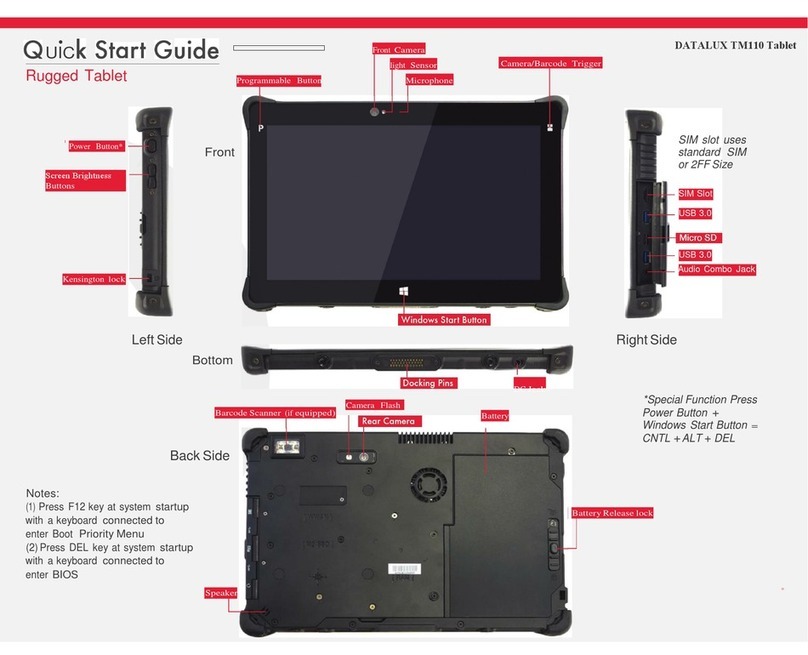
Front View
No. Item Description
1 Program button Tap to enter the chosen program. (user definition)
2 Front camera Use for video conference.
3 Ambient light sensor Use to detect the current level of visible light in the
surrounding environment.
4 Microphone Record the surrounding sound.
5 Function button The button functionality can be assigned via Quick
Menu.
•Scanner button: Press to trigger the Barcode
scan function if the barcode scanner is enabled.
•Camera button: Press to take a picture.
6 Home key Tap to return to the Start screen (Windows 8 only).

Before You Start
Page 6
Back View
No. Item Description
1 Barcode scanner Scan barcodes. (OPTIONAL)
2 Camera LED flash Provide additional lighting when taking pictures
under low light environment.
3 Rear camera Use to take pictures.
4 Battery compartment Contain the battery.
5 Battery latch release
button Press and hold the button to slide the battery
latch to the unlock position.
6 Speaker Emit sound.

Before You Start
Page 7
Right View
No. Item Description
1Audio Combo jack Connect a headphone or an external speakers or
microphone.
2 USB 3.0 ports (x2) Connect USB 3.0 peripheral devices.
3 Memory card slot Use to insert memory cards to transfer pictures,
music, and data between your Tablet PC and flash
compatible devices. The card reader supports SD
(Secure Digital), SDXC, SDHC, Mini-SD (with
adapter), Micro-SD (with adapter).
4 SIM card slot Use to insert a SIM card for WWAN, Gobi 3000, or
LTE module connection.
Left View
No. Item Description
1Power button Press to turn your tablet PC on or off.
2 Brightness buttons Press "+" or "-" to adjust the LCD backlight.
3 Kensington lock slot Connect a Kensington-compatible tablet PC
security lock.

Before You Start
Page 8
Bottom View
No. Item Description
1Docking connector Connect the tablet PC to a docking station.
2 DC-in jack Connect the power adapter.
Status Indicators
The status indicators in the upper side of the tablet PC light up when a particular
function of the tablet PC is active.
Icon Item Description
Power The LED always lights on (green) when the system is
running. When the system is in sleep mode, the LED
blinks.
RF Indicate the status of RF (WLAN, WWAN, GPS, or
Bluetooth) communication. The LED always lights on
(blue) when the function is enabled.
Battery Indicate the battery status:
•Green: when battery is fully charged (95% or above)
•Orange: when battery is charging
•Flashing orange: charging error
•Red: when battery capacity is lower than 10%
•Off: when discharged
NOTE
•On Windows 8.1 OS, you need to install the Quick Menu application in order to
verify the RF signal status.

Getting Started
Page 9
Getting Started
This chapter will help you get started using the device.
Installing the Battery
To install the battery, follow the steps below:
1. Align and insert the battery to the
battery compartment.
2. Push completely until the battery locks
into place.
3. Slide the battery latch to the lock
position to secure the battery.
Charging the Battery
The Lithium-ion battery is not fully-charged upon purchase.
To charge the battery, follow the steps below:
1. Install the battery to your tablet PC. See procedures above.
2. Connect the AC adapter to the DC-in jack of your tablet PC.
3. Connect the AC adapter to the power cord.
4. Plug the power cord to an electrical outlet.

Getting Started
Page 10
When to replace the Battery Pack
The battery performance gradually decreases over time and usage. We recommend
you to replace your battery pack after 18 to 24 months of usage.
Removing the Battery
To remove the battery, follow the steps below:
1. Press and hold the battery latch release
button to slide the battery latch to the
unlock position.
2. Remove the battery out of the battery
compartment.
Other manuals for TM110
1
Table of contents
Other Datalux Tablet manuals
Popular Tablet manuals by other brands

Laser
Laser MID-1060 Quick operation guide

MUNBYN
MUNBYN IRT09J Easy setup guide

Motorola
Motorola MC3090R - Win CE 5.0 Professional 520 MHz quick start guide

Dell
Dell Latitude ST Setup and features information

Lenovo
Lenovo IdeaTab S6000L Hardware Maintenance Manual

Venturer
Venturer WT9L11 quick start guide











