User Manual AUBION X.8
6/29
If the X.8 GUI is closed by clicking the [X] button in the corner of the window, the software
does not terminate, but is only minimized in the Windows system tray. Clicking the X.8
Systray symbol with the left-hand mouse button opens the software again. With the right-
hand mouse button, click Exit or File / Exit in the menu in the main window to terminate the
application.
6.1.1 Device list
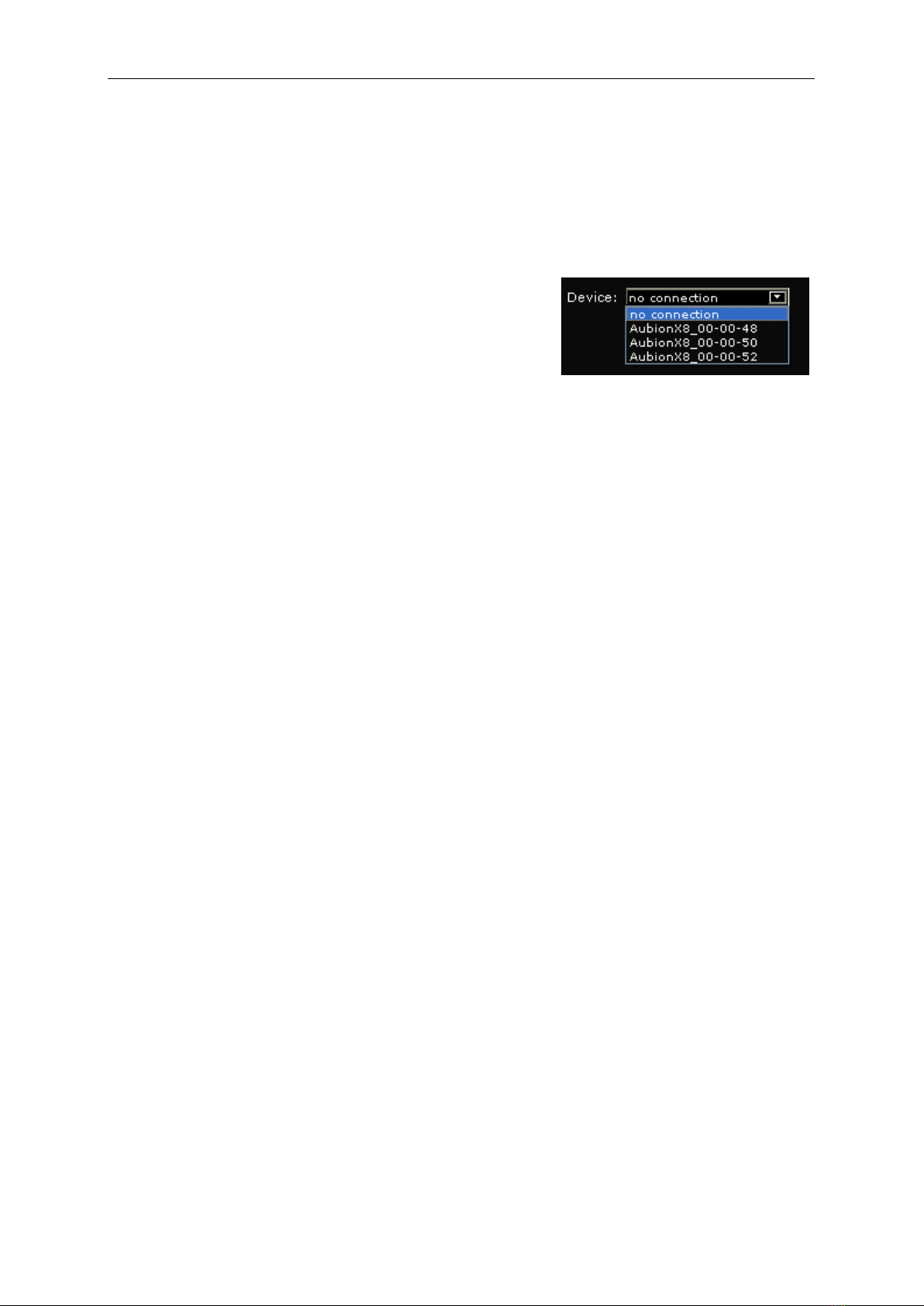
After the X.8 GUI has started, the control software lists all
X.8 devices found in the network in the Device List
(Device:) . The devices are each displayed with the prefix
"AubionX8_" and the last three octets of their MAC
addresses as a suffix, for example, "00-00-48".
X.8 devices separated from or added to the network are updated in the Device List within
max. 60 seconds.
When this happens, the X.8 icon in the System Tray automatically gives you information
about the change in the connection statuses:
·New X.8 in the network
·Previously connected X.8 has returned to the network
·Previously connected X.8 no longer in the network
·X.8 has been transferred to another X.8 GUI
All status changes are shown in section 9.4.
6.1.2 Connecting to an X.8
You can select exactly one X.8 you have found in the Device List (see section 6.1.1)
manually so that the X.8 service running in the background connects immediately to this
device. As soon as the connection has been established, the X.8 GUI shows you all
currently set device parameters (input and output gains, source selection, etc.) and the signal
level in real time. In addition, further X.8 GUI devices and GUI information are shown at the
bottom (6.1.15 and 6.1.16).
If the X.8 is already connected at the moment of selection to another PC or X.8 service, the
connection will not take place immediately; a selection window (Device is busy) will appear
informing you about what PC-IP address the X.8 in question is currently connected to. If you
answer the question Do you want to take over? with Yes, the local X.8 service takes over the
device. On the active X.8 GUI of the remote PC, a System Tray information appears (Device
has taken over by User IP <IP-Address>) saying that the X.8 has been taken over by your PC,
stating the corresponding IP address and informing the users the X.8 has been separated
from the remote X.8 service.
If a connected X.8 is physically cut off from the network, your activated X.8 GUI informs you
about this. The System Tray message Device disappeared appears. However, the X.8 service
notes the previously connected X.8 and connects itself automatically to this X.8 as soon as
it is re-connected physically to the network. In this case, the System Tray message Device
appeared is displayed.
You can find an overview of all possible status changes in section 9.4.
It is important to know that, for measurements or other audio processes based on your X.8
ASIO driver, the X.8 GUI does not have to be active or open. This means you can connect
to an X.8 device in the X.8 GUI and close the GUI (System Tray: Exit or X.8 GUI: File/Exit) –
the X.8 remains connected with the X.8 service in the background and the ASIO driver