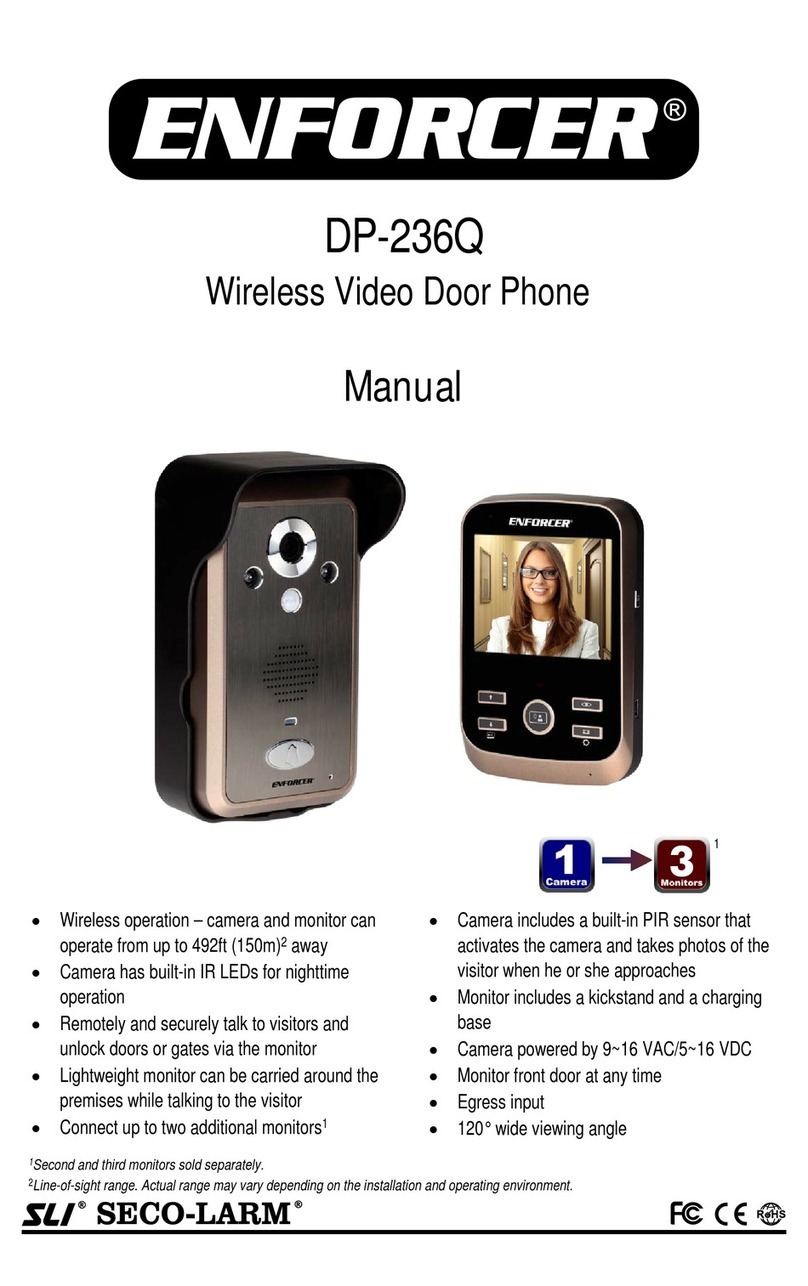
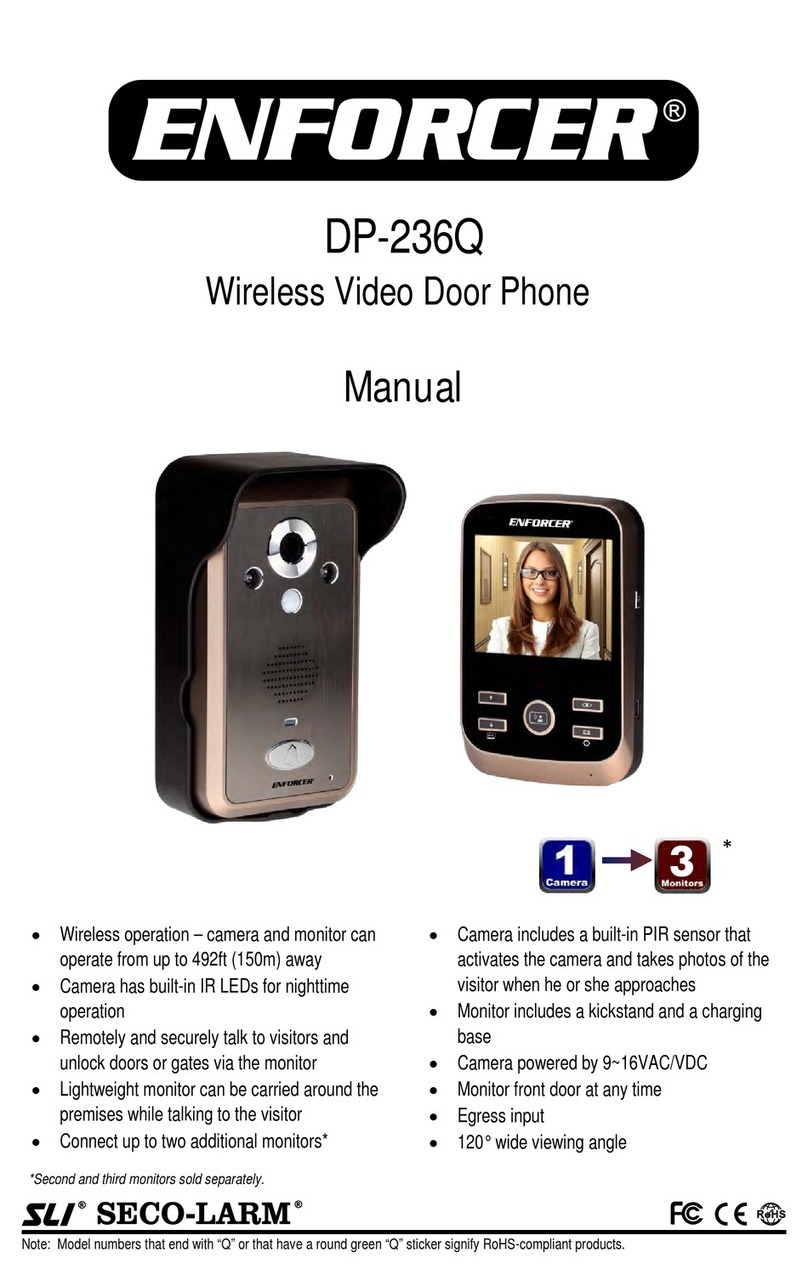
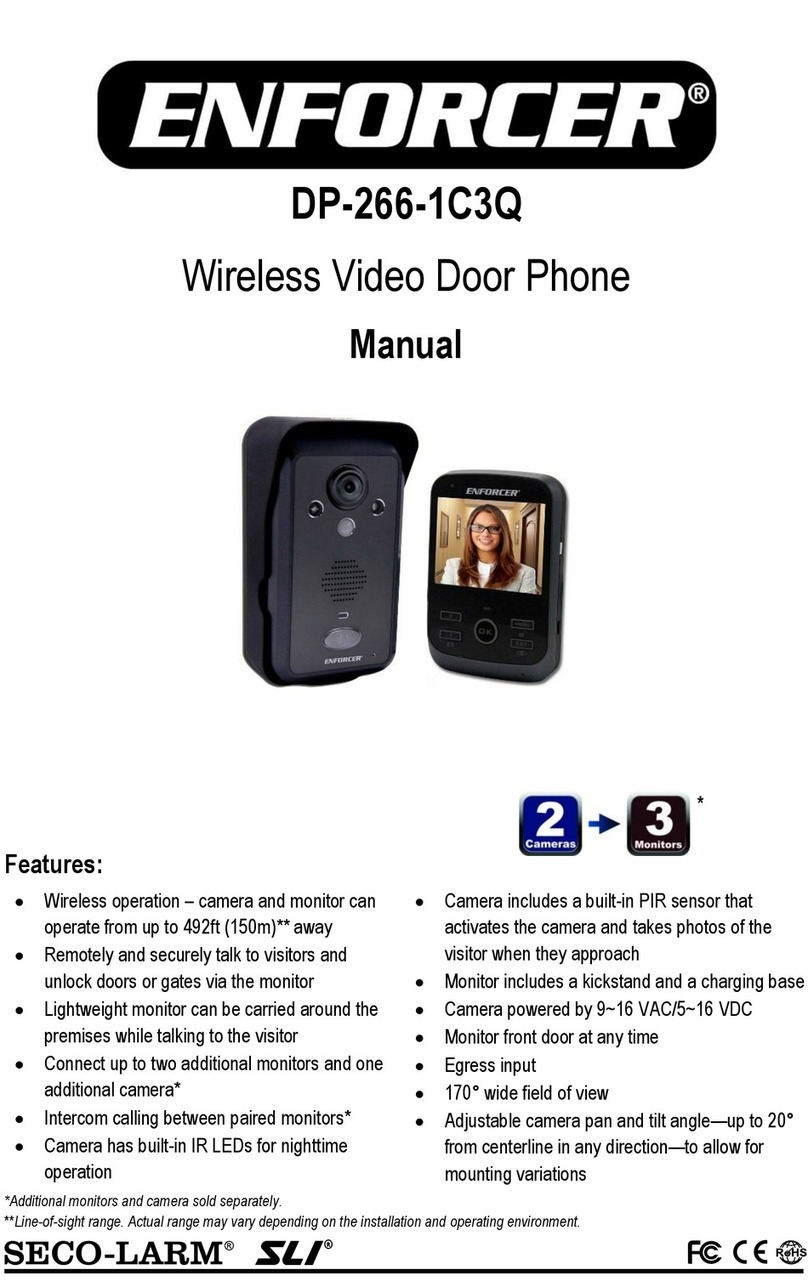
ENFORCER Wireless Video Door Phone
8
While the monitor display is
on, hold the “Photo/Settings” button for 3 seconds to enter
Press the “Photo/Settings” button to cycle through the programming options, including:
a. Time setup
b. Ringtone choice
c. Lock delay
d. PIR setup
3. To exit programming mode, press the
“Photo/Settings” button to cycle through the remaining
programming modes, or press the “Talk” button to return to the home screen.
If there is no activity, the monitor will exit programming mode and the disp
off in 35 seconds.
Programming the display time:
1. Hold the “Photo/Settings” button for 3 seconds
to enter programming mode.
2. Use the up and down arrow buttons on the
front of the monitor to highlight the area to be
changed.
3. Use the volume buttons (+/-) to adjust the time
or date.
4. Press the “Talk” button to set the display time
and exit programming mode.
Programming the ringtones:
1.
Hold the “Photo/Settings” button for 3 seconds to enter programming mode, then
momentarily press the “Photo/Settings” button one time to select the ringtone
Use the up and down arrow buttons on the front of the monitor to choose one of 4 ringtones:
Telephone, Doorbell, “Für Elise”, or “Jingle Bells”. This is the tone the user will hear when a
visitor requests entry.
3. Use the volume buttons (+/-) to adj
ust the volume of the ringtone.
Press the “Talk” button to set the ringtone and exit programming mode.
Programming the lock delay:
This determines how long the relay output is active after the door has been unlocked.
1. Hold the “Photo/Settings” button for 3
seconds to enter programming mode, then momentarily
press the “Photo/Settings” button two times to select the lock delay.
Use the up and down arrow buttons on the front of the monitor to set the lock delay from 1 to 6
seconds. The default setting is 1 second.
3.
Press the “Talk” button to set the lock delay and exit programming mode.
Programming the PIR sensor ON/OFF:
The camera has a built-
in PIR (passive infrared) sensor to detect an approaching visitor and
automatically turns the camera on and captures a ph
oto. It can be programmed ON or OFF.
Hold the “Photo/Settings” button for 3 seconds to enter programming mode, then briefly press
the “Photo/Settings” button three times to select the PIR mode.
Use the up and down arrow buttons on the front of the monitor
Press the “Talk” button to set the PIR sensor and exit programming mode.
Programming:
SECO-LARM U.S.A., Inc.
on, hold the “Photo/Settings” button for 3 seconds to enter
Press the “Photo/Settings” button to cycle through the programming options, including:
“Photo/Settings” button to cycle through the remaining
programming modes, or press the “Talk” button to return to the home screen.
If there is no activity, the monitor will exit programming mode and the disp
Hold the “Photo/Settings” button for 3 seconds to enter programming mode, then
momentarily press the “Photo/Settings” button one time to select the ringtone
Use the up and down arrow buttons on the front of the monitor to choose one of 4 ringtones:
Telephone, Doorbell, “Für Elise”, or “Jingle Bells”. This is the tone the user will hear when a
ust the volume of the ringtone.
Press the “Talk” button to set the ringtone and exit programming mode.
This determines how long the relay output is active after the door has been unlocked.
seconds to enter programming mode, then momentarily
press the “Photo/Settings” button two times to select the lock delay.
Use the up and down arrow buttons on the front of the monitor to set the lock delay from 1 to 6
Press the “Talk” button to set the lock delay and exit programming mode.
in PIR (passive infrared) sensor to detect an approaching visitor and
oto. It can be programmed ON or OFF.
Hold the “Photo/Settings” button for 3 seconds to enter programming mode, then briefly press
the “Photo/Settings” button three times to select the PIR mode.
Use the up and down arrow buttons on the front of the monitor
to turn the PIR sensor ON
Press the “Talk” button to set the PIR sensor and exit programming mode.
Sample Application:
Positive (+) (red wire)
Negative (-) (black wire)
Positive (+) power input. Connect to the red wire of the
wire of the doorbell’s power supply.
2) Negative (-
) power input. Connect to the black wire of the included AC adapter or to the
negative wire of the doorbell’s power supply.
3)
Egress (N.O.) negative input. Connect to an optional N.
will activate the relay for the same le
ngth as the lock delay. (See pg. 8, Programming the
N.O. (Normally opened) output. Wire to the lock device for fail
N.C. (Normally closed) output. Wire to the lock device for fail
6) Common output. Wire to the p
ower supply of the lock device.
For 16VAC doorbell installation, wire directly from the doorbell’s transformer.
The camera is connected to its included AC adapter.
•The egress input is connected to a Request-to-
Exit Plate. The homeowner can exit the
premises by pressing this button.
•
The N.O. (normally open) output is wired to an electric lock. The camera and the Request
Exit Plate both activate the strike, allowing
The electric lock’s power supply is wired to the COM (common) output.
N.O. Output
N.C. Output
COM
Egress input (N.O., -)
To the included AC adapter or
(–)
(+)
9~16 VAC/
5~16 VDC
Camera
Camera Wiring Diagram:
Wireless Video Door Phone
5
he included AC adapter or to the positive
) power input. Connect to the black wire of the included AC adapter or to the
l N.O. egress device. The egress device
ngth as the lock delay. (See pg. 8, Programming the
N.O. (Normally opened) output. Wire to the lock device for fail
N.C. (Normally closed) output. Wire to the lock device for fail
ower supply of the lock device.
For 16VAC doorbell installation, wire directly from the doorbell’s transformer.
Exit Plate. The homeowner can exit the
The N.O. (normally open) output is wired to an electric lock. The camera and the Request
The electric lock’s power supply is wired to the COM (common) output.
To the included AC adapter or