manuals.online logo
Brands
  1. Home
  2. •
  3. Brands
  4. •
  5. Eusso
  6. •
  7. Cables And Connectors
  8. •
  9. Eusso UKS8202-U2C User manual

Eusso UKS8202-U2C User manual

Popular Cables And Connectors manuals by other brands

StarTech.com ST124HD20 quick start guide

StarTech.com

StarTech.com ST124HD20 quick start guide

Philips SWV4543S/10 Features

Philips

Philips SWV4543S/10 Features

Larson Electronics 10-50C instruction manual

Larson Electronics

Larson Electronics 10-50C instruction manual

Grip MEK-PM Assembly and operating manual

Grip

Grip MEK-PM Assembly and operating manual

Ultra Products Travel Pack #3 ULT31436 Specifications

Ultra Products

Ultra Products Travel Pack #3 ULT31436 Specifications

Surpass QCH-F Operation manual

Surpass

Surpass QCH-F Operation manual

Philips SWA6310 Specifications

Philips

Philips SWA6310 Specifications

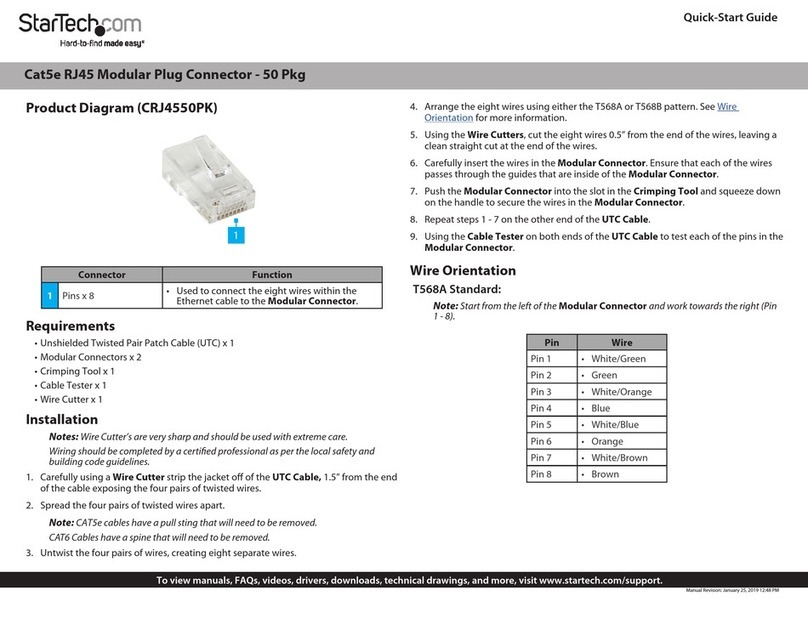
StarTech.com CRJ4550PK quick start guide

StarTech.com

StarTech.com CRJ4550PK quick start guide

Nohau EMUL-IP2K-PC user guide

Nohau

Nohau EMUL-IP2K-PC user guide

Foxun SX-SP144E-HD4K2K operating instructions

Foxun

Foxun SX-SP144E-HD4K2K operating instructions

Philips SWA3305W Specifications

Philips

Philips SWA3305W Specifications

opticis Stretch DVIM1-1P0x user manual

opticis

opticis Stretch DVIM1-1P0x user manual

Volkswagen VAS 6558A operating manual

Volkswagen

Volkswagen VAS 6558A operating manual

NEXIBO N-13 user manual

NEXIBO

NEXIBO N-13 user manual

CYP PU-1H3HBTL Operation manual

CYP

CYP PU-1H3HBTL Operation manual

Allen-Bradley 1784-u2dhp installation instructions

Allen-Bradley

Allen-Bradley 1784-u2dhp installation instructions

Global Caché Flex Link Blaster quick start

Global Caché

Global Caché Flex Link Blaster quick start

Hauppauge USB-Live2 Quick installation guide

Hauppauge

Hauppauge USB-Live2 Quick installation guide

manuals.online logo
manuals.online logoBrands
  • About & Mission
  • Contact us
  • Privacy Policy
  • Terms and Conditions

Copyright 2025 Manuals.Online. All Rights Reserved.

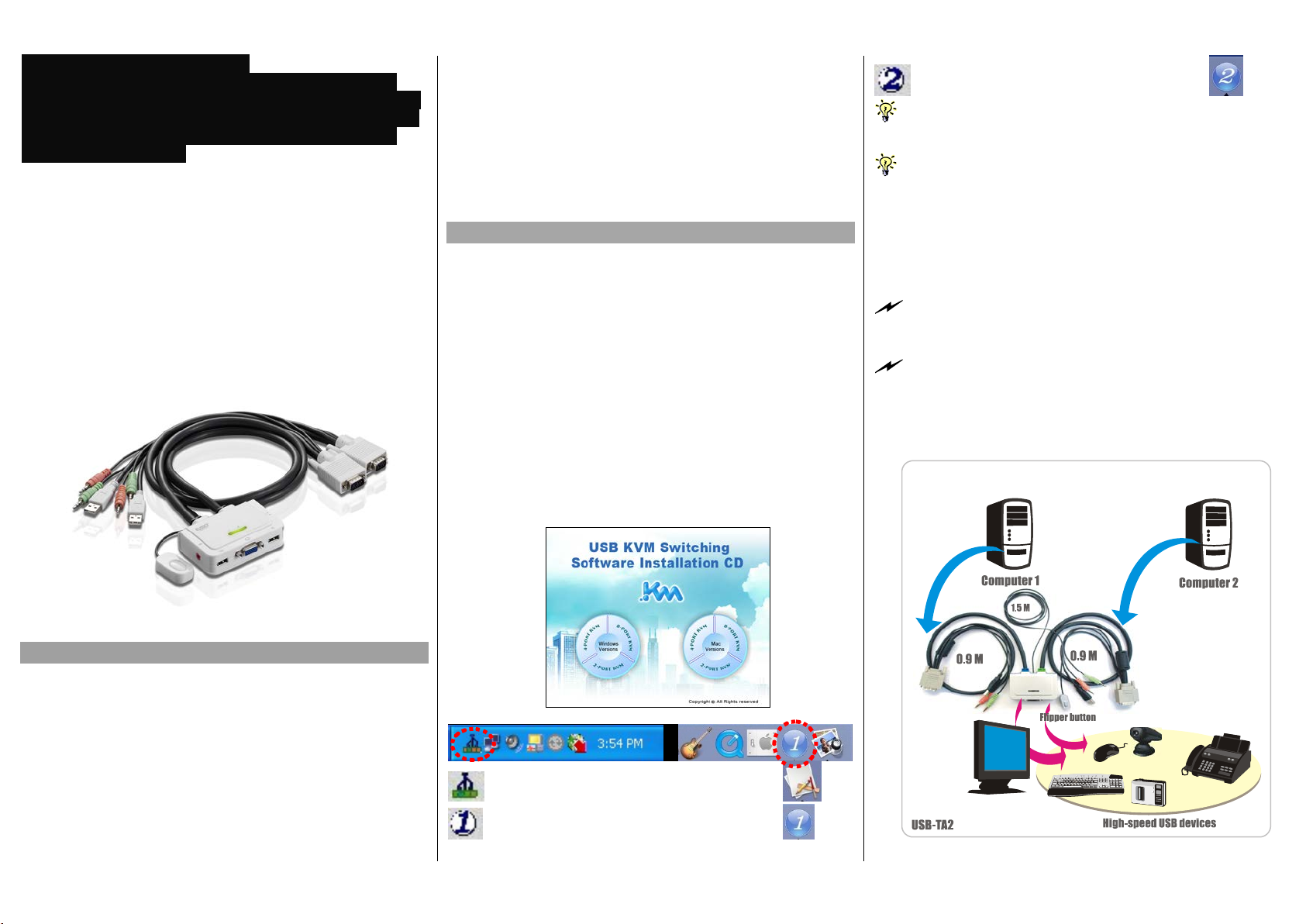
Operation Quick Reference Applicable model: USB-TA2 2-port USB Cable KVM w/ Audio&Mic + 1 x QuickSwitch Button for wired remote control
Rev. 1.0Copyright© All rights reserved.
Analog Video up to 2048 x 1536
QuickSwitch button for easy switching by a mere flip!
Switching Software Client for Windows & Mac included!!
Software Hotkeys & Universal Hotkeys both available!!!
2 x USB 2.0 Hub Ports for keyboard, mouse or high-
speed USB devices!!!!
UKS8202-U2C
2-port USB Cable KVM w/ Audio&Mic
1 x QuickSwitch button for wired remote control
2 x Fixed KVM Audio/Mic Combo Cables
Quick Installation Guide
Thank you for purchasing the UKS8202-U2C USB Cable KVM
Switch! With our highly reliable and quality product, user can
enjoy countless benefits from using it.
UKS8202-U2C
Introduction
The UKS8202-U2C is a 2-port USB Cable KVM Switch with 2 x
fixed KVM cables and 1 x QuickSwitch button for wired remote
control. It also provides Audio and Microphone switching function
for uninterrupted multimedia experience. It allows you to access,
control, boot and reboot multiple multimedia computers using
only one USB keyboard, mouse, monitor and a speaker set and
microphone.
For computers running Windows/Mac operating systems, it also
provides an innovative and easy-to-use KVM Switcher Software -
- small Windows/Mac client application to facilitate your KVM
switching operations such as computer selection and hotkey
sequence programming, autoscanning, autoscan delay time
programming, independent/simultaneous audio & computer
Switching, etc.
The UKS8202-U2C USB Cable KVM Switch offers USB 2.0
interface technology for Plug-and-Play and hot-pluggability. In
addition to connect to mouse or keyboard, those two USB 2.0
ports can also be connected to other high-speed USB devices.
Users can enjoy maximum flexibility and convenience with its
compact and one-piece design.
Out-of-Box Installation
Take the Support CDROM and the Cable KVM Switch out of
the box and follow the steps below for installation….
Step 1. Insert the Support CD ROM into your CD drive, and The
installation interface will pop up (If the Autorun feature
has not been enabled on your computer. Just find the
Autorun.exe on the CDROM and double-click it to start.).
Step 2-1. For Windows/Mac: Just click the “Software Installation
for Window” to start Windows switcheqdi r software
installation. To install Mac version, please copy the file
(*.pkg format) to the local hard disk and install it from
there. Follow the instructions to completion. If the
instillation is complete, you will see a KVM Switcher icon
on the system tray of your desktop. Right-click to evoke
the operation menu and double-click to evoke
configuration box. For operation details of the KVM
Switcher software, please refer to the following sections.
Windows Mac OS
No live connection detected
Current active computer channel is on port 1
Current active computer channel is on port 2
The Mac version of the KVM switcher software supports only Mac OS
10.4 (Tiger) and later. Earlier version of the Mac OS might or
might not work well with it.
The KVM Switcher Software supports both the Windows and the Mac
OS operating systems. For other OS platforms such as Linux ,
you can still use the universal keyboard hotkey - ScrLk + ScrLK
- to switch computer. However, this switching hotkey is not
available on non-computer platform such as Mac OS.
Step 3. Connect a set of the fixed KVM/Audio&Mic cables to a
computer’s connectors. Connect another set of cables
to another computer. Now you can operate the KVM
Switch immediately.
Some older computers with USB interface might need to manually
enable the USB option in the BIOS settings before you can use any
USB devices. If your USB interface does not work, please check the
USB option status in the BIOS.
If you has not yet installed a USB mouse on your computer, there
might be an error message telling you that mouse is not detected and
prompting you to decide whether to ignore the same message in the
future, and yet you found there is no mouse movement to disable
this message….So it is suggested that you should installed your USB
mouse on your computer first, before connecting it to this KVM
Switch.
Operation Quick Reference Applicable model: USB-TA2 2-port USB Cable KVM w/ Audio&Mic + 1 x QuickSwitch Button for wired remote control
Rev. 1.0Copyright© All rights reserved.
Ways for KVM Switch Operation
There are three methods to control your KVM Switch for
computer and Audio/Mic channel selection: using (1) the
QuickSwitch Button (a wired remote control), (2) a hotkey
sequence or (3) the KVM Switcher Software.
QuickSwitch button (a wired remote control)
The QuickSwitch button is a wired remote control that allows
you a direct switching control. Simply press the button to
toggle between the two computers.
You can use the QuickSwitch button to switch to an empty port that
is not connected with any computer. Normally, if you use keyboard
hotkey or the KVM Switcher software, you will not be able to switch to an
empty port (and audio/mic channel, if binding is enabled). By default, PC
port switching and audio/mic port switching are bound together, unless
you specify the audio to be fixed a specific port.
Keyboard hotkeys
User-definable hotkeys for computer selection:
Hotkey sequence = Ctrl + Alt + [command key]*
* Please refer to next section for keys that are qualified to
be used as a command key
Universal hotkey for computer toggle-switching:
ScrLk + ScrLk
Both the universal hotkey, ScrLk + ScrLk and the user-definable
hotkey, Ctrl + Alt + [command key] WILL NOT allow you to switch to an
empty port that is not connected with any computer. To force your KVM
to switch to an empty port, just press the QuickSwitch button to switch.
Universal Hotkey sequence = ScrLk + ScrLk
* For other operating systems on computer such as Linux, you
can still use this special hotkey to facilitate computer
switching. This special hotkey is not available for Mac.
HOWEVER, you can press QuickSwitch button to switch in any
case.
Each keystroke within a hotkey sequence should be pressed within 2
seconds. Otherwise, the hotkey sequence will not be validated.
After port switching, you have to wait till the KVM Switch icon
shows forth the target port before you can perform next switching again.
The KVM Switcher icon could be found on the system tray/task bar of
your Windows/ Mac OS desktop after its installation.
All the hotkeys are only functional after your computers are booting
into the OS. If you want to switch computer in the BIOS/preboot stage,
press the QuickSwitch button to switch.
KVM Switcher Software (Windows & Mac platform)
In addition to computer switching, the KVM Switcher
Software also allows you more advanced functions such as
described in the next section….
KVM Switcher Operation Reference
Switch to Computer x by Operation Menu
Right-click the KVM Switcher icon to evoke the operation
menu, then select whichever computer that is available for
switching. Once you select a computer channel, it will
immediately switch to that computer. Note that the
unconnected port(s) or the active port will be grayed-out and
non-selectable.
Windows : Operation Menu Configuration Dialog Box
Mac OS: Operation Menu Configuration Dialog Box
The Mac version of KVM switcher user: if you want the KVM
switcher open at login or kept in Doc, just select the option in the
Operation Menu accordingly.
Switch to computer x by Keyboard Hotkeys
Hit the hotkey according to your current hotkey definition:
Hotkey sequence = Ctrl + Alt + [command key]*
* The factory default hotkey setting is Ctrl + Alt + 1/2/3/4
for computer 1/2/3/4. You can also use ScrLk + ScrLk to switch
COMPUTER.
Start Auto-scan
Right-click the KVM Switcher icon to evoke the operation
menu, then select
Start Auto-Scan
to activate autoscanning.
Stop Auto-scan
(While autoscanning) right-click the KVM Switcher icon to
evoke the operation menu, then select
Stop Auto-Scan
to de-
activate autoscanning.
KVM Switcher configuration
Right-click the KVM Switcher icon and select
Settings
or
double-click the icon to bring up the configuration dialog box.
Define Hotkey commands
You can specify the command key as you like by typing it in.
For example, you can specify the hotkey for switching to
COMPUTER 1 as CTRL + ALT + A by typing an A (not case-
sensitive) in the editable field.
Hotkey = Ctrl+ Alt + [Command key]*
* The command key is user-definable via the configuration
dialog box
Except those control keys such as Alt, Ctrl, Shift, CAPS, Tab, Esc and
those functions keys and edit keys, all other keys on the keyboard,
including those number keys on the number pad are all qualified to be
used a hotkey command key. In addition to the software KVM Switching
by the operation menu and the user-defined hotkeys, you can always use
the universal hotkey for COMPUTER switching – ScrLk + ScrLk
Fix Audio Port at Computer x
Check this option and then select the computer to fix the
audio/mic channel to the selected computer. Once this option
is checked, the audio/mic channel will be fixed and become
non-switchable.
Auto Scan Period
Select the Autoscan period from 10 ~ 60 seconds with an
increment of 5 seconds. The Autoscan period is the time your
KVM Switch will wait to switch to next computer.

RoHS Compliant