EQT-1616-3G-C-C
EQT 12G/3G/HD Router
Page vi
7.11. MANAGE ROUTES............................................................................................................61
8. CONFIGURING THE SYSTEM USING WINSETUP.................................................................... 63
8.1. COMMUNICATION PORT SETUP .....................................................................................69
8.1.1. Control Panel Ethernet Interface .............................................................................69
8.1.2. Ethernet Interface....................................................................................................70
8.1.3. Control Panel Serial Interface..................................................................................71
8.2. COMMUNICATIONS ..........................................................................................................73
9. BASIC MAGNUM CONFIGURATION.........................................................................................75
10. DEFINITIONS..............................................................................................................................87
FIGURES
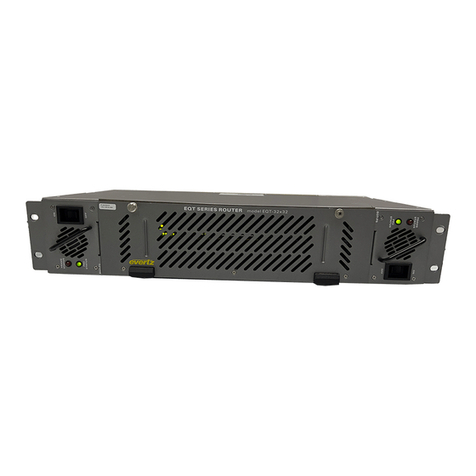
Figure 1-1 : EQT-1616-3G-C Front and Rear View........................................................................1
Figure 1-2 : EQT-1616-3G-C Block Diagram .................................................................................2
Figure 2-1 : EQT-1616-3G-C Rear View........................................................................................3
Figure 2-2 : General Purpose Input Schematic ..............................................................................7
Figure 2-3 : General Purpose Output Schematic ...........................................................................8
Figure 4-1 : EQT Clean Switch Block Diagram ............................................................................13
Figure 4-2 : Front View of EQT Clean Switch with Control Panel................................................. 13
Figure 4-3 : Rear Communication Connections on EQT-1616-3G-C Rear Plates ........................ 14
Figure 4-4 : Powering the GPI Opto-Isolators from the Router.....................................................21
Figure 4-5 : Powering the GPI Opto-Isolators from an External Power Supply............................. 22
Figure 4-6 : Powering the GPI Opto-Isolators from an External Signal.........................................22
Figure 5-1 : Gearbox Diagram .....................................................................................................28
Figure 6-1 : WebEASY® - Upgrade Button on Top Menu Bar ....................................................... 29
Figure 6-2 : WebEASY® - Firmware Upgrade Menu.....................................................................30
Figure 6-3 : WebEASY®- System................................................................................................31
Figure 6-4 : WebEASY®- Product Features ................................................................................33
Figure 6-5 : WebEASY®- Configuration ......................................................................................34
Figure 6-6 : WebEASY®- Signal Status.......................................................................................36
Figure 6-7 : WebEASY®- Routes (Part 1)....................................................................................38
Figure 6-8 : WebEASY®- Routes (Part 2)....................................................................................39
Figure 6-9 : WebEASY®- Routes (Part 3)....................................................................................40
Figure 6-10 : WebEASY®- GPIO.................................................................................................41
Figure 6-11 : WebEASY®- Traps ................................................................................................43
Figure 6-12 : WebEASY®- Trap Configuration ............................................................................44
Figure 7-1 : VistaLINK® - System................................................................................................46
Figure 7-2: VistaLINK® - Product Features .................................................................................48
Figure 7-3 : VistaLINK® - Configuration.......................................................................................49
Figure 7-4 : VistaLINK® - Signal Status.......................................................................................52
Figure 7-5 : VistaLINK® - Routes ................................................................................................54
Figure 7-6 : VistaLINK® - Input Monitor .......................................................................................55
Figure 7-7 : VistaLINK® - GPIO...................................................................................................56
Figure 7-8 : VistaLINK® - Traps ..................................................................................................58
Figure 7-9 : VistaLINK® - Trap Config .........................................................................................60
Figure 7-10 : VistaLINK® - Manage Routes (Part 1)....................................................................61
Figure 7-11 : VistaLINK® - Manage Routes (Part 2)....................................................................62
Figure 8-1 : WinSetup - Configuration Editor ...............................................................................63
Figure 8-2 : WinSetup - System Levels Editor .............................................................................64