manuals.online logo
Brands
  1. Home
  2. •
  3. Brands
  4. •
  5. Fortinet
  6. •
  7. Firewall
  8. •
  9. Fortinet FortiGate-3016B User manual

Fortinet FortiGate-3016B User manual

Other manuals for FortiGate-3016B

2

Other Fortinet Firewall manuals

Fortinet FortiGate 500A User manual

Fortinet

Fortinet FortiGate 500A User manual

Fortinet FortiGate 240D User manual

Fortinet

Fortinet FortiGate 240D User manual

Fortinet FortiGate 60M User manual

Fortinet

Fortinet FortiGate 60M User manual

Fortinet FortiGate-400A Instruction Manual

Fortinet

Fortinet FortiGate-400A Instruction Manual

Fortinet FortiGate-50A User manual

Fortinet

Fortinet FortiGate-50A User manual

Fortinet FortiGate-200 User manual

Fortinet

Fortinet FortiGate-200 User manual

Fortinet FortiGate FortiGate-60M Instruction Manual

Fortinet

Fortinet FortiGate FortiGate-60M Instruction Manual

Fortinet FortiGate 310B-LENC User manual

Fortinet

Fortinet FortiGate 310B-LENC User manual

Fortinet FortiWiFi 60CM User manual

Fortinet

Fortinet FortiWiFi 60CM User manual

Fortinet FortiGate-300C User manual

Fortinet

Fortinet FortiGate-300C User manual

Fortinet FortiGate 5140-R User manual

Fortinet

Fortinet FortiGate 5140-R User manual

Fortinet FortiGate-51B User manual

Fortinet

Fortinet FortiGate-51B User manual

Fortinet FortiMail-100 User manual

Fortinet

Fortinet FortiMail-100 User manual

Fortinet FortiSandbox 1000F User manual

Fortinet

Fortinet FortiSandbox 1000F User manual

Fortinet FortiGate FortiGate-3600A User manual

Fortinet

Fortinet FortiGate FortiGate-3600A User manual

Fortinet FortiGate FortiGate-800 User manual

Fortinet

Fortinet FortiGate FortiGate-800 User manual

Fortinet FortiMail-100 User manual

Fortinet

Fortinet FortiMail-100 User manual

Fortinet FortiGate FortiGate-3810A User manual

Fortinet

Fortinet FortiGate FortiGate-3810A User manual

Fortinet FortiGate 1000D User manual

Fortinet

Fortinet FortiGate 1000D User manual

Fortinet FortiGate 800/800F User manual

Fortinet

Fortinet FortiGate 800/800F User manual

Fortinet FortiGate FortiGate-5001FA2 User guide

Fortinet

Fortinet FortiGate FortiGate-5001FA2 User guide

Fortinet FortiGate Voice Series User manual

Fortinet

Fortinet FortiGate Voice Series User manual

Fortinet FortiMail-400 User manual

Fortinet

Fortinet FortiMail-400 User manual

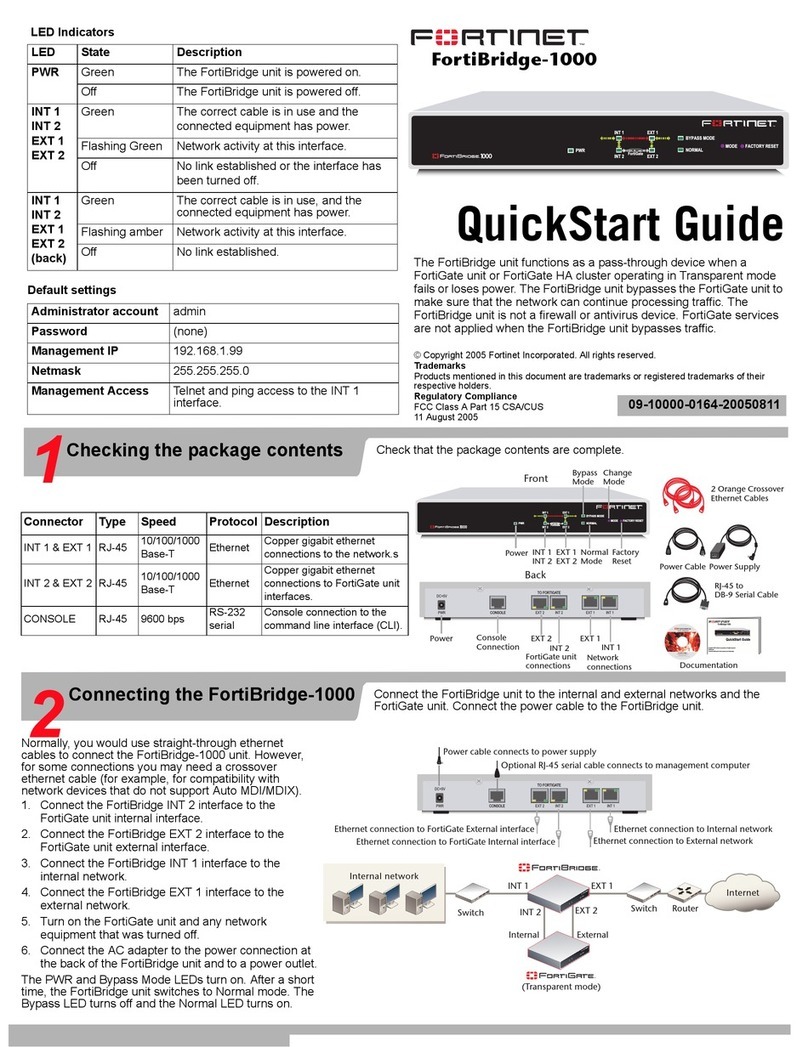
Fortinet FortiBridge 1000 Quick guide

Fortinet

Fortinet FortiBridge 1000 Quick guide

Popular Firewall manuals by other brands

Cisco Meraki MX100 installation guide

Cisco

Cisco Meraki MX100 installation guide

Cisco S190 quick start guide

Cisco

Cisco S190 quick start guide

SecureLogix ETM System installation guide

SecureLogix

SecureLogix ETM System installation guide

Huawei USG6000 Series Upgrade guide

Huawei

Huawei USG6000 Series Upgrade guide

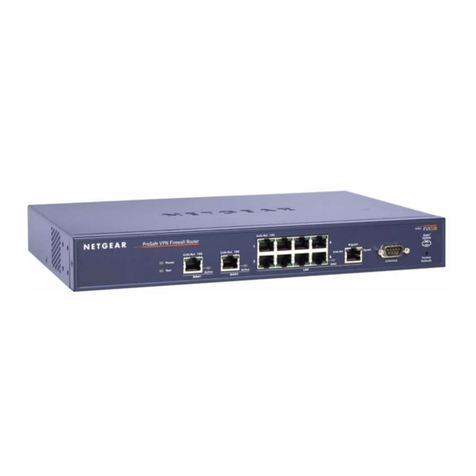
NETGEAR ProSafe FVX538 Reference manual

NETGEAR

NETGEAR ProSafe FVX538 Reference manual

Lanner FW-8877 user manual

Lanner

Lanner FW-8877 user manual

Nexcom DNA 1150 user manual

Nexcom

Nexcom DNA 1150 user manual

Cisco 3110 Hardware installation guide

Cisco

Cisco 3110 Hardware installation guide

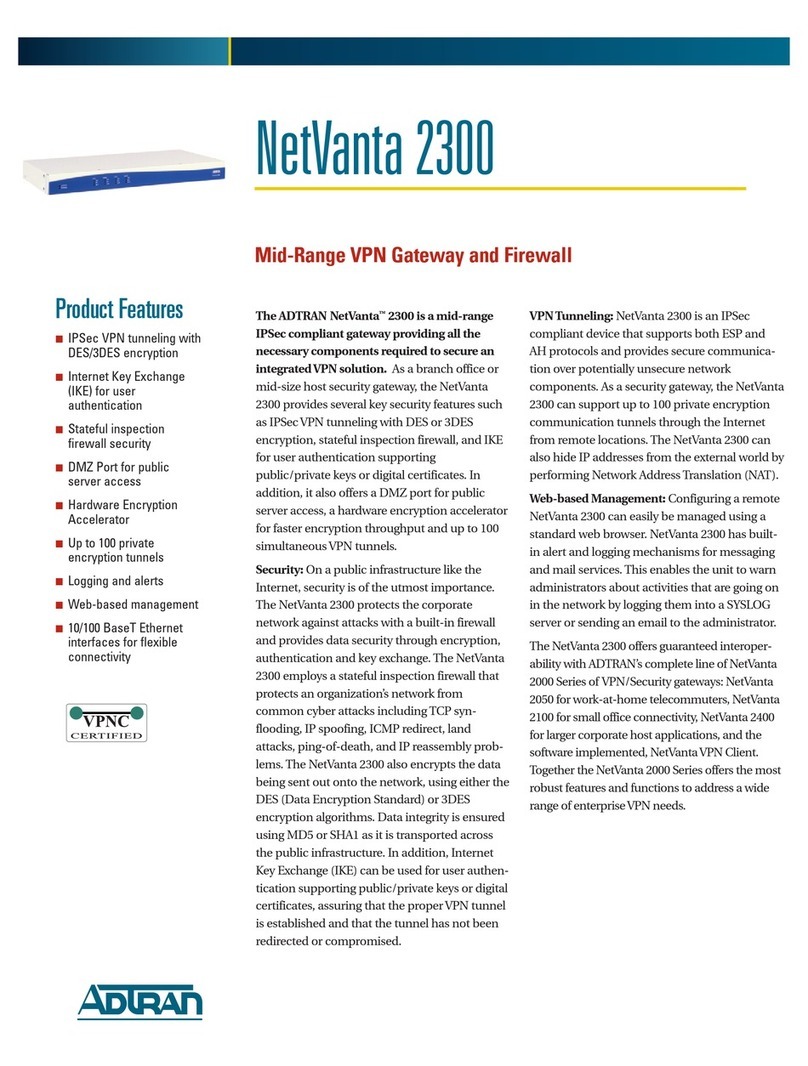
ADTRAN NetVanta 2300 Specifications

ADTRAN

ADTRAN NetVanta 2300 Specifications

Swisscom Internet Backup manual

Swisscom

Swisscom Internet Backup manual

SonicWALL NSa 5700 quick start guide

SonicWALL

SonicWALL NSa 5700 quick start guide

DPtech FW1000 SERIES Maintenance manual

DPtech

DPtech FW1000 SERIES Maintenance manual

FEITIAN MultiPass FIDO product manual

FEITIAN

FEITIAN MultiPass FIDO product manual

Trend Micro Deep Edge quick start guide

Trend Micro

Trend Micro Deep Edge quick start guide

Smoothwall S10 Appliance Getting started guide

Smoothwall

Smoothwall S10 Appliance Getting started guide

Draytek Vigor 5510Gi user guide

Draytek

Draytek Vigor 5510Gi user guide

Secure Computing Sidewinder 7.0 quick start

Secure Computing

Secure Computing Sidewinder 7.0 quick start

GTA GB-200 Product guide

GTA

GTA GB-200 Product guide

manuals.online logo
manuals.online logoBrands
  • About & Mission
  • Contact us
  • Privacy Policy
  • Terms and Conditions

Copyright 2025 Manuals.Online. All Rights Reserved.

© Copyright 2008 Fortinet Incorporated. All rights reserved.
Products mentioned in this document are trademarks or registered trade-
marks of their respective holders.
Regulatory Compliance
FCC Class A Part 15 CSA/CUS
4 July 2010
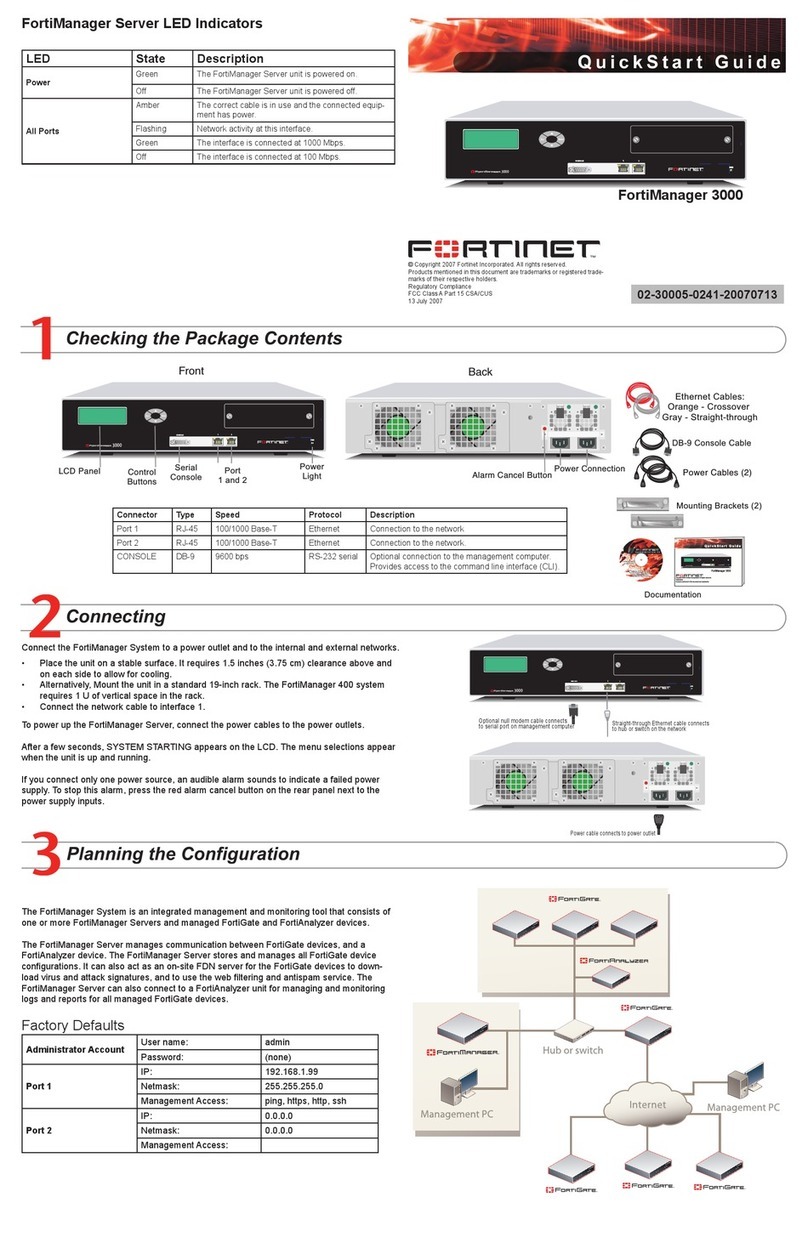
POWER
STATUS
Esc Enter
MGMT1
MGMT2
AUXUSB
CONSOLE 1
2
3 5 7 9 11 13 15
46 8 10 1 2 14 16
ASM
Straight-through Ethernet for access
to the web-based manager
Optional RJ-45 to DB-9 cable connects
to serial port on management computer
Power cables connect
to power outlets
Fiber optic cable
connects
to internal network or Internet
Power alarm reset button
POWER
STATUS
Esc Enter
MGMT1
MGMT2
AUXUSB
CONSOLE 1
2
3 5 7 9 11 13 1 5
46 8 10 12 14 16
ASM
Internet
Router
Internal
network
Port 3
10.10.10.1
10.10.10.2
Internal Network
192.168.1.3
Port 2
192.168.1.99
Routing policies controlling
traffic between internal
networks.
Port 1
204.23.1.5
NAT mode policies controlling
traffic between internal
and external networks.
Internet
Router
DMZ network
Web Server
Mail Server
Internal
network
Hub or switch
Port 3
Poirt 1
Port 2
POWER
STATUS
Esc Enter
MGMT1
MGMT2
AUXUSB
CONSOLE 1
2
3 5 7 9 11 13 15
46 8 10 12 14 16
ASM
Back
Front
Power
Connections
Power Cables (2)
Rack-Mount Brackets
Documentation
Ethernet Cables:
Orange - Crossover
Grey - Straight-through
RJ-45 to
DB-9 Serial Cable
FortiGate-3016B
Copyright 2007 Fortinet Incorporated. All rights reserved.
Trademarks
Products mentioned in this document are trademarks.
QuickStart Guide
4x Optical Transceivers
4x Copper Transceivers
Copper
Management
Ports
Fiber Ports
USB
Serial and
Modem Connections
LCD Display
Control Buttons
POWER
STATUS
Esc Enter
MGMT1
MGMT2
AUXUSB
CONSOLE 1
2
3 5 7 9 11 13 15
46 8 10 12 14 16
ASM
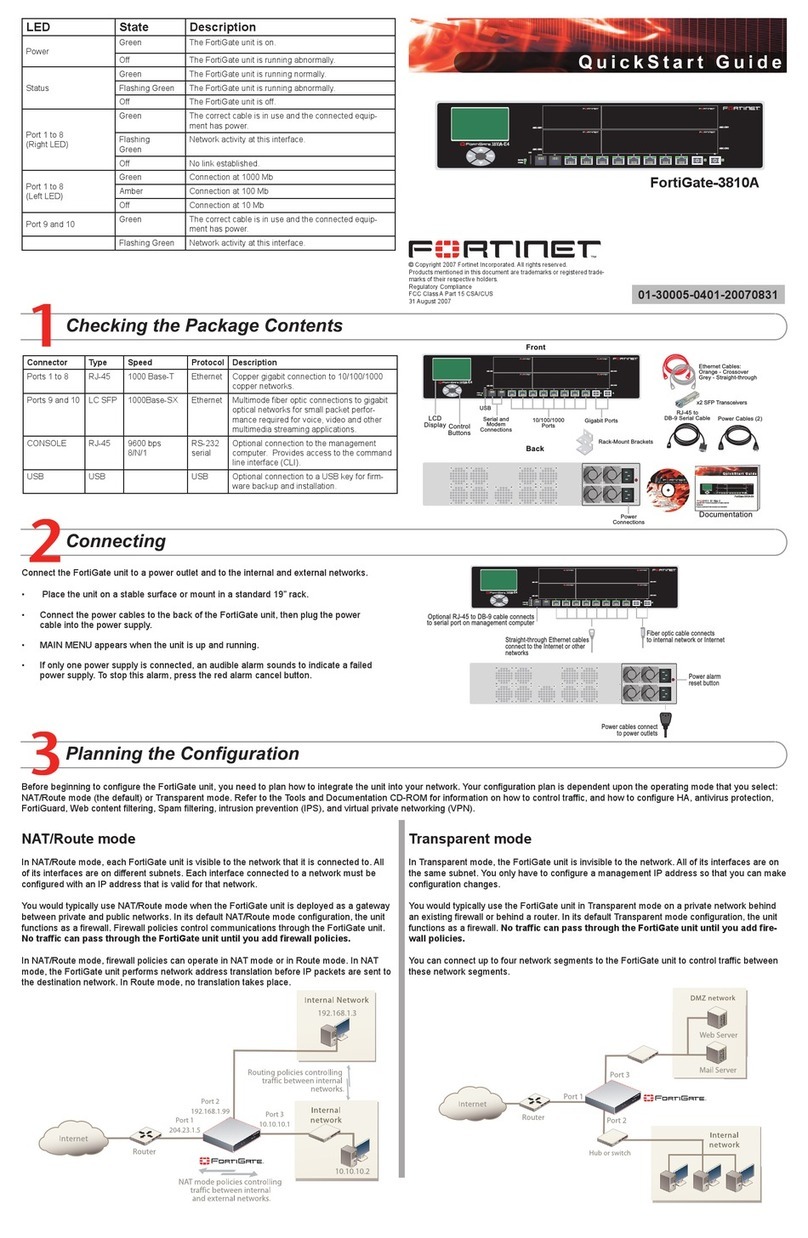
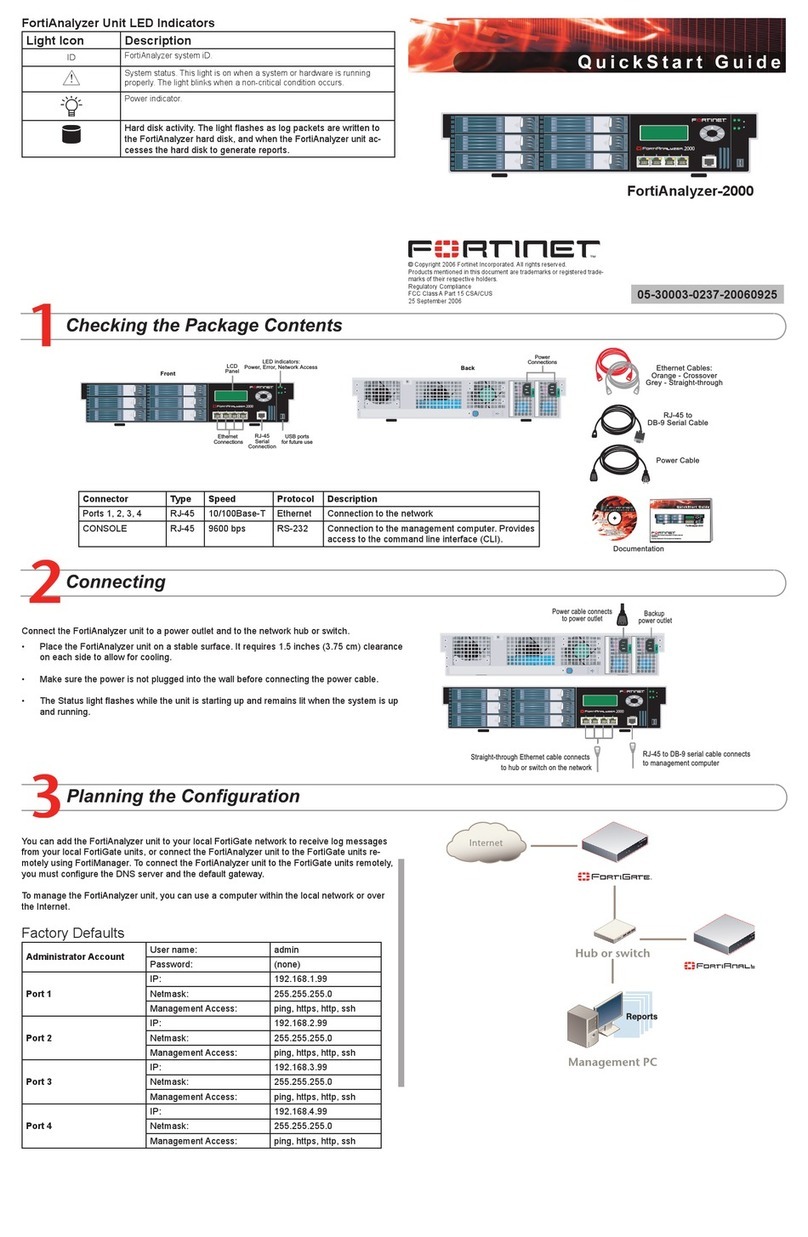
Connect the FortiGate unit to a power outlet and to the internal and external networks.
• Place the unit on a stable surface.
• Connect both power cables into the back of the FortiGate unit, then plug the power
cables into a power bar.
• MAIN MENU appears when the unit is up and running.
• If only one power supply is connected, an audible alarm sounds to indicate a failed
power supply. To stop this alarm, press the red alarm cancel button.
Before beginning to congure the FortiGate unit, you need to plan how to integrate the unit into your network. Your conguration plan is dependent upon the operating mode that you select:
NAT/Route mode (the default) or Transparent mode. Refer to the Documentation CD-ROM for information on how to control trafc, and how to congure HA, antivirus protection, FortiGuard,
Web content ltering, Spam ltering, intrusion prevention (IPS), and virtual private networking (VPN).
NAT/Route mode
In NAT/Route mode, each FortiGate unit is visible to the network that it is connected to. All
of its interfaces are on different subnets. Each interface connected to a network must be
congured with an IP address that is valid for that network.
You would typically use NAT/Route mode when the FortiGate unit is deployed as a gateway
between private and public networks. In its default NAT/Route mode conguration, the unit
functions as a rewall. Firewall policies control communications through the FortiGate unit.
No trafc can pass through the FortiGate unit until you add rewall policies.
In NAT/Route mode, rewall policies can operate in NAT mode or in Route mode. In NAT
mode, the FortiGate unit performs network address translation before IP packets are sent to
the destination network. In Route mode, no translation takes place.
Transparent mode
In Transparent mode, the FortiGate unit is invisible to the network. All of its interfaces are on
the same subnet. You only have to congure a management IP address so that you can make
conguration changes.
You would typically use the FortiGate unit in Transparent mode on a private network behind
an existing rewall or behind a router. In its default Transparent mode conguration, the unit
functions as a rewall. No trafc can pass through the FortiGate unit until you add re-
wall policies.
You can connect up to four network segments to the FortiGate unit to control trafc between
these network segments.
FortiGate-3016B
01-30006-0402-20080328
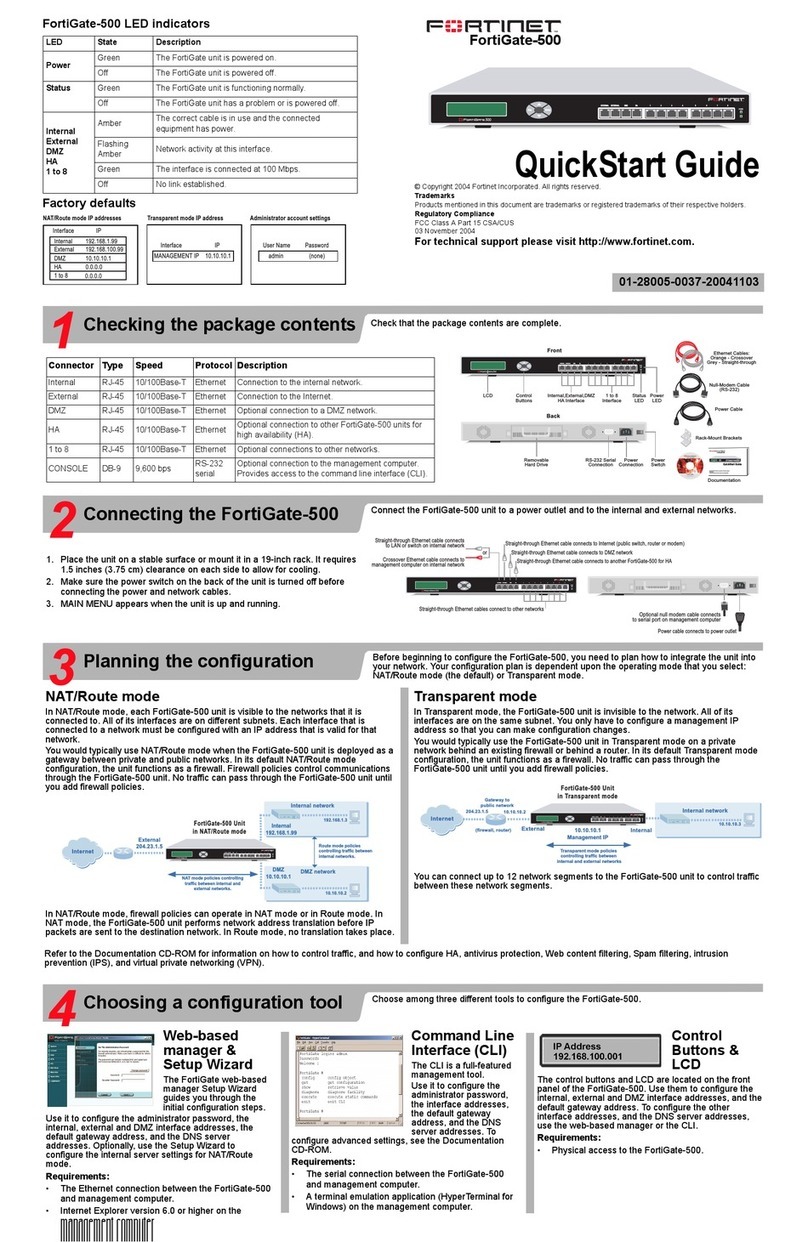
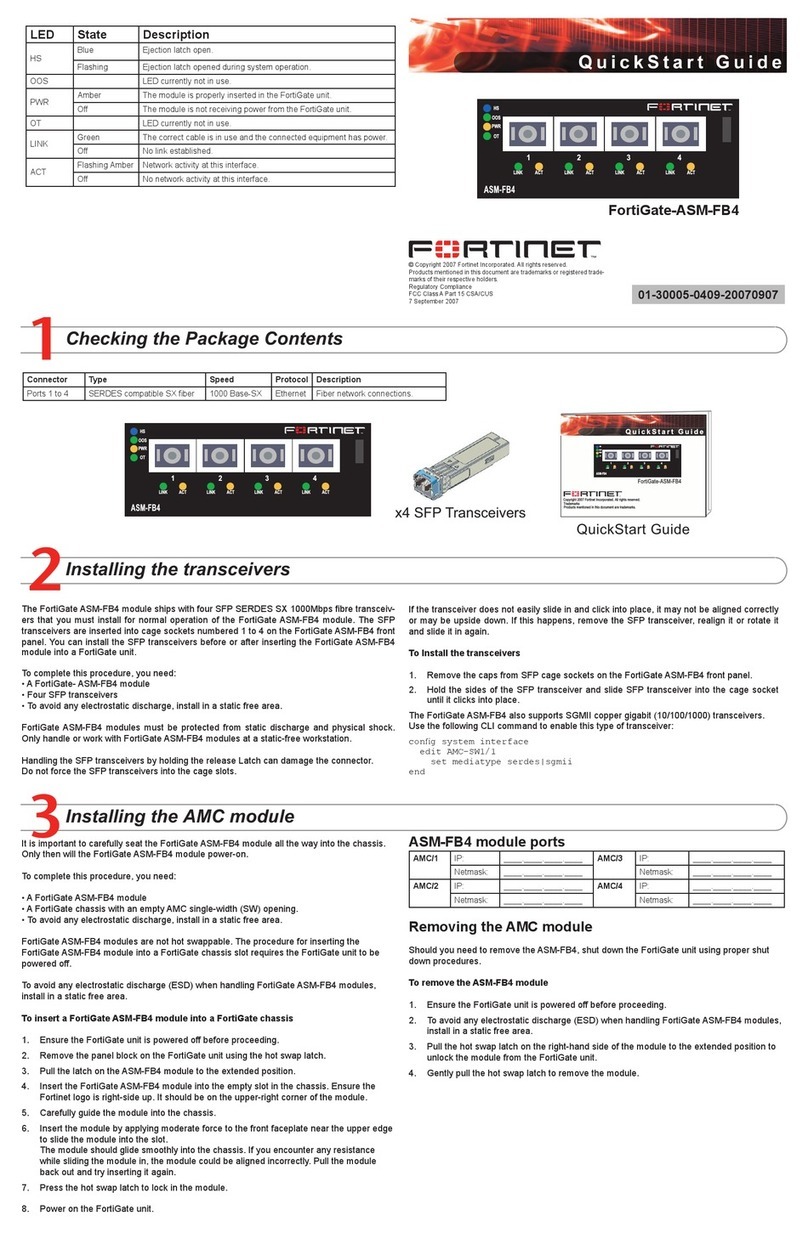
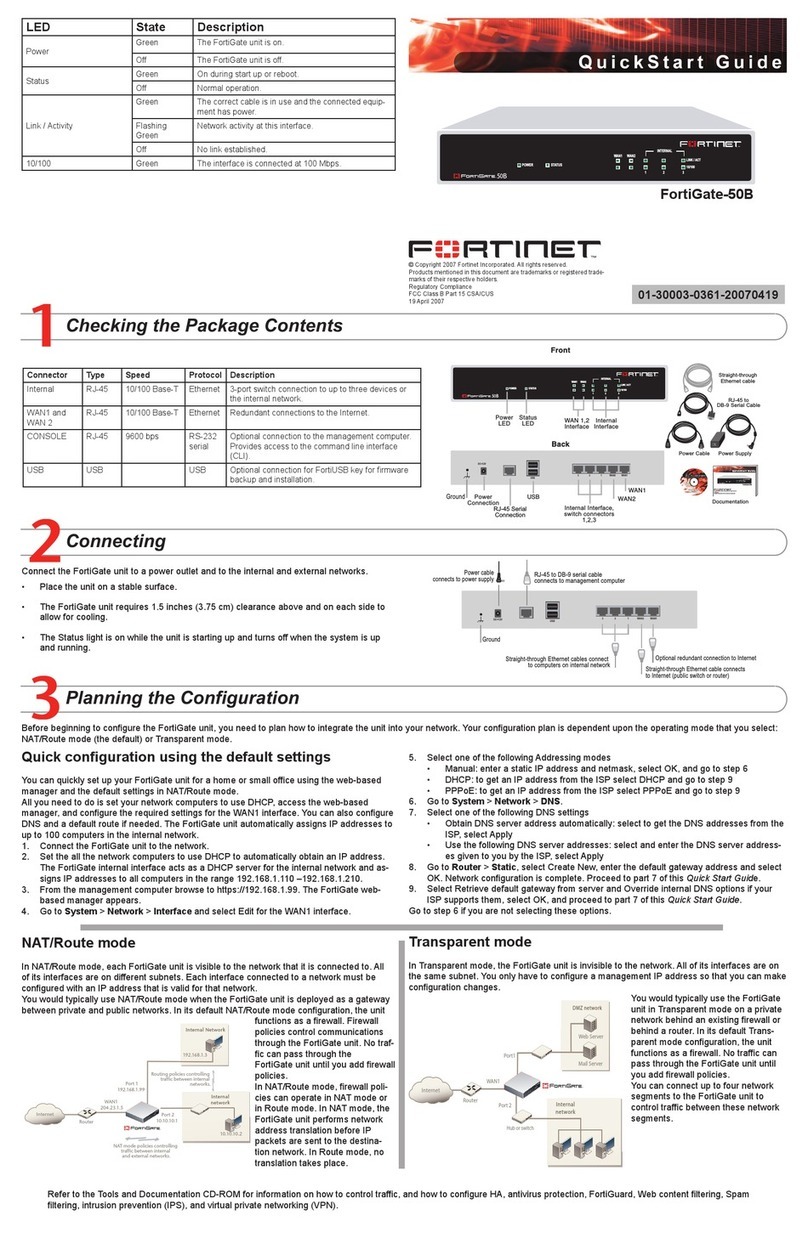
LED State Description
Power
Green The FortiGate unit is on.
Off The FortiGate unit is off.
Status Green The FortiGate unit is running normally.
Off The FortiGate unit is off.
MGMT1 and
MGMT2
(Right LED)
Green The correct cable is in use and the connected equipment
has power.
Flashing Green Network activity at this interface.
Off No link established.
MGMT1 and
MGMT2
(Left LED)
Green Connection at 1000 Mb.
Amber Connection at 100 Mb.
Off Connection at 10 Mb.
Ports 1 to 16
Green The correct cable is in use and the connected equipment
has power.
Flashing Green Network activity at this interface.
Connector Type Speed Protocol Description
MGMT1 and
MGMT2
RJ-45 10/100/1000
Base-T
Ethernet Copper gigabit connection to 10/100/1000
copper networks.
Ports 1 to 16 LC SFP 1000Base-SX Ethernet Multimode ber optic connections to
gigabit optical networks for small packet
performance required for voice, video and
other multimedia streaming applications.
CONSOLE RJ-45 9600 bps
8/N/1
RS-232
serial
Optional connection to the management
computer. Provides access to the com-
mand line interface (CLI).
USB USB USB Optional connection to a USB key for
rmware backup and installation.
Congratulations!
You have nished conguring the basic settings. Your network is now protected from Internet-
based threats. To explore the full range of conguration options, see the online help or the
Tools and Documentation CD.
Visit these links for more information and documentation for your Fortinet product.
• Technical Documentation - http://docs.forticare.com
• Fortinet Knowledge Center - http://kc.forticare.com
• Fortinet Technical Support - http://support.fortinet.com
NAT/Route Mode
MGMT 1 IP: ____.____.____.____ Port 8 IP: ____.____.____.____
Netmask: ____.____.____.____ Netmask: ____.____.____.____
MGMT 2 IP: ____.____.____.____ Port 9 IP: ____.____.____.____
Netmask: ____.____.____.____ Netmask: ____.____.____.____
Port 1 IP: ____.____.____.____ Port 10 IP: ____.____.____.____
Netmask: ____.____.____.____ Netmask: ____.____.____.____
Port 2 IP: ____.____.____.____ Port 11 IP: ____.____.____.____
Netmask: ____.____.____.____ Netmask: ____.____.____.____
Port 3 IP: ____.____.____.____ Port 12 IP: ____.____.____.____
Netmask: ____.____.____.____ Netmask: ____.____.____.____
Port 4 IP: ____.____.____.____ Port 13 IP: ____.____.____.____
Netmask: ____.____.____.____ Netmask: ____.____.____.____
Port 5 IP: ____.____.____.____ Port 14 IP: ____.____.____.____
Netmask: ____.____.____.____ Netmask: ____.____.____.____
Port 6 IP: ____.____.____.____ Port 15 IP: ____.____.____.____
Netmask: ____.____.____.____ Netmask: ____.____.____.____
Port 7 IP: ____.____.____.____ Port 16 IP: ____.____.____.____
Netmask: ____.____.____.____ Netmask: ____.____.____.____
Transparent mode
Management IP IP: ____.____.____.____
Netmask: ____.____.____.____
General settings
Administrator password
Network Settings Default Gateway: ____.____.____.____
Primary DNS Server: ____.____.____.____
Secondary DNS Server: ____.____.____.____
A default gateway is required for the FortiGate unit to route connections to the Internet.
Factory default settings
NAT/Route mode Transparent mode
MGMT 1 192.168.1.99 Management IP 0.0.0.0
MGMT 2 192.168.100.99 Administrative account settings
Ports 1 to 16 0.0.0.0 User name admin
Password (none)
DHCP server on Internal
interface
192.168.1.110 – 192.168.1.210
Web-based Manager
1. Connect the FortiGate internal interface to a management computer Ethernet interface.
Use a cross-over Ethernet cable to connect the devices directly. Use straight-through
Ethernet cables to connect the devices through a hub or switch.
2. Congure the management computer to be on the same subnet as the internal
interface of the FortiGate unit. To do this, change the IP address of the management
computer to 192.168.1.2 and the netmask to 255.255.255.0.
3. To access the FortiGate web-based manager, start Internet Explorer and browse to
https://192.168.1.99 (remember to include the “s” in https://).
4. Type admin in the Name eld and select Login.
NAT/Route mode
To change the administrator password
1. Go to System > Admin > Administrators.
2. Select Change Password for the admin administrator and enter a new password.
To congure interfaces
1. Go to System > Network > Interface.
2. Select the edit icon for each interface to congure.
3. Set the addressing mode for the interface. (See the online help for information.)
• For manual addressing, enter the IP address and netmask for the interface.
• For DHCP addressing, select DHCP and any required settings.
• For PPPoE addressing, select PPPoE, and enter the username and password
and any other required settings.
To congure the Primary and Secondary DNS server IP addresses
1. Go to System > Network > Options, enter the Primary and Secondary DNS IP ad-
dresses that you recorded above and select Apply.
To congure a Default Gateway
1. Go to Router > Static and select Edit icon for the static route.
2. Set Gateway to the Default Gateway IP address you recorded above and select OK.
Transparent mode
To switch from NAT/route mode to transparent mode
1. Go to System > Cong > Operation Mode and select Transparent.
2. Set the Management IP/Netmask to 192.168.1.99/24.
3. Set a default Gateway and select Apply.
To change the administrator password
1. Go to System > Admin > Administrators.
2. Select Change Password for the admin administrator and enter a new password.
To change the management interface
1. Go to System > Cong > Operation Mode.
2. Enter the Management IP address and netmask that you recorded above and select
Apply.
To congure the Primary and Secondary DNS server IP addresses
1. Go to System > Network > Options, enter the Primary and Secondary DNS IP ad-
dresses that you recorded above and select Apply.
Command Line Interface
1. Use the RJ-45 to DB9 serial cable to connect the FortiGate Console port to the man-
agement computer serial port.
2. Start a terminal emulation program (HyperTerminal) on the management computer. Use
these settings:
3. Baud Rate (bps) 9600, Data bits 8, Parity None, Stop bits 1, and Flow Control None.
4. At the Login: prompt, type admin and press Enter twice (no password required).
NAT/Route mode
1. Congure the FortiGate internal interface.
cong system interface
edit <port_num>
set ip <intf_ip>/<netmask_ip>
set allowaccess {http|https|ssh|ping|snmp|telnet}
end
2. Congure the primary and secondary DNS server IP addresses.
cong system dns
set primary <dns-server_ip>
set secondary <dns-server_ip>
end
3. Congure the default gateway.
cong router static
edit 1
set gateway <gateway_ip>
end
Transparent Mode
1. Change from NAT/Route mode to Transparent mode and congure the Management IP
address.
cong system settings
set opmode transparent
set manageip <mng_ip>/<netmask>
set gateway <gateway_ip>
end
2. Congure the DNS server IP address.
cong system dns
set primary <dns-server_ip>
set secondary <dns-server_ip>
end
Web-based manager
The FortiGate web-based manager is an easy to use management tool.
Use it to congure the administrator password, the interface and default gateway addresses,
and the DNS server addresses.
Requirements:
• An Ethernet connection between the FortiGate unit and management computer.
• Internet Explorer 6.0 or higher on the management computer.
Command Line Interface (CLI)
The CLI is a full-featured management tool. Use it to congure the administrator password,
the interface addresses, default gateway address, and DNS server addresses. To congure
advanced settings, see the CLI Reference on the Tools and Documentation CD.
Requirements:
• The RJ-45 to DB-9 serial connection between the FortiGate unit and management
computer.
• A terminal emulation application (HyperTerminal for Windows) on the management
computer.