8
Video/ Audio Connections
Step 1: Confirm that the DV-HAS, digital video source and display are turned off.
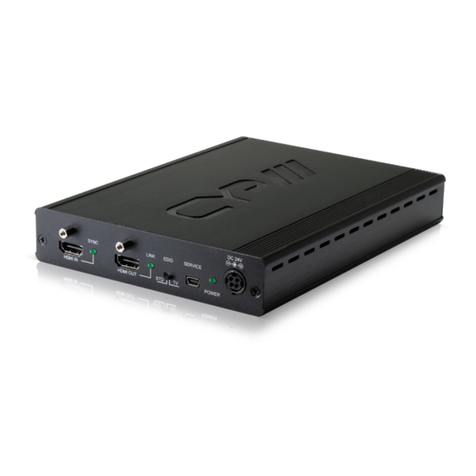
Step 2: Connect the HDMI to HDMI cable from the DV-HAS HDMI output port to
the HDMI input port of the display.
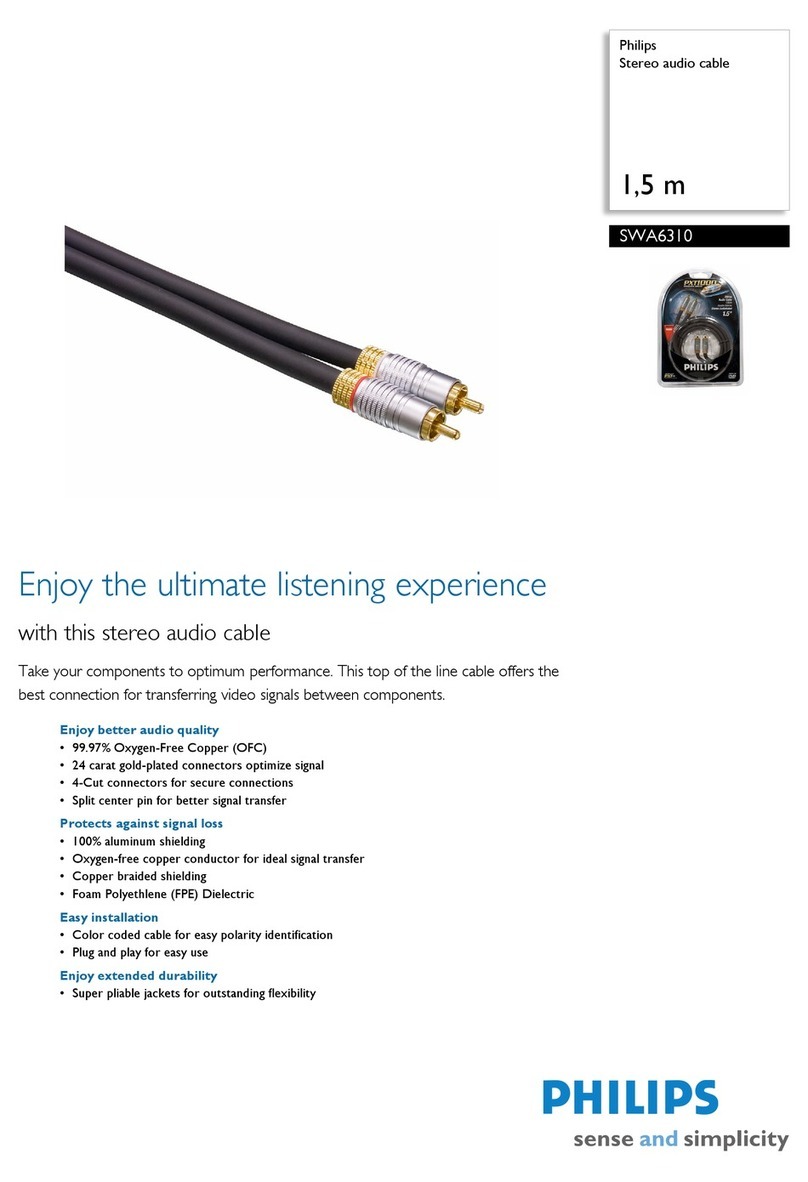
Step 3: Connect the RCA to RCA stereo audio cable from the DV-HAS audio
output to the audio input of the display or external sound system.
Step 4: Connect the HDMI to HDMI cable from the DV-HAS HDMI input port to the
source’s HDMI output port.
Step 5: Connect power adapter to the DV-HAS.
Step 6: Turn on the display.
Step 7: Turn on the source.
EDID data saving
The EDID Default of the DV-HAS is set to 1080p @60Hz. If you want to change the
EDID data, please follow these steps:
Step 1: Connect the HDMI to HDMI cable from the DV-HAS output port to the
HDMI input of the display.
Step 2: Connect the power adapter to the DV-HAS power input,
Step 3: Turn on the display and push EDID switch for 2 to 3 seconds
Step 4: EDID LED is illuminated for about 2 second if EDID was saved correctly.
If EDID was not saved correctly, EDID LED blinks 5~6 times. Please try
again after checking the connection of cables and the power of display and
DV-HAS.
(EDID saving is to display the best resolution between the video source and
the display)
Caution: If your display supports multi-channel audio, you should set the display to
2 channel stereo audio manually.
If multi-channel audio is sent from the source to the DV-HAS, there will be
no output from the RCA jacks, but audio will be present on the unit’s
HDMI output.
NOTE: Audio output is active whether the Display is connected or not.