1. Download the JBL Music app to help you
easily join your Wi-Fi network.
2. Find “+” in the dashboard, then press it for a
step by step guide.
Wi-Fi setup
B. Wi-Fi Sharing with Cable
1. Connect your iPhone, iPad or iPod touch to the top
USB port using the USB to 30-pin or USB to
Lightning cable that is provided with your iphone,
ipad or ipod touch.
2. Ensure your iPhone, iPad or iPod touch is connected
to your Wi-Fi network.
3. Switch the Authentics to the AirPlay input by pressing
the source button.
4. Press the AirPlay button on the JBL Authentics for
more than 2 seconds.
5. A pop up window will be displayed on your iPad,
iPhone or iPod touch with the question “Share Wi-Fi
Settings?”
6. Press Allow. The phone will then transfer settings and
the Authentics will attempt to join your wireless network.
This could take up to 1 minute.
Once the JBL Authentics is connected to the network, the
Wi-Fi LED will be constant White.
+
Setup by APP For iOS user
1. Power on JBL Authentics and wait for about 1
minute. Then switch source to DLNA mode by
pressing source button.
2. Long press the source button for 5 seconds then
release, the DLNA LED shall flash twice.
3. Use your computer or phone/ tablet to search for a
Wi-Fi Network called “JBL_L16XXX” on the Wi-Fi
list and connect it. Once connected successfully,
the DLNA LED will stop flashing.
4. Open the web browser on your computer or
phone/tablet, and in the address bar, type
“192.168.1.1” and press enter. You should see the
JBL Authentics setup page.
5. Choose the Wi-Fi network you want to join, enter the
password and click “Save”.
6. JBL Authentics will then attempt to connect to your Wi-Fi
Network (the LED shall flash during the connecting
process). Once connected successfully, the LED will stop
flashing and an audio tone will be heard.
Connect your computer or phone/ tablet to the same Wi-Fi
network as Authentics and enjoy your music wirelessly.
Manual setup:
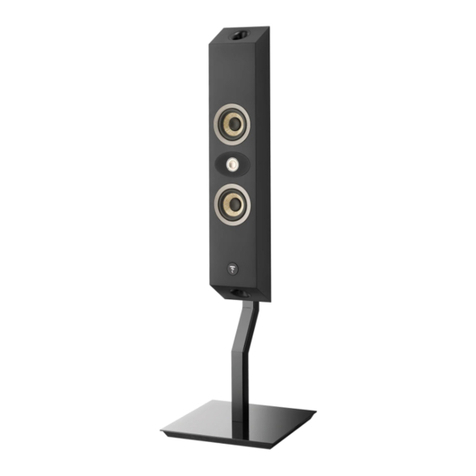
Authentics L16
297 mm
257 mm
210 mm
170 mm