manuals.online logo
Brands
  1. Home
  2. •
  3. Brands
  4. •
  5. Hitachi
  6. •
  7. Whiteboard
  8. •
  9. Hitachi StarBoard FX User guide

Hitachi StarBoard FX User guide

This manual suits for next models

5

Other Hitachi Whiteboard manuals

Hitachi StarBoard FX Series User guide

Hitachi

Hitachi StarBoard FX Series User guide

Hitachi StarBoard Link EZ2 User manual

Hitachi

Hitachi StarBoard Link EZ2 User manual

Hitachi StarBoard FX-79E2 User manual

Hitachi

Hitachi StarBoard FX-79E2 User manual

Hitachi HILU-86101 User manual

Hitachi

Hitachi HILU-86101 User manual

Popular Whiteboard manuals by other brands

Approx APPIB179 user guide

Approx

Approx APPIB179 user guide

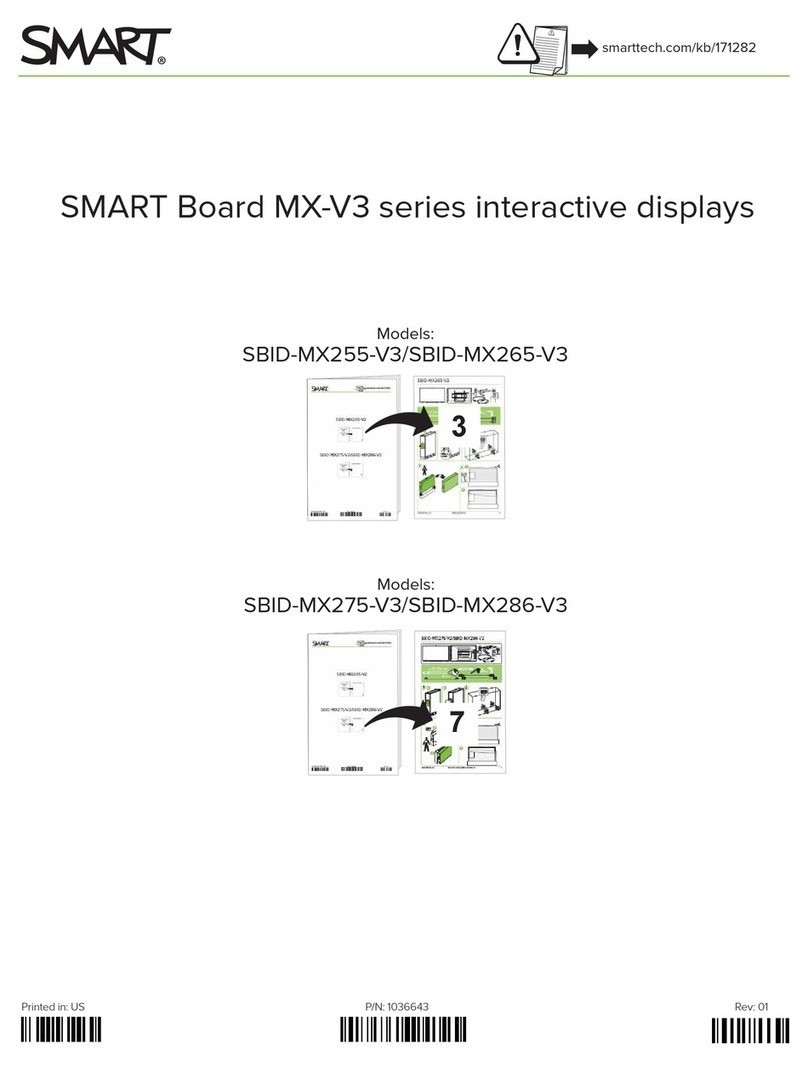
SMART Board MX V3 Series manual

SMART

SMART Board MX V3 Series manual

Best-Rite Baby Folding Wheasel 784-T Assembly instructions

Best-Rite

Best-Rite Baby Folding Wheasel 784-T Assembly instructions

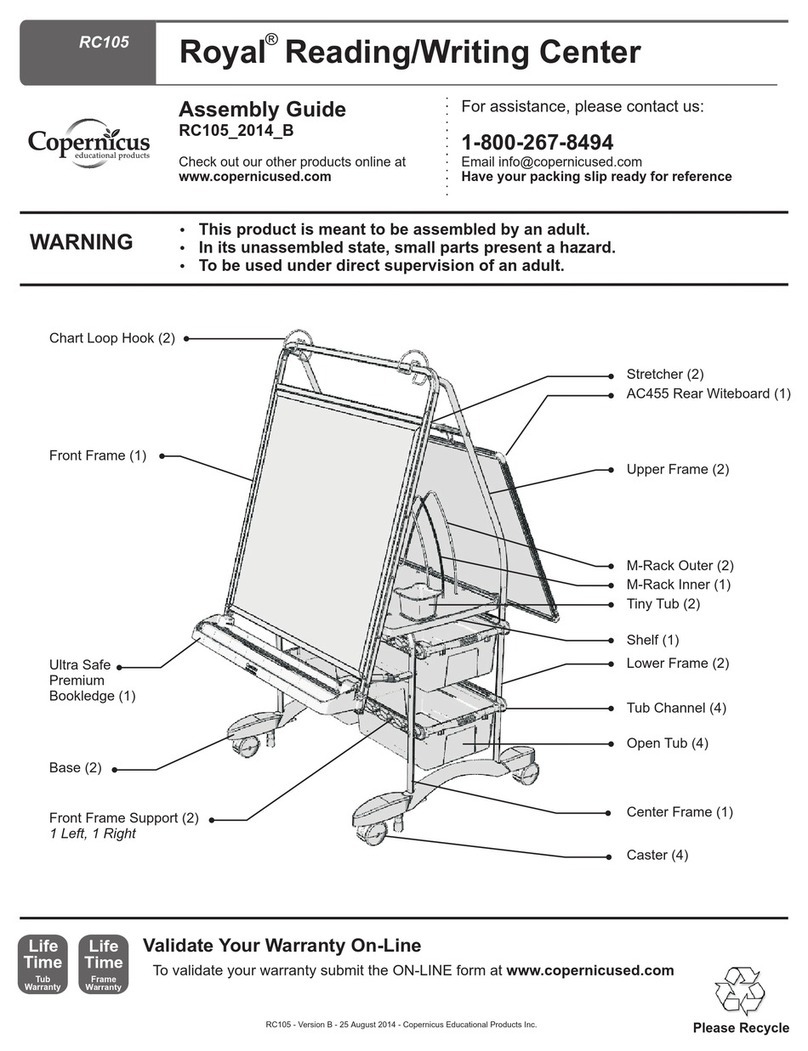
Copernicus RC105 Assembly guide

Copernicus

Copernicus RC105 Assembly guide

IKEA MALA 104.889.67 manual

IKEA

IKEA MALA 104.889.67 manual

IKEA MALA 504.565.92 instruction manual

IKEA

IKEA MALA 504.565.92 instruction manual

Steelcase 2003173001 user guide

Steelcase

Steelcase 2003173001 user guide

PLAYTIVE 346919 2001 Instructions for use

PLAYTIVE

PLAYTIVE 346919 2001 Instructions for use

Plus N-324 Service manual

Plus

Plus N-324 Service manual

neuland FlipWood Assembly instructions

neuland

neuland FlipWood Assembly instructions

SMART Board 8000 series manual

SMART

SMART Board 8000 series manual

NEC Mediaboard-102 Operation and installation manual

NEC

NEC Mediaboard-102 Operation and installation manual

Thomas Regout BalanceBox 650 installation manual

Thomas Regout

Thomas Regout BalanceBox 650 installation manual

promethean activboard 100 series installation guide

promethean

promethean activboard 100 series installation guide

Magiboards Chameleon Whiteboard instruction sheet

Magiboards

Magiboards Chameleon Whiteboard instruction sheet

AmazonBasics Dry Erase B07K68KR1H quick start guide

AmazonBasics

AmazonBasics Dry Erase B07K68KR1H quick start guide

Dahua LCH75 quick start guide

Dahua

Dahua LCH75 quick start guide

Vivo DESK-WB16D instruction manual

Vivo

Vivo DESK-WB16D instruction manual

manuals.online logo
manuals.online logoBrands
  • About & Mission
  • Contact us
  • Privacy Policy
  • Terms and Conditions

Copyright 2025 Manuals.Online. All Rights Reserved.

All Rights Reserved. Copyright © 2008, Hitachi Software Engineering Co., Ltd.
1
StarBoard FX/FX-DUO Wireless Connection Setup Manual (Windows XP SP2)
1. Preface
To establish the wireless connection between StarBoard FX/FX-DUO and the PC, the
following devices are necessary:
Wireless USB Device Server: Silex technology SX-2000WG+
USB2.0 WiFi Adapter: Planex GW-US54GXS
StarBoard Software 8.0/B or higher is necessary prior to setup of the wireless connection.
Make sure to select “FX/FX-DUO” in the Board Type screen during the installation of
StarBoard Software.
2. GW-US54GXS Setup
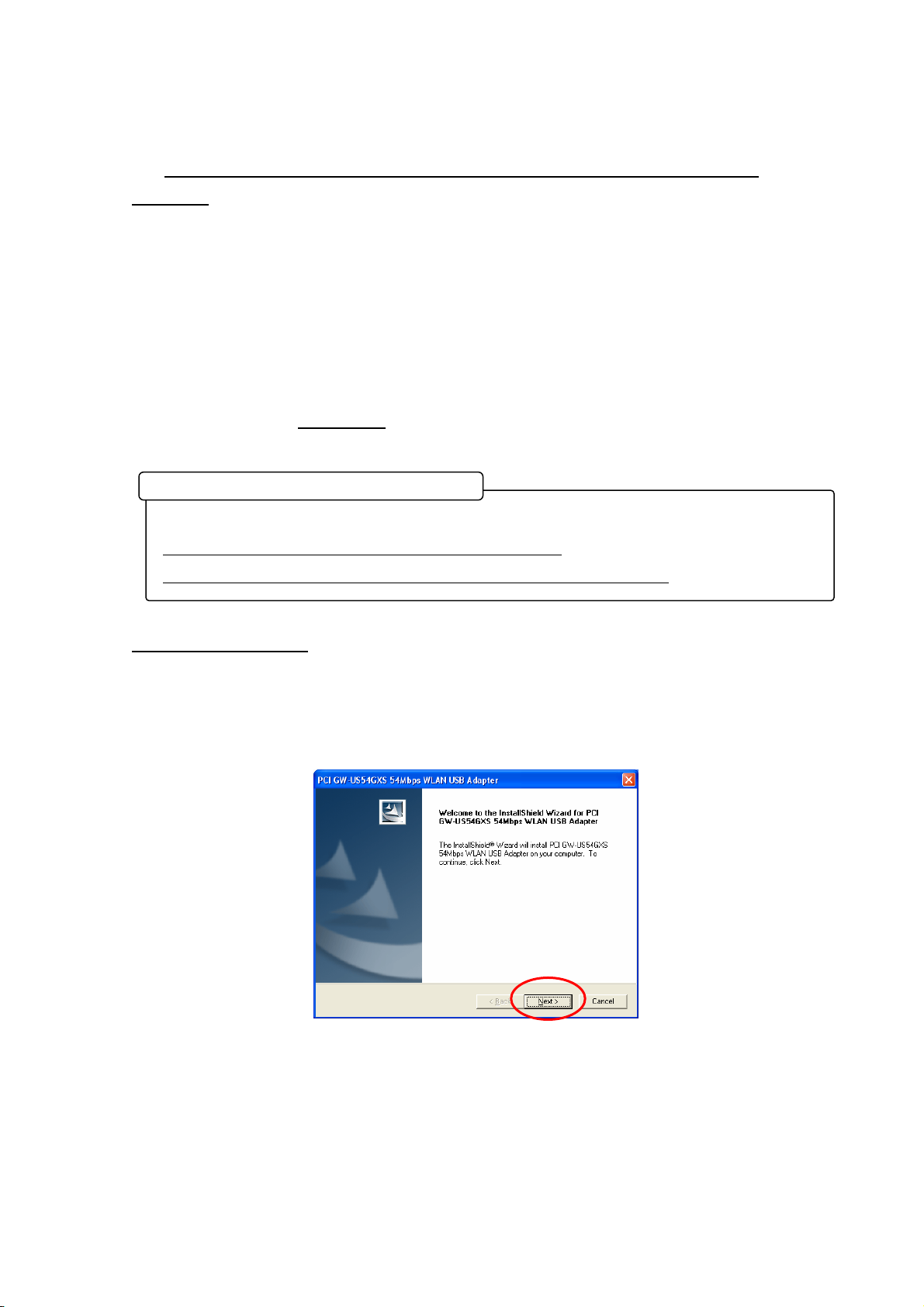
(1) Run the installer of FW-US54GXS. If the menu is not displayed automatically,
double-click on ”GW-US54GXS_Windows_v6.17.0000_CE.exe” in the CD-ROM root.
(2) Select “Next”.
- Log on as Administrator to install.
- Do not plug the USB2.0 WiFi Adapter into the computer until 4(3).
- Disable the firewall on Windows XP and commercial security software during installation.
Installation of GW-US54GXS driver

All Rights Reserved. Copyright © 2008, Hitachi Software Engineering Co., Ltd.
2
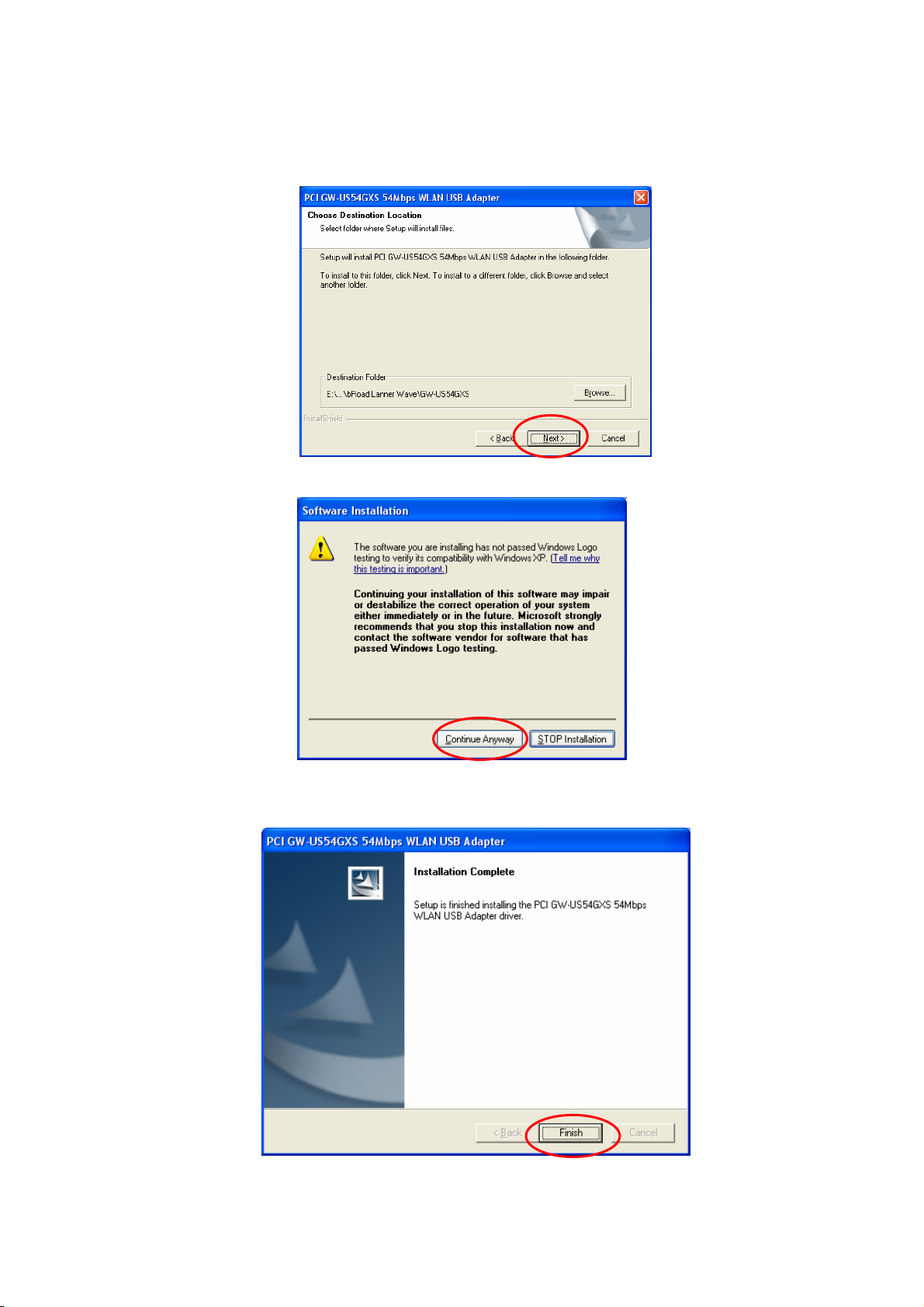
(3) Select “Next”.
(4) Select “Continue Anyway.
(5) Select “Finish”.
All Rights Reserved. Copyright © 2008, Hitachi Software Engineering Co., Ltd.
3
3. Device Server SX-2000WG+ Setup
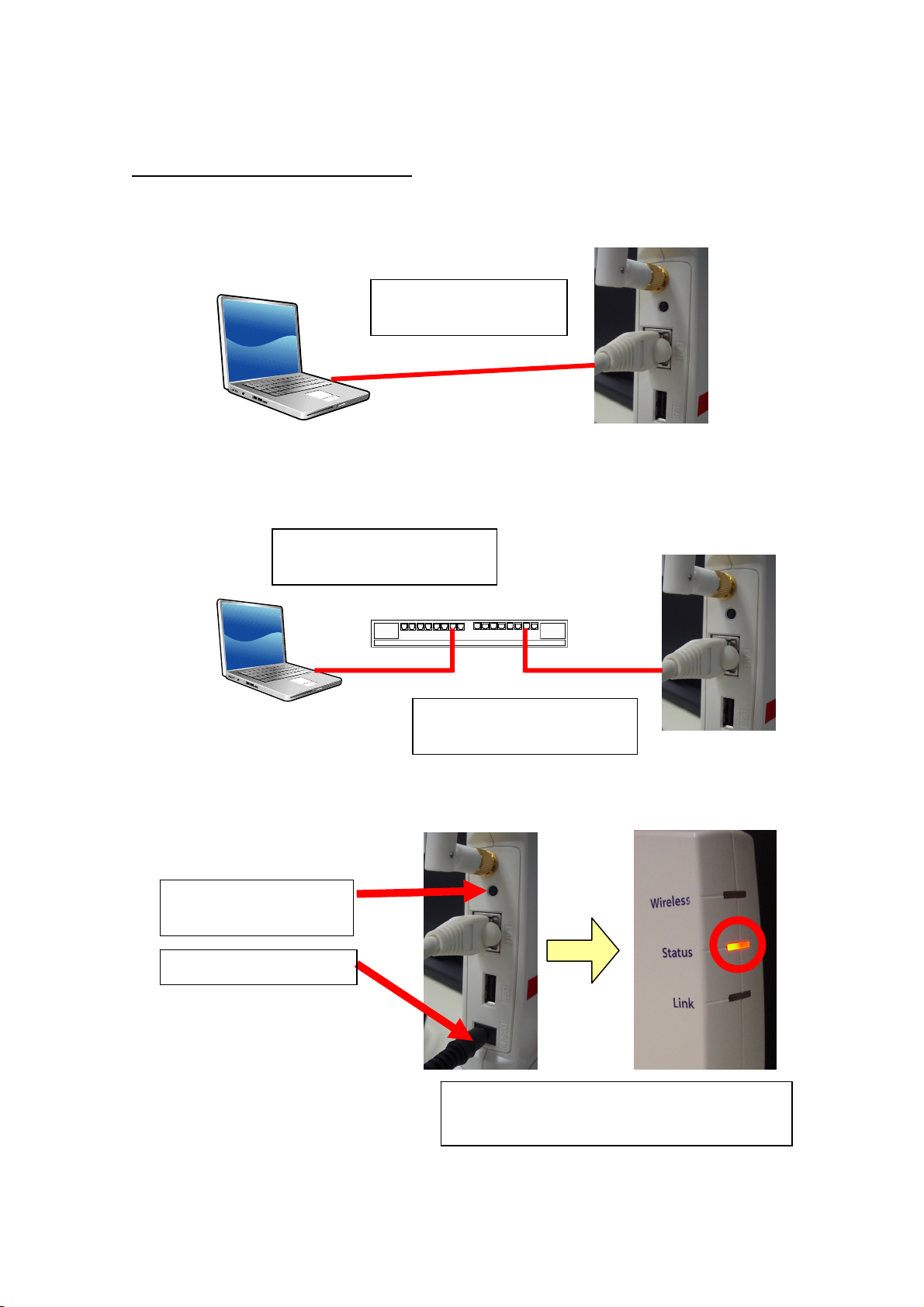
(1) Please connect SX-2000WG+ and the PC with one of the following methods:
(a) Prepare a network cross over cable to connect SX-2000WG+ and PC
(b) Prepare two network straight cables and an Ethernet hub to connect SX-2000WG+
and PC
(2) Reset SX-2000WG+ as shown below
(a) Hold pressing the
reset button
(b) Plug the power cable
(c) Hold pressing the button until the LED
turns red, then release the button.
Connect cross over network
cable to SX2000WG+ and PC
(a) Connect straight network cable to
Ethernet hub and PC
(b) Connect straight network cable to
Ethernet hub and SX-2000WG+
All Rights Reserved. Copyright © 2008, Hitachi Software Engineering Co., Ltd.
4
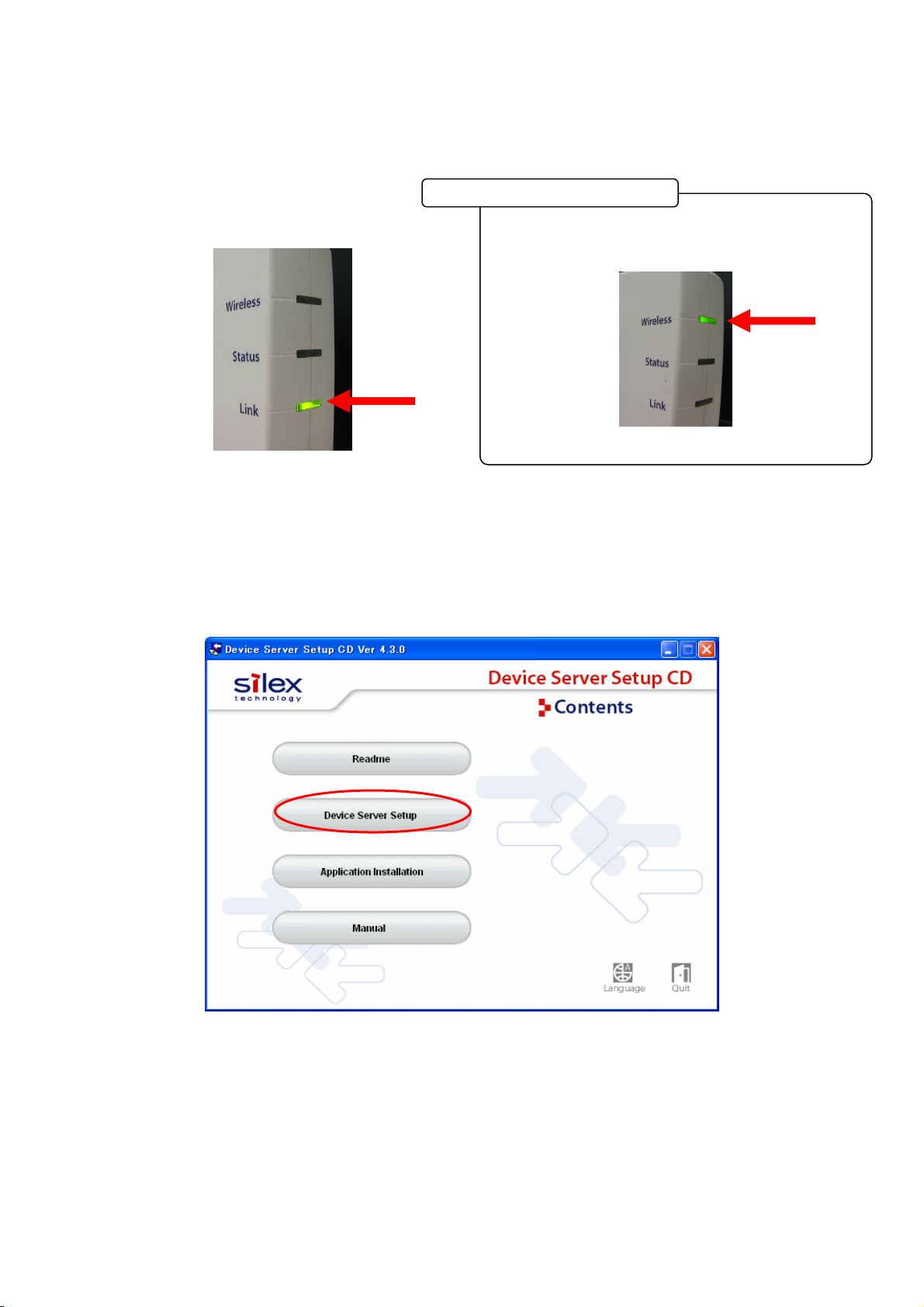
(3) And then, make sure the bottom LED is solid green.
(4) Insert the CD-ROM bundled with SX-2000WG+ into the PC and select “Device Server
Setup”. If the menu is not displayed automatically, double-click on “Autorun” in the
CD-ROM root.
If the LED is blinking green (wireless connection)
as shown below, follow (a)-(c) in the section 3(2)
If still not good, refer to Trouble shooting 7(1)
If the LED shows wireless
All Rights Reserved. Copyright © 2008, Hitachi Software Engineering Co., Ltd.
5
(5) Select “Wired”.
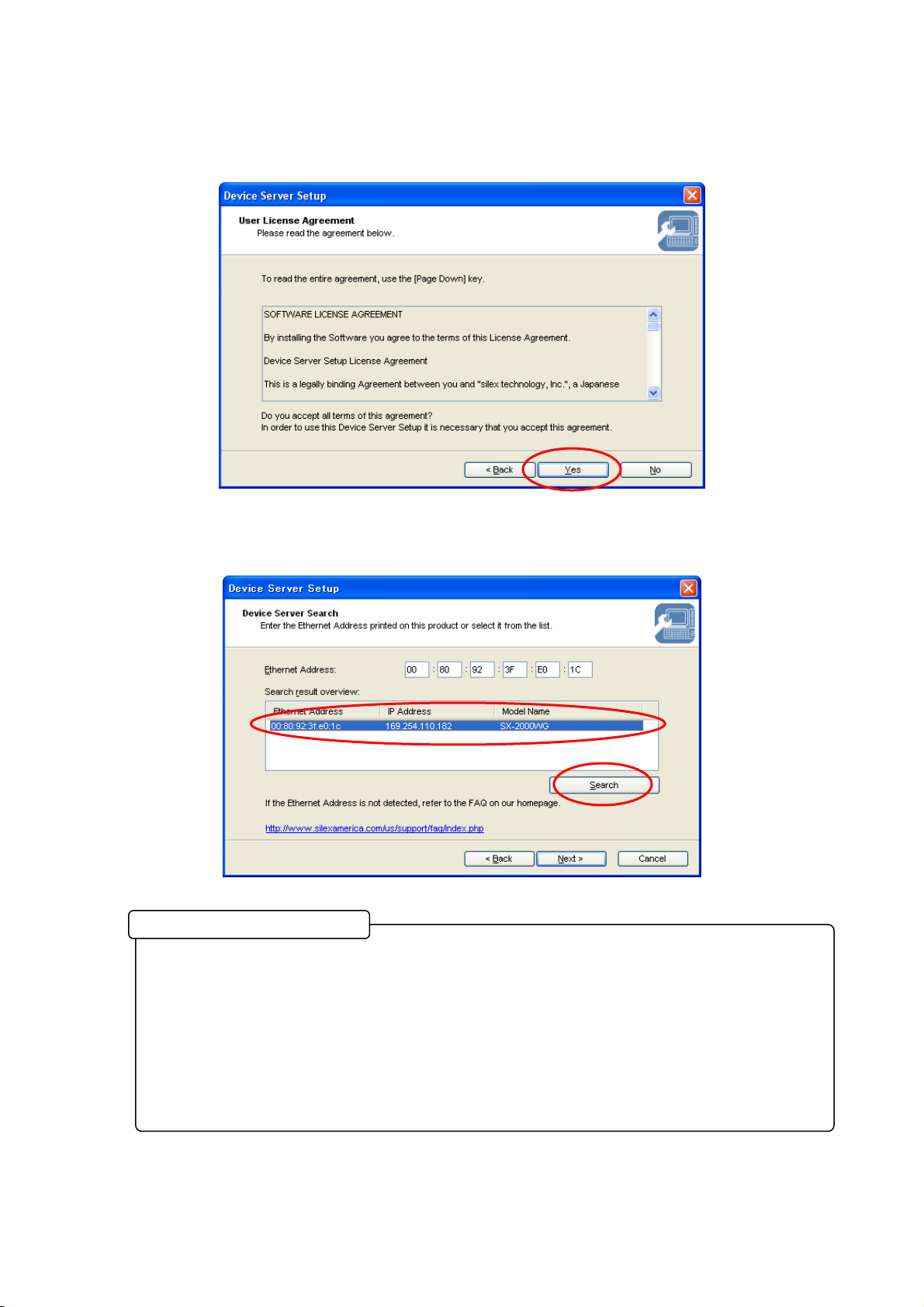
(6) Select “Yes”.
(7) Select “Next”.
All Rights Reserved. Copyright © 2008, Hitachi Software Engineering Co., Ltd.
6
(8) Select “Yes”.
(9) After a while, SX-2000WG+ is listed in the window. Click on the entry required and
select “Next”.
1. If SX-2000WG+ is still not listed in the window, click on the “Search” button and wait for 1
minutes.
2. If still not listed, please disconnect and connect the network cable, and restart the device
Server (Disconnect and connect the power cable). Please wait 2 minutes to configurate
wireless connection.
3. If still not listed, please go back to Step (a)-(c) in Section 3(2)
SX-2000WG+ is not listed
All Rights Reserved. Copyright © 2008, Hitachi Software Engineering Co., Ltd.
7
(10)Select ”Assign IP Address” and input the default parameters shown below and then
select “Next”.
IP Address: 192.168.0.1
Subnet Mask: 255.255.255.0
Default Gateway: 0.0.0.0
(11) Select “SSID:GROUP” “Channel:11” and select “Detailed Config”.
If the same parameters are used for other network, use a different subnet address such as
192.168.1.1. If you are not sure, please ask the network administrator.
IP Address to be used
All Rights Reserved. Copyright © 2008, Hitachi Software Engineering Co., Ltd.
8
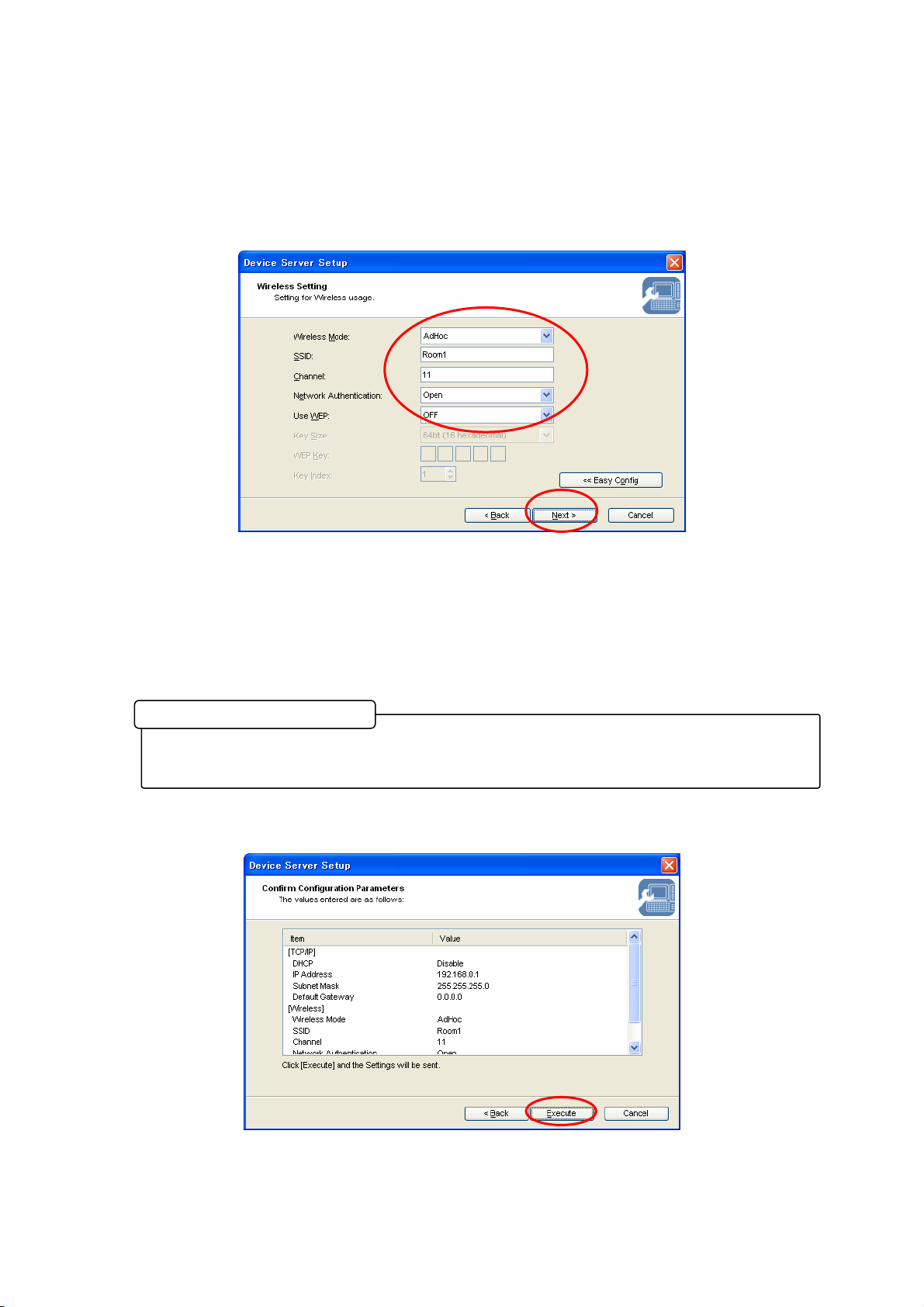
(12)Input the default parameters shown below and select “Next”.
Wireless Mode: AdHoc
SSID: Arbitrary (”Room1” for this manual)
Channel: 11
Network Authentication: Open
UseWEP: OFF
(13) Select “Execute”.
If you install multiple device servers in a close range, please assign unique SSID for each
device server. For example, use the room name and so on.
SSID
All Rights Reserved. Copyright © 2008, Hitachi Software Engineering Co., Ltd.
9
(14) Select “Finish” and install SX Virtual Link.
(15) Click on “English” and select “Next”. Skip to (16) if the window is not appear.
(16)Select “Next”.
All Rights Reserved. Copyright © 2008, Hitachi Software Engineering Co., Ltd.
10
(17) Select “Yes”.
(18) Select “Next”.
(19) Select “Next”.