manuals.online logo
Brands
  1. Home
  2. •
  3. Brands
  4. •
  5. Holux
  6. •
  7. GPS
  8. •
  9. Holux GPSPORT 260 PRO User manual

Holux GPSPORT 260 PRO User manual

Other manuals for GPSPORT 260 PRO

4

Other Holux GPS manuals

Holux GPSPORT 260 PRO User manual

Holux

Holux GPSPORT 260 PRO User manual

Holux M-241 User manual

Holux

Holux M-241 User manual

Holux GR-213 User manual

Holux

Holux GR-213 User manual

Holux FUNTREK 130 - User manual

Holux

Holux FUNTREK 130 - User manual

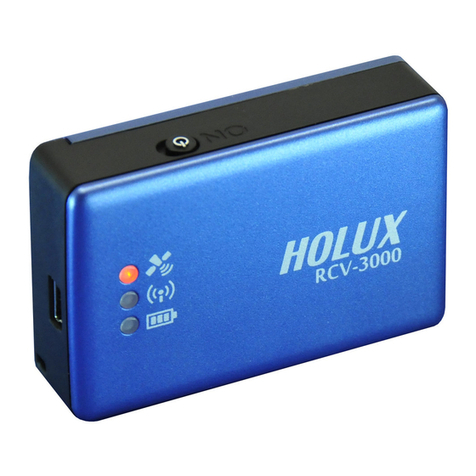
Holux RCV-3000 User manual

Holux

Holux RCV-3000 User manual

Holux GPSmile 53 Operational manual

Holux

Holux GPSmile 53 Operational manual

Holux M-1000C - REV 1.1 User manual

Holux

Holux M-1000C - REV 1.1 User manual

Holux GR-91 SPECIFICATION V0.4 User manual

Holux

Holux GR-91 SPECIFICATION V0.4 User manual

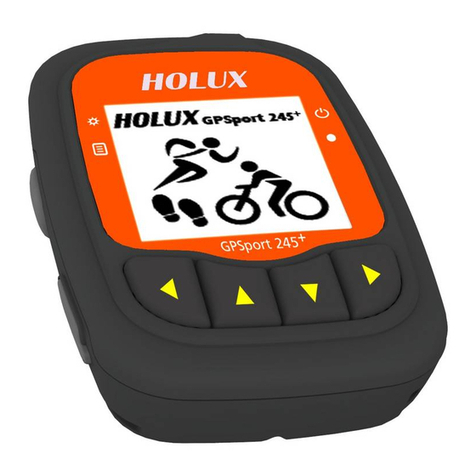
Holux GPSport 245+ User manual

Holux

Holux GPSport 245+ User manual

Holux Tracker-007 User manual

Holux

Holux Tracker-007 User manual

Holux GPSlim23 User manual

Holux

Holux GPSlim23 User manual

Holux Tracker-005 User manual

Holux

Holux Tracker-005 User manual

Holux GR-90 User manual

Holux

Holux GR-90 User manual

Holux CR-100 User manual

Holux

Holux CR-100 User manual

Holux M-9129 - User manual

Holux

Holux M-9129 - User manual

Holux M-1000C - User manual

Holux

Holux M-1000C - User manual

Holux GR-500 User manual

Holux

Holux GR-500 User manual

Holux GR-88 User manual

Holux

Holux GR-88 User manual

Holux M-1000B User manual

Holux

Holux M-1000B User manual

Holux GPSport 260 User manual

Holux

Holux GPSport 260 User manual

Holux M-1200 User manual

Holux

Holux M-1200 User manual

Holux GR-89 User manual

Holux

Holux GR-89 User manual

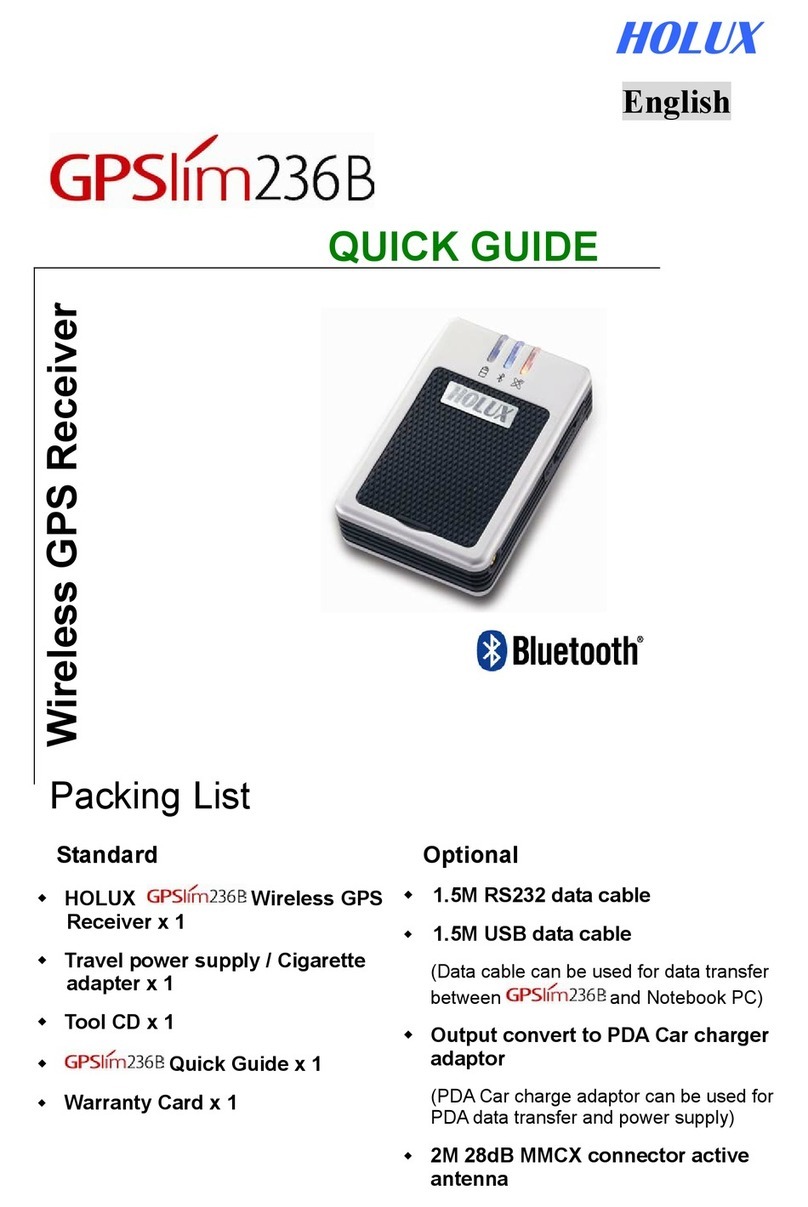
Holux GPSlim 236B User manual

Holux

Holux GPSlim 236B User manual

Holux GM-210 User manual

Holux

Holux GM-210 User manual

Popular GPS manuals by other brands

Polar Electro RCX3 Getting started guide

Polar Electro

Polar Electro RCX3 Getting started guide

Tobii Pro Spectrum user manual

Tobii Pro

Tobii Pro Spectrum user manual

Gosafe G91I user manual

Gosafe

Gosafe G91I user manual

Fisher TW-8800 operating manual

Fisher

Fisher TW-8800 operating manual

LG LN740 Series Specifications

LG

LG LN740 Series Specifications

Prestigio GeoVision 430 user manual

Prestigio

Prestigio GeoVision 430 user manual

JVC KW-NT3HDT instructions

JVC

JVC KW-NT3HDT instructions

Yoctopuce Yocto-GPS user guide

Yoctopuce

Yoctopuce Yocto-GPS user guide

RightWay GPS Navigator RW 200 user manual

RightWay

RightWay GPS Navigator RW 200 user manual

TomTom VIA user guide

TomTom

TomTom VIA user guide

Garmin ECHOMAP PLUS owner's manual

Garmin

Garmin ECHOMAP PLUS owner's manual

Telit Wireless Solutions GM862GPS Series Hardware user's guide

Telit Wireless Solutions

Telit Wireless Solutions GM862GPS Series Hardware user's guide

Hama 53118 Operating	 instruction

Hama

Hama 53118 Operating instruction

Garmin DEZL 580 owner's manual

Garmin

Garmin DEZL 580 owner's manual

Jigabot EX quick start guide

Jigabot

Jigabot EX quick start guide

Pointer Cellocator CelloTrack XT LTE overview

Pointer

Pointer Cellocator CelloTrack XT LTE overview

Queclink GV55LITE user manual

Queclink

Queclink GV55LITE user manual

Starcom Systems Kylos Compact user guide

Starcom Systems

Starcom Systems Kylos Compact user guide

manuals.online logo
manuals.online logoBrands
  • About & Mission
  • Contact us
  • Privacy Policy
  • Terms and Conditions

Copyright 2025 Manuals.Online. All Rights Reserved.

- 1 -
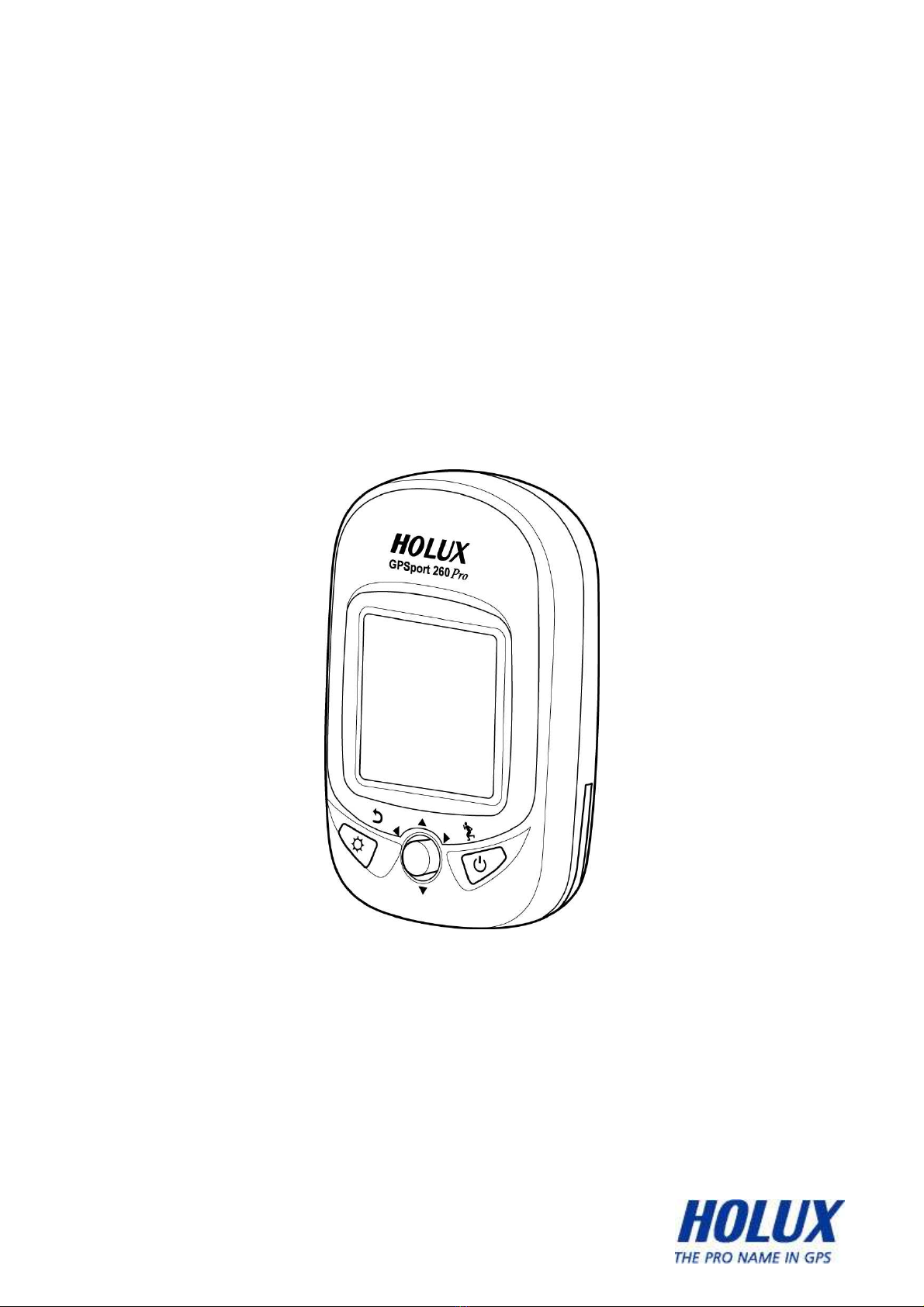
GPSport 260 Pro
User’s Guide
- 2 -
Safety Precautions
•
Use the power adapter included with the package, using power adapters
other than the one provided will result in malfunction and could prove
dangerous.
• Battery replacement should not be performed by consumers, only
professionally trained maintenance personnel should do the removal of the
cover and the internal components. Note: It may cause explosion if the
battery is not properly replaced with the same or e uivalent model. Please
contact the original professional service personnel to replace the battery.
• Do not use the power adapter in a wet environment. When hands and feet
are wet, do not touch the power adapter.
• While using the power adaptor ensure that the area is well ventilated. Do
not let paper or other material cover the power adaptor, as this will interfere
with cooling. Do not use the power adaptor whilst it is in a bag.
• Do not attempt to repair the device. If this device is damaged or is in a wet
environment, replace the device immediately.
• This device is waterproof (meets IPX 7 standard) but not protected against
water immersion.
Warranty Information
The GPSport 260 Pro is warranted to be free from defects in material and
functions for a period of one year from the date of purchase. If there is a
product failure of within this period (under normal conditions), a replacement
- 3 -
will be provided at no charge to the customer.
Copyright Information
No part of this manual, including the products and software described in it, may
be reproduced, transmitted, transcribed, stored in a retrieval system, or
translated into any language in any form or by any mean, without the express
written permission of Holux Technology, Inc.
Copyright, All Rights Reserved.
Federal Communications Commission FCC)
Statement
This e uipment has been tested and found to comply with the limits for a Class
B digital device, pursuant to Part 15 of the FCC Rules. These limits are
designed to provide reasonable protection against harmful interference in a
residential installation. This e uipment generates, uses and can radiate radio
fre uency energy and, if not installed and used in accordance with the
instructions, may cause harmful interference to radio communications.
However, there is no guarantee that interference will not occur in a particular
installation. If this e uipment does cause harmful interference to radio or
television reception, which can be determined by turning the e uipment off and
on, the user is encouraged to try to correct the interference by one or more of
the following measures:
• Reorient or relocate the receiving antenna.
• Increase the separation between the e uipment and receiver.
- 4 -
• Connect the e uipment into an outlet on a circuit different from that to
which the receiver is connected.
• Consult the dealer or an experienced radio/TV technician for help.
- 5 -
CAUTION
Any changes or modifications not expressly approved by the grantee of this
device could void the user's authority to operate this e uipment.
This device complies with Part 15 of the FCC Rules. Operation is subject to the
following two conditions: (1) This device may not cause harmful interference,
and (2) this device must accept any interference received, including interference
that may cause undesired operation.
For product available in the USA/Canada market, only channel 1~11 can be
operated. Selection of other channels is not possible.
RF Exposure Warning
This e uipment must be installed and operated in accordance with provided
instructions and the antenna(s) used for this transmitter must be installed to
End-users and installers must be provided with antenna installation instructions
and transmitter operating conditions for satisfying RF exposure compliance.
- 6 -
Table of Contents
Introduction ....................................................................................................10
F
EATURES
.............................................................................................11
P
ARTS AND
F
UNCTIONS
........................................................................ 12
S
TANDARD
A
CCESSORIES
.................................................................... 15
O
PTIONAL
A
CCESSORIES
..................................................................... 17
C
HARGING THE
B
ATTERY
..................................................................... 18
Using the AC Charger ..................................................................... 18
I
NSTALLING
B
IKE
M
OUNT
...................................................................... 19
W
EARING
HRM.................................................................................... 21
I
NSTALLING
C
ADENCE
.......................................................................... 23
I
NSTALLING
S
PEED
S
ENSOR
................................................................. 26
R
EPLACING THE
B
ATTERY OF
C
ADENCE
/S
PEED
S
ENSOR
...................... 30
D
OWNLOADING
T
RACK
L
OGS
............................................................... 32
Installing ezTour Plus ...................................................................... 32
Starting ezTour Plus ........................................................................ 36
Starting ezTour Planner .................................................................. 37
Connecting to a PC......................................................................... 38
Introduction of 9 Function Modes ................................................................39
M
AIN
M
ENU
......................................................................................... 39
S
PORT
M
ODE
....................................................................................... 40
P
LOT
M
ODE
......................................................................................... 47
F
OLLOW
C
OURSE
M
ODE
...................................................................... 52
T
RAINING
............................................................................................. 60
Training - H M ................................................................................ 60
Training – Cadence ......................................................................... 62
- 7 -
Training Time................................................................................... 63
Start Training ................................................................................... 65
M
ULTI
F
INDER
M
ODE
............................................................................ 68
P
EDOMETER
M
ODE
.............................................................................. 71
C
OMPASS
M
ODE
.................................................................................. 73
S
ETTING
M
ODE
.................................................................................... 74
H
ISTORY
M
ODE
.................................................................................... 77
Getting Started ...............................................................................................78
T
URNING
O
N
GPS
PORT
260
P
RO
........................................................ 79
T
URNING
O
FF
GPS
PORT
260
P
RO
....................................................... 79
I
NITIAL
S
ETUP
...................................................................................... 79
T
URNING
O
N
/O
FF
B
ACKLIGHT
.............................................................. 79
S
TARTING
/S
TOPPING
L
OGGING
............................................................ 81
Auto-Start Logging .......................................................................... 81
B
ASIC
O
PERATION
............................................................................... 82
Quick Menu ..................................................................................... 82
Basic Operation without Setting...................................................... 84
Speed Meter.................................................................................... 84
S
TATUS
I
CONS
..................................................................................... 86
Setting Up GPSport 260 Pro .........................................................................87
Q
UICK
S
ETUP
...................................................................................... 88
Sport Mode...................................................................................... 88
A
LERT
.................................................................................................. 90
To Set Alerts .................................................................................... 90
To Set Time Alert............................................................................. 90
To Set Speed Alert .......................................................................... 91
- 8 -
To Set Distance Alert....................................................................... 92
To Set Altitude Alert......................................................................... 92
eset Alert....................................................................................... 93
C
ALIBRATION
....................................................................................... 94
Altimeter Calibration........................................................................ 94
Compass Calibration....................................................................... 97
L
OG
..................................................................................................... 98
Interval....................................................................................................98
Auto-Start (Logging) ............................................................................100
Pau e (Logging) ...................................................................................101
W
IRELESS
L
INK
.................................................................................. 102
Activate Wireless Link................................................................... 102
Scan .............................................................................................. 103
Connect and Detect ...................................................................... 104
About Wheel Size.......................................................................... 104
Setting Wheel Size........................................................................ 105
G
ENERAL
(S
ETTING
) .......................................................................... 108
User Profile.................................................................................... 108
Set Backlight ................................................................................. 109
Auto Flip Page................................................................................110
Memory Mode ................................................................................110
Auto Power Off...............................................................................111
S
YSTEM
S
ETTING
................................................................................111
Delete all log...................................................................................112
Time Format ...................................................................................112
Time Zone ......................................................................................112
Unit .................................................................................................113
Language .......................................................................................114

- 9 -
LCD Contrast..................................................................................114
Odometer .......................................................................................114
GPS ................................................................................................116
Signal....................................................................................................116
Cold Start..............................................................................................116
eset Device..................................................................................118
Initial Setup.....................................................................................118
bout ezTour Plus and ezTour Planner .....................................................119
F
UNCTIONS OF EZ
T
OUR
P
LUS
.............................................................119
F
UNCTIONS OF EZTOUR
P
LANNER
.......................................................119
F
EATURES OF EZ
T
OUR
P
LUS
...............................................................119
Normal Care and Maintenance...................................................................121
Keep dry ...............................................................................................121
Do not drop the unit..............................................................................121
Avoid udden temperature change ......................................................121
Keep away from trong magnetic field ...............................................121
Operating temperature..........................................................................121
Avoid expo ure to unlight...................................................................121
Cleaning the creen ..............................................................................122
Do not di a emble...............................................................................122
Storage..................................................................................................122
Specifications ................................................................................................123
- 10 -
Introduction
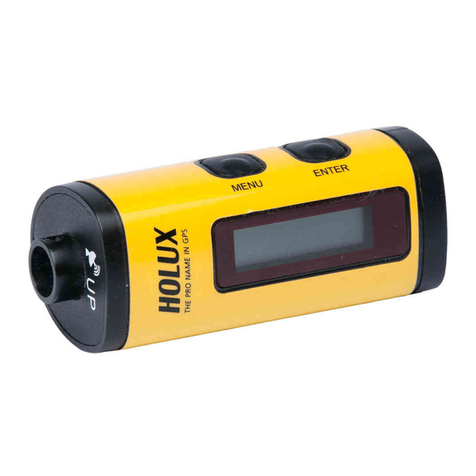
Thank you for purchasing the GPSport 260 Pro. The GPSport 260 comes
with a sturdy feel and shape and is packed with great features. In addition,
it is compatible with an optional heart rate monitor strap, cadence sensor
and speed sensor for anyone who wants to have in-depth analysis on
their rides and accordingly sharpen their outdoor performance.
The GPSport 260 Pro works as a GPS data logger with internal memory,
plus, it also serves the purpose of a speed meter that shows immediate
sport information including speed, distance, time, and pace while users
are exercising. Plus, the built-in 3D compass and barometer sensors
make it a perfect gadget for outdoor lovers to find their direction and
altitude. One of its simplest functions is to work as a pedometer for
everyday exercise measurer and motivator.
The GPSport 260 Pro is bundled with a set of powerful software called
ezTour Plus and ezTour Planner. The former helps users with their
health fitness management, while the latter enables users to plan their
course prior to their outdoor adventure.
The device plays the role of outdoor best companion and in the
meantime reminds users how they can contribute to the environment by
calculating and showing the amount of CO
2
emissions reduced and the
amount of calories consumed when users are walking/hiking/cycling
instead of driving.