manuals.online logo
Brands
  1. Home
  2. •
  3. Brands
  4. •
  5. Hoymiles
  6. •
  7. Gateway
  8. •
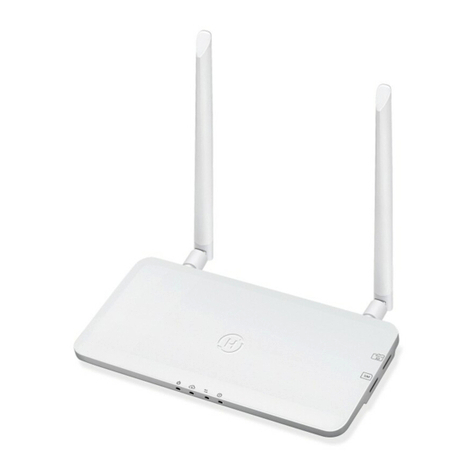
  9. Hoymiles DTU-Lite-S SE User manual

Hoymiles DTU-Lite-S SE User manual

Other Hoymiles Gateway manuals

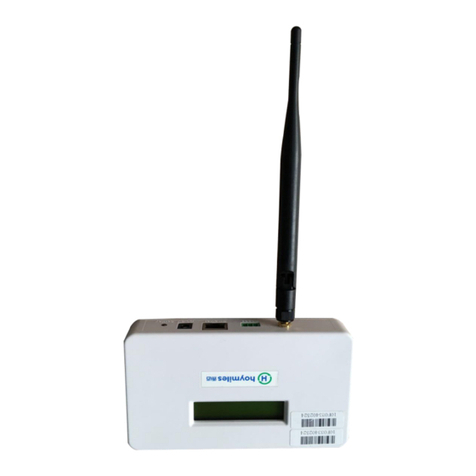
Hoymiles DTU-Pro User manual

Hoymiles

Hoymiles DTU-Pro User manual

Hoymiles DTU-MI User manual

Hoymiles

Hoymiles DTU-MI User manual

Popular Gateway manuals by other brands

Telecom FM onestream gfx Programming guide

Telecom FM

Telecom FM onestream gfx Programming guide

UfiSpace LoRa GPE810U Quick setup guide

UfiSpace

UfiSpace LoRa GPE810U Quick setup guide

Merak MMk-736F Quick setup guide

Merak

Merak MMk-736F Quick setup guide

Robustel R3010 user guide

Robustel

Robustel R3010 user guide

turck BL20-PG-EN-V3 user manual

turck

turck BL20-PG-EN-V3 user manual

IBM Security Web Gateway Appliance quick start guide

IBM

IBM Security Web Gateway Appliance quick start guide

SSS Siedle Smart Gateway Commissioning instructions

SSS Siedle

SSS Siedle Smart Gateway Commissioning instructions

ADTRAN 424RG Installation

ADTRAN

ADTRAN 424RG Installation

Chorus Hyperfibre XGS-250WX-A user guide

Chorus

Chorus Hyperfibre XGS-250WX-A user guide

Dragino G308 user manual

Dragino

Dragino G308 user manual

Data Domain DD690g Installation and setup guide

Data Domain

Data Domain DD690g Installation and setup guide

Raritan Laptop Release notes

Raritan

Raritan Laptop Release notes

Haivision Torpedo quick start guide

Haivision

Haivision Torpedo quick start guide

ATCOM AG-268 user manual

ATCOM

ATCOM AG-268 user manual

LST M500RFE-AS Specification sheet

LST

LST M500RFE-AS Specification sheet

Vega VEGA BS-3 user manual

Vega

Vega VEGA BS-3 user manual

Kinnex Media Gateway quick start guide

Kinnex

Kinnex Media Gateway quick start guide

2N Telekomunikace 2N StarGate user manual

2N Telekomunikace

2N Telekomunikace 2N StarGate user manual

manuals.online logo
manuals.online logoBrands
  • About & Mission
  • Contact us
  • Privacy Policy
  • Terms and Conditions

Copyright 2025 Manuals.Online. All Rights Reserved.

A
B
C
01
Region: Brazil AP040543 REV1.1 © 2022 Hoymiles Power Electronics Inc. All rights reserved.
1. Interface Layout
Item Description
USB Connector
Status Indicator
Reset Button
2. Installation
A) Check the box for the following items:
√ Hoymiles DTU-Lite-S SE
√ Adapter
Important:
DTU-Lite-S SE is only compatible with Hoymiles new HMS and HMT series of microinverters.
Option 1: Connect the DTU to the
adapter and plug it into a wall socket
B) Power the DTU-Lite-S SE
DTU-Lite-S SE Quick Installation Guide
Option 2: Connect the DTU to the
adapter and plug it into the power strip.
B) Download the Hoymiles mobile
installer App.
A) Plug in the power adapter to energize the DTU. Once the DTU powers on, the red, green and blue lights will flash for
one second in turn for 30 seconds.
Select the DTU's wireless
network and click “Connect”.
(The network name of the DTU
consists of DTUL and product
serial number, and is not
password-protected by default.)
C) Use the App to connect to the DTU:
Open the Installer App on smart
phone/tablet and log in.
Click “O&M” at the bottom of the
page and then click “Network
Config”.
3. Online Setting
Note:
1. Please make sure that it is placed at least 0.5 meters above the ground, and try to install the DTU at a 90 degrees angle
perpendicular to the ground.
2. To prevent signal attenuation, please do not install the DTU directly above metal or concrete.
Option 1
A B C
Option 2
02
5. MI Toolkit
MI Toolkit is one of the toolkits that come with S-Miles
Cloud App. It can be used for on-site inspection after
the PV power station is complete, so that the operation
of microinverter can be monitored without Site
Creation.
For more operation details regarding MI Toolkit, please
refer to “User Manual for DTU-Lite-S SE”.
6. Warning
Please complete the online account creation to complete
the DTU installation (refer to “Quick Installation Guide for
S-miles Cloud Online Registration” for detailed account
creation steps).
Warning
- Only qualified personnel can install or replace the DTU.
- Do not attempt to repair the DTU by yourself. If the DTU
breaks down, please contact your distributor for
maintenance. Disassemble the DTU without permission
will invalidate the warranty.
Product information is subject to change without notice. (Please download reference manuals at www.hoymiles.com.)
Region: Brazil AP040543 REV1.1 © 2022 Hoymiles Power Electronics Inc. All rights reserved.
D) Set up with Internet
B) Complete system information of the
installation map as shown on the right.
A) Peel the serial number label (as circled
below) from the DTU and affix it to the
installation map.
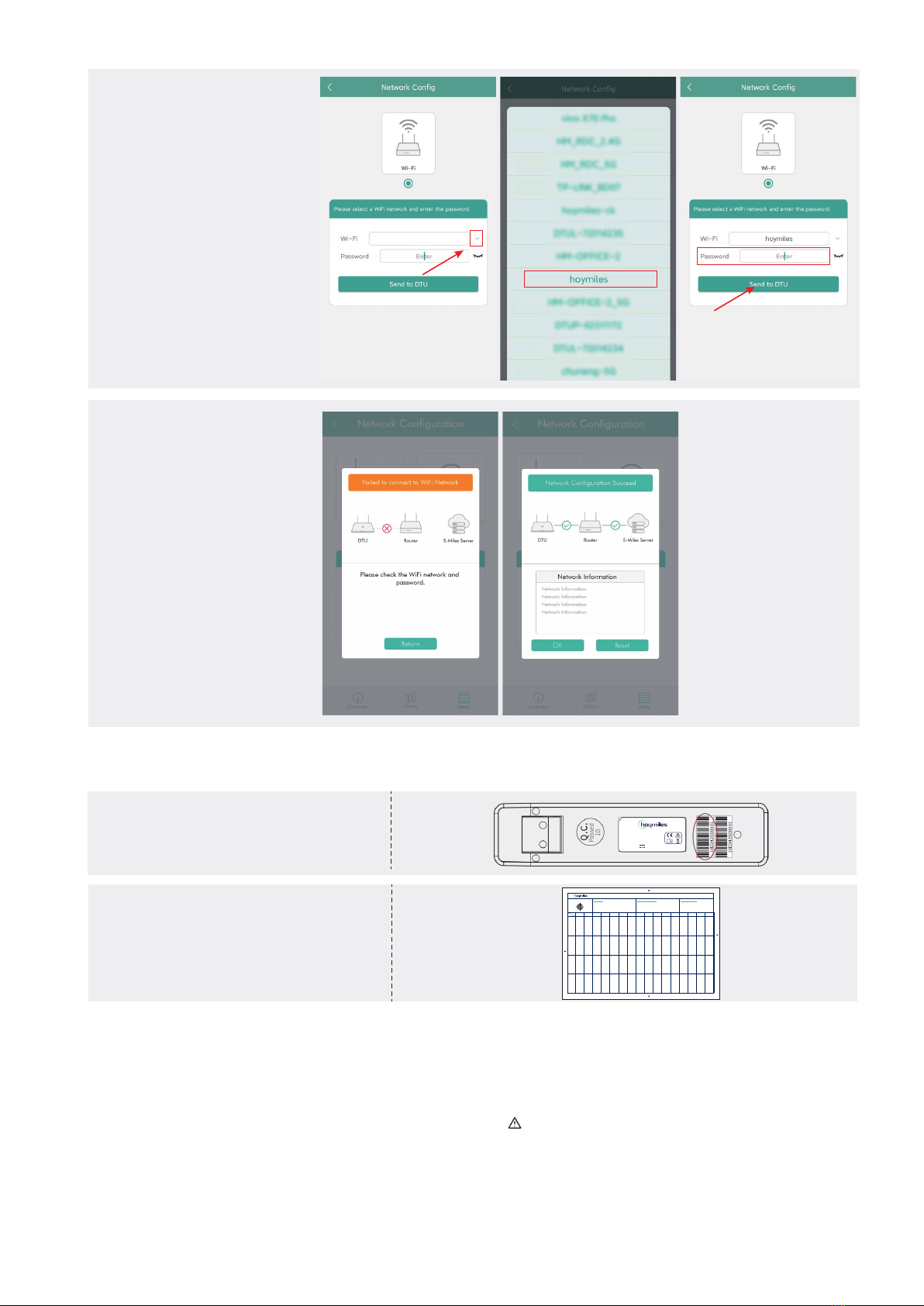
The network configuration takes
about 1 minute, please be
patient.
If the network is not connected,
please check the internet as
instructed.
Check the indicator light of DTU
when the connection is
successful (green light shall
remain on).
Note: If your configuration page is
inconsistent with the above, please
update the DTU firmware to the latest
version.
When the connection is
successful, click “Network
Config” again and enter the
Network Config page.
Select the router Wi-Fi and enter
the password.
Click “Send to DTU”.
4. Installation Map
Please complete the installation map.
Tosheet ______
Tosheet ______
Tosheet ______
Tosheet ______
Sheet_____of_____
Hoymiles Microinverter Installat ion Map
Please Make N for North
1
A
B
C
D
2 3 4 5 6 7 8 9 10 11 12 13 14 15 16
COLUMN
ROW
AP040228 V1.3
Customer Information: DTU Serial Number
Azimuth:
Tilt:
Panel type:
Model: DTU-Lite-S SE
Input: 5V 2A Made in China
Data Transfer Unit