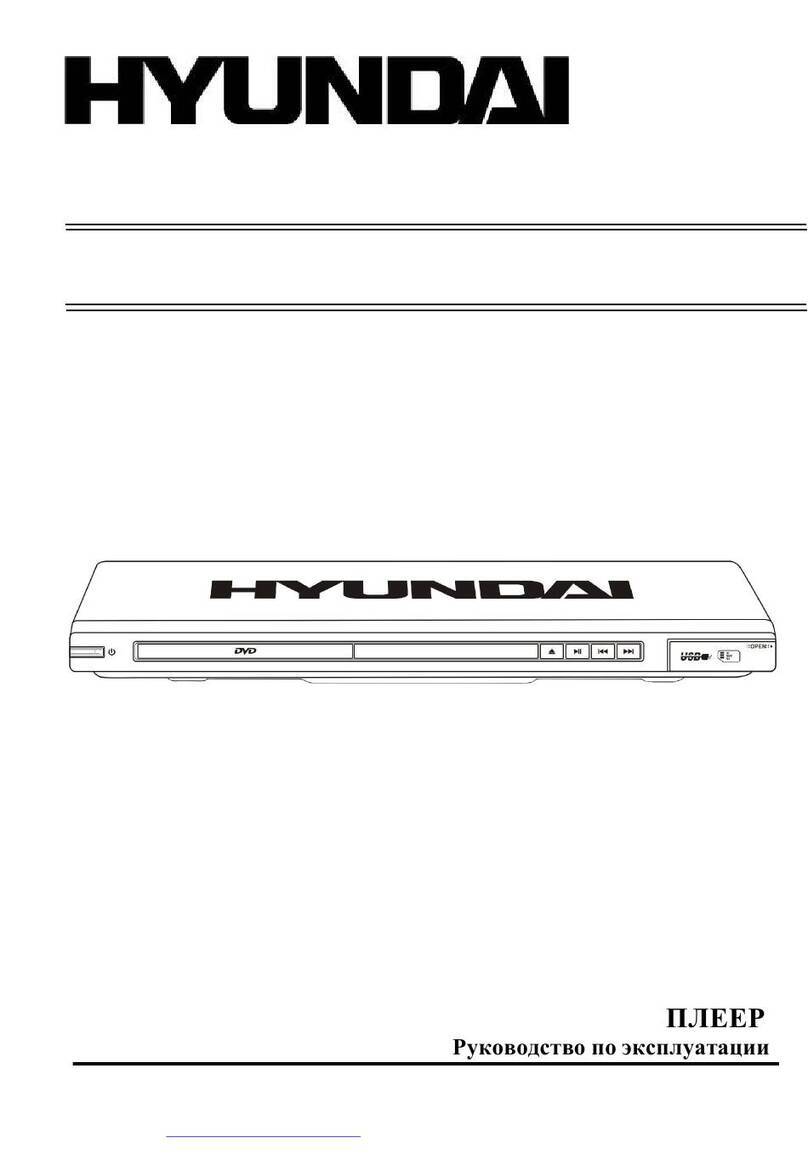
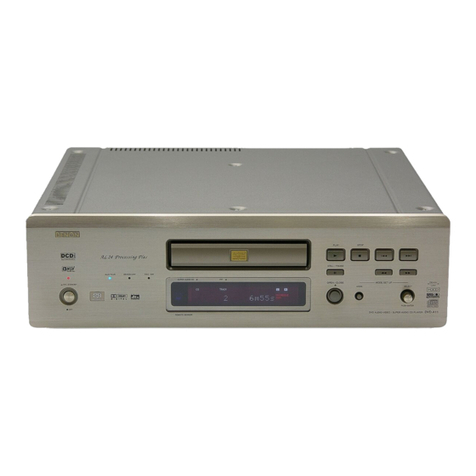
Hyundai DV2X708DU User manual
Other Hyundai DVD Player manuals
Hyundai
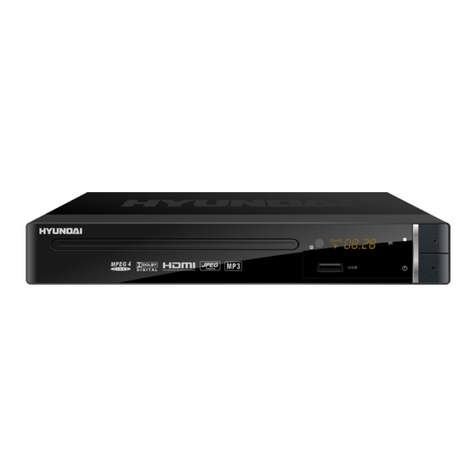
Hyundai DV2H378DU User manual
Hyundai
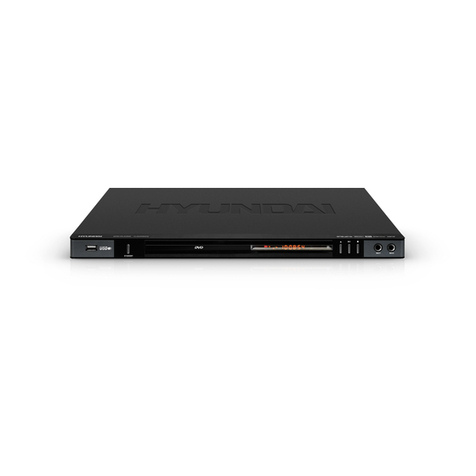
Hyundai H-DVD5070 User manual
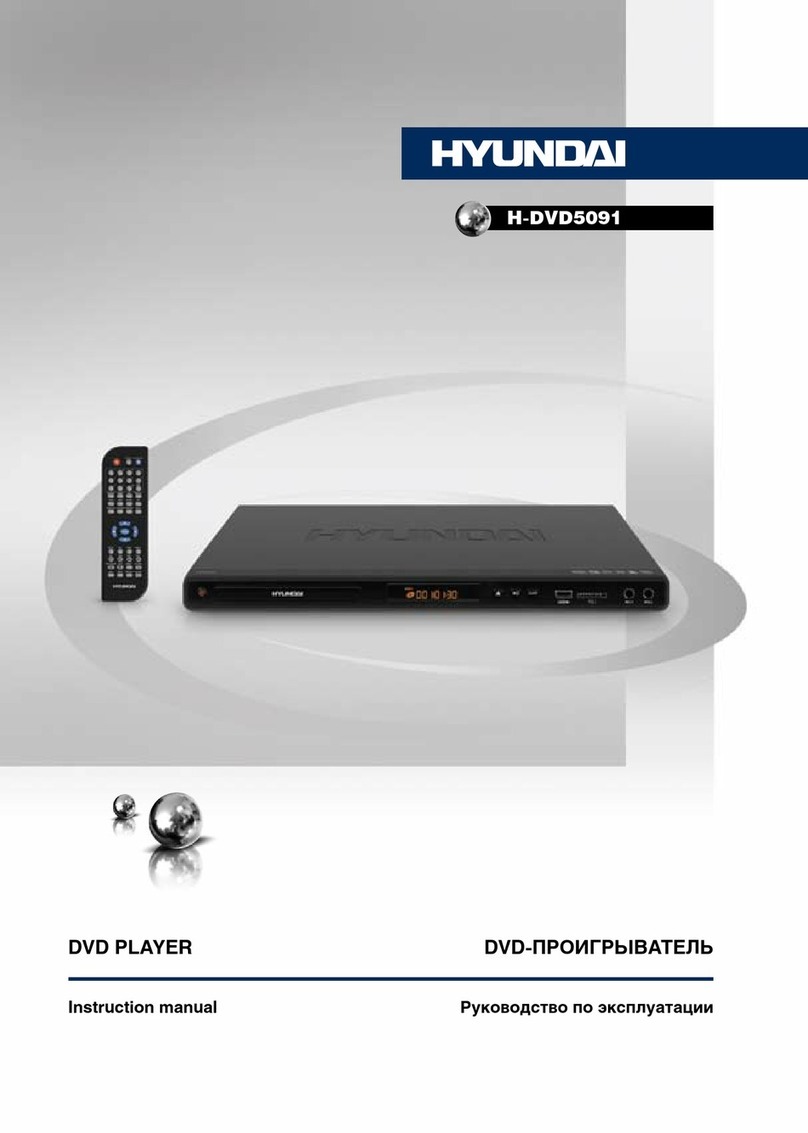
Hyundai
Hyundai H-DVD5091 User manual
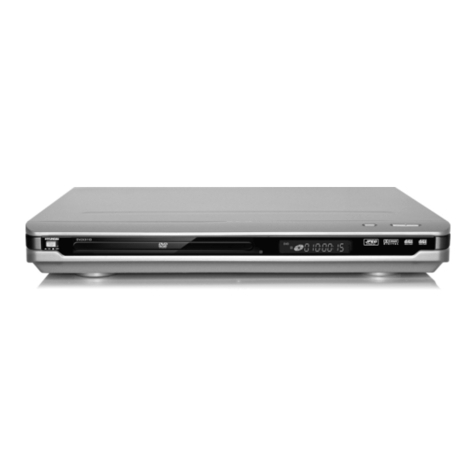
Hyundai
Hyundai DV2X311D User manual

Hyundai
Hyundai H-DVD5008-N User manual
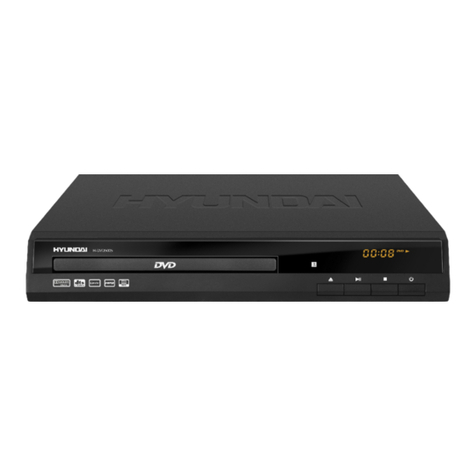
Hyundai
Hyundai H-DVD5005 User manual

Hyundai
Hyundai DV2H 378 DU User manual
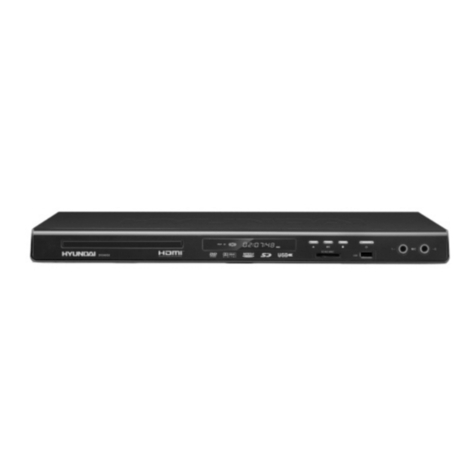
Hyundai
Hyundai DV5H835 User manual

Hyundai
Hyundai H-DVD5064 User manual
Hyundai
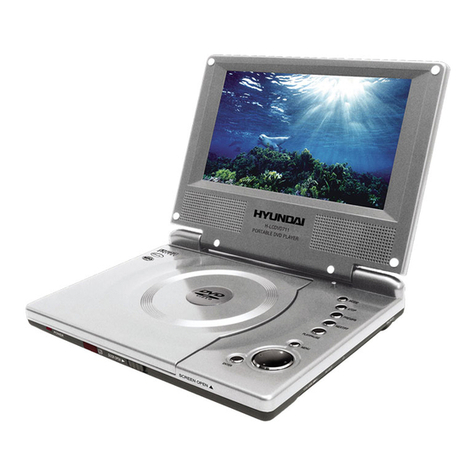
Hyundai H-LCDVD711 User manual
Hyundai
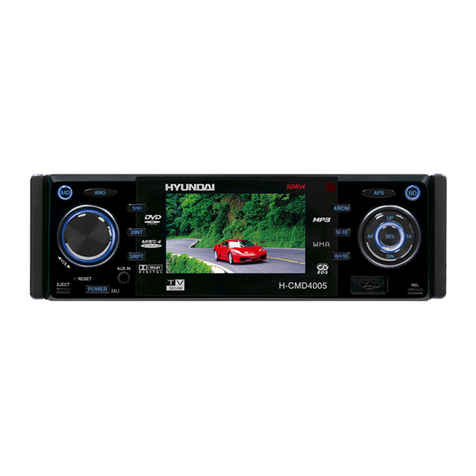
Hyundai H-CMD4005 User manual
Hyundai
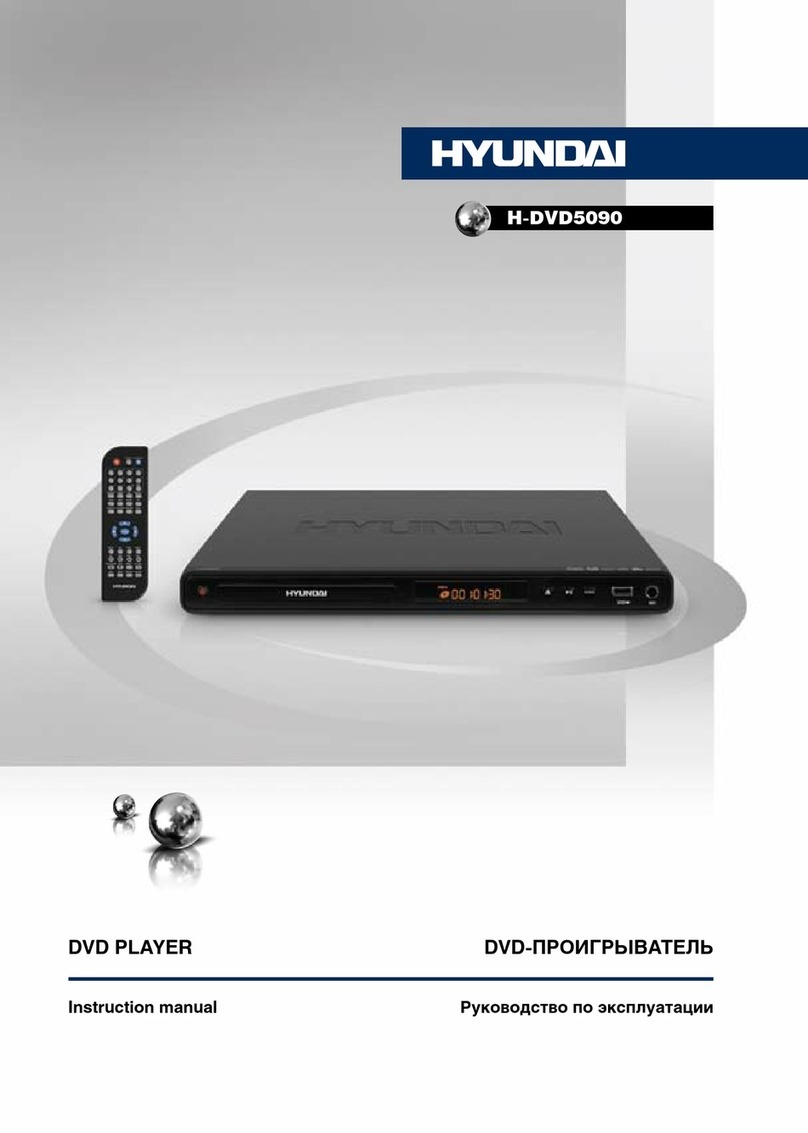
Hyundai H-DVD5090 User manual
Hyundai
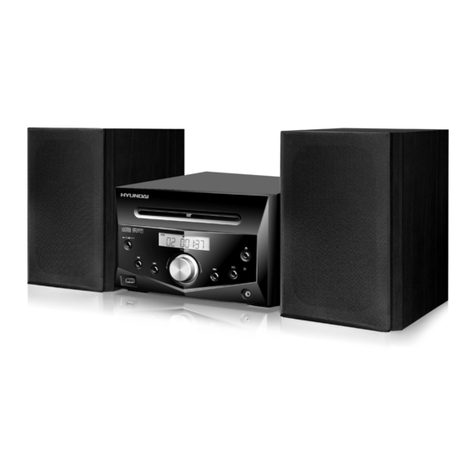
Hyundai MSD617DRU User manual

Hyundai
Hyundai DV2H 478 DU User manual

Hyundai
Hyundai H-DVD5019 User manual
Hyundai
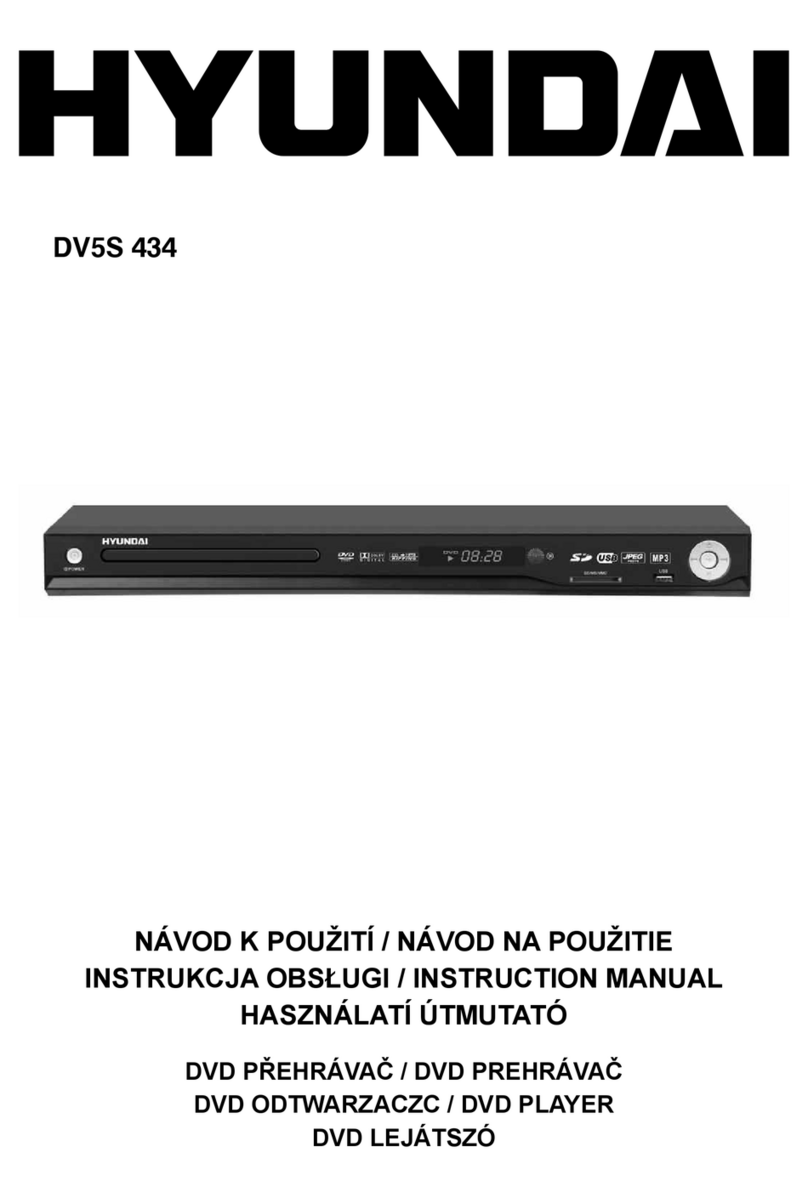
Hyundai DV5S 434 User manual
Hyundai
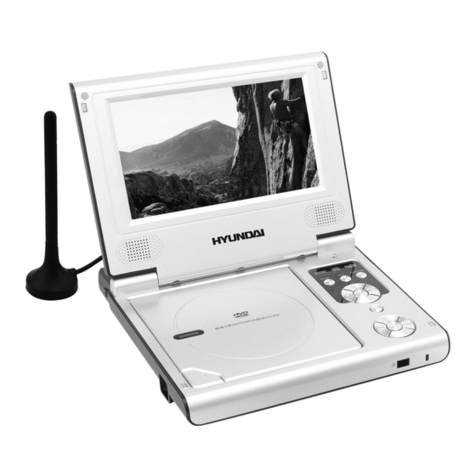
Hyundai PDP 608U DVBT User manual
Hyundai
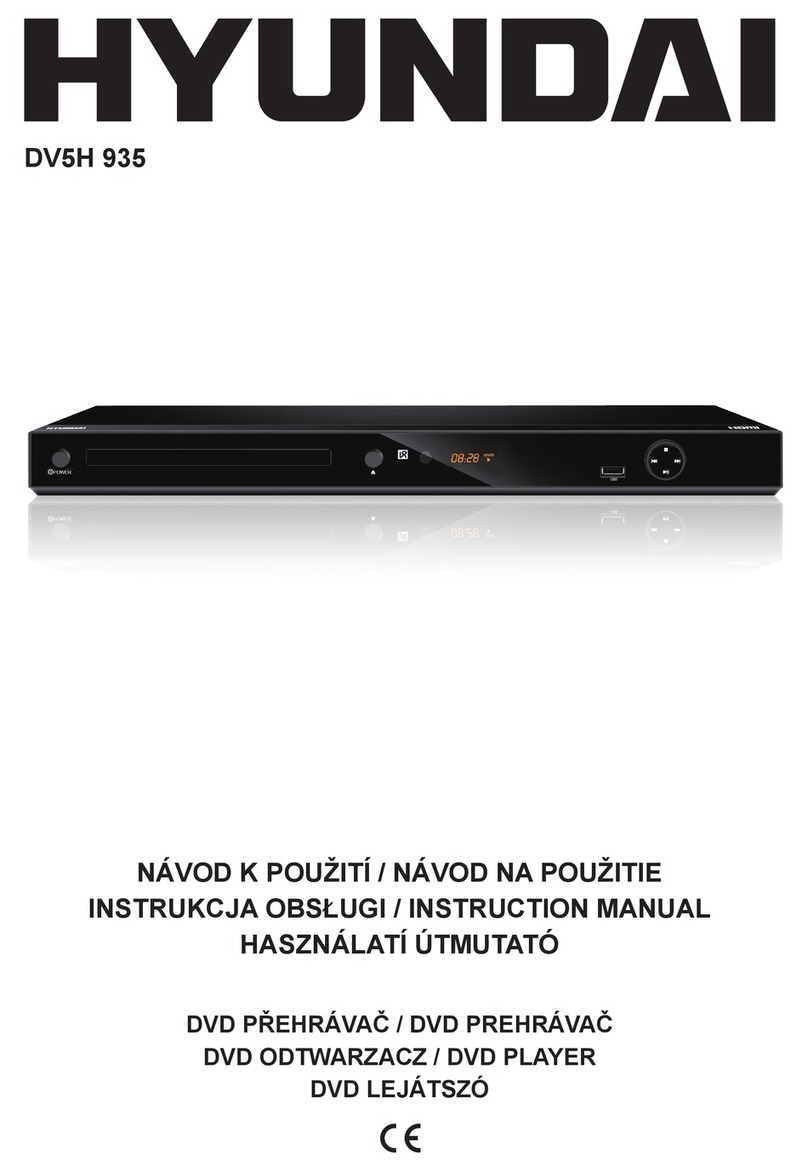
Hyundai DV5H 935 User manual
Hyundai
Hyundai DV5S747 User manual
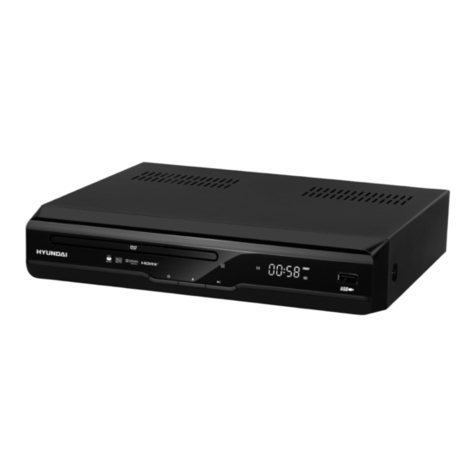
Hyundai
Hyundai DV2H 266 HD DVBT User manual