i R E M O T E
®
U S E R G U I D E i R E M O T E
®
U S E R G U I D E i R E M O T E
®
U S E R G U I D E
www.nilesaudio.com
CHARGING THE BATTERY
Your new iRemote comes equipped with
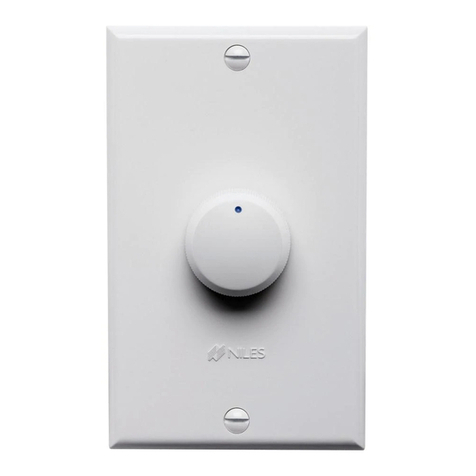
a rechargeable battery, charging base
and power supply. After every use,
place your iRemote into the charging
base cradle. The charging base’s front
panel light changes from light blue to
bright blue when the remote is seated
correctly. When the battery is charging,
the LCD display reads [Charging],¹ and
when charging is complete the display
reads [Charging Complete]. The iRemote
operates approximately 8 hours on a full
charge.²
SETTING THE iREMOTE TO CONTROL
YOUR ZONE
Press the Zone Key, a list of zone names
appear. Use the up or down Cursor Keys
to scroll to a zone name, then press the
SELECT Key.
TURNING ON THE SYSTEM
Press any of the eight custom-labeled
Master Keys and music begins playing.
SELECTING A SOURCE
Simply press the Master Key that
corresponds to the source you wish to
control.
PARTY MODE
Press and hold any of the eight Master
Keys for 2 seconds. All your favorite
zones enabled for Party Mode turn on to
the same source.
SETTING A FAVORITE STATION
(XM, SIRIUS OR AM/FM)
Tune to the station you would like to add
to your favorites list. Press the Soft Key
labeled [Favs]. A list of your favorite
stations appear. Scroll to the end of the list
and select [Add to Favorites]. 20 Favorite
stations can be stored for each tuner.
REPLACING A FAVORITE STATION
Tune to the station you would like to add
to your favorites list. Press the Soft Key
labeled [Favs]. Scroll to the favorite you
would like to replace. Press and hold the
SELECT Key for 2 seconds. A new screen
appears, [Replace] is highlighted. Select
[Replace]. Your tuned station replaces
the existing favorite from the list.
DELETING A FAVORITE STATION
Press the Soft Key labeled [Favs]. Scroll to
the favorite you would like to delete. Press
and hold the SELECT Key for 2 seconds. A
new screen appears, select [Delete]. The
favorite is deleted from the list.
USING YOUR iREMOTE
®
ALPHABETIC SEARCH ON YOUR iPOD
Press the Soft Key labeled [Menu], select
[Artists]. Press the Alphanumeric Key that
represents the letter corresponding to the
name of the artist (i.e., press “2 ABC”
key three times for a list of Artists starting
with the letter “C”).
TURNING OFF THE ZONE YOU’RE
CONTROLLING
Press the OFF Key to turn off the zone
you’re controlling.
TURNING OFF ALL ZONES
Press and hold the OFF Key for 2 seconds
to turn off all zones.
SETTING TREBLE, BASS AND BALANCE
Press the Niles System Settings Key, a
list of settings appear. Select [Audio
Settings]. Use the left or right Cursor
Keys to change the level. Use the up or
down Cursor Keys to move from Treble
to Bass to Balance.
SETTING TURN ON VOLUME
Press the Niles System Settings Key and
select [Turn On Volume]. Select [Last
Used Volume] or [Default Turn On
Volume]. Use the left or right Cursor
Keys to set the default Turn On Level.
SETTING THE CLOCK
Press the Niles System Settings Key and
select [Clock Setting]. Use the left or
right Cursor Keys to change the time.
Use the up or down Cursor Keys to move
from Hours to Minutes to AM/PM.
SETTING THE SLEEP TIMER
Press the Niles System Settings Key and
select [Sleep Timer]. Use the left or
right Cursor Keys to turn the sleep timer
on, set the time and select [This Zone]
or [All Zones].
SETTING THE ALARM CLOCK
Press the Niles System Settings Key and
select [Alarm Clock]. Use the left or
right Cursor Keys to turn the [Alarm
Clock] on, set the [Wake Up Time] and
choose the [Source] you would like to
wake up to.
SETTING THE PAGE/DOORBELL
Press the Niles System Settings Key and
select [Paging/Doorbell]. Use the left
or right Cursor Keys to select [Always
In This Zone], [Only If Zone Is On] or
[Never In This Zone].
¹ [ ] Brackets correspond to LCD display selection or function.
² You will need to charge your iRemote fully before first use.
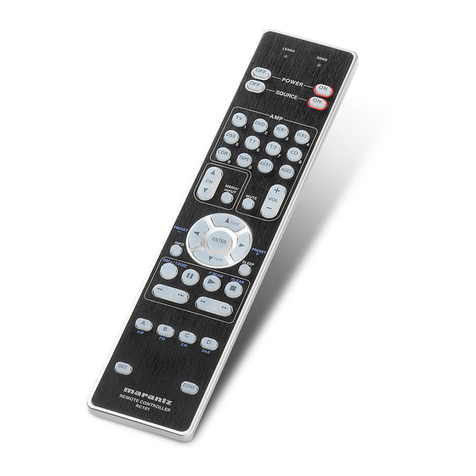
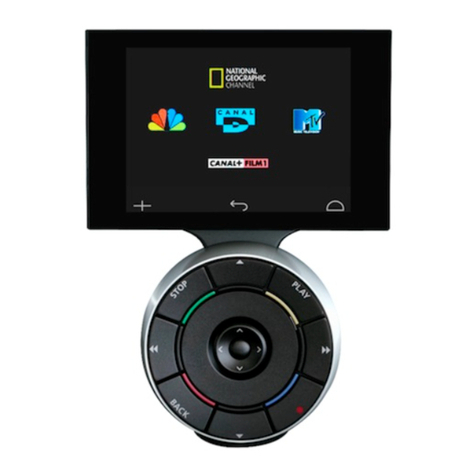
Display
Backlit LCD displays system
information from iPod, XM,
SIRIUS and AM/FM and functions
associated with “Soft Keys”
Soft Keys
3 backlit buttons that change
function depending upon the
source selected
Cursor and SELECT Keys
5 backlit buttons provide navigation
of menus, playlists and favorites
Master Keys
8 backlit buttons provide
“One Touch to Music”
OFF
Backlit button turns zone
or system off
PREV/NEXT
2 backlit buttons move to Next or
Previous/Track or Channel
Alphanumeric Keys
Provide direct access tuning,
numeric selection of track and
alphabetic search for iPod
MUTE
Backlit button mutes/un-mutes
audio output to zone
VOL+/VOL–
2 backlit buttons adjust volume
up or down
Niles System Settings
Provides access to system settings:
audio (bass, treble, balance),
sleep timer, alarm clock, etc.
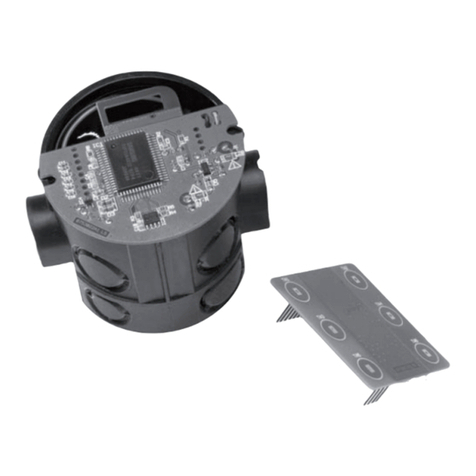
Charging Base
USING YOUR iREMOTE
®
Battery Indicator
12V DC Power
Supply
Zone Key
Brings up Zone Selection screen