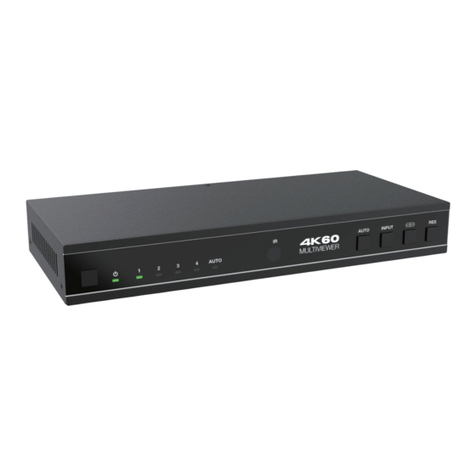
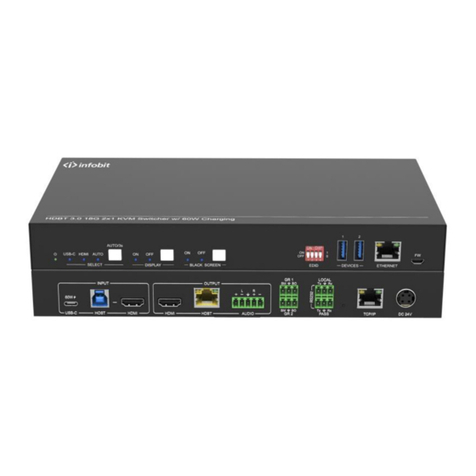
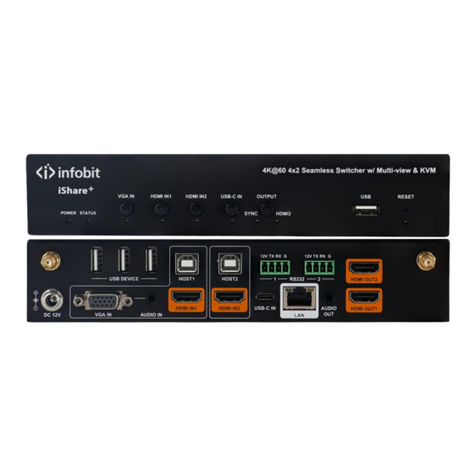
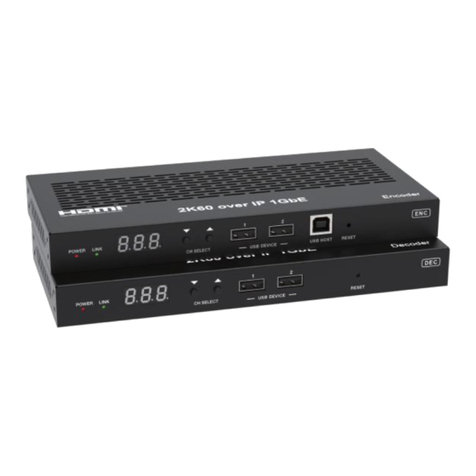
infobit iTrans USB32-S User manual

INFOBIT www.infobitav.com info@infobitav.com
iTrans USB32-S
USB 10G Switcher 2x1 with Auto Switching
All Rights Reserved
Version: V1.0

Preface
Read this user manual carefully before using the product. Pictures shown in this
manual are for reference only. Different models and specifications are subject to real
product.
This manual is only for operation instruction, please contact the local distributor for
maintenance assistance. The functions described in this version were updated till
January, 2023. In the constant effort to improve the product, we reserve the right to
make functions or parameters changes without notice or obligation. Please refer to the
dealers for the latest details.
FCC Statement
This equipment generates, uses and can radiate radio frequency energy and, if not
installed and used in accordance with the instructions, may cause harmful interference
to radio communications. It has been tested and found to comply with the limits for a
Class A digital device, pursuant to part 15 of the FCC Rules. These limits are designed
to provide reasonable protection against harmful interference in a commercial
installation.
Operation of this equipment in a residential area is likely to cause interference, in which
case the user at their own expense will be required to take whatever measures may be
necessary to correct the interference.
Any changes or modifications not expressly approved by the manufacture would void
the user’s authority to operate the equipment.

SAFETY PRECAUTIONS
To ensure the best from the product, please read all instructions carefully before using
the device. Save this manual for further reference.
⚫Unpack the equipment carefully and save the original box and packing material for
possible future shipment
⚫Follow basic safety precautions to reduce the risk of fire, electrical shock and injury
to persons.
⚫Do not dismantle the housing or modify the module. It may result in electrical shock
or burn.
⚫Using supplies or parts not meeting the products’ specifications may cause
damage, deterioration or malfunction.
⚫Refer all servicing to qualified service personnel.
⚫To prevent fire or shock hazard, do not expose the unit to rain, moisture or install
this product near water.
⚫Do not put any heavy items on the extension cable in case of extrusion.
⚫Do not remove the housing of the device as opening or removing housing may
expose you to dangerous voltage or other hazards.
⚫Install the device in a place with fine ventilation to avoid damage caused by
overheat.
⚫Keep the module away from liquids.
⚫Spillage into the housing may result in fire, electrical shock, or equipment damage.
If an object or liquid falls or spills on to the housing, unplug the module immediately.
⚫Do not twist or pull by force ends of the cable. It can cause malfunction.
⚫Do not use liquid or aerosol cleaners to clean this unit. Always unplug the power to
the device before cleaning.
⚫Unplug the power cord when left unused for a long period of time.
⚫Information on disposal for scrapped devices: do not burn or mix with general
household waste, please treat them as normal electrical wastes.

Table of Content
1. Product Introduction ....................................................................................................1
1.1 Feature...............................................................................................................1
1.2 Package List.......................................................................................................1
2. Specification ................................................................................................................2
3. Panel Description ........................................................................................................3
3.1 Front Panel.........................................................................................................3
3.2 Rear Panel .........................................................................................................4
4. System Connection .....................................................................................................5
5. Panel Drawing .............................................................................................................7
6. RS232 Control.............................................................................................................7
6.1 Installation/uninstallation of RS232 Control Software ........................................7
6.2 Basic Setting ......................................................................................................7
6.3 RS232 Communication Commands...................................................................8
7. GPIO Mode................................................................................................................11
8. Troubleshooting & Maintenance................................................................................12
9. Customer Service......................................................................................................13

1
1. Product Introduction
Thanks for choosing the iTrans USB32-S 10G hub, which is designed to switch the host
and connect KVM devices to control the host. The hub can be controlled by button in
front panel, RS232 and GPIO.
1.1 Feature
⚫2x1 USB 3.2 switcher, 10G.
⚫Supports auto switching.
⚫Sufficient power(2A) for latest camera.
⚫Support button, RS232 and GPIO control.
⚫Share VC devices like camera, microphone, speakerphone, touch, keyboard,
mouse, printer and USB storage between BYOD/BYOM PC and Room PC (or
interactive OPS)
1.2 Package List
⚫1 x iTrans USB32-S
⚫2 x Mounting ears with 2 x screws.
⚫4 x Rubber feet
⚫1 x 4-pin terminal block
⚫1 x RS232 cable (3-pin to DB9)
⚫1 x DC12V2A power adaptor
⚫1 x User manual
Note
:
Please confirm if the product and the accessories are all included, if not, please
contact with the dealers.

2
2. Specification
HOST
Host
(2) USB-B
Host Connector
(2) USB-B
Bandwidth
Up to 10Gbps
DEVICES
Devices
(3) USB-A (1) USB-C
Device Connector
(3) USB-A (1) USB-C
Current
Three USB-A and one USB-C share 2A total
current
Control
Control Ports
(1) Button, (1) RS232, (1) GPIO
Control Connector
(1) White non-luminous button,
(1) 3-pin terminal block,
(1) 1-pin terminal block
Power
Power Ports
(1) 12V 2A DC IN
Power Connector
(1) Locking block
General
Bandwidth
10Gbps
USB Version
USB3.2 gen2
Maximum Power Consumption
10.65W
Operation Temperature
-5~ +55℃
Storage Temperature
-25 ~ +70℃
Relative Humidity
10% ~ 90%
Dimension (W*H*D)
112mm x 21.7mm x 90mm
Net Weight
245g

3
3. Panel Description
3.1 Front Panel
①LED light:
⚫Power LED: The indicator illuminates green when powering on and flashes
when the devices current is overloaded.
⚫HOST LED: When switching to the current host, the indicator illuminates blue,
otherwise it turns off.
⚫AUTO LED: When entering the automatic switching mode, the indicator
illuminates blue, otherwise it turns off.
②HOST: 2x USB-B 3.2 gen2, connect to the PC host.
③SELECT BUTTON: 1x white non-luminous button, click to switch host, long press
for three seconds to enter/exit automatic mode
④Firmware: 1x USB-C, use for firmware upgrade.

4
3.2 Rear Panel
①DEVICES:
3x USB-A 3.2 gen2 for connecting KVM devices.
1x USB-C 3.2 gen2 for connecting camera device.
Four USB devices port share 2A total current.
②RS232 and GPIO: 4-pin terminal block to connect central control device.
③DC IN: 1x locking block port to connect 12V2A DC power adapter.

5
4. System Connection
Usage Precautions
⚫Make sure all components and accessories included before installation.
⚫System should be installed in a clean environment with proper temperature and
humidity.
⚫All the power switches, plugs, sockets, and power cords should be insulated and
safe.
⚫All devices should be connected before power on.
The following diagram illustrates typical input and output connection that can be utilized
with the transmitter.
For Huddle Room
For Small Meeting Room

6
For Medium-to-large Meeting Room
Table of contents
Other infobit Switch manuals