manuals.online logo
Brands
  1. Home
  2. •
  3. Brands
  4. •
  5. Insignia
  6. •
  7. Headphones
  8. •
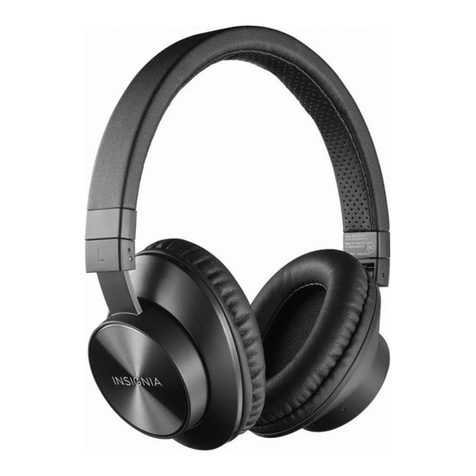
  9. Insignia NS-WHP314 User manual

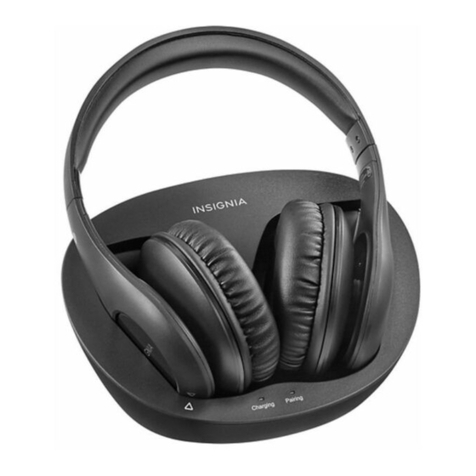
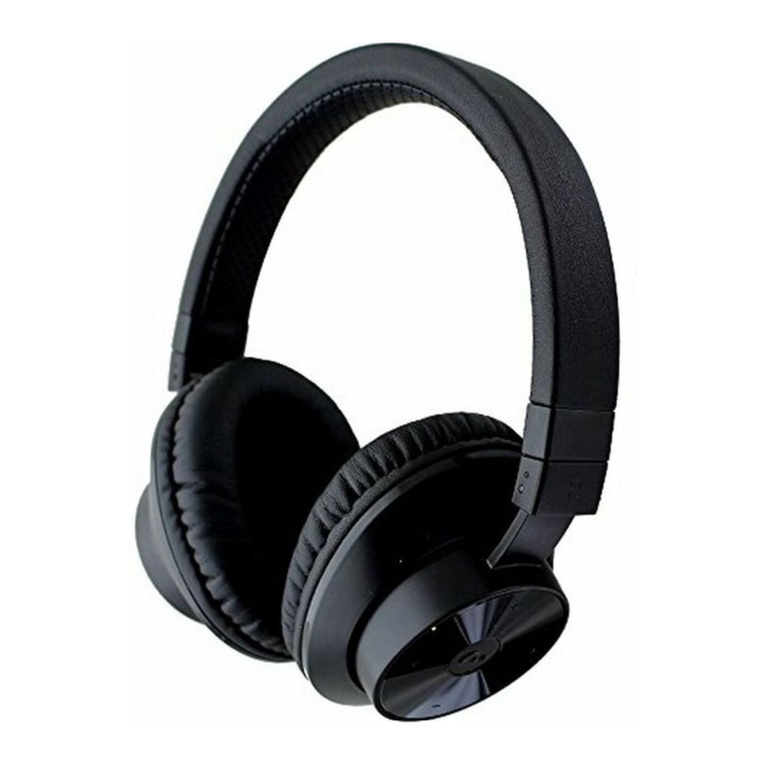
Insignia NS-WHP314 User manual

Other manuals for NS-WHP314

2

Other Insignia Headphones manuals

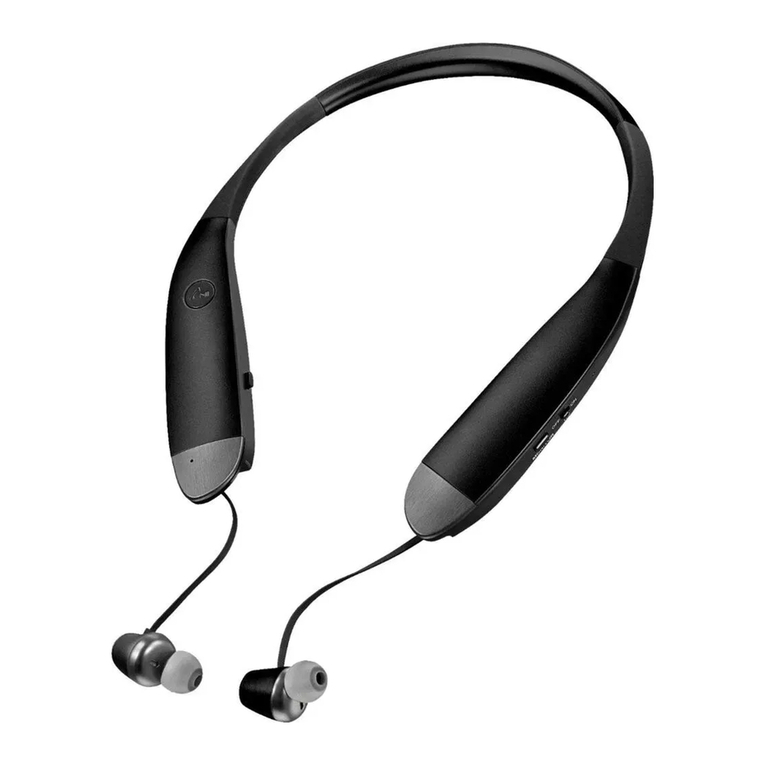
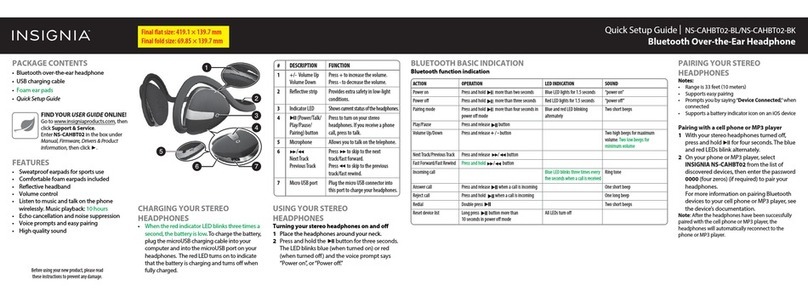
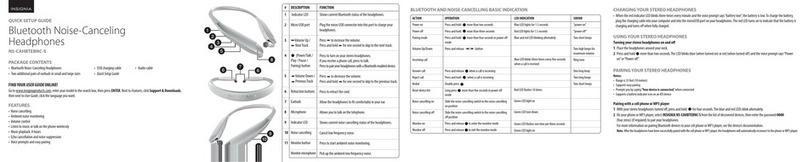
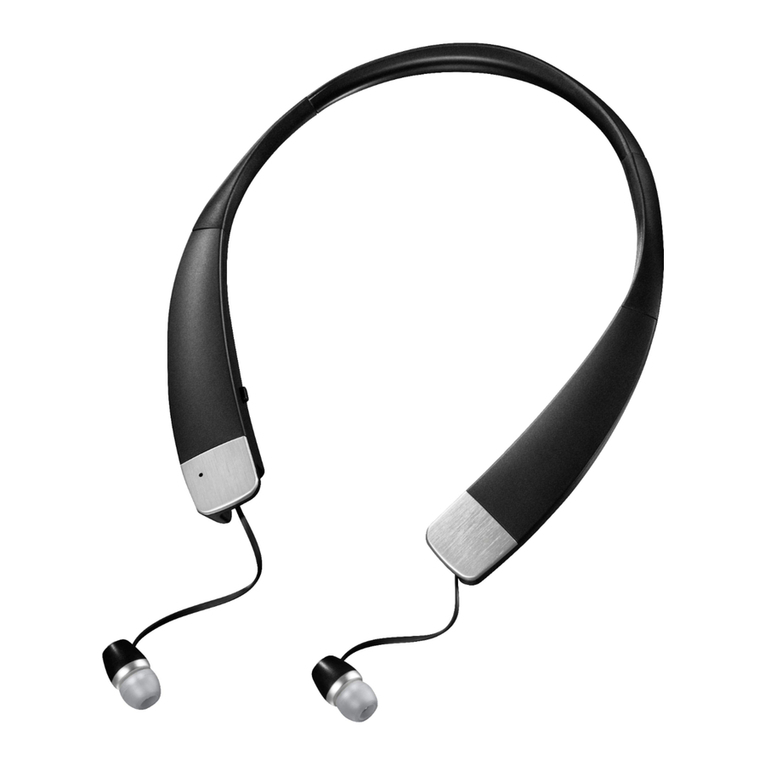
Insignia NS-CAHBTEBNC-S User manual

Insignia

Insignia NS-CAHBTEBNC-S User manual

Insignia NS-CAHKIDS-P User manual

Insignia

Insignia NS-CAHKIDS-P User manual

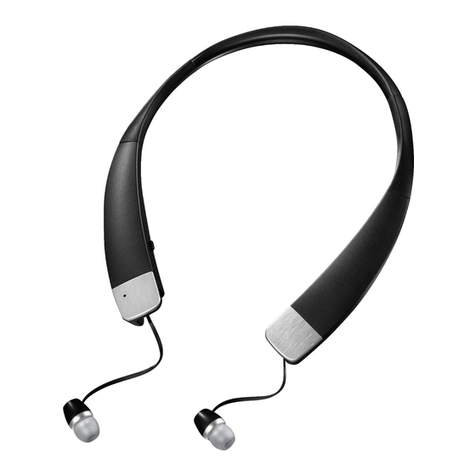
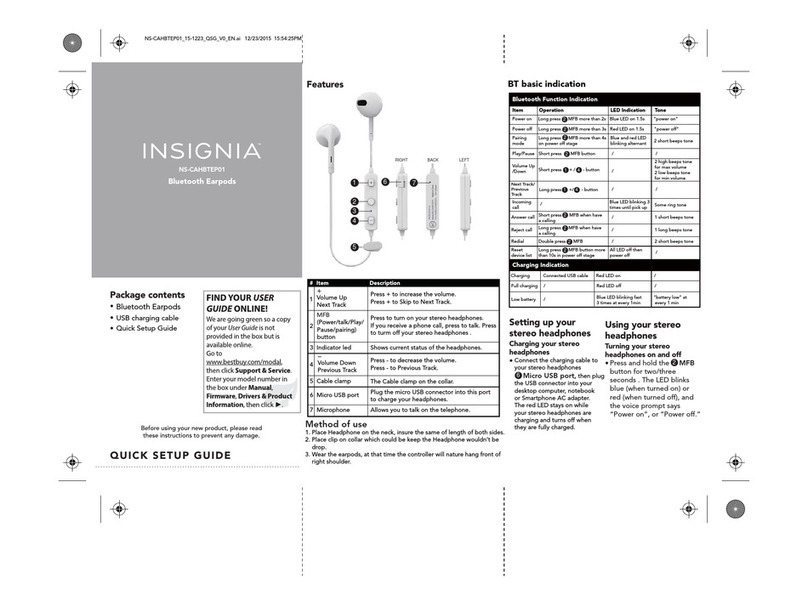
Insignia NS-CAHBTEP01 User manual

Insignia

Insignia NS-CAHBTEP01 User manual

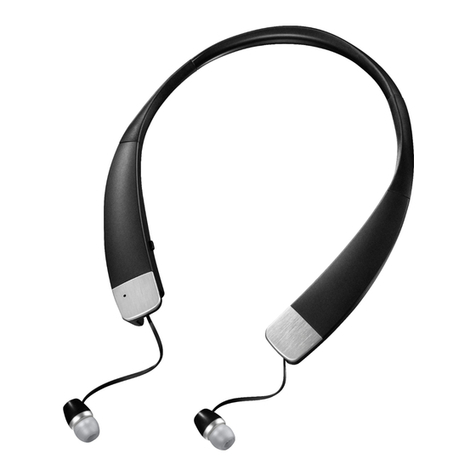
Insignia NS-CAHBTEB02-BLK User manual

Insignia

Insignia NS-CAHBTEB02-BLK User manual

Insignia NS-CAHBT02-BK User manual

Insignia

Insignia NS-CAHBT02-BK User manual

Insignia NS-CAHBT02-BL User manual

Insignia

Insignia NS-CAHBT02-BL User manual

Insignia NS-CAHBTOE01 User manual

Insignia

Insignia NS-CAHBTOE01 User manual

Insignia NS-CAHBTEB01 User manual

Insignia

Insignia NS-CAHBTEB01 User manual

Insignia NS-CAHBTEBNC-S User manual

Insignia

Insignia NS-CAHBTEBNC-S User manual

Insignia NS-WHP314 User manual

Insignia

Insignia NS-WHP314 User manual

Insignia NS-CAHBTOE01 User manual

Insignia

Insignia NS-CAHBTOE01 User manual

Insignia NS-CAHBTEB02-BLK User manual

Insignia

Insignia NS-CAHBTEB02-BLK User manual

Insignia NS-HP35MM23 User manual

Insignia

Insignia NS-HP35MM23 User manual

Insignia NS-CAHBTSPORT User manual

Insignia

Insignia NS-CAHBTSPORT User manual

Insignia NS-CAHBTEB02-BLK-C User manual

Insignia

Insignia NS-CAHBTEB02-BLK-C User manual

Popular Headphones manuals by other brands

Bose SoundSport owner's guide

Bose

Bose SoundSport owner's guide

Renkforce RF-WH-150 operating instructions

Renkforce

Renkforce RF-WH-150 operating instructions

Blu ARIA POD+ quick guide

Blu

Blu ARIA POD+ quick guide

Jabra Elite Active 45e Get started

Jabra

Jabra Elite Active 45e Get started

Denver TWE-36MK2 user manual

Denver

Denver TWE-36MK2 user manual

Grandstream Networks GUV3060 quick start guide

Grandstream Networks

Grandstream Networks GUV3060 quick start guide

iMoshion TWS In-Ear Headset user manual

iMoshion

iMoshion TWS In-Ear Headset user manual

Sven AP-B250MV user manual

Sven

Sven AP-B250MV user manual

BUXTON BTW 3800 user manual

BUXTON

BUXTON BTW 3800 user manual

HiFuture Voyager user manual

HiFuture

HiFuture Voyager user manual

Philips UpBeat SHB2505 user manual

Philips

Philips UpBeat SHB2505 user manual

Denon AH-C260 owner's manual

Denon

Denon AH-C260 owner's manual

WATSON KH2130B instruction manual

WATSON

WATSON KH2130B instruction manual

Pure Acoustics Golf TWS20 user manual

Pure Acoustics

Pure Acoustics Golf TWS20 user manual

Srhythm Soulmate Series user manual

Srhythm

Srhythm Soulmate Series user manual

Motorola Talkabout MHP71 user manual

Motorola

Motorola Talkabout MHP71 user manual

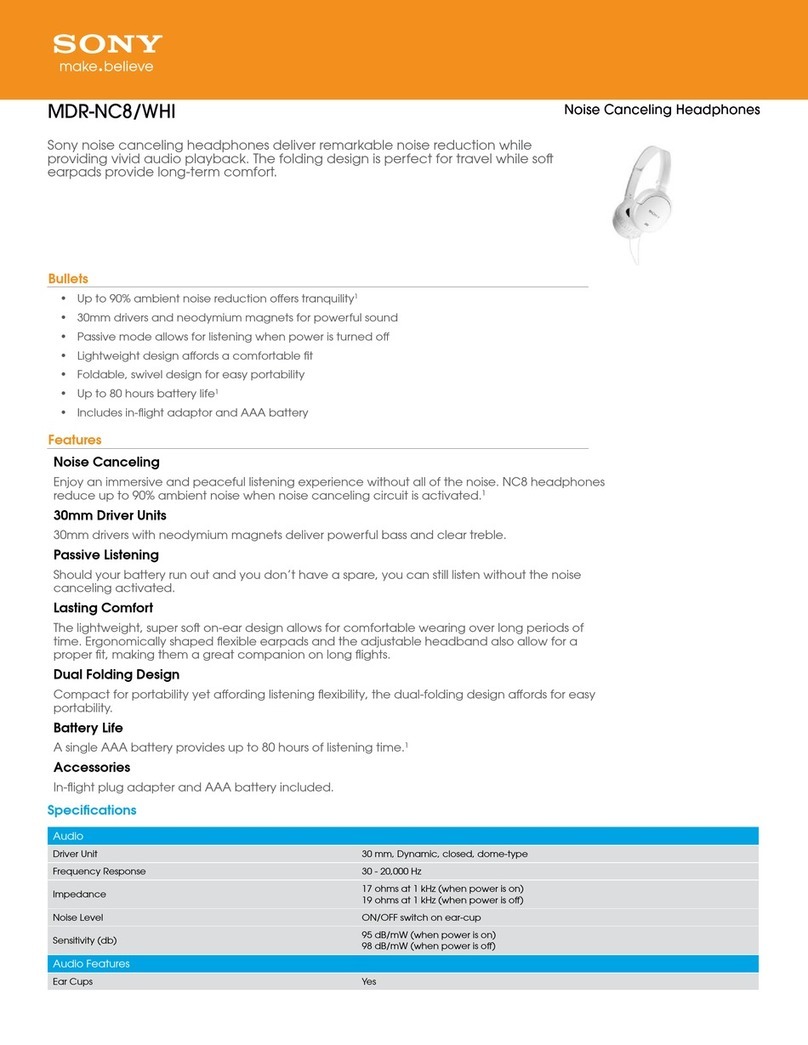
Sony MDR-NC8 Specifications

Sony

Sony MDR-NC8 Specifications

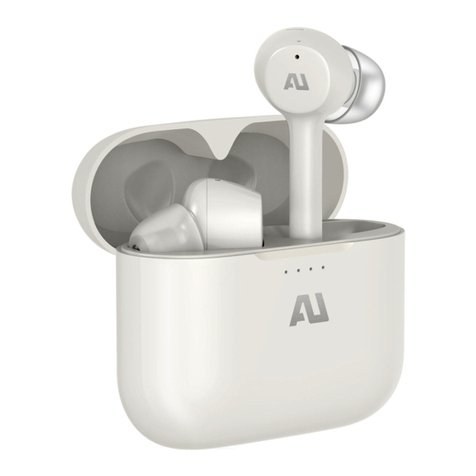
AUSounds AU-Stream quick start guide

AUSounds

AUSounds AU-Stream quick start guide

manuals.online logo
manuals.online logoBrands
  • About & Mission
  • Contact us
  • Privacy Policy
  • Terms and Conditions

Copyright 2025 Manuals.Online. All Rights Reserved.

QUICK SETUP GUIDE
2.4 GHz Digital Wireless
Stereo Headphones
NSWHP314
CONNECTING THE HEADPHONES
Look at the ports on your audio source device, such as a TV, stereo system, home theater, smartphone,
computer, or tablet to identify your audio OUT ports. Choose the connection option below that ts
your audio source device.
Caution: Turn o or unplug all devices while you are making connections.
PACKAGE CONTENTS
FEATURES
Headphones and
docking station User Guide
3.5 mm-to-RCA
adapter cable
AC power
adapter
RCA audio cable
Quick Setup Guide
Before using your new product, please read these instructions to prevent any damage.
Charging indicator
Power/Pairing
indicator
Power/Pairing
button
Volume Up (+)
button
Power/Pairing
indicator
Volume Down (–)
button
Right earpiece
Headphones Docking
station
IN
Television Stereo system
Note: This is an
optional connection.
JACK TYPE
(on source device)
RCA audio cable
(included)
3.5 mm audio cable
(adapter included)
CABLE
If your audio source device has red and white audio OUTPUT
ports. Do not connect to Audio IN ports.
If your audio source device does not have red and white audio
OUTPUT ports, but does have a 3.5mm headphone jack.
WHEN TO USE
- OR -
- PICK ONE -
RCA connection
1Connect one end of the RCA cable to the red and white INPUT
ports on the docking station.
2Connect the other end into the red and white Audio Output
ports on your audio source device.
3.5 mm connection
1Connect one end of the RCA cable to the red and white INPUT
ports on the docking station.
2Connect the other end into the red and white connectors on
the 3.5 mm-RCA adapter cable.
3Connect the 3.5 mm audio cable into the 3.5 mm headphone
jack on your audio source device.
Multiple connections (Optional)
If your audio source device (a TV in the example shown)
only has one audio output, but you want to connect it to
both the docking station and a stereo system or home
theater, do this.
1Connect one end of the RCA cable (included) to the red
and white INPUT ports on the docking station.
2Connect the other end into the red and white Audio
Output ports on your audio source device.
Note: Use the 3.5mm-to-RCA cable adapter to connect to a
headphone jack if necessary.
3Connect one end of a RCA cable (not included) to the
red and white OUTPUT ports on the docking station.
4Connect the other end into the red and white Audio
Input ports on your stereo system or home theater. The
audio should now play through your home theater
speakers.
Connecting the AC adapter to the docking station
1Connect one end of the AC adapter to the docking station and
the other end to a power outlet.
2Turn the ON/OFF switch on the back of the docking station to“ON.”
The PAIRING indicator begins to blink (blue).
TelevisionHome theater system
Tablet
Smartphone
Computer
Charging the headphones
Important: Before using the wireless headphones for the rst time, make sure that the batteries are fully charged for
at least four hours. The docking station Charging indicator turns solid green when the batteries are fully charged.
• Slide the OFF/ON switch on the docking station to ON.
• Place the headphones onto the docking station. Make sure that the headphone charging contacts
and the docking station charging pins make contact by aligning the arrows (as shown below) when
you put the headphones in the charging station.
• The docking station Charging indicator turns solid red to indicate the headphones are charging.
• When the headphones are fully charged (which takes up to four hours), the docking station
Charging indicator turns solid green.
• When the headphone battery charge is low, the Power/Pairing indicator on the headphones blinks
red. The Power/Pairing indicator on the headphones turns solid red 30 minutes prior to the
batteries being exhausted.
Notes:
• It can take up to four hours to charge the batteries. The batteries will last up to eight hours with continuous use
(depending on the headphone volume level and distance from the docking station).
• The headphones cannot be charged when the docking station is turned o.
USING YOUR HEADPHONES
Turning on and pairing your headphones
1Slide the ON/OFF switch on the docking station to ON. The PAIRING indicator blinks (blue).
2Press the (power) button on the right earpiece to turn on the headphones. The POWER/PAIRING
indicator on the headphone blinks (blue).
3When the POWER/PAIRING indicator on the headphones and the PAIRING indicator on the
docking station both light steadily blue, an active link is established between the headphone and
the docking station. The system is now on and ready to be used.
Notes:
• Autopairing takes 5-10 seconds.
• If the charge on the headphone batteries is low, the POWER/PAIRING indicator on the headphones blinks red.
When this happens, you should charge the headphones.
Tip: If the power indicators on the headphones and docking station continue to blink after 30 seconds, they are
no longer paired to each other. If this happens, follow these steps:
• Make sure that the headphones and docking station are within range of each other (ideally in the same room).
• Turn o the headphones and the docking station.
• Turn on both the headphones and the docking station. The lights will initially blink, then they should turn on
steady.
Listening to your headphones
1Turn on the headphones and docking station. Make sure that your docking station and headphones
are wirelessly paired.
2Set the headphone volume level to the minimum.
3Put your headphones on your head. Adjust the t until you feel comfortable.
4Turn on your audio source and begin playback. Depending on the audio source, you may need to
turn up the volume on the audio source.
5Adjust the headphone volume to your normal listening level.
Caution: Continuous use at high volume may permanently damage your hearing.
Note: If the system is connected to a TV, you may want to turn o the TV sound to prevent hearing sound from the
TV speakers. Refer to your TV manual.
Turning o your headphones
1Press and hold (more than two seconds) the (power) button on your headphones.
2Slide the ON/OFF switch on the docking station to OFF to turn o the docking station.
Note: It’s important to turn the headphones o when not in use to conserve the battery, or if you prefer you can
leave them on as long as they are placed in the docking station.
SPECIFICATIONS
Input: AC 100-240V~ 50/60 Hz 0.2 A
Output: 5V, 500mA
Battery Life: Up to 8 hours
Range: 49.2 feet (15 m)
V2 ENGLISH 16-1009
Charging indicator Power/Pairing indicator
Headphone
arrow Docking
station arrow
Power/Pairing
button
Volume Up (+)
button
Power/Pairing
indicator
Volume Down (–)
button
Right earpiece
ONEYEAR LIMITED WARRANTY
Visit www.insigniaproducts.com for details.
CONTACT INSIGNIA:
For customer service, call 1-877-467-4289 (U.S. and Canada) or 01-800-926-3000 (Mexico)
www.insigniaproducts.com
INSIGNIA is a trademark of Best Buy and its aliated companies.
Distributed by Best Buy Purchasing, LLC
7601 Penn Ave South, Richeld, MN 55423 U.S.A.
©2016 Best Buy. All rights reserved.
Made in China