Universal remote TV codes
46"/55" LED TV IQUICK SETUP GUIDE I NS-46E480A13/NS-55E480A13
Antenna or
cable TV
(no box)
Blu-ray player/DVD player/VCR Cable or satellite TV box
AV receiver
Game console
or camera
USB ash drive
Computer
TV
Input Source
Component/AV
VGA
USB
HDMI 1
HDMI 2
HDMI 3
HDMI 4-Roku
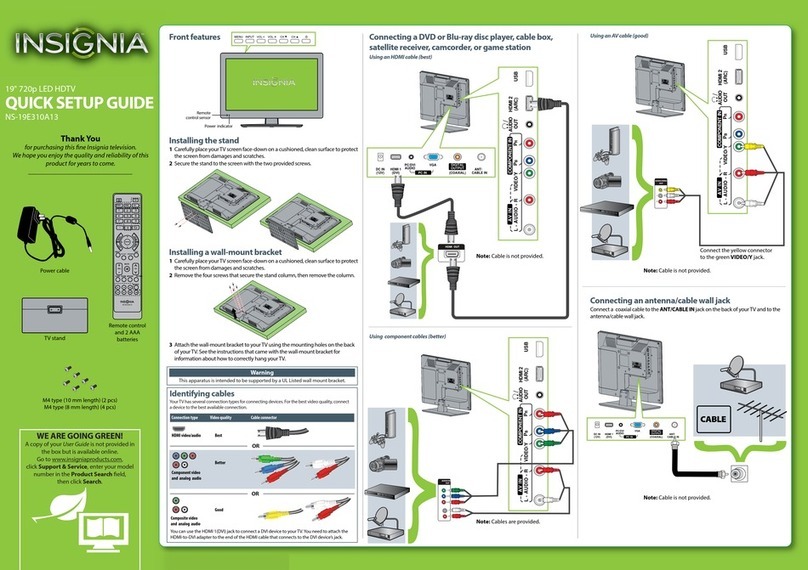
Front features
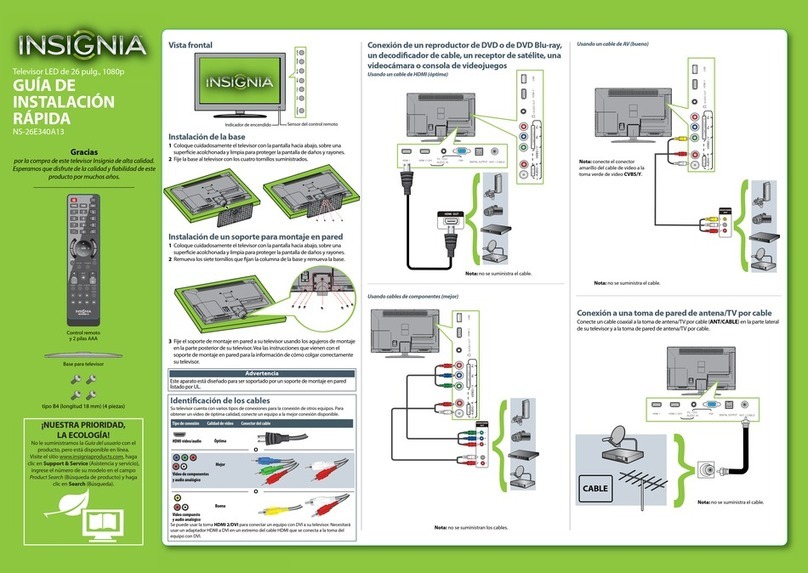
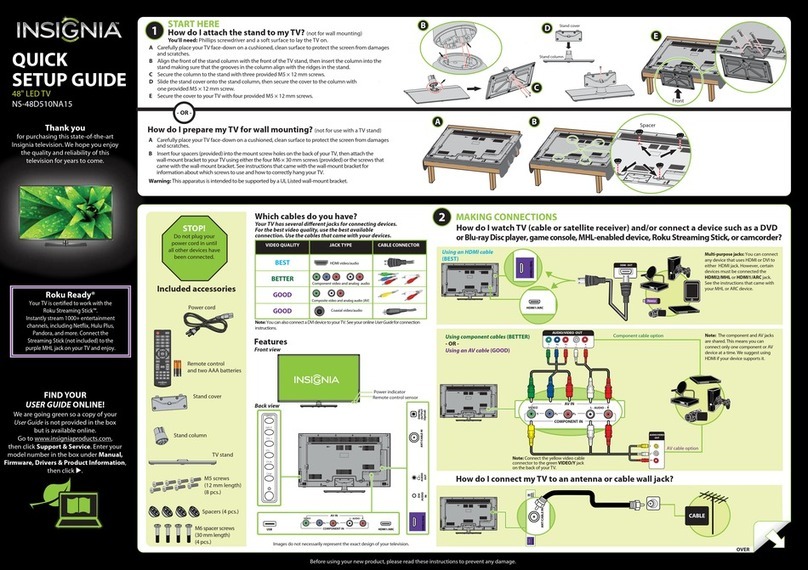
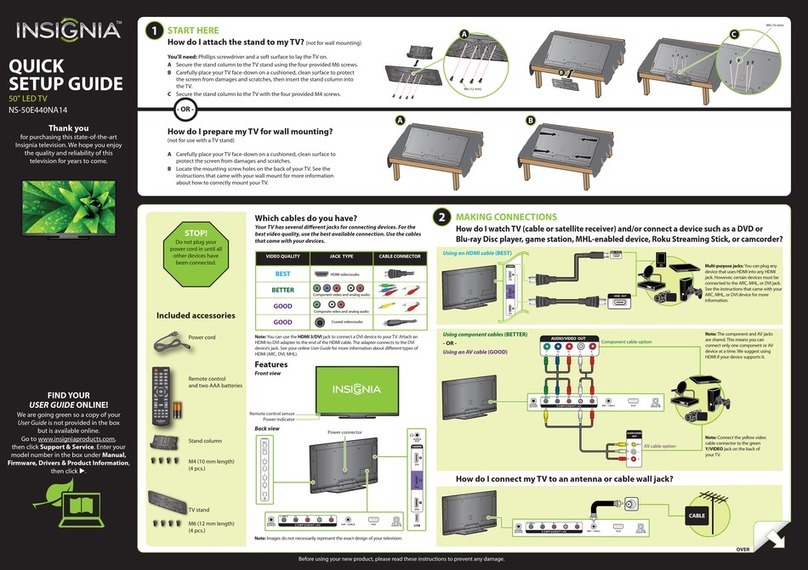
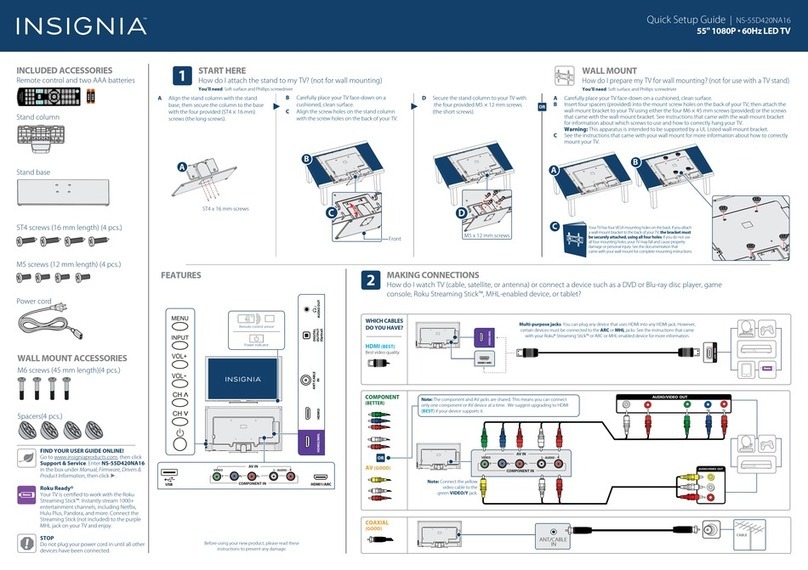
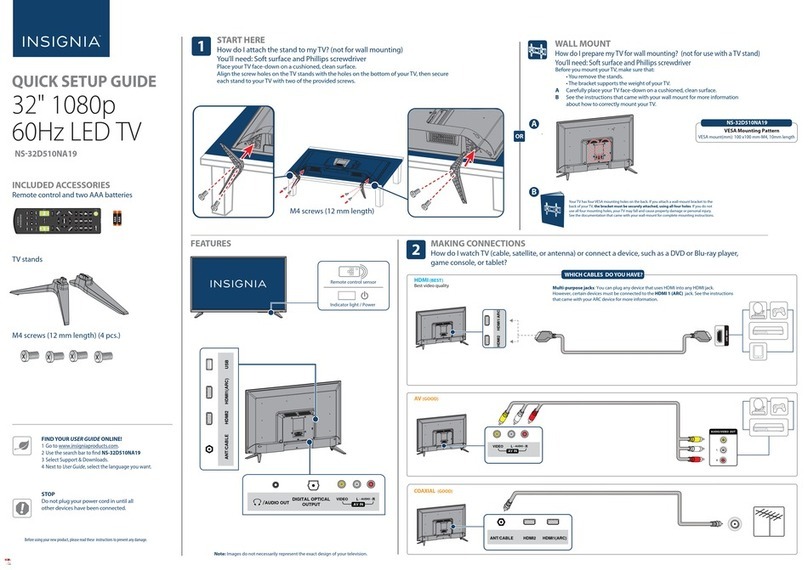
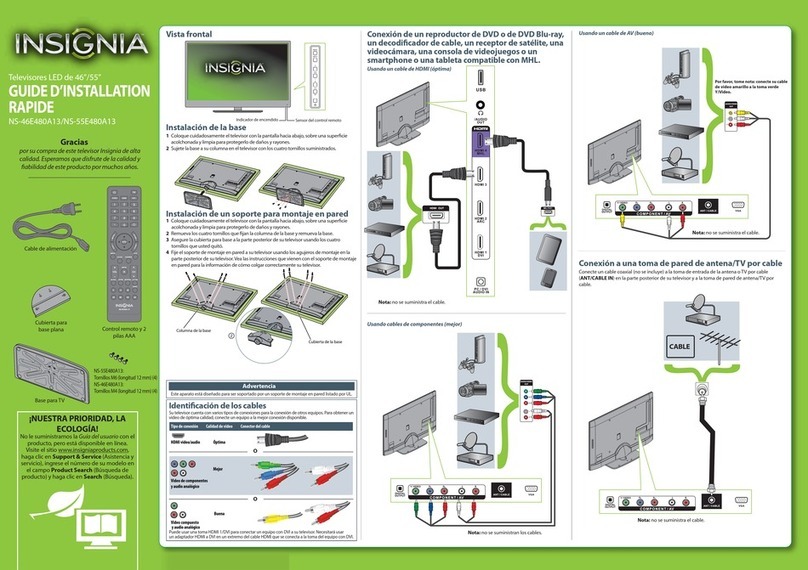
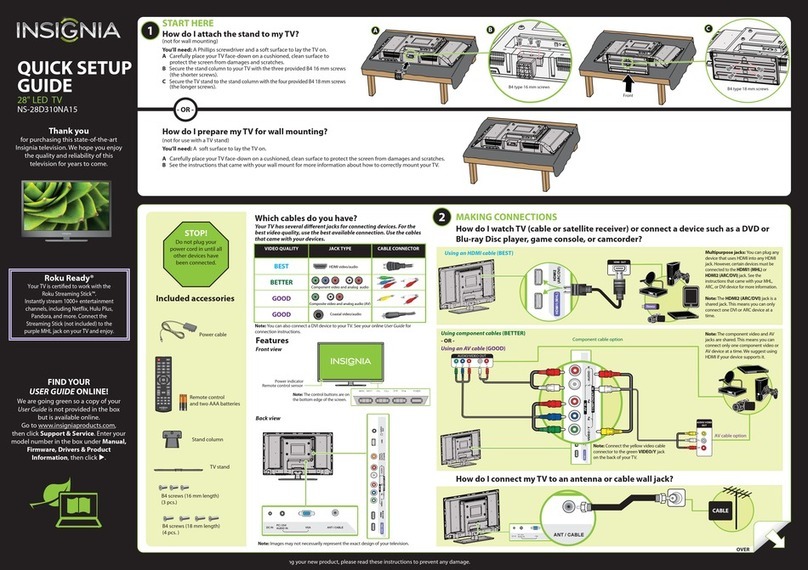
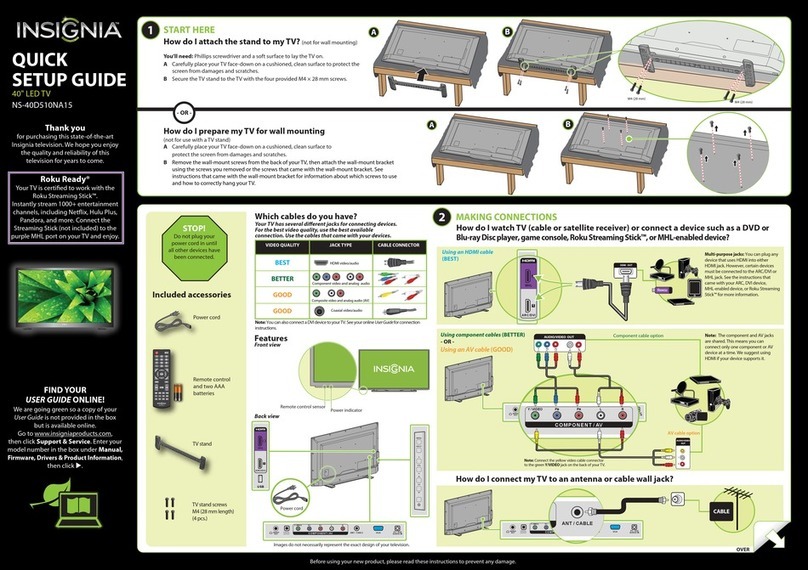
Installing the stand
1Carefully place your TV screen face-down on a cushioned, clean surface to protect the
screen from damages and scratches.
2 Secure the TV stand to the stand column with the four provided screws.
Installing a wall-mount bracket
1 Carefully place your TV screen face-down on a cushioned, clean surface to protect the
screen from damages and scratches.
2 Remove the four screws that secure the stand column, then remove the stand column.
3 Secure the stand cover to the back of your TV using the four screws you just removed.
4 Attach the wall-mount bracket to your TV using the mounting holes on the back of your
TV. See the instructions that came with the wall-mount bracket for information about how
to correctly hang your TV.
Connecting a DVD or Blu-ray player, cable box,
satellite receiver, camcorder, game station, or MHL
enabled smart phone or tablet
Using an HDMI cable (best)
Using component cables (better)
Using an AV cable (good)
Connecting an antenna/cable wall jack
Connect a coaxial cable (not included) to the ANT/CABLE jack on the back of your TV and to the
antenna/cable wall jack.
Connecting a Home Theater System
Using digital audio
Using analog audio
Connecting power
Plug the AC power cord into the AC IN jack
on the back of your TV, then plug the other
end of the cord into a power outlet.
ENGLISH 12-0348
Setting up and using your remote control
1Press the release button on the back of the remote control to remove
the battery compartment cover.
2Insert two AAA batteries into the battery compartment. Make sure that
the + and – symbols on the batteries match the + and – symbols in the
battery compartment.
3Replace the cover.
Universal remote TV codes
Universal remote controls Cable/Satellite/Set-top boxes
One for All Philips RCA Sony Cablevision Charter Comcast Cox Direct TV Dish Network Time Warner Tivo Verizon
0054 0198,
0490
135 1326,
1463
0198,
0490
400, 450, 461, 456,
10463, 1463, 0463
0091068, 069, 078,
096, 100, 164,
168, 229, 026
2002, 1204, 1423, 1517,
0171, 1963, 0463, 1463,
0842, 1326, 167, 415, 424,
450, 456, 461, 507, 523, 567,
577, 586
10171, 11204, 11326,
11517, 11564, 11641,
11963, 12002
720068, 069,
078, 096,
100, 164,
168, 229,
026
10171, 11204, 11326,
11463, 11517, 11641,
11780, 11785, 11892,
11963, 12002
Programming your remote control
To program your universal remote control to work with your new Insignia TV, see the table for common codes. If you have problems programming your remote or need a
dierent remote control code, visit www.insigniaproducts.com for the latest remote control code information.
Connecting a home theater system with multiple devices
We recommend that you connect
the AV receiver’s HDMI OUT jack to
your TV’s HDMI 2 (ARC) jack.
In the following situations, the HDMI
cable will route Dolby Digital audio
to the AV receiver, so you do not
need to connect a separate digital
audio cable:
• When you have a game console
connected to one of your TV’s
HDMI 1/HDMI 3 jacks.
• When you watch a program
through an antenna or cable TV
connected to the ANT/CABLE
jack.
Normal:
Displays the original 4:3 aspect ratio with vertical black bars on the left
and right hand side of the screen.
Zoom:
Expands the image to ll the screen. The top and bottom of the image
may be cropped.
Wide:
Use this option to view content recorded in a 16:9 (wide-screen) aspect
ratio.
Cinema:
Stretches the image at the edges, but keeps a clear image in the center.
Auto:
Automatically adjusts the image based on the screen size and the TV
program. Note:Auto is only available when Auto Zoom in the
CHANNELS menu must be set to On.
Aspect ratio options
Note: Cable is not provided.
OPTICAL
AUDIO IN
Y / VIDEO
P
B
P
R
L R
Note: Cable is not provided.
AUDIO IN
One-year limited warranty
Visit www.insigniaproducts.com for details.
Need additional help?
See your Online User Guide! This
comprehensive guide includes everything
from basic how-to steps to more advanced
features. A copy of your User Guide is not
provided in the box but is available online. Go
to www.insigniaproducts.com, click Support
& Service, enter your model number in the
Product Search eld, then click Search.
Check out our online community forum at
www.insigniaproducts.com for helpful
information from other Insignia TV owners.
We’re here for you
www.insigniaproducts.com
For customer service, call:
877-467-4289 (U.S./Canada markets)
Distributed by Best Buy Purchasing, LLC
7601 Penn Avenue South, Richeld, MN USA 55423-3645
© 2012 BBY Solutions, Inc.
All rights reserved. INSIGNIA is a trademark of BBY Solutions, Inc.
Registered in some countries. All other products and brand
names are trademarks of their respective owners.
WE ARE GOING GREEN!
A copy of your User Guide is not provided in
the box but is available online.
Go to www.insigniaproducts.com,
click Support & Service, enter your model
number in the Product Search eld,
then click Search.
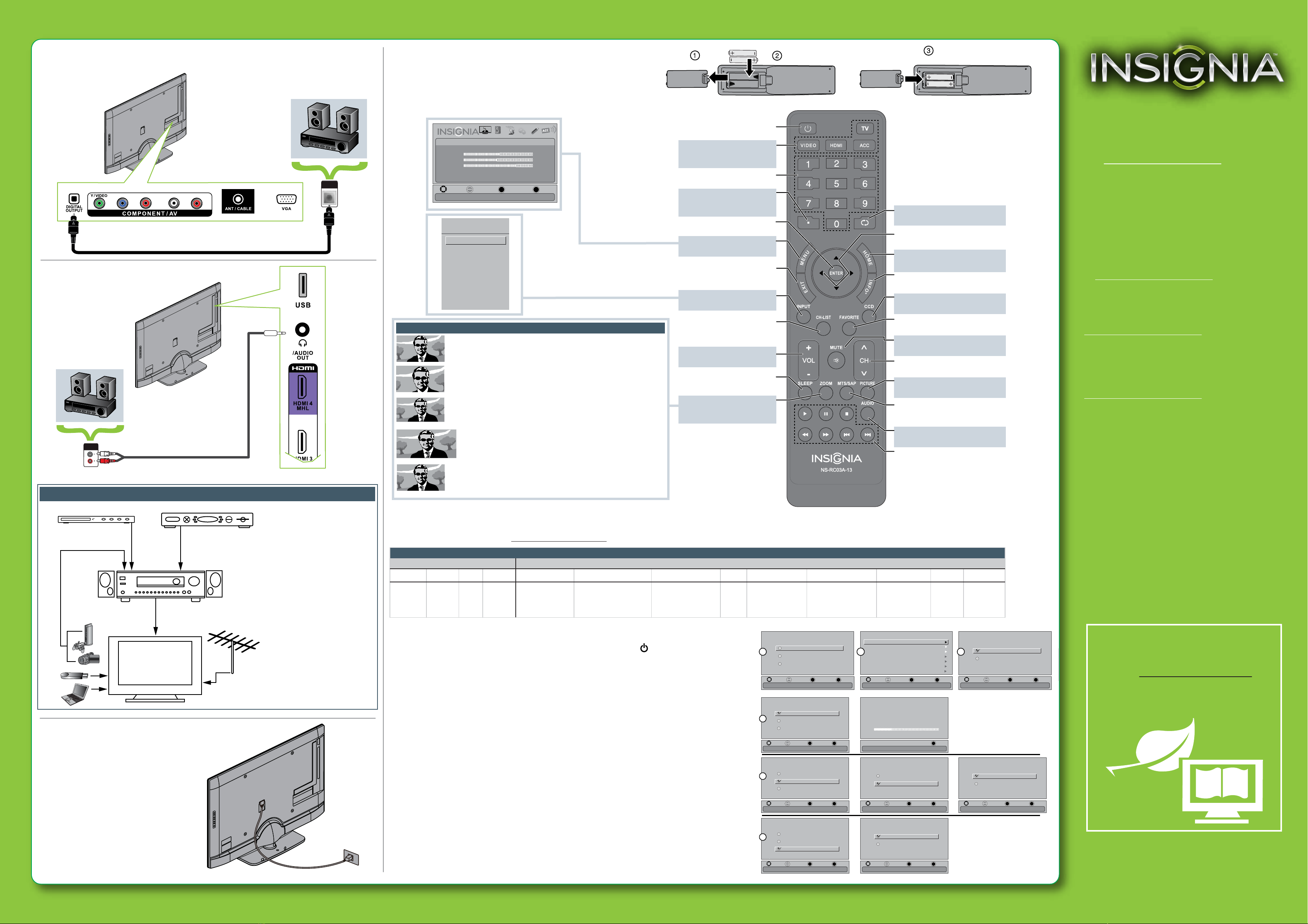
RECALL
Returns to the previous channel.
Arrows
Navigates in on-screen menus.
HOME
Opens the MHL device’s home menu
when a MHL device is plugged in.
INFO*
Opens a TV status banner.
CCD
Turns closed captioning on or o.
FAVORITE
Opens the Favorite Channel List.
MUTE
Mutes the sound.
Channel
Changes the TV channels.
PICTURE
Selects the video mode.
MTS/SAP
Cycles through mono, stereo, and
secondary audio for analog programs.
AUDIO
Selects the audio mode.
INlink Controls
Controls HDMI-CEC devices
connected to your TV.
Power
Turns your TV on or o.
Quick Launch Inputs
Selects another source
connected to your TV.
Numbers
Enter channel numbers.
.
Enters a digital sub-channel
number (e.g. 4.1).
ENTER
Conrms selections or changes.
MENU
Opens the on-screen menu.
EXIT
Closes the on-screen menu.
INPUT
Opens the Input Source list.
CH-LIST
Opens the channel list.
Volume
Changes the volume.
SLEEP
Sets the sleep timer.
ZOOM
Changes how the picture
displays on the screen.
Turning on your TV for the rst time
1Connect your TV’s power cord to your TV and a power outlet, then press (power). The Choose Your Menu
Language screen opens.
2Press ▲or ▼to highlight a language, then press ENTER. The Choose Your Time Setting screen opens with
Mode highlighted.
3Press ◄or ►to select Auto or Custom, then press ENTER. If you select Auto, the date and time are set
automatically from a digital TV signal. If you select Custom you can manually set the date and time. Press
ENTER.
4Press ▲or ▼to highlight Home Mode or Retail Mode, then press ENTER. If you select Retail Mode, a
message asks you to conrm your selection. Select Yes or No. Retail Mode is not an energy-saving mode.
5Press ▲or ▼to highlight Antenna, Cable, or Satellite Box, then press ENTER.
A. If you select Antenna, your TV scans for available channels. The scan may take several minutes.
B. If you select Cable, a message asks if you have a cable box.
• Select No if no cable box is connected. Your TV scans for available channels. The scan may take
several minutes.
• Select Yes if a cable box is connected. A message asks how you connected the cable box to your TV:
• Select AV, Component, or HDMI if you connected a cable box to your TV using one of these cables.
Read the message, then press ENTER to close the wizard.
• Select Coaxial if you connected a cable box to your TV using a coaxial cable.
Read the message, then press ENTER to start the channel scan (VHF channels only).
C. If you select Satellite Box, a message asks how you connected the satellite box to your TV:
• Select AV, Component, or HDMI if you connected a satellite box to your TV using one of these cables.
Read the message, then press ENTER to close the wizard.
• Select Coaxial if you connected a satellite box to your TV using a coaxial cable.
Read the message, then press ENTER to start the channel scan (VHF channels only).
OK
ENTER
MENU EXIT
PICTURE AUDIO CHANNELS SETTINGS PHOTOS MHL/ACC
Picture
Picture Mode
Brightness
Contrast
Color
Advanced Video
Reset Picture Settings
Energy Savings
48
46
75
MOVE EXIT
PREVIOUS
SELECT
Adjust settings to affect picture quality
OK
ENTER
MENU EXIT
MOVE EXIT
PREVIOUS
SELECT
Select if you have a satellite box.
Antenna
Cable
Satellite Box
Choose Your TV Source
OK
ENTER
MENU EXIT
MOVE EXIT
PREVIOUS
SELECT
Select if you have cable service.
Antenna
Cable
Satellite Box
Choose Your TV Source
OK
ENTER
MENU EXIT
MOVE EXIT
PREVIOUS
SELECT
Select if using an antenna for standard or HD TV.
Antenna
Cable
Satellite Box
Choose Your TV Source
OK
ENTER
MENU EXIT
MOVE EXIT
PREVIOUS
SELECT
Reduces total power consumption
Home Mode
Retail Mode
Choose Your Picture Mode
OK
ENTER
MENU EXIT
If Automatic, options are automatically set by TV source
MOVE EXIT
PREVIOUS
SELECT
Mode
Time Zone
Daylight Savings
Year
Month
Day
Time
Choose Your Time Setting
Auto
Pacific
On
2011
Jan
1
12:25 AM
OK
ENTER
MENU EXIT
MOVE EXIT
PREVIOUS
SELECT
Set menu language to English, Français, or Español.
English
Français
Español
Choose Your Menu Language
3
5A
5B
5C
24
EXIT
EXIT
Select if using an antenna for standard or HD TV. Channel scan may take 20+ minutes
Scanning for Channels
Digital Channels0
Analog Channels0
OK
ENTER
MENU EXIT
MOVE EXIT
PREVIOUS
SELECT
Yes
Do you have a Cable Box?
Yes
No
OK
ENTER
MENU EXIT
MOVE EXIT
PREVIOUS
SELECT
Coaxial
AV, Component, or HDMI
How did you connect the
Cable box to the TV?
OK
ENTER
MENU EXIT
MOVE EXIT
PREVIOUS
SELECT
Coaxial
AV, Component, or HDMI
How did you connect the
Satellite box to the TV?