manuals.online logo
Brands
  1. Home
  2. •
  3. Brands
  4. •
  5. Integra
  6. •
  7. Receiver
  8. •
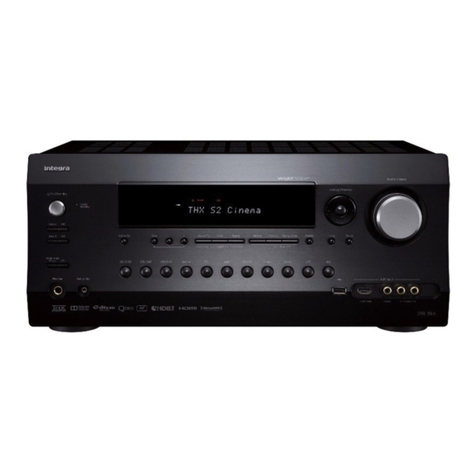
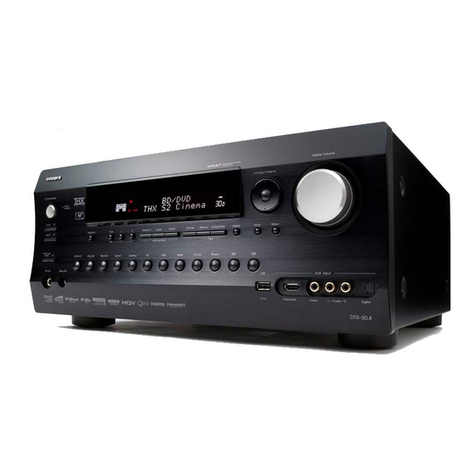
  9. Integra DTR-30.6 Installation guide

Integra DTR-30.6 Installation guide

Other manuals for DTR-30.6

2

Other Integra Receiver manuals

Integra DTR-50.5 User manual

Integra

Integra DTR-50.5 User manual

Integra DTR-30.6 Installation guide

Integra

Integra DTR-30.6 Installation guide

Integra DTR-30.2(B) User manual

Integra

Integra DTR-30.2(B) User manual

Integra DTR-5.8 User manual

Integra

Integra DTR-5.8 User manual

Integra Integra DTR-10.5 User manual

Integra

Integra Integra DTR-10.5 User manual

Integra DRX-2 Installation guide

Integra

Integra DRX-2 Installation guide

Integra DTR-50.1 User manual

Integra

Integra DTR-50.1 User manual

Integra DTR-6.5 User manual

Integra

Integra DTR-6.5 User manual

Integra DTR-40.1 User manual

Integra

Integra DTR-40.1 User manual

Integra DTR-40.2 Use and care manual

Integra

Integra DTR-40.2 Use and care manual

Integra DTR-8.2 User manual

Integra

Integra DTR-8.2 User manual

Integra DTR-8.3 User manual

Integra

Integra DTR-8.3 User manual

Integra DTR-7.8 User manual

Integra

Integra DTR-7.8 User manual

Integra DTR-20.7 User manual

Integra

Integra DTR-20.7 User manual

Integra DTR-20.1 Specification sheet

Integra

Integra DTR-20.1 Specification sheet

Integra DRX-2.3 User manual

Integra

Integra DRX-2.3 User manual

Integra DTR-40.4 User manual

Integra

Integra DTR-40.4 User manual

Integra DTR-5.9 User manual

Integra

Integra DTR-5.9 User manual

Integra DTR-7.8 User manual

Integra

Integra DTR-7.8 User manual

Integra DTR-20.1 User manual

Integra

Integra DTR-20.1 User manual

Integra DTR-4.6 User manual

Integra

Integra DTR-4.6 User manual

Integra DTR-5.9 User manual

Integra

Integra DTR-5.9 User manual

Integra HDB-RX1 User manual

Integra

Integra HDB-RX1 User manual

Integra DTR-5.8 User manual

Integra

Integra DTR-5.8 User manual

Popular Receiver manuals by other brands

Televes ZAS HD SAT user manual

Televes

Televes ZAS HD SAT user manual

Realistic DX-75 Operating and service instructions

Realistic

Realistic DX-75 Operating and service instructions

Saris 4620 Assembly instructions

Saris

Saris 4620 Assembly instructions

Mini DTR 206C PVR user manual

Mini

Mini DTR 206C PVR user manual

RF Elements TwistPort manual

RF Elements

RF Elements TwistPort manual

Denon DN-200WS user guide

Denon

Denon DN-200WS user guide

Yamaha RX-V467 owner's manual

Yamaha

Yamaha RX-V467 owner's manual

Russound SaphIR 858 instruction manual

Russound

Russound SaphIR 858 instruction manual

Quasonix RDMS Firmware update procedure

Quasonix

Quasonix RDMS Firmware update procedure

Pioneer XV-HTD1 Service manual

Pioneer

Pioneer XV-HTD1 Service manual

ATZ HDMI-V2-44HE150 manual

ATZ

ATZ HDMI-V2-44HE150 manual

Sony XNV-770BT MyTomTom Specifications

Sony

Sony XNV-770BT MyTomTom Specifications

Grundig STR 7122 TWIN Service manual

Grundig

Grundig STR 7122 TWIN Service manual

Creative Blaster Modem user guide

Creative

Creative Blaster Modem user guide

Panduit ATLONA AT-OME-RX11 installation guide

Panduit

Panduit ATLONA AT-OME-RX11 installation guide

VOLTCRAFT UTPS-40 operating instructions

VOLTCRAFT

VOLTCRAFT UTPS-40 operating instructions

JVC KW-ADV794 instructions

JVC

JVC KW-ADV794 instructions

Litelink VT-1001 operating instructions

Litelink

Litelink VT-1001 operating instructions

manuals.online logo
manuals.online logoBrands
  • About & Mission
  • Contact us
  • Privacy Policy
  • Terms and Conditions

Copyright 2025 Manuals.Online. All Rights Reserved.

DTR-30.6
Basic Manual
E
n
Advanced Manual found here
http://integraworldwide.com/manual/dtr306upg/adv/en.html
Before Start
2
About the Basic Manual
The Basic Manual leads you through the fundamental steps
to enjoy the AV Receiver from connections to TV, speaker
system and playback components, to necessary functions
for playback. As well as that, Basic Manual informs you with
the instructions on frequently used functions. Besides, there
is another part of the manual called Advanced Manual to
inform you with more detailed information, which we have
decided to publish on the web from the ecological point of
view.
Advanced Manual
Advanced Manual is always updated with the latest
information and its user friendly interface, which does not
matter whether you access from PC or Smartphone, helps
you to understand more deeply about the AV Receiver.
Advanced Manual is consisted of the following chapters.
 AM/FM Radio Receiving Function
 Playing Music Files on a USB Storage Device
 Listening to Internet Radio
 Playing Music with DLNA
 Playing Music Files in a Shared Folder
 Operating Music Files with the Remote Controller
 Listening Mode
 Advanced Settings

Operating Other Components with the Remote Controller
 Advanced Connection
 Connecting and Operating Onkyo RI Components
 Control Function between the Unit and External Component
 Firmware Update
 Troubleshooting
 Reference Information
Advanced Manual found here
http://integraworldwide.com/manual/dtr306upg/adv/en.html
Features
 Equipped with 7 channel amplifier
 Supports playback in Dolby Atmos format which
provides 360-degree placement and movement of
sounds including overhead sound
 Dolby Surround listening mode expands 2 ch, 5.1 ch or
7.1 ch source to available speaker configurations
 Incorporates Qdeo™ technology for HDMI video
upscaling
 Equipped with 4K/60 Hz Passthrough-compatible HDMI
IN/OUT jacks (IN1 to IN4 of HDMI IN jacks are 4K
compatible)
 Supports the HDMI Through function which allows
transmission from playback devices to the TV in standby
state
 Supports HDCP2.2, a strict copy-protection for providing
high quality content (HDMI IN3/HDMI OUT MAIN only)
 Supports ARC (Audio Return Channel)
 Supports USB storage playback
 Supports variety of network functions such as Internet
Radio, DLNA, etc.
 Supports Wi-Fi, Bluetooth and MHL-enabled mobile
device
 Bi-Amping capability
 A/V Sync Control Function to correct deviation of audio
and video
 Multi-zone function which allows you to play a different
source in another room from the main room
 32 bit DSP (Digital Signal Processor) with excellent
calculation performance
 Music Optimizer™ for Compressed Digital Music files
 Phase Matching Bass System
 Automatic speaker setup available using supplied
calibrated microphone (AccuEQ Room Calibration)
 Supports playback of MP3, WMA, WMA Lossless, FLAC,
WAV, Ogg Vorbis, Apple Lossless, DSD, Dolby TrueHD
via network and USB storage device (the supported
formats will differ depending on the use environment)
 ISF (Imaging Science Foundation) Video Calibration
Supplied Accessories
Indoor FM antenna --- (1)
AM loop antenna --- (1)
3
2
1SpeakerCable
Color labels for speaker cable --- (1)
Remote controller (RC-881M) --- (1)
Batteries (AA/R6) --- (2)
Power cord --- (1)
Speaker setup microphone --- (1)
¼ The number in parenthesis indicates the quantity. On packaging, the
letter at the end of the product name indicates the color.
How to use the remote controller
Batteries (AA/R6)
Approx.
16 ft. (5 m)
Remote control sensor
AV Receiver
¼ If you do not use the remote controller for a long time, remove the
batteries to prevent leakage.
¼ Note that keeping consumed batteries inside may cause corrosion
resulting in damage of the remote controller.
Step 1: Connections
3
1 Connecting the TV and players
Important: The power cord must be connected only after all
other connections are completed.
HDMI cable connection
The unit has many HDMI jacks on its rear panel and each
of them corresponds to an input selector button of the
same name on the front panel. For example, a Blu-ray
Disc player will be connected to the HDMI IN1 jack and the
BD/DVD button on the front panel will be used to listen to
the playback sound (if the player is CEC compliant, input
will be switched automatically). If you add another Blu-ray
Disc player, you can use any other jack than HDMI IN1. It
is possible to change assignment of the input jacks and
input selector buttons. For how to make settings, see the
Advanced Manual.
To connect the TV and the unit, connect the HDMI OUT
MAIN jack of the unit and the HDMI IN jack of the TV using
an HDMI cable. With this connection, it becomes possible to
display the setting screen of the unit on the TV or transmit
video/audio signals from the player to the TV. If your TV
supports ARC (Audio Return Channel), it is possible to
play the TV sound with the AV receiver's speakers with
this connection only. If your TV does not support ARC, you
need, in addition to the HDMI OUT MAIN jack connection,
a digital optical cable connection between the digital audio
out optical jack of the TV and the DIGITAL IN OPTICAL
jack of the unit or an analog audio (RCA) cable connection
between the audio output jack of the TV and the VIDEO/
AUDIO IN TV/CD jack of the unit.
DIGITAL
OPTICAL
OUT
AUDIO
OUT
TV
z Audio connection with a TV not supporting ARC
¼Select an appropriate
connection for your TV.
Another TV can be connected to the HDMI OUT SUB jack.
In this case, change the setting accordingly.You can set up
by viewing the guidance displayed on the TV screen. Select
the item with the cursor buttons of the remote controller and
press Enter to confirm your selection. Press RCV and then
HDMI
OUT
HDMI
OUT
HDMI
OUT HDMI
OUT
HDMI
OUT
HDMI
IN
TV
Set-top box/Digital
video recorder, etc.
Satellite/Cable
set-top box, etc.
Game console
Personal computer
HDMI cable
To use the ARC function, connect to the ARC compatible
HDMI jack of the TV and make an appropriate setting on
the unit. See the section 2 "2nd Step : Source Connection"
of "Step 2: Setting Up".
Blu-ray Disc/
DVD player
4
Step 1: Connections
Home on the remote controller, select "Setup" - "1. Input/
Output Assign" - "Monitor Out" and set the default value of
"MAIN" to "SUB" or "MAIN+SUB".
The unit supports the HDMI Through function that allows
transmission from players to the TV even if the unit is in
standby.You have to modify the settings to enable the
input selection link with CEC compliant device, connection
with ARC compatible TV, and HDMI Through function. See
the section 2 "2nd Step : Source Connection" of "Step 2:
Setting Up".

To enjoy HDCP2.2 protected video, connect the player to
the HDMI IN3 jack and the TV to the HDMI OUT MAIN jack
of the unit. Your player and TV need to support HDCP2.2.
 To play 4K or 1080p video, use the high speed HDMI
cable.
 It is possible to send video and audio of an MHL-
enabled mobile device by connecting the MHL-enabled
mobile device to the AUX Input HDMI/MHL jacks on the
front panel.
Connecting Components without HDMI
If your AV component does not have HDMI jack, use an
available jack of your component for cable connection with
this unit. Just as the HDMI jacks, other jacks on this unit
have a preassigned input selector button on the front panel.
See the name of the input selector button shown with the
jack when connecting the device.
1
3
45
2
Audio signal connection
1 Digital connection: Use a digital optical cable
(OPTICAL) or digital coaxial cable (COAXIAL) for
connection with a player.
Digital optical cable (OPTICAL)
¼ As the digital in optical jack of the unit has a
cover, push in the cable against the cover as it is
turned inside.
Digital coaxial cable (COAXIAL)
2 Analog connection: Use an analog audio (RCA) cable
for connection with a player.
To enjoy multi-zone playback of audio of a CD player or
such other player without HDMI output jack, you need
to use the RCA cable to connect the corresponding
jacks of the player and this unit. For details on the multi-
zone function, see the section 6 "Using the multi-zone
function" of "Step 3: Playing Back".
Analog audio (RCA) cable
3 Connection with turntable: If it uses an MM type
cartridge and does not have a built-in audio equalizer,
connect it to the 3PHONO jack. If the connected
turntable has a built-in audio equalizer, connect it to the
2TV/CD jack.
¼ If it uses an MC type cartridge, install an audio equalizer compatible
with MC type cartridge between the unit and the turntable by
connecting it to the 2TV/CD jack. For details, refer to the turntable's
instruction manual.
¼ If the turntable has a ground wire, connect it to the GND terminal of
this unit. If connecting the ground wire increases noise, disconnect it.
Video signal connection
The unit has a video upconversion function. For details, see
the next section.
4
Use a component video cable to connect a TV with
component video input jacks and a player with component
video output jacks.
Component video cable
¼ Its transmitted video has higher quality than that
of composite video cable.
5 Use a composite video cable to connect a TV with
composite video input jack or a player with composite
video output jack.
Composite video cable
Video signals input to the composite video input
jack or the COMPONENT VIDEO IN jacks will be
upconverted to HDMI signals and then output from
the HDMI output jack.
Note that it is not possible to convert digital audio
input signals to analog or vice versa.
AV Receiver
¼ When you upconvert video signals input to the
COMPONENT VIDEO IN jacks and output them from
the HDMI OUT jack, set the output resolution of the
player to 480i or 576i. If the input has 480p/576p or
higher resolution, a message prompting you to change
the resolution setting will appear. If your player does
not support 480i or 576i output, use the composite
video jack.
¼ If multiple video signal inputs are put into one input
system, the output will be made in the order of HDMI,
COMPONENT VIDEO, and composite video.
5
Step 1: Connections
2 Connecting speakers
Speaker layout
"
$
%
&
'
7
8
9F
#
To enjoy the Dolby Atmos listening mode, Surround back
speakers or Height speakers need to be installed.
The example above uses front Height speakers. As other
types of Height speakers are also applicable, see the next
page for details.
"#Front speakers
$Center speakers
%&Surround speakers
'Subwoofer
78Surround back speakers
9FHeight speakers
 5.1 ch: "#$%&'
 7.1 ch: "#$%&' + 78 or
"#$%&' + 9F
78 and 9F share the same speaker
terminals. Select either of the groups.
 To use the multi-zone function, see the section 6
"Using the multi-zone function" of "Step 3: Playing
Back".
'
Subwoofer with
built-in power
amplifier
&
Surround R
8F
Surround back R/
Height R
79
Surround back L/
Height L
%
Surround L
$
Center
#
Front R
"
Front L
If there is only
one surround
back speaker,
connect it to
the BACK or
HEIGHT L
terminal.
6
Step 1: Connections
Characteristics of speaker types
"# output front stereo sound. $outputs center sounds
such as dialogs and vocals. %& create back sound field.
'reproduces bass sounds and creates rich sound field.
Connecting 78 speakers or 9F speakers enables
playback in 7.1 ch configuration. 78 speakers improve
sense of envelopment created by back sound field as well
as seamlessness of back sounds, providing more natural
sound experiences in the sound field. 9F speakers
produce surround effects on a height plane. This unit
performs optimal sound field processing for the type of
the installed height speakers which is registered in initial
settings (with setup wizard).
Instructions on how to connect speakers
Important
You have to change the setting if any of the speakers have

viewing the guidance displayed on the TV screen. Select
the item with the cursor buttons of the remote controller
and press Enter to confirm your selection. To return to the
previous screen, press Return. Press RCV and then Home
on the remote controller. Select "Setup" - "2. Speaker
Setup" - "Speaker Settings" - "Speaker Impedance" and
change the default value from "6ohms" (Default Value) to
"4ohms".
1/2"-5/8"(12-15 mm)
Cut and remove the plastic coating from the end of the
speaker cable, twist the core and connect it to the terminal.
Make correct connection between the unit's jacks and

connection is wrong, a bass sound may become poor
due to reverse phase. Attaching the supplied colored
speaker cable labels to the + side on the both ends of each
channel's cable will help correct connection.
Up to two subwoofers with built-in power amplifier can
be connected to the subwoofer jacks. Set the cut-off filter
selection switch of the subwoofer to Direct. If the subwoofer
does not have a cut-off filter selection switch but has a
cut-off frequency adjusting dial, turn it to the maximum
frequency. If your subwoofer does not have builtin power
amplifier, you can connect a power amplifier between the
unit and the subwoofer.
 The speaker setting is 7.2 ch at the time of purchase.
You can change it manually or by using automatic
speaker setting.
 
cable core to the rear panel of the unit may cause failure.
Also do not connect two or more cables to one speaker
terminal or one speaker to several terminals.
 Using a speaker with less impedance than the setting
may result in failure.
When using commercially available banana plugs:
tighten the speaker terminals to the end and then insert
the banana plugs. Do not insert the core of speaker cable
directly into the hole for banana plug of speaker terminal.
(North American models)
Height speakers arrangements
Dolby Laboratories recommends to place the speakers as
described on “Installing speakers in ceiling” to obtain the
best Dolby Atmos effect.
Installing speakers in ceiling
ab
cd
a b Top Front
c d Top Middle
Ceiling speakers, etc. are used for maximizing effects in
Dolby Atmos or Dolby Surround listening mode. Install
Top Front speakers midway between the position just
above the listening position and the position just above the
front speakers. Install Top Middle speakers just above the
listening position. You can select ab or cd on the unit.
For connection with the unit, use the SPEAKERS BACK or
HEIGHT terminals.
7
Step 1: Connections
Using Dolby Enabled Speakers
e f Dolby Enabled Speaker (Front)
g h Dolby Enabled Speaker (Surround)
A Dolby Enabled Speaker is specially designed to be used
as a Height speaker. There are two types of Dolby Enabled
Speakers, the one is to be placed on the top board of other
speakers such as front speakers and surround speakers,
and the other is integrated type with the normal speakers.
Dolby Enabled Speakers designed with their output facing
toward the ceiling to create an elevated audio effect in
the Dolby Atmos and Dolby Surround listening modes by
providing sounds echoing off the ceiling.You can select
ef or gh on the unit. For connection with the unit, use
the SPEAKERS BACK or HEIGHT terminals.
3 Other connections
AM/FM antenna connections
Connect the antennas to listen to AM/FM broadcast. When
listening to the broadcast for the first time, adjust the
antenna position and orientation to get the best reception.
AM loop antenna (supplied)
Indoor FM antenna
(supplied)
Fix with a tack on
the wall.
(North American models) (Australian and Asian
models)
Assemble the AM loop antenna (supplied).
Network connection
You can enjoy Internet radio and DLNA by connecting the
unit to LAN. The unit can be connected to the router with
an Ethernet cable or to the wireless LAN router with Wi-
Fi connection. In case of wired connection, connect the
Ethernet cable to the Ethernet port. See the section 2 "4th
Step : Network Connection" of "Step 2: Setting Up".
Internet radio
Router PC
NAS
Headphones connection

or ø 6.3 mm) to the Phones jack on the front panel. Sound
from the speakers will be off while you are using the
headphones.
 If you selected any other listening mode than Stereo,
Mono and Direct, connecting headphones will switch the
listening mode to Stereo.
8
Step 2: Setting Up
Important: When the unit is turned on for the first time, the
setup wizard of the section 2 will automatically be launched.
If you use the setup wizard to make the initial setup,
connect a TV to the HDMI OUT MAIN jack of the unit via
HDMI connection.
1 Turning the power on
Connect the power cord to the outlet. Press zOn/Standby
on the main unit or zReceiver on the remote controller to
turn the unit on or to standby mode.
Initial Setup
Language Select
h
Deutsch
Français
Español
Italiano
Nederlands
Svenska
HOME Exit
Englis
¼ This unit includes a removable power cord. Connect the power cord to
AC INLET of the unit and then connect to the outlet. Always disconnect
the outlet side first when disconnecting the power cord. When the unit is
turned on, a large instantaneous current may flow affecting functionality
of the computer and other devices. It is recommended to use a separate
outlet from that for the computer or such other sensitive devices.
Firmware update notification: If the unit is connected via
LAN and there is firmware update available, the "Firmware
Update Available" message will appear. To execute
updating, select "Update Now" with the cursor buttons of
the remote controller and press Enter. When "Completed!"
appears, press zOn/Standby on the main unit to turn the
unit into standby mode. Then updating will be completed.
 The unit automatically turns itself into standby mode

this case also, updating will be completed.
2 Making the Initial Setup with the Setup
Wizard
Read before starting the procedure: Set up by
answering the guidance displayed on the TV screen.
Select the item with the cursor buttons of the remote
controller and press Enter to confirm your selection.
To return to the previous screen, press Return.
 If you terminate the procedure on the way or
change the setting made in the initial setup and
want to call up the setup wizard again, press RCV
and then Home on the remote controller, select
"Setup" - "7. Hardware Setup" - "Initial Setup", and
press Enter.
Select the language first. In the next screen, the summary
of the setup wizard as below will be displayed. Select "Yes"
in this screen and press Enter on the remote controller.
Welcome to initial setup. Have you connected all the speakers and devices?
Before starting, please connect speakers and sources.
Now, would you like to start initial setup?
1st Step : AccuEQ Room Calibration
2nd Step : Source Connection
3rd Step : Remote Mode Setup
4th Step : Network Connection
Yes
No
Initial Setup
ExitHOME
The setup wizard proceeds in the four steps as below.
1st Step : AccuEQ Room Calibration
2nd Step : Source Connection
3rd Step : Remote Mode Setup
4th Step : Network Connection
1st Step : AccuEQ Room Calibration
The test tone coming from each speaker will be measured to
enable setting of the number of speakers, volume level, each
speaker's optimum crossover frequencies, and distance from
the primary listening position, and also enable correction of
distortion caused by the room acoustic environment.
 You cannot return to the previous screen during speaker
setup, even if you press Return.
Initial Setup
AccuEQ Room Calibration
This step you can automatically calibrate
your room to get correct surround sound.
Would you like to cailbrate your room now
or later?
Do it Now
Do it Later
HOME Exit
1. Place the speaker setup microphone.
When the start screen above is displayed, before
starting the procedure, place the supplied speaker setup
microphone at the measurement position by referring
to the figure below.
TV
::
Listening area Measurement position
with microphone
¼ Correct measurement will not be possible if the microphone is held by
hand. Measurement is not possible if headphones are being used.
¼ The subwoofer sound may not be detected since it is extremely low
frequencies. Raise the subwoofer volume to around the half of its
maximum volume and make its frequency to the maximum level.
¼ A loud test tone will be heard during measurement. Measurement may
be interrupted if there is ambient noise or radio frequency interference.
Close the window and turn off the home appliance and fluorescent light.
9
Step 2: Setting Up
2.
After placing the microphone at the measurement
position, select "Do it Now" in the start screen and
press Enter.
3.
When "Please plug microphone that came in a
box with AV receiver." is displayed, connect the
microphone to the Setup Mic jack of the unit.
Setup Mic jack
Speaker setup
microphone
4. Follow the guidance displayed on the TV screen.
AccuEQ Room Calibration
Front Speakers Type
Height Speakers Type
Powered Zone 2
Subwoofer
Normal
Not Use
No
Yes
Set bi-amp only if you use 2 channel amp for each front speaker.
ENTER Ne x t
When the screen above is displayed, set the items with
the cursors on the remote controller. Select the types for
height speakers if the height speakers are used. Confirm
the power supply of subwoofer and press Enter on the
remote controller in the next screen. Confirm the position
of speaker setup microphone and press Enter on the
remote controller in the next screen.
 When the cursor is on an item, the content of the item
will be shown on the lower left of the screen.
5. The test tones sound from the connected speakers
and automatic speaker setting starts.
Measurement will be made twice for each speaker. It
takes several minutes to be completed. Keep the room
as quiet as possible during measurement. If any of
the speakers do not produce the test tone, check for
disconnection.
 During measurement, each speaker outputs the test
tones at a high volume. Be careful of sound leak
that may disturb your neighbors, or be careful not to
frighten young children.
6. When the measurement is completed, the
measurement result is displayed.
Press
W
/
X
on the remote controller to check the
settings. Press Enter with "Save" selected. In the next
screen showing that "AccuEQ Room Calibration" is
"On", press Enter on the remote controller.
 If there is an error message, follow the on-screen
instruction to remove the error cause.
7. When "Please unplug setup microphone." is
displayed, disconnect the microphone.
2nd Step : Source Connection
You can check whether or not each input source is
connected correctly.
1.
When the Source Connection start screen is
displayed, select "Yes, Continue" with the cursors
and press Enter.
This step will start to check if the
connections were made correctly.
Would you like to continue?
Yes. Continue
No. Skip
Initial Setup
Source Connection
ExitHOME
2. Select the desired input to check the connection and
press Enter.
Start playback of the selected device. If connection is
correct, video/audio of the input source selected on the
unit will be played.
3. After checking the connection, select "Yes" with the
cursors and press Enter.
 If you select "No" and press Enter, the error cause
will be displayed. Follow the guidance to remove the
error cause and check the connection again.
4. Select "Yes" with the cursors and press Enter on the
remote controller to check the connection of other
inputs or select "No, Done Checking" and press
Enter to skip.
If you select "Yes", you will return to the screen of step 2.
If you select "No, Done Checking", you will proceed to
step 5.
5. Enabling HDMI Linked Operation and Other
Functions
In the next screen, you can enable the HDMI linked
operation with CEC compliant device, connection
with ARC compatible TV, and HDMI Through function.
Select "Yes" with the cursors to enable them or "No,
Done Checking" to skip, and press Enter on the remote
controller.
6. Select "Yes" with the cursors and press Enter to
enable the CEC link function or select "No" and
press Enter to keep it disabled.
The following CEC-compatible devices are found;
Do you wish to turn on the CEC link?
Integra DHS -8.8
Yes
No
Source Connection
HOME Exit
If you select "Yes", the connection with ARC compatible
TV and HDMI Through function will be set to "Auto" and
enabled.
3rd Step : Remote Mode Setup
HOME Ex it
Initial Setup
Remote Mode Setup
Preprograming remote will give you control
of other devices from AV receiver remote
Would you like to setup your remote to
control your devices? This may take a while
depending on what and how many you have
connected. You can always come back to remote
setup from setup “8-2 Remote Mode Setup”.
Yes
No. Skip
In this step, you can enable operation of the other
components using the remote controller of the unit. When
the Remote Mode Setup start screen is displayed, select
"Yes" with the cursors and press Enter on the remote
controller. Follow the guidance to select the desired Remote
Mode button and in the keyboard screen, enter the first
three characters of the brand name of the device you are
going to program (e.g., "INT" for Integra) and search for the
remote control code. The guidance will also explain how to
set the remote controller.

10
Step 2: Setting Up
4th Step : Network Connection
Do you want to connect network connection?
It gives you network services that our AV
receiver support. If you wish to skip this step.
select “No. Skip”.
Yes
No. Skip
HOME Ex it
Initial Setup
Network Connection
You can check the network connection and make the Wi-
Fi setting. When the Network Connection start screen is
displayed, select "Yes" with the cursors and press Enter
on the remote controller. If you select "Wired" in the next
screen, you can view the LAN cable connection status. To
make the Wi-Fi setup, select "Wireless", press Enter on the
remote controller and follow the sections below.
Make the following preparations.
Wi-Fi connection requires an access point such as
wireless LAN router (¼). Write down the SSID and
password (key) of the access point if they are shown
in the label of the main body. If the access point has
an automatic setting button (may be called differently
according to the manufacturer), you can set up
without inputting the password. For how to use the
automatic setting button of the access point, refer to
its instruction manual.
¼ The unit supports Wi-Fi connection with 2.4 GHz access
point.
1. Select the SSID of the access point to be connected
with the cursor buttons and press Enter.
When the SSID of the access point appears on the TV
screen, select the desired access point.
 If you changed the initial setting of the access point to
skip password entry, step 3 starts automatically.
 If you changed the initial setting of the access point
to hide the SSID, see "When the access point is not
displayed".
2. Select and set the authentication method.
The "Enter Password" screen, instead of the following
screen, may be displayed automatically if the wireless
LAN router does not have an automatic setting button.
Wi-Fi Setup
Select the authentication method.
Enter Password
Push Button
PIN code
When the screen above is displayed, select and set one
of the three authentication methods: "Enter Password",
"Push Button" and "PIN code". See below for details of
and how to set each method.
Enter Password: Enter the password of the access point to
establish connection.
1 Select "Enter Password" with the cursor buttons and
press Enter.
2 Enter the password (¼) on the keyboard screen, select
"OK" with the cursor buttons and press Enter.
¼ Select "Shift" and press Enter to toggle between upper and lower
case. Select "

" or "

" and press Enter to move the cursor to the
selected direction. Select "Back Space" and press Enter to delete
the character at the left of the cursor position. To select whether to
mask the password with "¼" or display it in plain text, press D on the
remote control. Press + 10 on the remote controller to enable the
"Shift" function and CLR to delete all the input characters.
3 If the security method of the access point to be
connected is WEP, select "Default Key ID", select "OK"
and press Enter.
Push Button: Use the automatic setting button of the
access point to establish connection.
1 Select "Push Button" with the cursor buttons and press
Enter.
2 Hold down the automatic setting button of the access
point for the necessary seconds, select "OK" with the
cursor buttons and press Enter.
PIN code: Select this method when the automatic setting
button of the access point is beyond the reach. Select "PIN
code" with the cursor buttons and press Enter to display
the 8-digit PIN code. Register the displayed PIN code to the
access point, select "OK" with the cursor buttons and press
Enter. For how to register the PIN code to the access point,
refer to its instruction manual.
3. Establish connection.
The connection process starts and the Wi-Fi indicator
on the left of the unit's display starts flashing. When
connection has been established, the Wi-Fi indicator
changes from flashing to staying lit. If the Wi-Fi indicator
does not stay lit, connection has not been established.
Make the setting again. If "Push Button" does not work,
try "Enter Password".
When the access point is not displayed
Select "Other..." with the
c
cursor on the remote
controller and press Enter to display the keyboard
screen. Input the SSID and password. Make the
following settings according to the router setting.
WPA/WPA2 method
Select "WPA" or "WPA2" in "Security Method", select
"OK" and press Enter.
WEP method
Select "WEP" in "Security Method" and select
"Default Key ID". Then select "OK" and press Enter.
 If encryption setting has not been made on the
wireless LAN router, select "None" in "Security
Method", select "OK" and press Enter.
Exiting the setup wizard
After finishing the initial setup, keep "Finished" selected
and press Enter on the remote controller. Connection and
setting of the unit is now completed. See Step 3 and enjoy
your home theater.