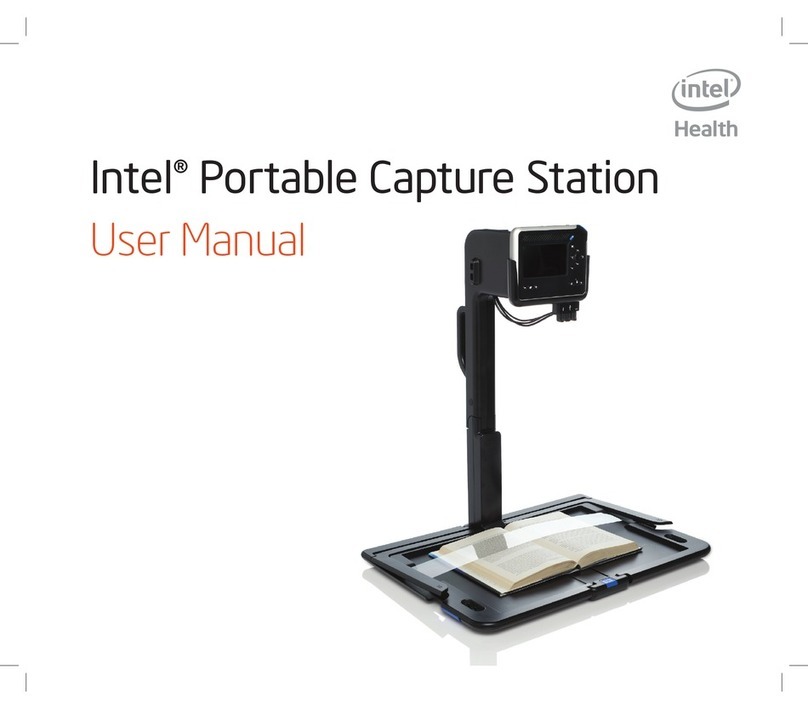
Intel Portable Capture Station User manual

Intel® Portable Capture Station
Quick Start Guide
Read Me First

Document: RSLT-C-0008
Revision: 1.0
Effective date: March 9, 2009
WARNING! Do NOT use the Intel®Reader as a sole means of reading safety
or hazard warnings, medication labels or instructions, or nancial or legal
documents, when a reading inconsistency or misreading of written text might
put you at risk of personal injury or economic harm. For such critical reading,
always use a backup means to conrm that you understand the writing, such as
an alternative accessible format or another person.
For complete safety information and warnings, refer to the Intel®Portable
Capture Station User Manual.

1
Welcome
The Intel®Portable Capture Station holds the Intel®Reader, so you can capture
images of a large number of pages. When the Reader is placed in the Capture
Station, the Reader's camera can view everything placed on the base, even large-
sized printed materials, such as textbooks and magazines.
Contents of the Portable Capture Station Box
The Portable Capture Station box contains:
A Capture Station•
This quick start guide•
A user manual•
A CD with an audio version of the user manual and this quick start guide•
A power adapter and power cord. This power adapter and power cord are•
interchangeable with the power adapter and power cord that come with the
Reader.
The warranty for the Capture Station and Reader•
NOTE: Contact your local reseller or Intel Customer Support if any of the contents
is missing.

2
Getting Started
Unpack.1.
Take your Capture Station out of the box and remove the wrapping materials.
Place the Capture Station on a at surface.2.
Place the Capture Station on a work surface, with the handle pointing up. Make
sure the sloped side of the handle is facing away from you. The work surface
should be large enough to support the entire base. A surface approximately 24
inches long by 18 inches wide (60 cm long by 45 cm wide) is sufcient.

3
Locate the sliders.3.
Locate the sliders along the top edge of the case. They are marked with small
indented arrows.
Unlock the sliders.4.
Place your ngers in the notches along the top edge. Pull the sliders toward you
to engage the sliders and open the sides. Be careful not to pinch your ngers as
you do so. You can open one side at a time or both sides together. Carefully rest
the two sides at on the work surface.

4
Release the button and raise the arm.5.
The collapsed arm is in front of you. Press the release button that is located on
the bottom front edge of the arm. The button is marked with six raised dots. Lift
the arm until it locks upright to the base, being careful not to pinch your ngers or
hand.

5
Remove the tape from the base.7.
There are three strips of shipping tape attached to the base, two under the page
holder and one in the center of the spine on top of the page holder. Remove all
three strips of tape.
Remove the protective lm from both sides of the page holder.8.
The plastic strip that lies across the base of the Capture Station is the page holder.
The page holder keeps pages at so the camera can capture a better image.
Before using the Capture Station for the rst time, peel off the protective covering
on the top of the page holder. Then remove the protective covering from the
bottom of the page holder. Be sure to remove the covering from both sides of
the page holder.
Rotate the cradle.6.
The cradle for the Reader is located on top of the arm, on the right side. Rotate
the cradle out to face you.

6
Connecting the Reader
Place the Reader in the cradle.1.
Slide the Reader into the cradle, with the display screen facing you.
On the bottom edge of the cradle, on the right side, are three connectors. You
use these connectors to connect the Reader to the Capture Station, a computer
or another USB device, and a power source. The connectors are:
The mini-USB connector, on the left, connects the Reader to the Capture•
Station. It is marked by one raised dot.

7
The standard USB connector, in the middle, connects the Capture Station to•
another USB device, such as a keyboard. It is marked by two raised dots.
The power connector, on the right, keeps the Reader charged. It is marked by•
three raised dots.
Connect the Reader to the Capture Station.2.
Insert the mini-USB connector on the cradle into the bottom edge of the Reader.
Plug in the other two connectors. You may need to move the connectors back
and forth to connect them.
Mini-USB Connector
Standard-USB Connector
Power Connector

8
Charge the Reader's battery (optional).3.
You can begin using the Reader immediately, or you can allow the battery to charge
to 100 percent. A full charge takes approximately 3 hours.
NOTE: For optimal battery performance and life, it is recommended that you
charge the battery to 100 percent before using the Reader for the rst time.
To charge the Reader's battery while it is in the Capture Station, connect the power
to the Reader, by pushing up on the power connector at the front of the Capture
Station. The power connector is the right-most of the three connectors on the
cradle, and is marked with three raised dots.
Then connect the power cord to the power port on the back of the Capture Station.
The power port is the bottom port, and is also marked with three raised dots.
You can leave the Reader in the Capture Station, attached to the power supply,
indenitely. You will not over-charge the Reader by leaving it plugged in, though it is
a good idea to unplug it if there is danger of an electrical storm.
Other manuals for Portable Capture Station
1
Table of contents
Other Intel Scanner manuals