ION Audio Pro GlowTM Ultra User Guide 7
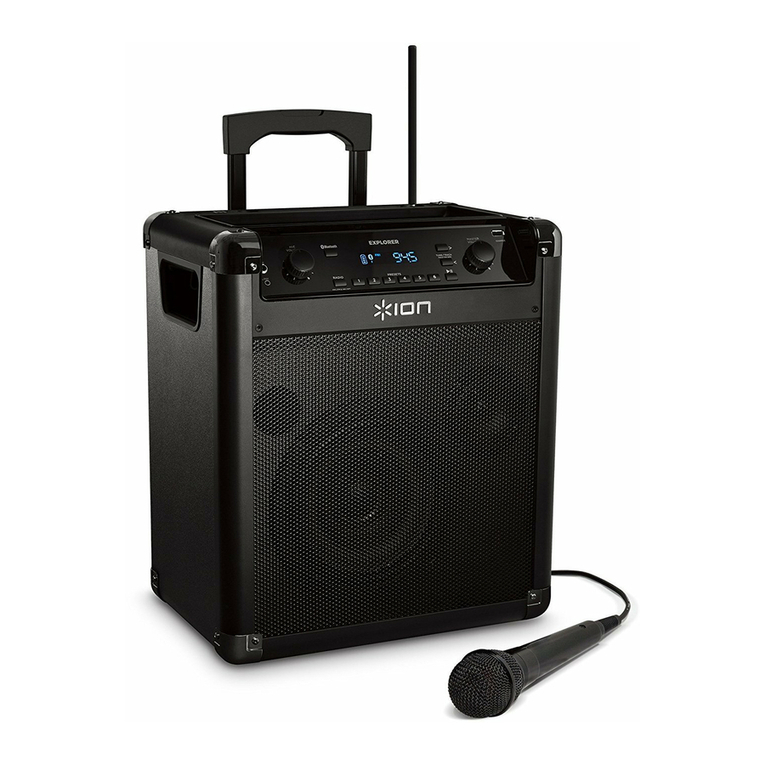
1.Display
This screen shows information relevant to Pro Glow™ Ultra’s current operation.
2.Control Knob
Push this knob to cycle between the following controls, as indicated on the Display, and
then turn the knob to adjust the selected control:
•VOL: Adjusts the overall main volume of the loudspeaker (0–30).
•MIC: Adjusts the microphone input volume, independently of the other channels (0–
30).
•SOURCE: Adjusts the source volume (Bluetooth, AUX, or USB), independently of the
Mic channel (0–30).
•ECHO: Adjusts the amount of echo eect on the microphone (0–10).
•LOW: Increases or decreases the low frequency EQ for all channels (-12 – 0 – 12).
•HIGH: Increases or decreases the high frequency EQ for all channels (-12 – 0 – 12).
If the Control Knob is not moved for five seconds, the function will return to VOL.
Press and hold the Control Knob for five seconds to restore the default settings.
Note: For the best sound quality, set your input source volume to 100% and use the Source
and Main Volume control of the speaker to adjust the volume.
3.Next Button
Press this button to skip to the next Bluetooth or USB track.
4.Previous Button
Press this button to return to the start of the current Bluetooth or USB track. Press the
button again within one second to skip to the previous track.
5.Play / Pause Button
Press this button to start and stop Bluetooth or USB audio.
Press and hold this button to enable or disable the voice prompts.
6.Stereo-LinkTM / Repeat Button
Press this button to link Pro Glow™ Ultra to another compatible speaker. See Operation >
Linking Two Speakers for more information.
In USB mode, press this button to change the playback mode. See Operation > USB Mode
for more information.