IoTeen MediAlarm S User manual

User Guide (Android full ver)
Copyrignt ⓒ 2016 by IoTeenAll Rights Reserved.

IoTeen Co., Ltd. (“IoTeen” hereafter) shall provide the warranty for the product(MediAlarm S) as following.
Product Service Eligibility
Only defects by the manufacturer within the warranty period(within 12 months after purchase) or
naturally-occurring malfunctions are eligible for free-of-charge product services.
-Product service is eligible for malfunctions that occurred during normal use.
-For replacements, all the parts from the defective product shall be collected in principle, and the
parts provided by multiple different manufacturers may be used for repair and replacements. The
original warranty period is not extended even if the product is replaced or repaired.
-The parts used for repair shall be new or regenerated ones.
-Some of the parts used for product repair may have different Country of Origin of the product or
parts..
-Those not specified within the instruction shall be resolved according to Consumer Disputes
Settlement Standard by the Fair Trade Commission.
Categories: Consumer Damage/Complaints Compensation
Within Warranty Period After Warranty Period
Case requiring critical repair within the warranty period Product replacement or free-of-
charge repair
Repair with charge
Care for no replacement or exchange possible Refund
Care requiring consecutive repair for the same defect
Free-of-charge repair for first
two defective cases, product
replacement or refund for the
third malfunctioning case
Case in which the product assigned for repair was lost Product replacement or refund
Case in which repair is not possible due to lack of Product replacement or
refund
Repair services for the following cases shall be charged even during the
warranty period
-Product failure due to user negligence or mistake (mishandling, damage from the fall, shock, damage,
exposure to moisture, excessive maneuvering etc.)
-Random retrofitting or disassembly of the product structure, function or features by unauthorized
personnel
-Replacement of consumable parts(battery etc.) with low performing capacity from normal use and
wear-out
-Product failures due to natural phenomenon (fire, salt damage, earthquake, damage by storm and
flood, thunderstroke etc.)
-Product failures due to power switch in use
-Product failure due to defects in connecting devices
-Product failure caused by failing to follow instructions in the manual
-Inappropriate use of the product
-Product failure caused by inappropriate storage environment (high temperature and humidity, inside a
car during scorching summer etc.)
Product Warranty Certificate
Copyrignt ⓒ 2016 by IoTeenAll Rights Reserved.
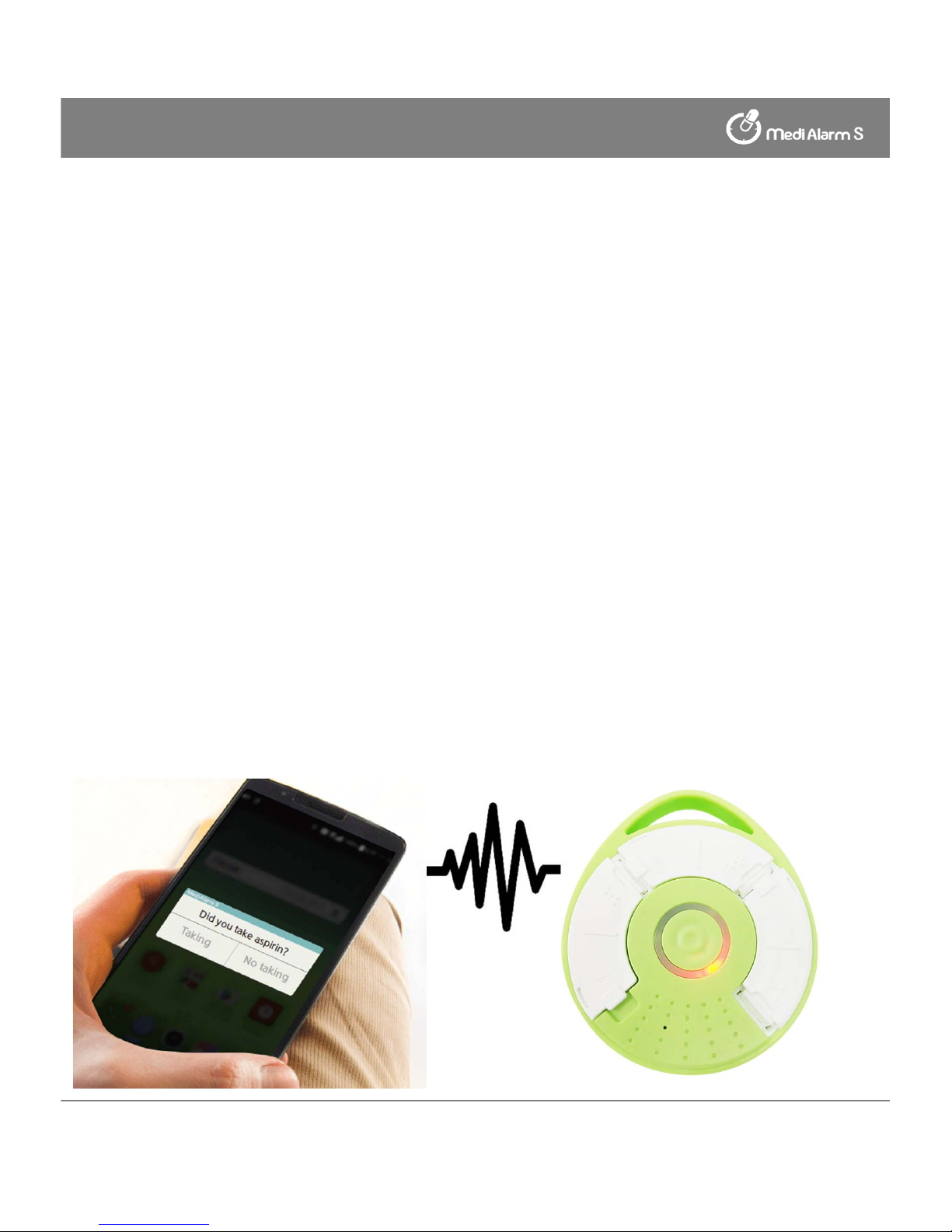
We proudly introduce our smart pill box..
Copyrignt ⓒ 2016 by IoTeenAll Rights Reserved.
Product Features
① The eco-friendly MediAlarm dispenser is free of endocrine disruptors and
toxins, making it safe to use.
② Alteration in the medicine is minimized thanks to the waterproofing
treatment on the dispenser.
③ The consumption and administration of the medicine is all the more
convenient through auto-scanning of QR code
④ You can more conveniently take the medicine through the alarm function
even if your smart phone battery runs out or you left your medicine
container at home.
⑤ LED blinking features for the hearing impaired and the braille feature for
the blind are also available.
⑥ The medicine container of small, sophisticated and light design allows
convenient portability.
⑦ Internal USB connector is used for engineering purposes.
“Medialarm S consists of
a smart pill box and
an Smartphone application..”

Cautions for Use
① Avoid big impact or moisture near the body of the medicine container.
② Separate the medicine dispenser and the body for cleaning. Clean and dry
well the dispenser area before use.
③ Big impact when opening or closing the medicine container lid may lead
to product damage or user injury.
④ In order to avoid taking the medicine redundantly, the numbers 1,2 and 3
(also in braille) are marked on the top of the dispenser lid and on the app.
⑤ If you store the medicine for long, there may occur alteration or
contamination in the product.
⑥ The communication distance with the container on the level ground is
10m but may vary according to the surrounding environment.
Cautions for Use/ How to Use Medicine Container.
Copyrignt ⓒ 2016 by IoTeenAll Rights Reserved.
How to Use Medicine Container
① The washable container is safe and sanitary to use.
② The container allows you to prepare medicine of
your need in advance with additional compartments.
③ You can prepare medicine with ease for long
outdoor activities or journey.
④ You can categorize your daily dosage of several
medications.
⑤ With the number mark on each compartment, you
can take medicine for the day without confusion.

•MediAlarm S applies the state-of-the-art Bluetooth 4.0 technology so
the old version of terminals (manufactured before 2013) may
experience instability in Bluetooth connection.
•MediAlarm S is serviceable from Android Version 5.0 and the operation
in the previous versions may be unstable. Please refer to the Checking
the Version on the next page to update the software and use with
more convenience.
Check the Version
Checking the Software Specifications
Copyrignt ⓒ 2016 by IoTeenAll Rights Reserved.

① Click the Bluetooth button at the bottom of the
container screen (home screen).
② Select the Bluetooth with the matching serial
number of the container on the list.
(※ Press the search button one more time if the
Bluetooth does not show on the list.)
Turn on the Bluetooth
① the Bluetooth is on, click on the alarm stating “the Bluetooth must be
activated for connecting with the container” to activate the Bluetooth
automatically.
⓶If the Bluetooth is off, select the Bluetooth button after
scrolling down to manually activate the Bluetooth.
(※ If you keep the activation after initial operation, you
can get the accurate record results thanks to smooth
sync with the app. You can use it without the need for
further activation or reactivation of the feature.)
Connect the Bluetooth
The container LED light blinks if it is connected with the Bluetooth
properly.
Turn on the Medicine Container / Connect
Copyrignt ⓒ 2016 by IoTeenAll Rights Reserved.
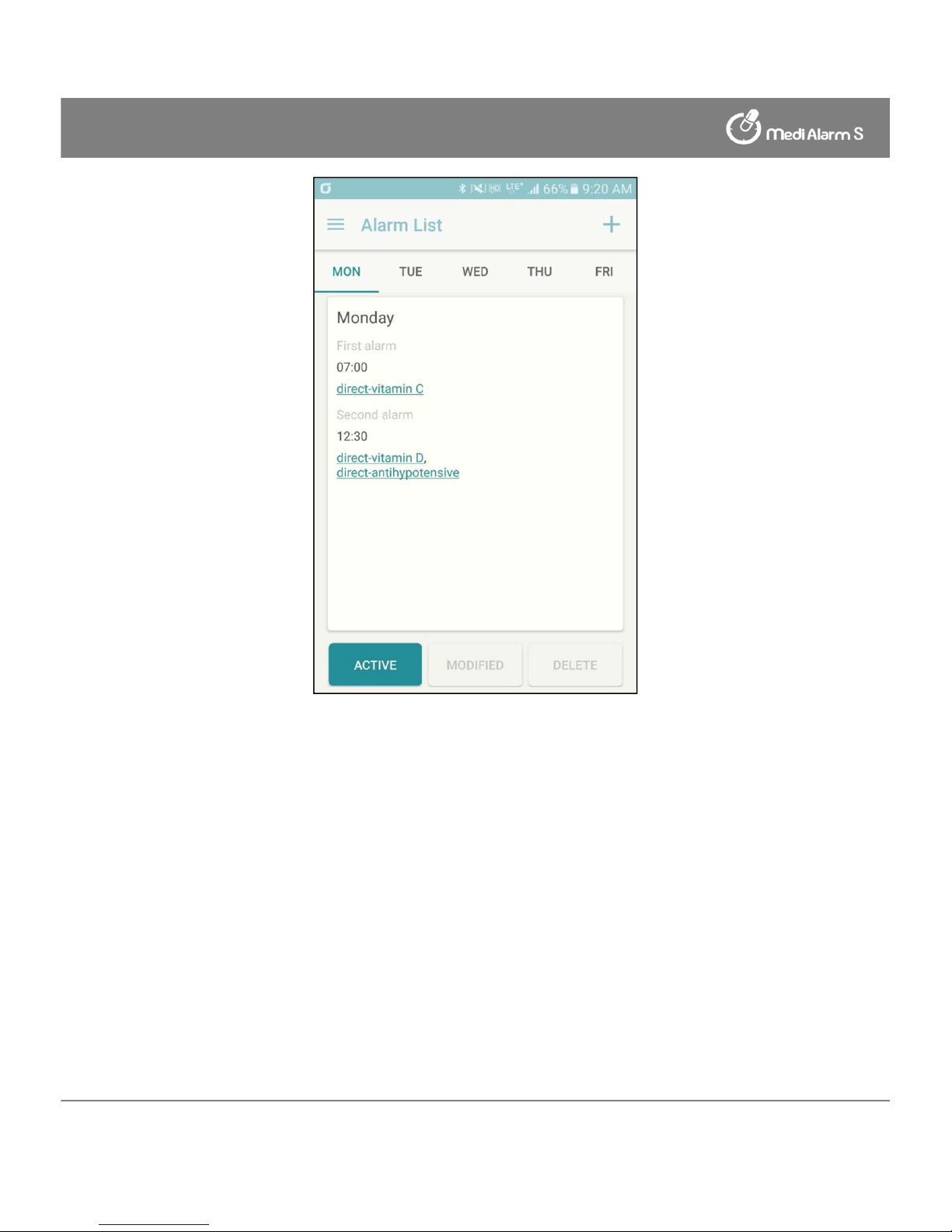
Set the Alarm
① Click the button on top of the application.
② Click the alarm item on the list.
③ Select the day on which you want to register.
④ Click the button in the middle of the screen to add a new medical
administration schedule.
⑤ The dosage content consists of time and the medication. First, the time
for medical administration is set.
(※ If the dosage schedules are registered consecutively, the interval between
consumption must be longer than one hour.)
⑥ Search with the name of the medicine for administration via [Search
Medicine].
⑦ Which medicine to take when is determined if you select the name of the
medicine.
⑧ Click the [Save] button at the bottom to complete the saving.
Set the Alarm
Copyrignt ⓒ 2016 by IoTeenAll Rights Reserved.

Revise Alarm
① Choose the days you wish to revise.
⓶Click the [Revise] button at the bottom.
③ You can select the time, the day or the medicine for revision.
(※ For medicines previously registered, click the tail end of the medicine
name for deletion.)
⓸Select the [Activate] at the bottom to set the day and the time for the
alarm to go off.
⓹Click the [Revise Alarm] button at the bottom to save the changes.
Revise
Copyrignt ⓒ 2016 by IoTeenAll Rights Reserved.
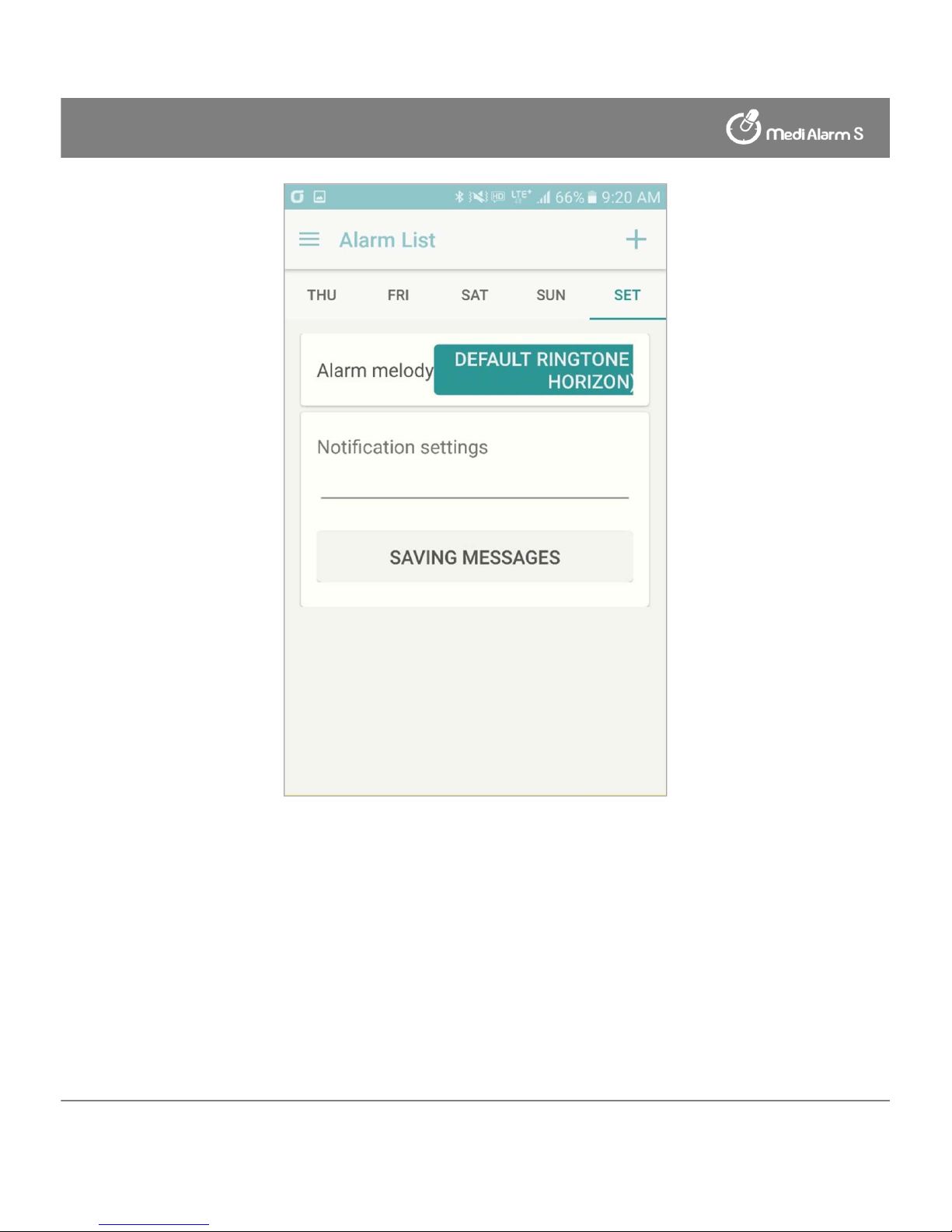
Set Alarm
① Choose the [Settings], the last section for the day to be chosen.
② You can change the alarm sound for taking the medicine by clicking the
[Basic Alarm Sound (“As Time Passes By”)] button.
③ The alarm message appears on the phone screen when the alarm for
consumption goes off, and the message is saved as soon as writing the
message and clicking the [Save the Message] button right below.
④ Upon selecting the simple mode, the Add Alarm function is not displayed
on the Home Screen.
Set Alarm
Copyrignt ⓒ 2016 by IoTeenAll Rights Reserved.

You can set multiple guardians for one person who needs care.
You can set multiple people who needs care for one guardian.
Guardian Notification Function
If the user(person who needs care) does not take the medicine twice in a
raw, the notification message is sent to the user’s cell phone so that he or
she can take the dosage.
User
Guardian1
Guardian2
Notification
Set Guardian / Set Person Who Needs Care
Copyrignt ⓒ 2016 by IoTeenAll Rights Reserved.
① Click [Menu] on top of the application in the user’s cell phone.
② Click the [My Guardian] on the list of the user’s cell phone.
③ Click the button on the bottom right to add guardians on the user’s cell
phone.
④ Click the [Certify] button after putting in the phone number of the person to
be designated as guardian.
⑤ Enter the certification number sent to the guardian’s phone onto the phone
of the person guarded.
⑥ Click the [Register Guardian] on the user’s cell phone.
⑦ Click the button on top of the application of the guardian’s cell phone.
⑧ Click the [Person Who Needs Care] on the list in the guardian’s cell phone.
⑨ Click the [Agree] button of the person whose name matches that of the user
in the list of the person who needs care saved in the guardian’s cell phone.
Set Guardian
1) Set both the Guardian and Person Who Needs Care
(※ You need to install the application on the phone and register membership
before use.)
2) You can check the content in the [My Guardian] and [Person Who Needs Care]
tabs.
Notification
Table of contents