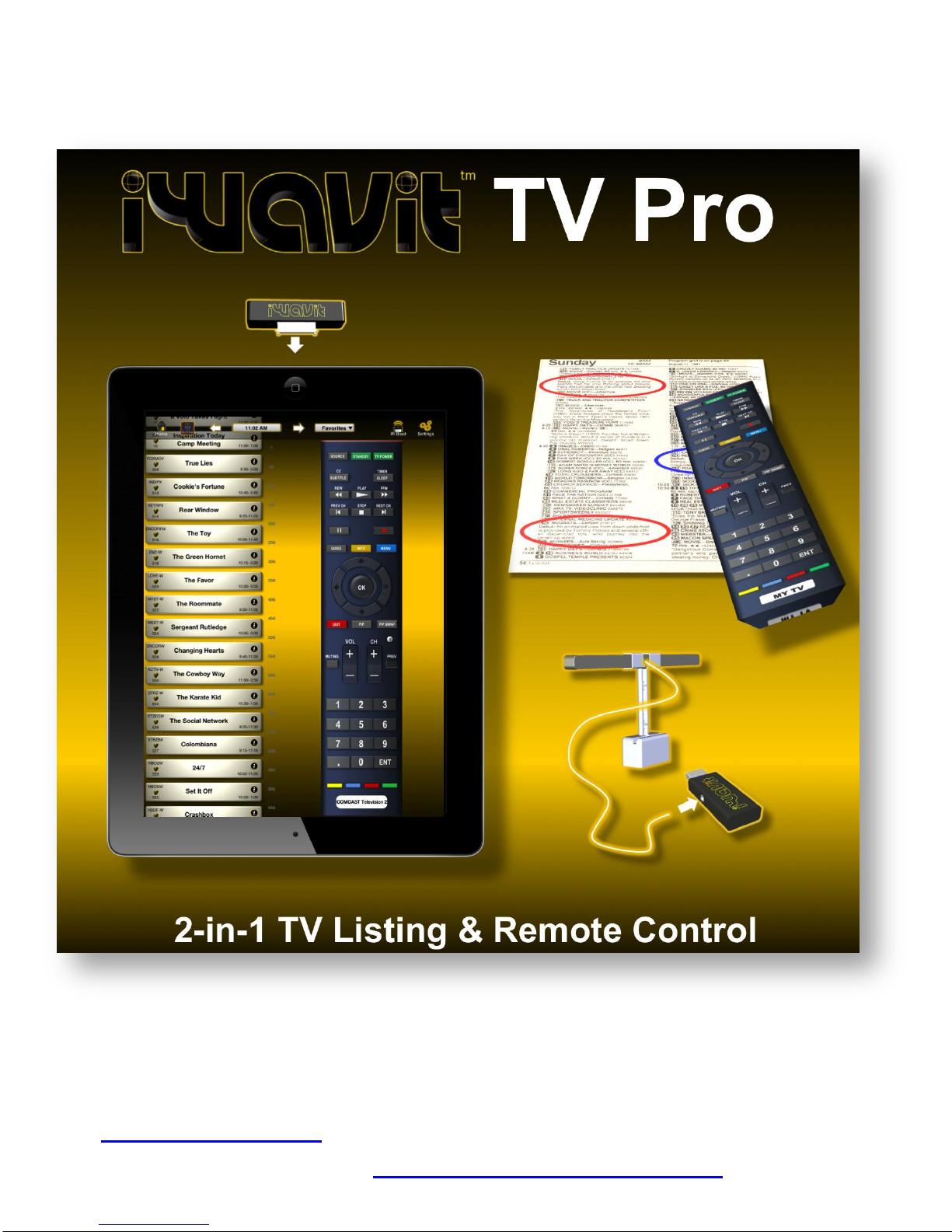
Starting with the TV Listing, you
will be asked to specify your
location by entering your Zip
Code (or simply have the iPhone
automatically determine it for you).
You will then be presented with a
list of different TV Service
Providers in your area, like
Comcast, Dish, DirecTV, or ATSC
Broadcast (for over-the-air digital
TV). Select the one you have in
your home. Your TV Listing
(a.k.a. TV guide) is now
configured. You only need do this
once. This online TV listing is
being provided by our partner
TitanTV.
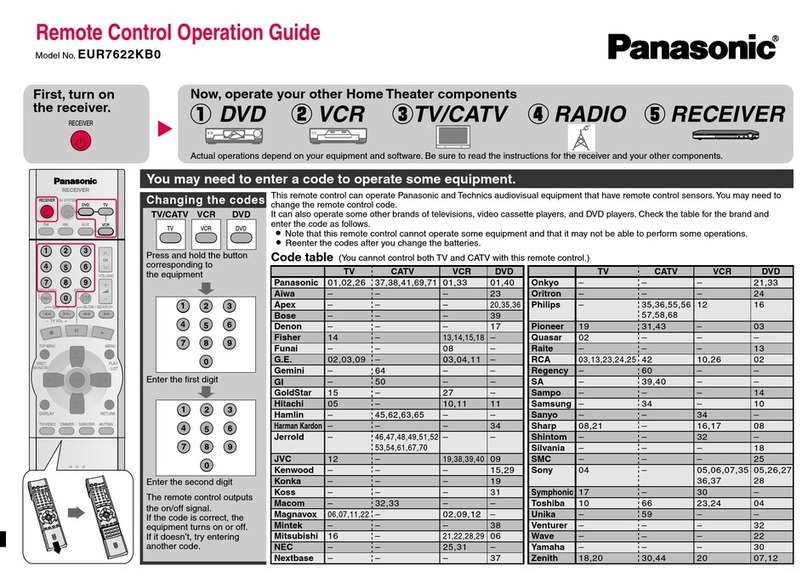
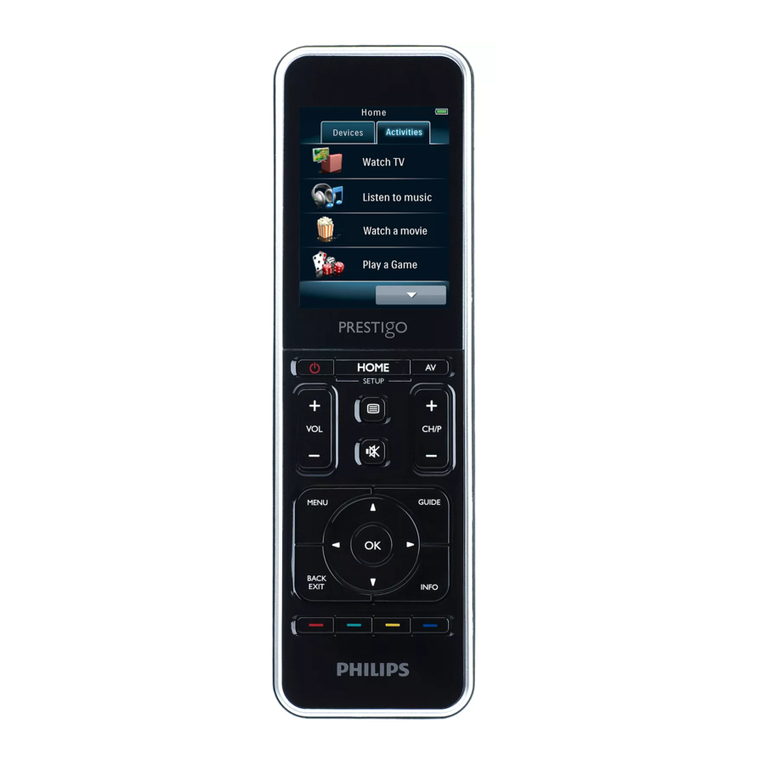
Next, you will need to set up your Virtual Remote Control.
There are a two different ways to do this. The simplest
approach is to use the "Remote Wizard". The Wizard will
ask you what type of TV or set-top box you want to control
when you change channels. Once you select one, such as
Comcast box or Sony LCD TV or even your PC, you will be
presented with a list of different Remote Control options. All
or some of these may work. To figure out which one will
work for you, tap the "Test" button right next to the name.
This will send out the Power ON/OFF signal to your TV or
set-top box. Make sure to have the iWavit attached and
pointed at your TV when you press this button. If your TV
Use the Wizard to set up your
Remote