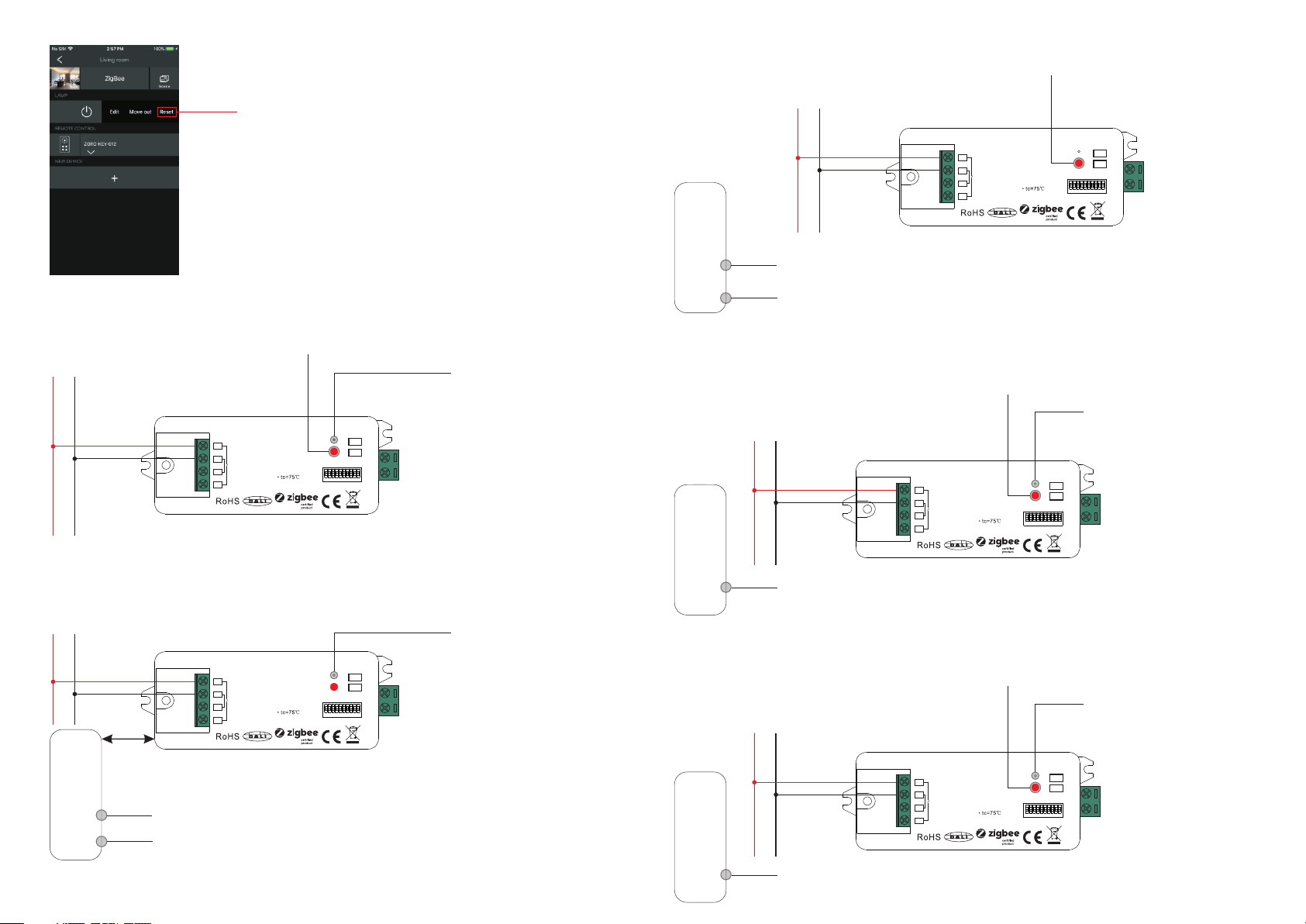
11. Removed from a Zigbee Network through Coordinator or Hub Interface
From your ZigBee controller or hub interface, choose to delete or reset
the lighting device as instructed. The connected light blinks 3 times to
indicate successful reset.
12. Factory Reset Manually
Note: 1) If the device is already at factory default setting, there is no indication when factory reset again .
2) All configuration parameters will be reset after the device is reset or removed from the network.
13. Factory Reset through a Zigbee Remote (Touch Reset)
14. Find and Bind Mode
Step 2: Set the remote or touch panel (target node) into find and bind mode, and enable it
to find and bind initiator, please refer to corresponding remote or touch panel manual.
Step 3: There shall be indication on the remote or touch panel that it bind the device
successfully and can control it then.
Zigbee
Remote
Step 1: Short press “Prog.” button 3 times (Or reset power of the device (initiator node) 3 times) to start Find and
Bind mode (connected light flashes slowly) to find and bind target node, 180 seconds timeout, repeat the step.
15. Learning to a Zigbee Green Power Remote
Step 2: Set the green power
remote into Learning mode,
please refer to its manual.
Zigbee
Green Power
Remote
Step 3: LED indicator will flash
twice to indicate successful
learning. Then the remote can
control the device.
Step 1: Short press “Prog.” button 4 times (Or reset power of the device 4 times) to start Learning mode
(connected light flashes twice), 180 seconds timeout, repeat the step.
Note: Each device can learn to
max. 20 zigbee green power remote.
16. Delete Learning to a Zigbee Green Power Remote
Step 2: Set the paired green power remote into
Learning mode, please refer to its manual.
Step 3: LED indicator will
flash 4 times to indicate
successful deleting.
Step 1: Short press “Prog.” button 3 times (Or reset power of the device 3 times) to start delete Learning mode
(connected light flashes slowly), 180 seconds timeout, repeat the step.
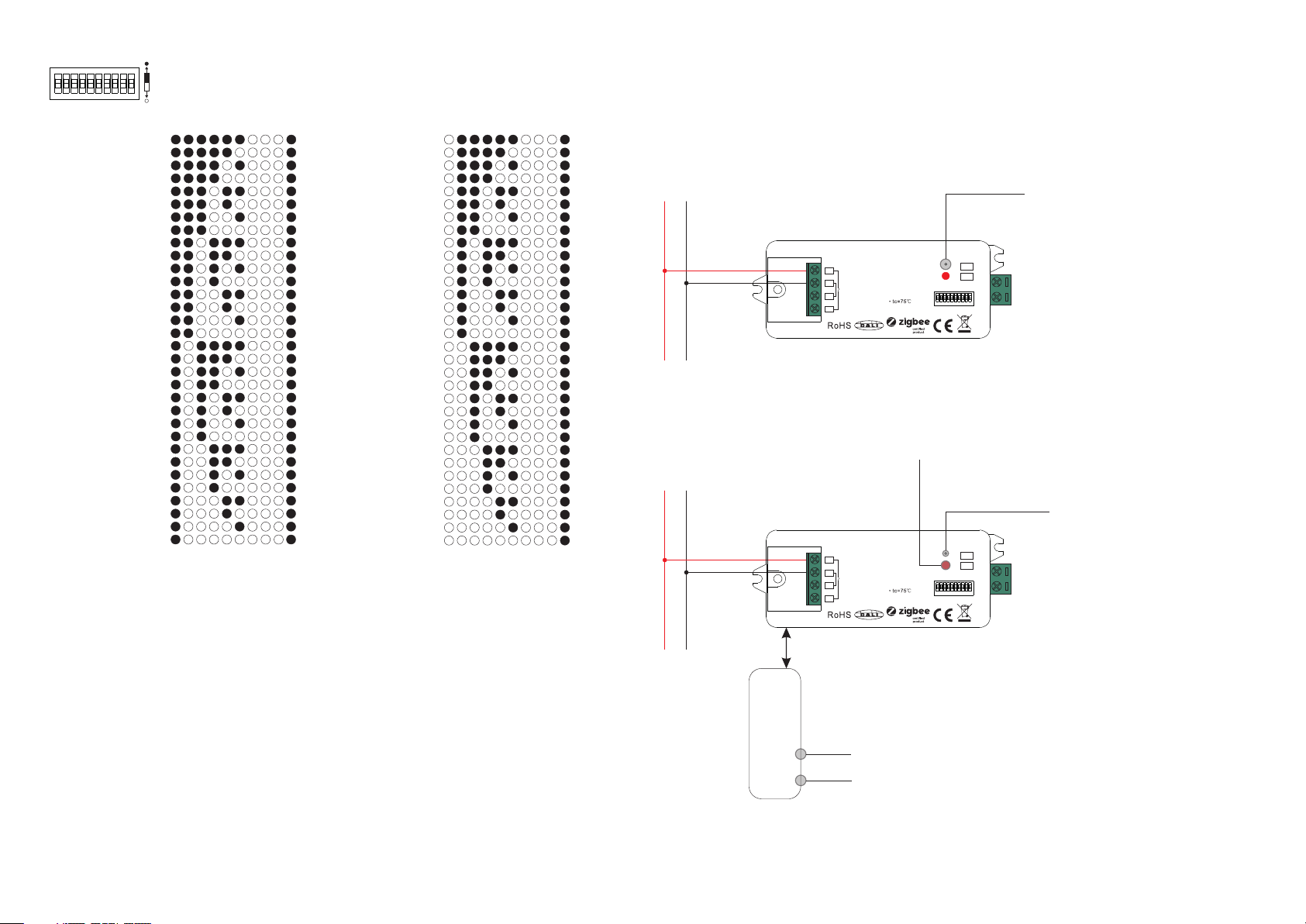
Step 1: Short press “Prog.” key for 5 times continuously or reset power of the device for 5 times continuously
from master breaker if the “Prog.” key is not accessible.
Step 3: Set the remote or touch panel into Touch Reset procedure to reset the
device, please refer to corresponding remote or touch panel manual to learn how.
Note: Make sure the device already added to a network, the remote added to the same one or not added to any
network.
Step 1: Reset power of the device to start TouchLink Commissioning, 180 seconds timeout, repeat this step.
Step 4: There shall be indication
on the remote and LED indicator
on the device flashes 3 times for
successful reset.
< 10cm
Zigbee
Remote
Zigbee
Green Power
Remote
Step 2: LED indicator flashes 3
times for successful reset.
Step 2: Bring the remote or touch panel within 10cm of the lighting device.
Note: Make sure the device and the remote or touch panel already added to the same Zigbee hub.
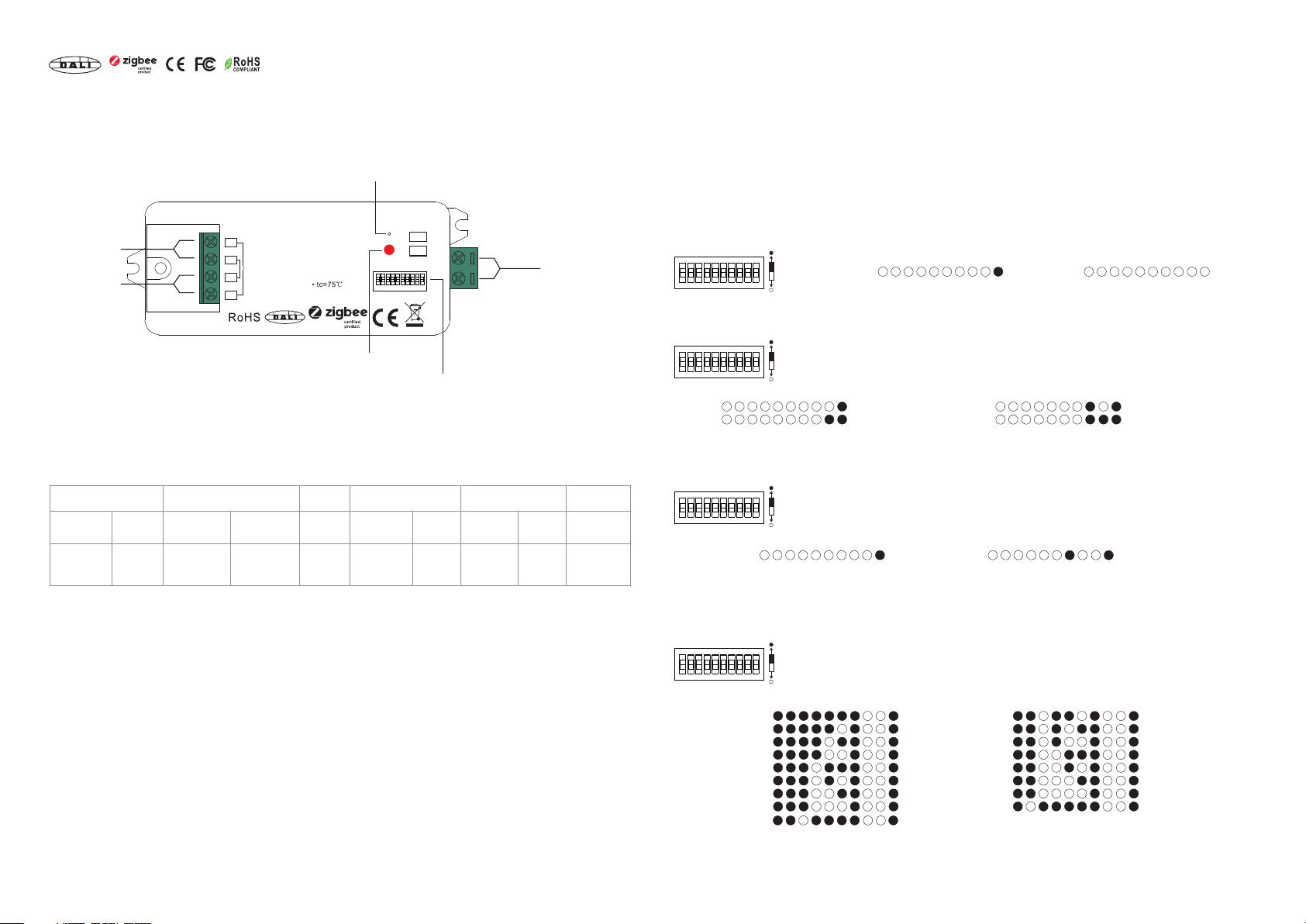
L N
DALI Add.
1 53 7 92 64 8 10
L
L1
N
N
DA/-
DA/+
Prog.
DALI
0/1-10V
Input Voltage: 110-240V AC
Output Current: 1x5A max
ZigBee to DALI+0/1-10V
2 in 1 Converter with Relay
ta:-20℃-+50℃
L N
DALI Add.
1 53 7 92 64 8 10
L
L1
N
N
DA/-
DA/+
Prog.
DALI
0/1-10V
Input Voltage: 110-240V AC
Output Current: 1x5A max
ZigBee to DALI+0/1-10V
2 in 1 Converter with Relay
ta:-20℃-+50℃
L N
DALI Add.
1 53 7 92 64 8 10
L
L1
N
N
DA/-
DA/+
Prog.
DALI
0/1-10V
Input Voltage: 110-240V AC
Output Current: 1x5A max
ZigBee to DALI+0/1-10V
2 in 1 Converter with Relay
ta:-20℃-+50℃
L N
DALI Add.
1 53 7 92 64 8 10
L
L1
N
N
DA/-
DA/+
Prog.
DALI
0/1-10V
Input Voltage: 110-240V AC
Output Current: 1x5A max
ZigBee to DALI+0/1-10V
2 in 1 Converter with Relay
ta:-20℃-+50℃
L N
DALI Add.
1 53 7 92 64 8 10
L
L1
N
N
DA/-
DA/+
Prog.
DALI
0/1-10V
Input Voltage: 110-240V AC
Output Current: 1x5A max
ZigBee to DALI+0/1-10V
2 in 1 Converter with Relay
ta:-20℃-+50℃