manuals.online logo
Brands
  1. Home
  2. •
  3. Brands
  4. •
  5. Lenovo
  6. •
  7. DVD Drive
  8. •
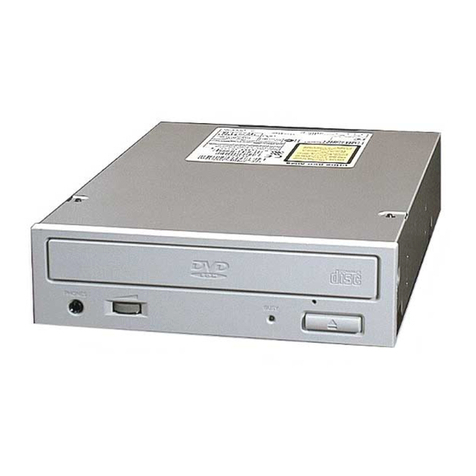
  9. Lenovo ThinkPad 390 User manual

Lenovo ThinkPad 390 User manual

This manual suits for next models

2

Other Lenovo DVD Drive manuals

Lenovo DB60 User manual

Lenovo

Lenovo DB60 User manual

Lenovo DB50 User manual

Lenovo

Lenovo DB50 User manual

Lenovo ThinkPad 41N5647 User manual

Lenovo

Lenovo ThinkPad 41N5647 User manual

Lenovo ThinkPad 40Y8626 User manual

Lenovo

Lenovo ThinkPad 40Y8626 User manual

Lenovo DB80 User manual

Lenovo

Lenovo DB80 User manual

Lenovo 40Y8637 User manual

Lenovo

Lenovo 40Y8637 User manual

Lenovo ThinkPad 40Y8706 User manual

Lenovo

Lenovo ThinkPad 40Y8706 User manual

Lenovo ThinkCentre 41N5622 User manual

Lenovo

Lenovo ThinkCentre 41N5622 User manual

Lenovo USB Portable DVD Burner User manual

Lenovo

Lenovo USB Portable DVD Burner User manual

Lenovo IdeaPad Y410p User manual

Lenovo

Lenovo IdeaPad Y410p User manual

Lenovo ThinkCentre 41N5624 User manual

Lenovo

Lenovo ThinkCentre 41N5624 User manual

Lenovo GP20N User manual

Lenovo

Lenovo GP20N User manual

Lenovo ThinkCentre 41N5626 User manual

Lenovo

Lenovo ThinkCentre 41N5626 User manual

Lenovo ThinkPad 40Y8710 User manual

Lenovo

Lenovo ThinkPad 40Y8710 User manual

Lenovo ThinkPad Ultrabay 9.5-mm DVD Burner IV User manual

Lenovo

Lenovo ThinkPad Ultrabay 9.5-mm DVD Burner IV User manual

Lenovo ThinkPad 43N3201 User manual

Lenovo

Lenovo ThinkPad 43N3201 User manual

Lenovo ThinkPad UltraSlim User manual

Lenovo

Lenovo ThinkPad UltraSlim User manual

Lenovo ThinkCentre 41N5583 User manual

Lenovo

Lenovo ThinkCentre 41N5583 User manual

Popular DVD Drive manuals by other brands

Pioneer DVD-A02 operating instructions

Pioneer

Pioneer DVD-A02 operating instructions

Addonics Technologies DVD R/RW user guide

Addonics Technologies

Addonics Technologies DVD R/RW user guide

Panasonic CFVDM732U - DVD operating instructions

Panasonic

Panasonic CFVDM732U - DVD operating instructions

LG GSA-4160B Specifications

LG

LG GSA-4160B Specifications

Panasonic VW-BN1 - DVD-RW / DVD-RAM Drive operating instructions

Panasonic

Panasonic VW-BN1 - DVD-RW / DVD-RAM Drive operating instructions

Plextor PX-755SA Installation and user manual

Plextor

Plextor PX-755SA Installation and user manual

LG GSA-2164D user guide

LG

LG GSA-2164D user guide

Samsung SM-332B user manual

Samsung

Samsung SM-332B user manual

Sony DRU-500AX user guide

Sony

Sony DRU-500AX user guide

Emprex Slim Writer DVD R/RW USB 2.0 External Drive user manual

Emprex

Emprex Slim Writer DVD R/RW USB 2.0 External Drive user manual

Targus PACMB010U user guide

Targus

Targus PACMB010U user guide

Pioneer BDC-TD03RS Product specification

Pioneer

Pioneer BDC-TD03RS Product specification

Sony DDU1621 Series user manual

Sony

Sony DDU1621 Series user manual

Plextor PX-320A user guide

Plextor

Plextor PX-320A user guide

Samsung SD-816B user manual

Samsung

Samsung SD-816B user manual

Pioneer DVR-1910LS - DVD±RW / DVD-RAM Drive overview

Pioneer

Pioneer DVR-1910LS - DVD±RW / DVD-RAM Drive overview

Nevir NVR-695DCDU instruction manual

Nevir

Nevir NVR-695DCDU instruction manual

LG GH24 Installing instructions

LG

LG GH24 Installing instructions

manuals.online logo
manuals.online logoBrands
  • About & Mission
  • Contact us
  • Privacy Policy
  • Terms and Conditions

Copyright 2025 Manuals.Online. All Rights Reserved.

First Edition (February 1999)
The following paragraph does not apply to the United Kingdom or any country where such provisions are inconsistent with local law:
INTERNATIONAL BUSINESS MACHINES CORPORATION PROVIDES THIS PUBLICATION “AS IS” WITHOUT ANY WARRANTY OF ANY KIND,
EITHER EXPRESS OR IMPLIED, INCLUDING, BUT NOT LIMITED TO, THE LIMITED WARRANTIES OF MERCHANTABILITY OR FITNESS FOR A
PARTICULAR PURPOSE. Some states do not allow disclaimers or express or implied warranties in certain transactions; therefore, this statement may not apply
to you.
This publication could include technical inaccuracies or typographical errors. Changes are periodically made to the information herein; these changes will be
incorporated in new editions of the publication. IBM may make improvements or changes in the products or the programs described in this publication at any
time.
It is possible that this publication may contain reference to, or information about, IBM products (machines and programs), programming, or services that are not
announced in your country. Such references or information must not be construed to mean that IBM intends to announce such IBM products, programming, or
services in your country.
Requests for technical information about IBM products should be made to your IBM authorized dealer or your IBM marketing representative.
Copyright International Business Machines Corporation 1999. All rights reserved.
Note to U.S. Government Users — Documentation related to restricted rights — Use, duplication or disclosure is subject to restrictions set forth in GSA ADP
Schedule Contract with IBM Corp.
Contents
Part 1. Using the ThinkPad 390 DVD/FDD Bay Drive .................................. 1-1
Installing programs . . . . . . . . . . . . . . . . . . . . . . 1-2
Viewing a DVD movie .................... 1-6
Troubleshooting . . . . . . . . . . . . . . . . . . . . . . . . 1-7
Installing programs . . . . . . . . . . . . . . . . . . . . . . 1-9
Viewing a DVD movie ................... 1-13
Troubleshooting . . . . . . . . . . . . . . . . . . . . . . . 1-14
Part 2. Appendixes . . . . . . . . . . . . . . . . . . . . . . . . . . . . . . . . . . . . . . . . . . . . . . . . . . . . . . . . . 2-1
Appendix A. Help and service information ......... 2-1
Step 1. Problem solving . . . . . . . . . . . . . . . . . . . . 2-1
Step 2. Preparing for the call ................. 2-2
Step 3. Placing the call to IBM ................ 2-2
Appendix B. Product warranty . . . . . . . . . . . . . . . 2-3
Appendix C. Notices . . . . . . . . . . . . . . . . . . . . . 2-5
Copyright IBM Corp. 1999 iii
iv
Part 1. Using the ThinkPad 390 DVD/FDD Bay Drive
The ThinkPad 390 DVD/FDD Bay Drive (hereafter called the DVD
option) supports the ThinkPad 390 series computer in the Windows
95 or Windows 98 environment, with either of the following
processors:
Intel Pentium II Processor or faster
Intel Celeron 300-MHz processor or faster
To use the DVD option in your computer, you need to install the
software programs after inserting the DVD option into the UltraBay
FX. This book explains how to install software programs. For how to
insert the DVD option into your computer, refer to the User's
Reference of your computer.
Before you begin the installation, make sure that the following items
are included in your option package:
Note: The DVD movie player is supported by Windows 98 and Windows 95
OSR2.0 or later versions. You can check which version of Windows
95 you are using by doing the following:
1. Click Start, move the cursor to Settings, and then click Control
Panel.
2. Double-click System.
Read the numbers under “System.”
4.00.950B means that it is Windows 95 OSR2.0 or OSR2.1.
4.00.950C means that it is Windows 95 OSR2.5.
Note: Be sure to keep your proof of purchase, because it might be required
for warranty services. (See Appendix A.)
DVD drive This user's guide
DVD Software CD-ROM
(includes software programs for
DVD movies)
Copyright IBM Corp. 1999 1-1
Installing programs
If you want to view DVD movies, do the following to install the
software programs:
To install the software programs, do as follows:
1 Remove the warm swap driver.
2 Update the video driver
3 Enable the DMA setting.
4 Install the DVD movie player program (DVD Express).
5 Select the region code.
Details are provided in the following sections.
If you are not going to watch DVD movies—that is, if you are going
to use the DVD drive only for reading DVD-ROMs or
CD-ROMs—you do not need to install these programs.
Removing the warm swap driver
To remove the warm swap driver, do the following.
1 Click Start.
2 Move the cursor to Settings, and click Control Panel.
3 Double-click Add/Remove Programs.
4 Click the Install/Uninstall tab.
5 Select Agate Tioman.
6 Click the Add/Remove button.
7 Follow the instructions on the screen.
From now on, before replacing a device in the UltraBay FX, you need
to power off the computer.
Note: To view the DVD movies comfortably, you need to remove the warm
swap driver.
1-2
Updating the video driver
To update the video driver, go to appropriate section.
If you are using Windows 98, go to the next section.
If you are using Windows 95, go to “Updating procedure for
Windows 95 .”
Updating procedure for Windows 98
1 Insert the DVD Software CD-ROM into the DVD drive.
2 Click Start.
3 Move the cursor to Settings, and click Control Panel.
4 Double-click Display.
5 Click the Settings tab.
6 Click Advanced...
7 Click the Adapter tab.
8 Click Change...
The “Update Device Driver Wizard” window appears.
9 Click Next.
10 Click Display a list of all the device drivers in a specific
location so you can select the driver you want.
11 Click Next.
12 Click Have Disk...
13 When you are prompted to specify the driver disk, type
x:\DISPLAY\ and click OK.
14 Select NeoMagic MagicMedia 256AV, and click OK.
15 Click Next.
16 Click Finish.
17 Click Close.
18 Click Close again.
19 When you are prompted to restart the computer, click Yes.
Note: x represents the drive letter of the DVD drive.
Part 1. Using the ThinkPad 390 DVD/FDD Bay Drive 1-3
Updating procedure for Windows 95
1 Insert the DVD Software CD-ROM into the DVD drive.
2 Click Start.
3 Move the cursor to Settings, and click Control Panel.
4 Double-click Display.
5 Click the Settings tab.
6 Click Advanced Properties.
7 Click Change...
8 Click Have Disk...
9 When you are prompted to specify the driver disk, type
x:\DISPLAY\ and click OK.
10 Click OK.
11 Click Close.
12 Click Close again.
13 When you are prompted to restart the computer, click Yes.
Enabling the DMA setting
1
Click Start, move the cursor to Settings, and click Control
Panel.
2 Double-click System.
3 Click the Device Manager tab.
4 Double-click the CDROM icon.
The DVD drive name appears under the CDROM icon.
5 Double-click the DVD drive name.
6 Click the Settings tab.
7 Put check marks in the DMA and Auto insert notification
check boxes by clicking them. If the alert dialog appears, click
OK to close it.
8 Click OK.
9 Click Close to close the “System Properties” window.
The system settings change dialog appears.
10 Click OK to restart the system.
Note: x represents the drive letter of the DVD drive.
1-4
Installing the DVD movie player program
To install the DVD movie player, do the following:
1 Insert the DVD Software CD-ROM into the DVD drive.
2 Click Start and Run.
3 Type x:\DVDPLAYR\SETUP and click OK.
4 Follow the instructions on the screen.
Selecting the region code
If you want to view a DVD movie on your computer, you need to set
the DVD region code. You can set the region code when you start
DVD Express for the first time.
DVD region codes
Regional coding is part of the protection scheme for DVD content.
The world is divided into six regions, so that specific content can
be viewed only in the region where it is appropriate. For
example, Region 1 (U.S. and Canada) content can be viewed only
in Region 1. The DVD movie player application is also
region–specific.
You must select a region to play DVD content. After you have
selected a region, you can play content only from that region.
Make sure the first DVD content you play is from the appropriate
region. You can verify the region code of the content by looking
at the region code symbol on the back of the content packaging.
Attention: If the first DVD you play is from a region other than
the region you selected, your system will no longer play DVD
content. Contact the IBM PC HelpCenter. See Appendix A.
Note: x represents the drive letter of the DVD drive.
Part 1. Using the ThinkPad 390 DVD/FDD Bay Drive 1-5
To select the region code, do the following:
1 Insert the DVD-ROM into the DVD drive.
2 Click Start.
3 Move the cursor to Programs,Madiamatics Express, and click
Madiamatics DVD Player.
4 Click the play button ( ) of the “DVD movie player” window.
The “Select DVD Region” window appears.
5 Select the region code and click OK.
Follow the instructions on the screen.
Viewing a DVD movie
After you install the DVD drive and the programs, you can view a
DVD movie by doing the following:
1 Insert a DVD into the DVD drive.
If you want to watch a DVD movie on your TV, refer to the
User's Reference of your computer.
2 Click Start, move the cursor to Programs, and click
Mediamatics DVD Express.
3 Click Mediamatics DVD Player.
The “DVD movie player” window appears. For more
information on how to play the DVD movie player, see the
Online User's Guide of your computer.
Region
Code Region
1 U.S, Canada
2 Europe, Middle East, South Africa, Japan Notes:
1. Your computer has been configured to provide the highest quality audio
and video playback based on the available system resources. You can
alter the default settings by changing the video resolution setting within
the Control Panel of Windows 95 or Windows 98. Some systems do not
have enough resources to provide full-quality audio and video playback at
all resolution settings. If you experience poor playback performance,
adjust the resolution to a lower setting.
2. Audio or video streams are decoded in software. The audio and video
subsystems need to be fully functional and enabled.
3. When you are viewing a DVD movie, the LCD resolution might be
automatically set to 800 x 600, 256 colors.
3 Southeast Asia, Taiwan, Korea
4 Latin America, Australia, New Zealand
5 Former Soviet Union, the rest of Africa, India
6 People's Republic of China
1-6