Lenovo ideapad 100S-14IBR User manual
Other Lenovo Laptop manuals

Lenovo
Lenovo IdeaTab K3011W Owner's manual
Lenovo
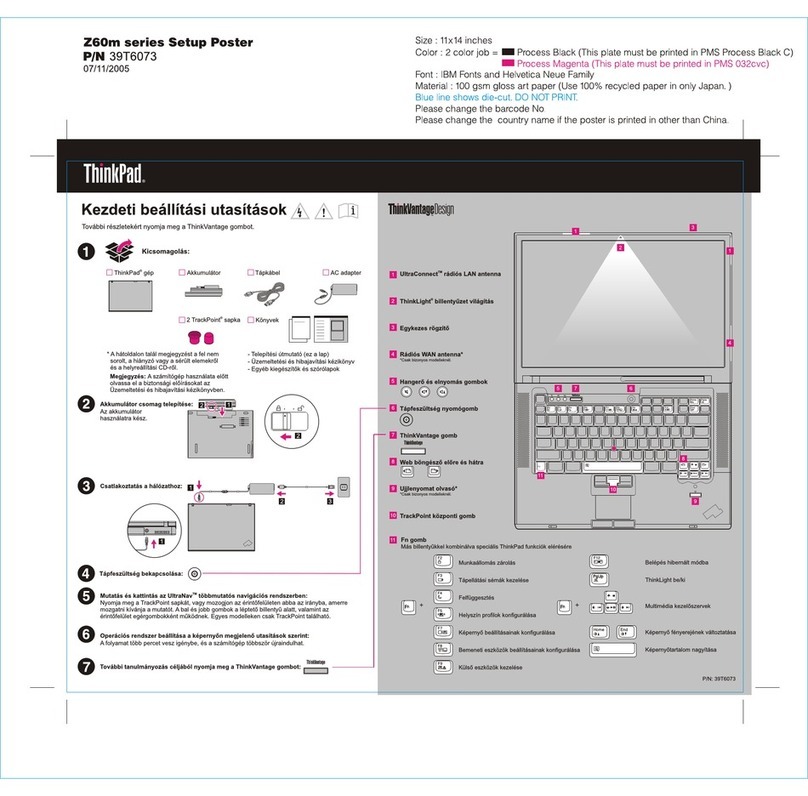
Lenovo ThinkPad Z60m Series User manual
Lenovo
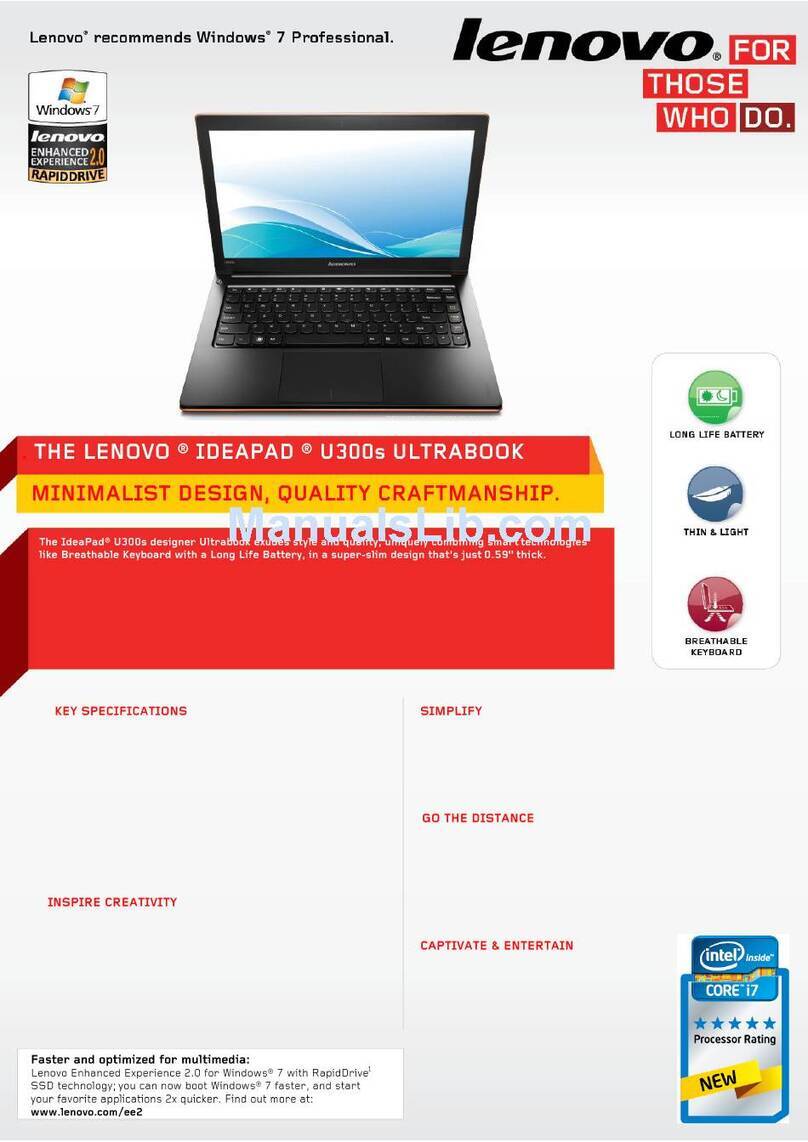
Lenovo IdeaPad U300s User manual
Lenovo
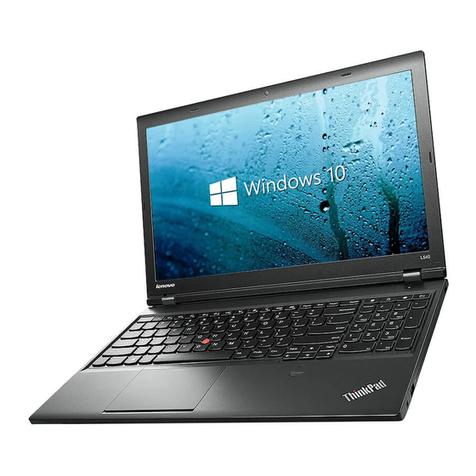
Lenovo ThinkPad L440 Owner's manual
Lenovo
Lenovo ThinkPad Edge E330 User manual

Lenovo
Lenovo TB-8505XC How to use

Lenovo
Lenovo V320-17IKB Owner's manual
Lenovo
Lenovo ThinkPad X1 Carbon Instruction Manual
Lenovo
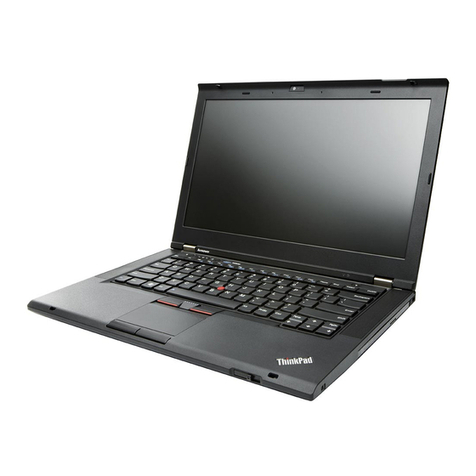
Lenovo ThinkPad T430s User manual
Lenovo
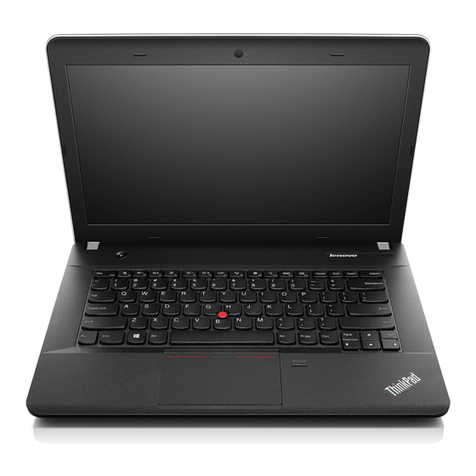
Lenovo ThinkPad Edge E440 User manual

Lenovo
Lenovo ThinkPad X200 Tablet 7453 User manual
Lenovo
Lenovo ThinkPad Edge S430 Training manual

Lenovo
Lenovo Legion Pro 7 User manual
Lenovo
Lenovo ThinkPad T23 User manual
Lenovo
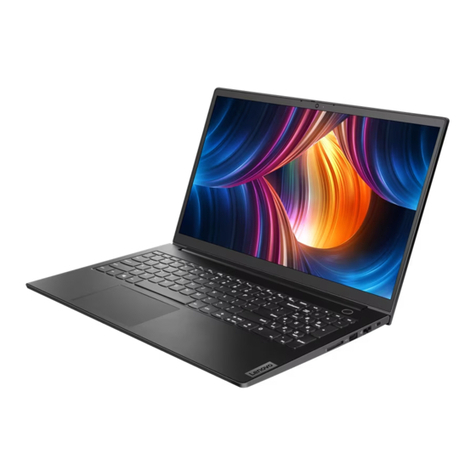
Lenovo ZhaoYang Series User manual

Lenovo
Lenovo ThinkPad 13 2nd Gen User manual
Lenovo
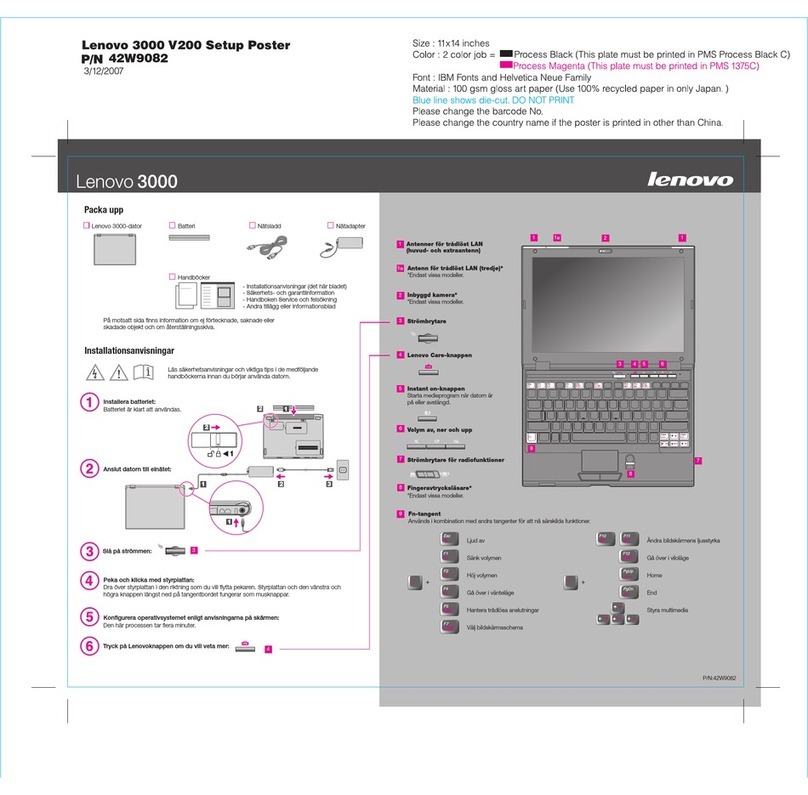
Lenovo V200 User manual

Lenovo
Lenovo IdeaPad A10 User manual
Lenovo
Lenovo ThinkPad Edge E220s User manual
Lenovo
Lenovo IdeaPad U300e User manual