EnglishDeutsch
 logo
Brands
  1. Home
  2. •
  3. Brands
  4. •
  5. Lenovo
  6. •
  7. Laptop
  8. •
  9. Lenovo Legion Y920-17IKB User manual

Lenovo Legion Y920-17IKB User manual

Other manuals for Legion Y920-17IKB

1

Other Lenovo Laptop manuals

Lenovo ThinkPad Edge E420 User manual

Lenovo

Lenovo ThinkPad Edge E420 User manual

Lenovo Ideapad V370 User manual

Lenovo

Lenovo Ideapad V370 User manual

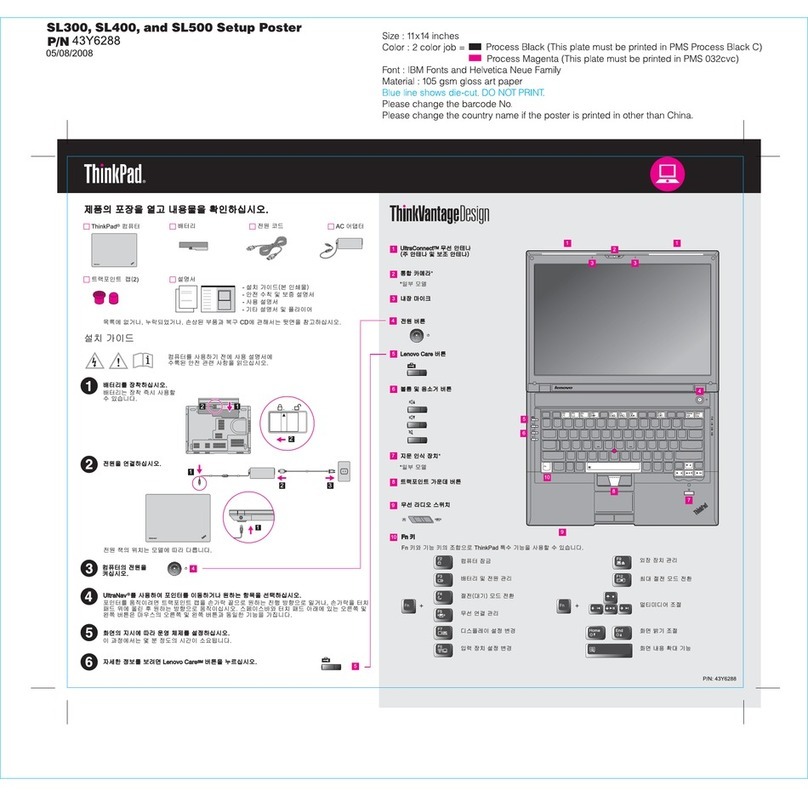
Lenovo ThinkPad Z60t Series Quick start guide

Lenovo

Lenovo ThinkPad Z60t Series Quick start guide

Lenovo ThinkPad T40 Instruction Manual

Lenovo

Lenovo ThinkPad T40 Instruction Manual

Lenovo ThinkPad L412 How to use

Lenovo

Lenovo ThinkPad L412 How to use

Lenovo Thinkpad L480 User manual

Lenovo

Lenovo Thinkpad L480 User manual

Lenovo IdeaPad Slim 3 Series Owner's manual

Lenovo

Lenovo IdeaPad Slim 3 Series Owner's manual

Lenovo ThinkPad L560 User manual

Lenovo

Lenovo ThinkPad L560 User manual

Lenovo ThinkPad L410 User manual

Lenovo

Lenovo ThinkPad L410 User manual

Lenovo IDEAPAD S10-3S User manual

Lenovo

Lenovo IDEAPAD S10-3S User manual

Lenovo ThinkPad SL500 User manual

Lenovo

Lenovo ThinkPad SL500 User manual

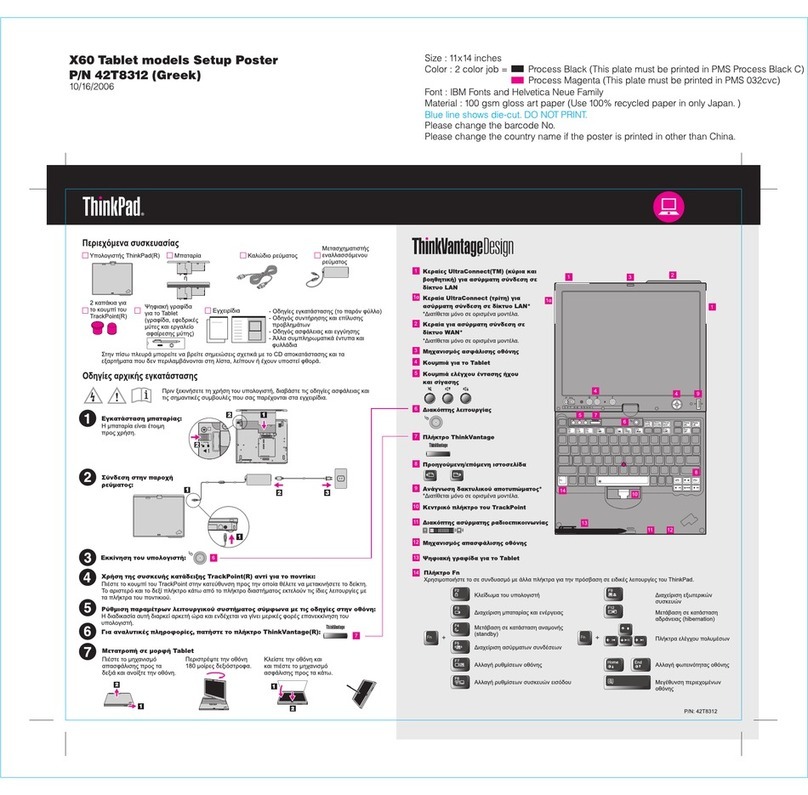
Lenovo ThinkPad X60 Tablet User manual

Lenovo

Lenovo ThinkPad X60 Tablet User manual

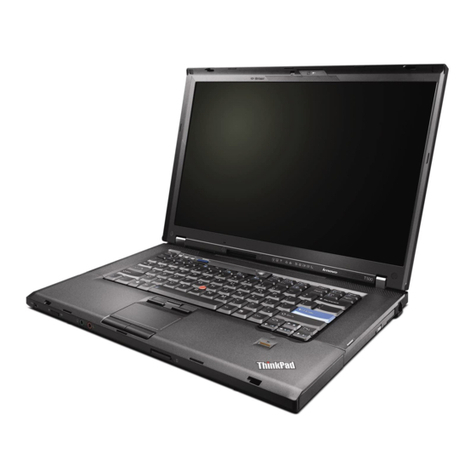
Lenovo ThinkPad T500 User manual

Lenovo

Lenovo ThinkPad T500 User manual

Lenovo IdeaPad Slim 9i User manual

Lenovo

Lenovo IdeaPad Slim 9i User manual

Lenovo ThinkPad Edge E420 Owner's manual

Lenovo

Lenovo ThinkPad Edge E420 Owner's manual

Lenovo ThinkPad T410 Operating instructions

Lenovo

Lenovo ThinkPad T410 Operating instructions

Lenovo 82RB Owner's manual

Lenovo

Lenovo 82RB Owner's manual

Lenovo ThinkPad Edge S430 Guide

Lenovo

Lenovo ThinkPad Edge S430 Guide

Lenovo ThinkPad 13 2nd Gen User manual

Lenovo

Lenovo ThinkPad 13 2nd Gen User manual

Lenovo ThinkPad X1 Carbon User manual

Lenovo

Lenovo ThinkPad X1 Carbon User manual

Lenovo IdeaPad 5i Pro Owner's manual

Lenovo

Lenovo IdeaPad 5i Pro Owner's manual

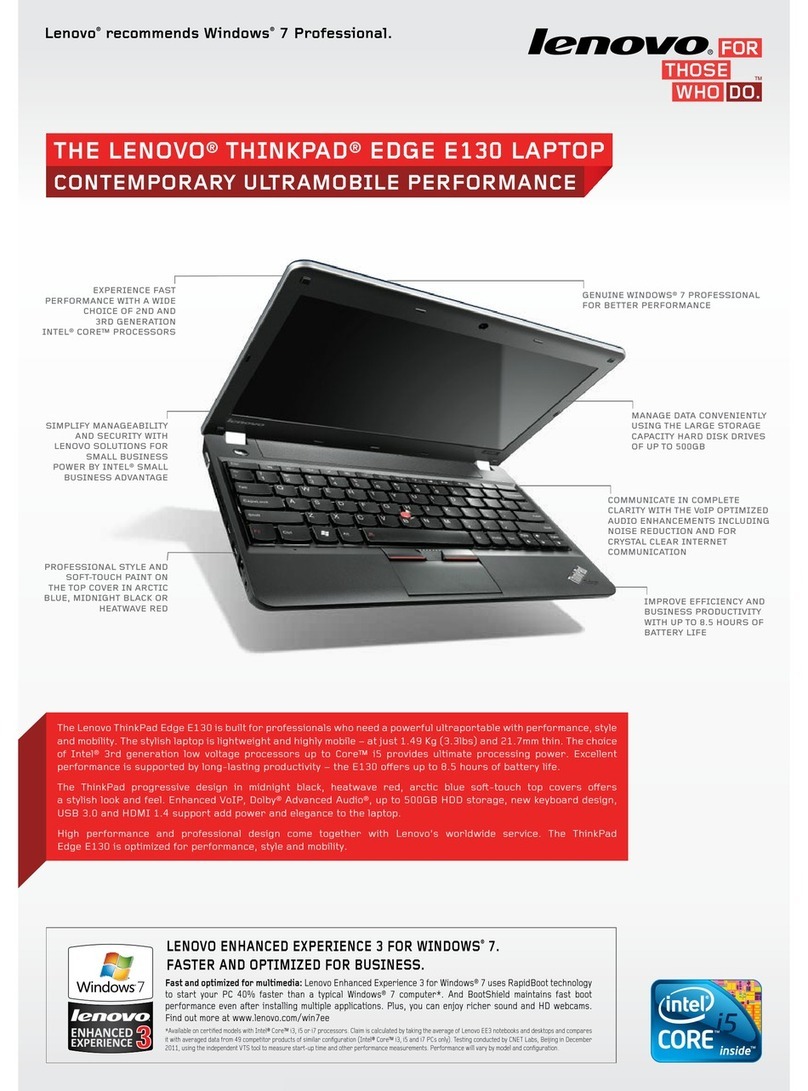
Lenovo ThinkPad Edge E130 User manual

Lenovo

Lenovo ThinkPad Edge E130 User manual

Lenovo THINKPAD R40 User manual

Lenovo

Lenovo THINKPAD R40 User manual

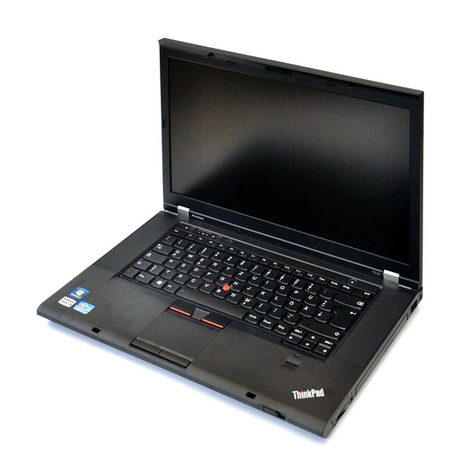
Lenovo ThinkPad T530 Service manual

Lenovo

Lenovo ThinkPad T530 Service manual

Popular Laptop manuals by other brands

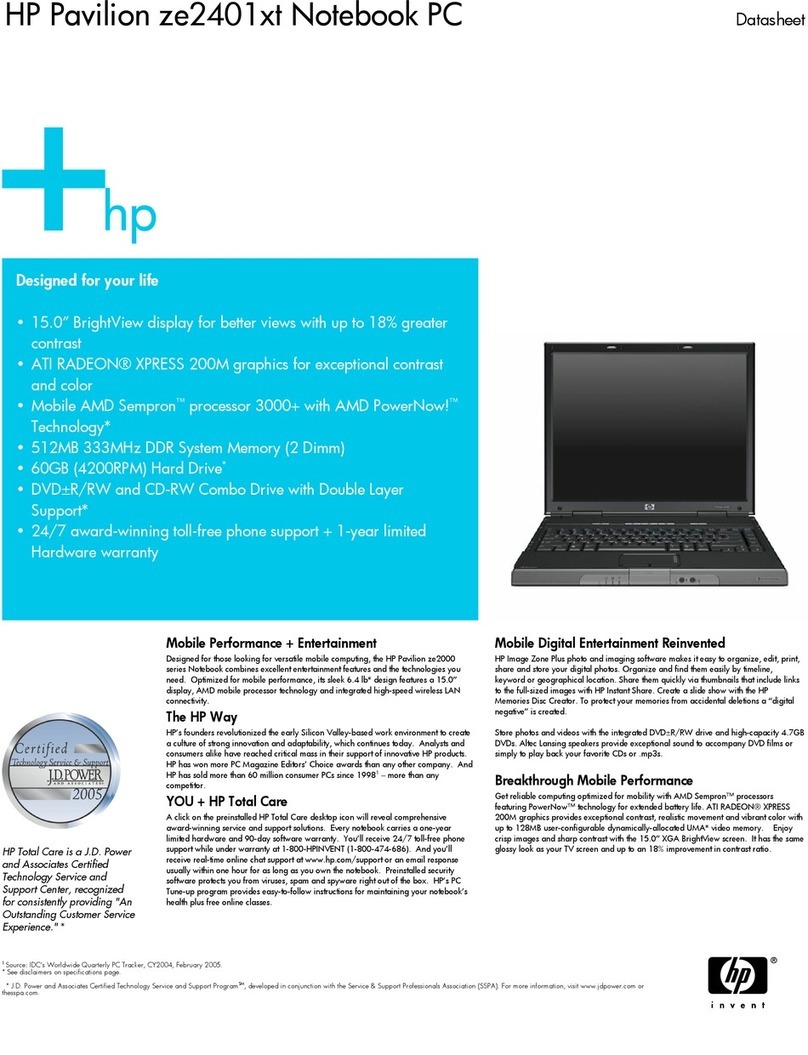
HP ze2401xt - Pavilion Notebook PC datasheet

HP

HP ze2401xt - Pavilion Notebook PC datasheet

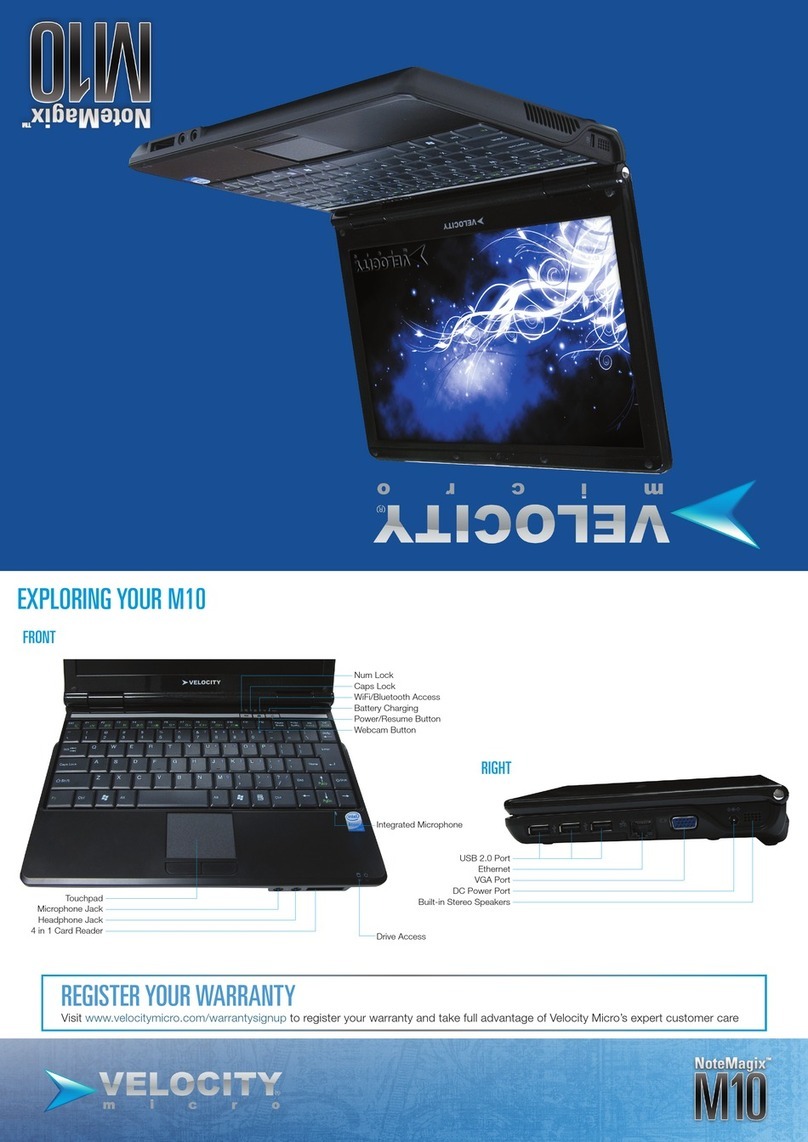
Velocity NoteMagix M10 quick start guide

Velocity

Velocity NoteMagix M10 quick start guide

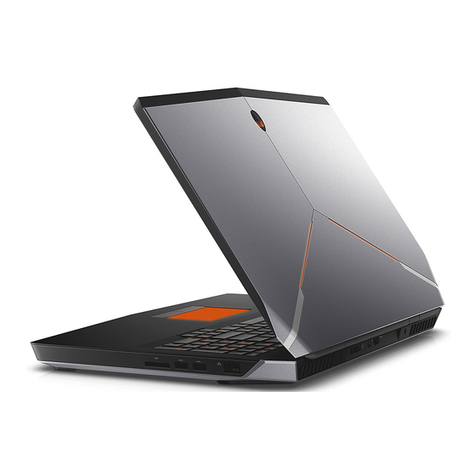
Dell Alienware 17 R2 Service manual

Dell

Dell Alienware 17 R2 Service manual

Toshiba A105-S2236 Specifications

Toshiba

Toshiba A105-S2236 Specifications

HP ENVY 17 Maintenance and service guide

HP

HP ENVY 17 Maintenance and service guide

Winbook LM user guide

Winbook

Winbook LM user guide

Dell Inspiron 1464 Setup guide

Dell

Dell Inspiron 1464 Setup guide

Dell Inspiron 15R 5537 quick start guide

Dell

Dell Inspiron 15R 5537 quick start guide

HP PROBOOK 4520S Maintenance and service guide

HP

HP PROBOOK 4520S Maintenance and service guide

Dell Latitude ATG D620 Service manual

Dell

Dell Latitude ATG D620 Service manual

Dell Latitude 7310 Service manual

Dell

Dell Latitude 7310 Service manual

Dell Precision GU806 Quick reference guide

Dell

Dell Precision GU806 Quick reference guide

Sony VAIO PCG-R505JLK user guide

Sony

Sony VAIO PCG-R505JLK user guide

HP Compaq tc4200 Software guide

HP

HP Compaq tc4200 Software guide

Toshiba mini NB300 specification

Toshiba

Toshiba mini NB300 specification

Sony VGN-T240P VAIO Specifications

Sony

Sony VGN-T240P VAIO Specifications

Compaq Armada E700 Series reference guide

Compaq

Compaq Armada E700 Series reference guide

Fujitsu Lifebook A6230 Specifications

Fujitsu

Fujitsu Lifebook A6230 Specifications

https://manuals.online logo
https://manuals.online logoBrands
  • About & Mission
  • Contact us
  • Privacy Policy
  • Terms and Conditions

Copyright 2026 Manuals.Online. All Rights Reserved.

Lenovo Legion
Y920-17IKB
Laptop
Quick Start Guide
5
Safety information
Plastic bag notice
CAUTION:
Plastic bags can be dangerous. Keep plastic bags away from
babies and children to avoid danger of suffocation.
Built-in rechargeable battery notice
DANGER:
Recharge the battery strictly according to instructions
included in the product documentation.
If the battery is incorrectly replaced, there is danger of
explosion. The battery contains a small amount of harmful
substance.
Lithium coin cell battery notice
DANGER
Danger of explosion if battery is incorrectly replaced.
When replacing the lithium coin cell battery, use only the
same or an equivalent type that is recommended by the
manufacturer. The battery contains lithium and can explode
if not properly used, handled, or disposed of.
Do not:
• Throw or immerse into water
• Heat to more than 100°C (212°F)
• Repair or disassemble
• Dispose of the battery as required by local ordinances or
regulations.
The following statement applies to users in the state of
California, U.S.A.
California Perchlorate Information:
Products containing manganese dioxide lithium coin cell
batteries may contain perchlorate.
Perchlorate Material - special handling may apply, See
http://www.dtsc.ca.gov/hazardouswaste/perchlorate.
Using headphones or earphones
CAUTION:
Excessive sound pressure from earphones and headphones
can cause hearing loss. Adjustment of the equalizer to
maximum increases the earphone and headphone output
voltage and the sound pressure level. Therefore, to protect
your hearing, adjust the equalizer to an appropriate level.
Excessive use of headphones or earphones for a long period
of time at high volume can be dangerous if the output of
the headphone or earphone connectors do not comply
with specifications of EN 50332-2. The headphone output
connector of your computer complies with EN 50332-2 Sub
clause 7. This specification limits the computer’s maximum
wide band true RMS output voltage to 150 mV. To help
protect against hearing loss, ensure that the headphones or
earphones you use also comply with EN 50332-2 (Clause 7
Limits) or a wide band characteristic voltage of 75 mV. Using
headphones that do not comply with EN 50332-2 can be
dangerous due to excessive sound pressure levels.
If your Lenovo computer came with headphones or
earphones in the package, as a set, the combination of
the headphones or earphones and the computer already
complies with the specifications of EN 50332-1. If different
headphones or earphones are used, ensure that they comply
with EN 50332-1 (Clause 6.5 Limitation Values). Using
headphones that do not comply with EN 50332-1 can be
dangerous due to excessive sound pressure levels.
Compliance information
Electronic emission notices
Korea compliance statement
European Union conformity
EU Contact: Lenovo, Einsteinova 21, 851 01 Bratislava,
Slovakia
Compliance with the R&TTE Directive
This product is in compliance with the essential requirements
and other relevant provisions of the EU Council Radio and
Telecommunications Terminal Equipment (R&TTE) Directive,
1999/5/EC. The Declaration of Conformity information
related to the wireless function is located in the Regulatory
Notices, which you can download from the Lenovo Support
Web site. See “Downloading publications” in this document
for additional information.
Note: R&TTE 1999/5/EC remains in force during the
transition period of Radio Equipment Directive (RED)
2014/53/EU until 12 June, 2017. After then, RED 2014/53/EU
will take the place of R&TTE 1999/5/EC.
In addition, the system EU DoC can be obtained from the
following location: http://www.lenovo.com/compliance/
Radio and Telecommunications
Terminal Equipment Directive
This product is in compliance with the essential
requirements and other relevant provisions of the Radio and
Telecommunications Terminal Equipment Directive,
1999/5/EC. The Declaration of Conformity information is in
the Regulatory Notice.
Recycling and environmental
information
Lenovo encourages owners of information technology (IT)
equipment to responsibly recycle their equipment when it
is no longer needed. Lenovo offers a variety of programs
and services to assist equipment owners in recycling their IT
products. For information on recycling Lenovo products, go
to: http://www.lenovo.com/recycling.
Recycling information for China
6
Restriction of Hazardous
Substances Directive (RoHS)
Taiwan RoHS
ENERGY STAR
Select models conform to ENERGY
STAR requirements. Refer to the
“Compliance” section of Lenovo
Legion Y920-17IKB Laptop
Training Manual for additional
ENERGY STAR information.
Radio compliance information
Computer models equipped with wireless devices comply
with the radio frequency and safety standards of any country
or region in which it has been approved for wireless use.
Regulatory Notice for additional countries or regions is
available on Lenovo support Web site. Be sure to read the
notices for your country or region before using the wireless
devices contained in your computer.
Brazil radio compliance information
Este equipamento opera em caráter secundário, isto é, não
tem direito a proteção contra interferência prejudicial, mesmo
de estações do mesmo tipo, e não pode causar interferência a
sistemas operando em caráter primário.
This equipment is a secondary type device, that is, it is
not protected against harmful interference, even if the
interference is caused by a device of the same type, and it
also cannot cause any interference to primary type devices.
Mexico radio compliance information
Advertencia: En Mexico la operación de este equipo está
sujeta a las siguientes dos condiciones: (1) es posible que
este equipo o dispositivo no cause interferencia perjudicial
y (2) este equipo o dispositivo debe aceptar cualquier
interferencia, incluyendo la que pueda causar su operación
no deseada.
Singapore radio compliance
information
DB102306
Additional compliance information
Brazil audio notice
Ouvir sons com mais de 85 decibeis por longos periodos
pode provocar danos ao sistema auditivo.
Eurasian compliance mark
California BC mark
Trademarks
Lenovo and the Lenovo logo are trademarks of Lenovo in
the United States, other countries, or both.
Windows is a trademark of Microsoft Corporation in the
United States and/or other countries.
Other company, product, or service names may be
trademarks or service marks of others.
Key Web resources
Lenovo support: http://www.lenovo.com/support
Lenovo user forums: https://forums.lenovo.com/
Product documentation: http://www.lenovo.com/UserManuals
Edition Notice
First edition (March 2017)
© Copyright Lenovo 2017. PN: SP40N77565
Rev. RP01

1
Roadmap
Read and observe safety precautions
Read and observe all safety precautions in this publication and those in the Training Manual.
Check components completeness
Computer AC power
adapter
Power cord Publications
Power on
Note: AC power plug and socket vary by country/region.
Set up Windows 10
Make a few choices, create an account or use an existing Microsoft account to start using Windows 10.
Next steps
Connect to the Internet
Use wired or wireless method to connect to a network with Internet connection. For details, refer to the Training Manual.
Read the Training Manual
The Training Manual is preinstalled with Windows 10 and provides more information and instructions on using your
computer. You can access it by typing its name in the Windows 10 search box.
Start the Get Started app
The Get Started app is included with Windows 10 to train you how to use Windows 10. To locate it, type its name in the
Windows 10 search box.
LIMITED AND RESTRICTED RIGHTS NOTICE: If data or software is delivered pursuant a General Services
Administration “GSA” contract, use, reproduction, or disclosure is subject to restrictions set forth in Contract No. GS-
35F-05925.
2
Controls and functions
Front & Right
Camera
Microphone hole
Display
Speakers
Power button
Mechanical keyboard
Turbo toggle
Touch pad
Kensington mini security slot
USB 3.0 connectors
Combo audio jack
Microphone jack
Memory card slot
Power indicator
Novo button
3
Bottom & Left
Ventilation slots (intake)
Ventilation slots (outlet)
Subwoofer
Antennas (not visible from the outside)
DC-in jack
DC-in indicator
Display port connector
HDMI-out connector
Ethernet connector
Type-C USB connector
USB 3.0 connector
USB 3.0 connector (always-on)
4
Tops hints and tips
The Novo button
The Novo button is located on the right side of your computer. Pressing this button when the computer is powered off will
display the Novo button menu.
Menu item For
BIOS Setup Starting BIOS Setup Utility
Boot Menu Changing boot sequence
System Recovery Starting the recovery system
Note: The Novo button is designed in a way to avoid mishandling. You can use the tip of a paper clip to press this button.
Setting Light Shift
On pressing the Power button, you’ll notice that there are cool lights around the keyboard, the speakers, and the touch
pad. And an even cooler thing is that the lights can be customized to your taste. Start the Lenovo Nerve Center to have a
try or refer to the Training Manual for instructions.
Redening functions for keyboard keys
For many games, dexterity with the keyboard is of critical importance and Lenovo Magic Y Key is designed for you to
achieve just that. Refer to the Training Manual for how to redefine keys or setting macro keys with Lenovo Magic Y Key.
Keeping drivers updated
Updating component drivers (and even BIOS program) can be easily done in Lenovo Companion. Refer to the Training
Manual for instructions.
Creating and using a Microsoft account
You can create and use a local account for using Windows 10, but using a Microsoft account brings more benefits. With a
Microsoft account, you don’t need to sign in separately for using other Microsoft software and services. In addition, you
can choose to make settings and select files synchronized to all Windows 10 installed devices you use with your Microsoft
account. For details, refer to the Training Manual or the Get Started app.
Starting apps in Windows 10
With Windows 10, finding and starting an app is easier than ever. Just type the app name in the search box (in the lower
left corner) and select the matched result. Try it yourself with “Lenovo Companion.”
The Lenovo forum
The Lenovo forum (https://forums.lenovo.com/) is a Web-based, virtual peer-to-peer discussion community. Within
Lenovo forum, you’ll never feel lonely: sharing your experience with your Lenovo products, asking a question, helping
others solving a problem, or leaving Lenovo comments to help us improve future products.