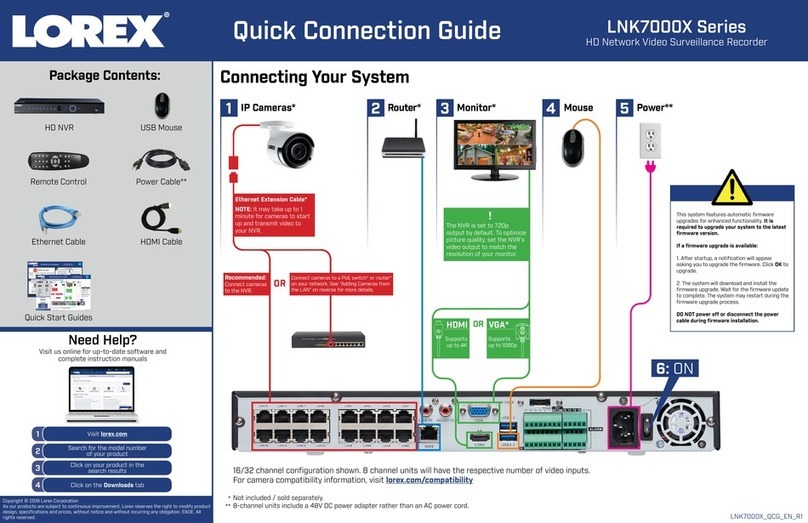
1. Left-click:
• Click to open the Navigation Bar.
Right-click to close the Navigation Bar.
•During split-screen display mode:
Double-click an individual channel to
view it in full-screen. Double-click again
to return to the split-screen display mode.
•While navigating menus: Click to
open a menu option.
2. Right-click:
• During live view: Right-click anywhere
on the screen to open the Quick Menu.
• Within system menus: Right-click to
exit menus.
Using the mouse
1 2
Quick Connection Guide
30 Minutes
Using the Quick Menu Setting the date and time
Playback and search
From live view, right-click and then click Search.
Log in using the system user name (default: admin)
and password (default: 000000).
Use the calendar on the right to select the date to
playback.
Use the drop-down menus to select the channels you
would like to playback. Click the display options
( ) to playback multiple channels simultaneously.
Click inside the video bar to select the playback time.
Playback starts immediately at the selected time.
Select the day
to playback
1.
2.
4.
3.
5.
Select channels
to playback
Click inside the bar to select a
playback time.
In live view, right-click and click Main Menu.
Log in using the system user name (default: admin) and password (default: 000000).
Click OK to save changes.
1.
2.
4.
3.
It is important to set the correct time to ensure accurate time stamps on video recordings.
Right-click to open the Quick Menu.
Select camera/live display view
Control PTZ cameras (not included)
Adjust color settings
View system information
Start/stop sequence mode
Search and playback recordings
Open manual recording controls
Open Main Menu
Click and
select General.
Enter the current date (MM DD YYYY) and time (HH MM SS) under System Time.
Set the date and time. Click Save.
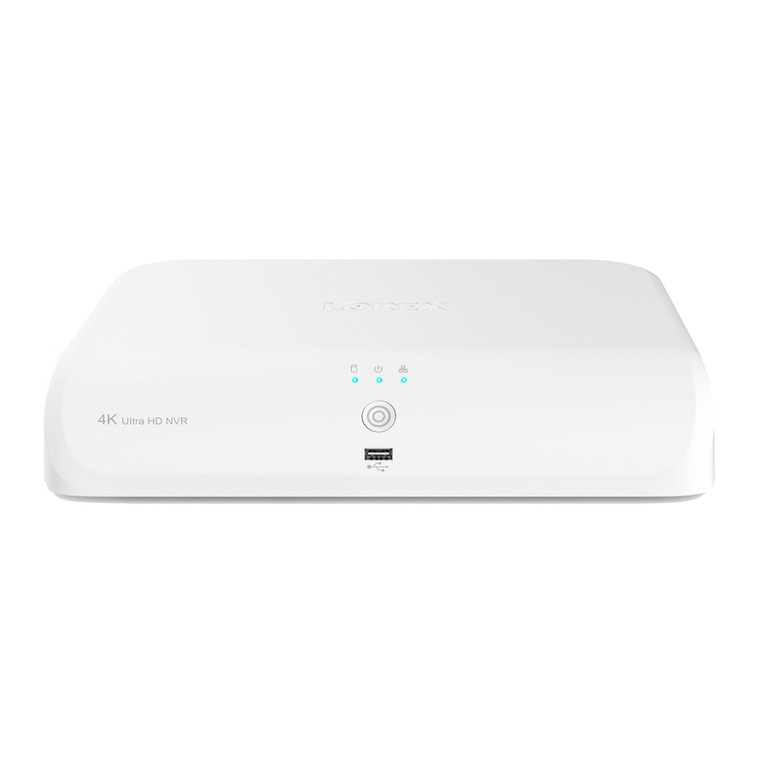
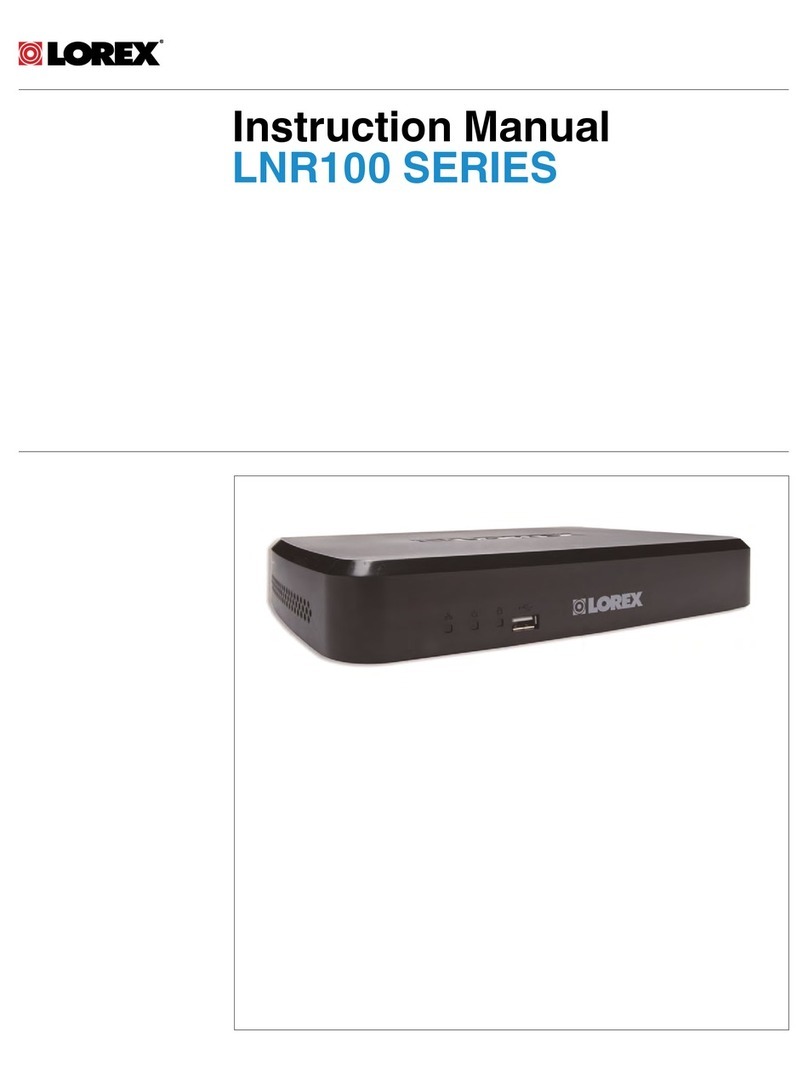
HD Network Video Surveillance Recorder
LNR100 Series
Adding cameras from the LAN
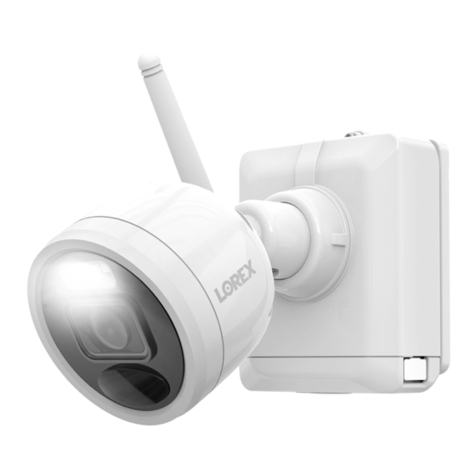
Connect the camera to a router or switch on the same network as the NVR.
Right-click and select Device Search. Log in using the admin account (default User
Name: admin; default Password: 000000).
NOTE: Please visit www.lorextechnology.com/support for a list of compatible Lorex IP
cameras.
1.
2.
3.
Set the date and time.
Click OK.
Click IP Search.
Not supported
Add IP cameras over the LAN
4.
5.
Check the camera(s) you would
like to add.
Click Add. The Status indicator
turns green to show the camera is
successfully connected.
Click OK to save changes.
6.
NOTE: See the manual on
lorex.ca/LNR100 for details on
configuring Daylight Savings Time
and Network Time Protocol.
Follow the steps below to add cameras that are not directly connected to the Power over
Ethernet (PoE) ports on the back of the NVR.
LNR100_Series_QCG_EN_R2