Lorex L504 User manual

Copyright ©2006 LOREX Technology Inc.
www.lorexcctv.com
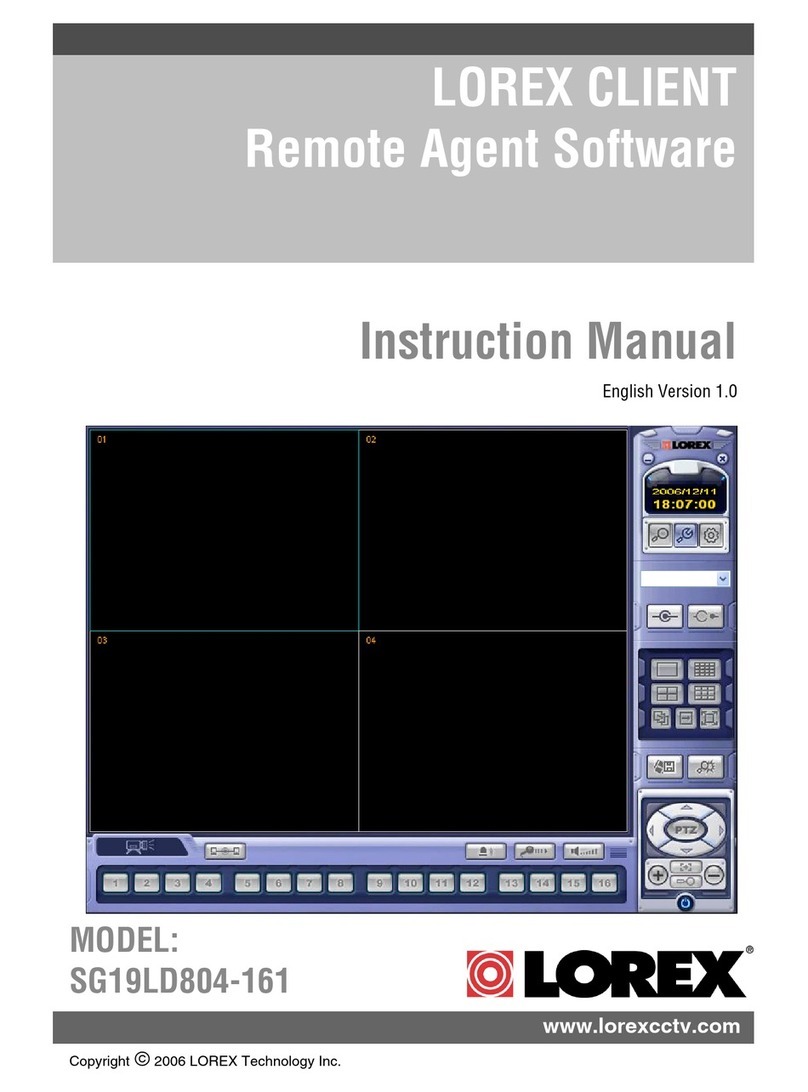
LOREX CLIENT
Remote Agent Software
Instruction Manual
English Version 1.0
MODEL:
L500 Series

2
Table of Contents
Table of Contents
About the Lorex Client .............................................................................. 2
System Requirements ............................................................................... 3
Software Installation ............................................................................... 4-5
Lorex Client Software - Main Screen ..................................................... 6-7
Connection Manager ................................................................................. 8
Adding a Group ........................................................................................................................... 8
Adding a Site (Individual Unit Configuration) .......................................................................... 9-10
Configuration Tab ...................................................................................................................... 11
Modifying a Site ......................................................................................................................... 12
Remote Connection 1 .............................................................................. 13
Remote Observation Setup ................................................................ 14-20
Remote Monitoring ............................................................................. 21-23
Search Functions ............................................................................... 24-29
Web Client .............................................................................................. 30
Network Setup / Remote Access Overview ............................................ 31
IP & MAC Address ..................................................................................................................... 32
Finding Your External IP Address ............................................................................................. 32
Setting Up Your DDNS Account ........................................................................................... 33-34
Router Port Forwarding ............................................................................................................. 35
DDNS SETUP ........................................................................................................................... 36
About the Lorex Client
The Lorex Client software package allows you to access your DVR from a remote location to
view live and previously recorded video.
• View and Record from your PC - Connect your DVR to your Network
• Minimum System Requirements: Windows XP, Pentium 4 processor with 256MB RAM (512MB
RAM recommended)
Please visit us on the web for the most current Manuals, Quick Start
Guides and Firmware. Additional Language Manuals are also available at:
http://www.lorexcctv.com
The Lorex Client Software is now Microsoft Windows Vista™
compatible. Visit us on the web at www.lorexcctv.com/support
to download the Vista™ Compatile software version.

3
System Requirements
System Requirements
The Lorex Client software (included with the DVR) has the following installation requirements.
Operating System Windows 2000
Windows XP Home Edition
Windows XP Professional
Windows Vista
Processor .Pentium 4 - 1.5 GHz Processor (or equivalent)
Memory 256 MB RAM (512 Recommended)
Hard Drive 50 MB - Installation space required
*Additional Hard Drive space required for recording.
Recorded file size will vary depending on recording
quality settings
Minimum System Requirements:
Recommended System Requirements:
Operating System Windows XP Home Edition
Windows XP Professional
Windows Vista
Processor Pentium 4 / 3 GHz Processor (or equivalent)
Memory 1024 MB RAM
Hard Drive 50 MB - Installation space required
*Additional Hard Drive space required for recording.
Recorded file size will vary depending on recording
quality settings
Please refer to the Lorex Client Software User Guide included with your DVR for further details.
Visit the Lorex support website at http://www.lorexcctv.com for information on Windows Vista
compatibility.

4
Software Installation
Software Installation
Place the Lorex Client Installation CD in the CD-ROM Drive of your Computer. The Software
Install Wizard for the Lorex Client Software will begin.
1. Click the NEXT button on both dialogue windows to continue the Installation:
NOTE: If the Installation Process does not automatically start, you will have to begin the
installation process manually:
• Double Click the MY COMPUTER icon on your Desktop
• Double Click the CD-ROM DRIVE (Drive Letter will vary depending on the number of drives
in your computer)
• Double Click the SETUP.EXE file (may appear as SETUP with no file extension,
depending on your system settings.
The Installation Process will begin.

5
Software Installation
Software Installation
Place the Lorex Client Installation CD in the CD-ROM Drive of your Computer. The Software
Install Wizard for the Lorex Client Software will begin.
1. Click the NEXT button on both dialogue windows to continue the Installation:
NOTE: The following Program Shortcuts will be created:
• Start Menu - Programs - Lorex Client
zLorex Client
zLorex Player
• Desktop Shortcuts for:
zLorex Client
zLorex Player
Installing the Codecs
To playback the recorded AVI files, the Video Codec
needs to be installed:
1. Run the CODEC.EXE file located on the Software CD
2. Accept the default propts during the installation, and
click the Finish to complete.

6
Lorex Client Software - Main Screen
Lorex Client Software - Main Screen
1. Main Screen - Displays live Camera images (delays in images are due to Network speed and
connectivity strength).
2. Connection Status - Displays the DVR connection status.
3. Camera Selection Buttons - Displays the Connected Camera Number. Press buttons 1~8 to
select a Camera Number for display.
4. Minimize / Exit -
• Minimizes the Client Window
• Exit Program.
5. Time Display - Shows the current Time & Date.
6. Search / Setup Buttons -
• Search Mode - Search for previously recorded video.
• Connection Manager - Configurations for Network Connection and Local Recording.
• Remote DVR - Changes the setup on the remote DVR.
1
2
3
4
5
6
7
8
9
11
12
13
14
10

7
Lorex Client Software - Main Screen
7. DVR Selection - Select the Connection ID for the DVR.
8. Connect / Disconnect Buttons -
• Connect: Connect to the DVR.
• Disconnect: Disconnects from the DVR.
9. Screen Display - Changes the Screen View (Single, Quad, 9, Full screen or Tiled).
10. Save to File - Saves the currently displayed video to an AVI file on the local PC.
11. Event viewer - Displays the Event List and Image Search functions.
12. PTZ Control Button - Controls Cameras with PTZ & Focus configured (refer to the Instruction
Manual for the DVR).
13. Alarm and Audio Buttons -
• Mic.
• Speaker Volume
• Alarm On/Off.
14. Exit - Closes the Lorex Client software.
1
2
3
4
5
6
7
8
9
11
12
13
14
10

8
Connection Manager
Connection Manager
The Connection Manager contains the setup information to allow the user to remotely
connect to the DVR.
Adding a Group
Group - Right click on
‘Site’ to add a New Group.
A group can represent
one or more DVRs.
For Example, you may
have more than one
system in your office, so
would name your group
‘OFFICE’.
Each individual unit can
then be configured
separately for connection.
Enter a name for the
Group.

9
Connection Manager
Adding a Site (Individual Unit Configuration)
DVR Information - Enter
the information specific to
the unit (refer to page 30
for setup instructions):
• Name - Enter a name for
the unit.
• IP / Domain Name -
Enter the IP address or
Domain Name for the
System. This will vary
depending on setup
(Internal Network
Connection or External
Remote access through
the Internet)- refer to page
30 for setup details.
• Port - Set to 6100 by
default.
• User ID - Enter the USER
ID to connect to the system
(the USER ID is configured
on the System - i.e. ADMIN
- case sensitive).
• Password - The
password used to access
the System (i.e. The
ADMIN password is set to
1234 by default).
Camera Assign - Set
each camera to a portion
of the 9-view window by
using the drop down
menu selections.
ADD Button - Adds the
site to the Group.
OK Button - Accepts the
changes and Closes the
configuration Window

10
Connection Manager
Configuration Tab
Video OSD - Sets the
display options for the
Video:
• Title -
• Name - Displays the
name of the Camera
• Date - Displays the date
• Time - Displays the time
• Resolution - Displays
the video resolution
Video Mode - Sets the
Video Mode:
• Screen Switching
Interval - Sets the screen
switching time for
Sequence view.
• Alarm Popup - Sets the
Display popup when an
Alarm is detected on the
system
• Quality Improve -
Adjusts the Video quality
Save Directory - Browse
to set the default save
location for Video images.
Video Output - Sets the
Video Output type to
Overlay Mixer, Video
Receiver or GDI.
Other manuals for L504
2
This manual suits for next models
3
Table of contents
Other Lorex Software manuals