M-Waves Allen & Heath User manual
1
M-WAVES AUDIO INTERFACE
1
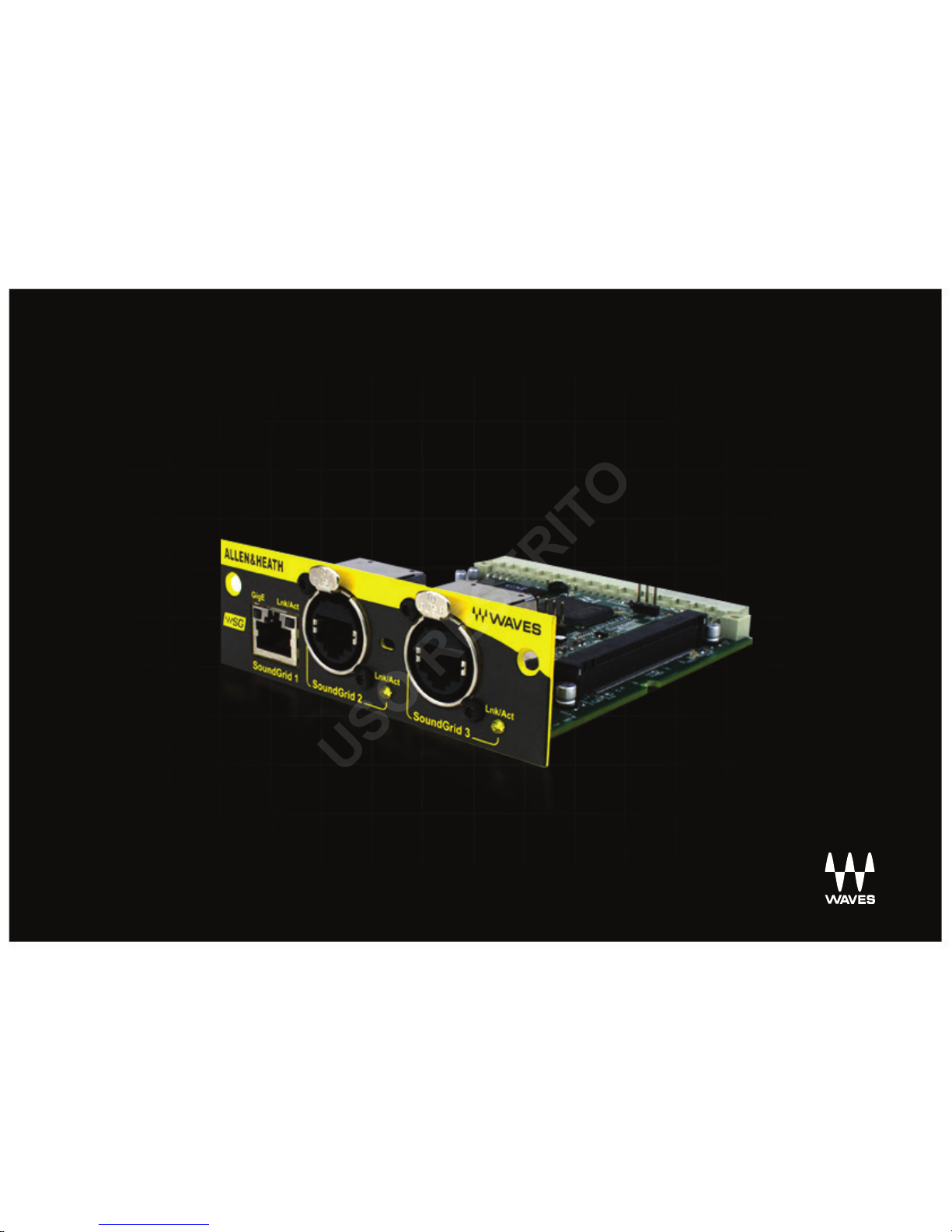
ALLEN & HEATH M-WAVES CARD
USER GUIDE
USO RESTRITO

M-WAVES AUDIO INTERFACE
Table of Contents
Introduction 3
1. Hardware and Connectors 7
2. Installation and Conguration Overview 8
2.1 Installing the M-Waves Card 8
2.2 Conguring the M-Waves in MultiRack SoundGrid 9
2.3 Conguring the M-Waves in SoundGrid Studio 10
2.3.1 Setting Up SoundGrid Studio 10
2.3.2 Firmware Status and Updates 14
3. M-Waves Control Panel (V2 only) 15
3.1 Clock Page 15
3.2 About Page 16
3.3 System Info Page 17
3.4 Saving, Loading and Identifying 17
4. Working with Two M-Waves Cards 18
USO RESTRITO

3
M-WAVES AUDIO INTERFACE
INTRODUCTION
Thank you for choosing an Allen & Heath M-Waves Card for SoundGrid systems. In order to get the most out of your M-Waves
product, please take some time to read this user guide. We also suggest that you become familiar with the Waves support site
(www.wavesupport.net), where you will nd an extensive answer base, the latest tech specs, detailed installation guides,
software updates, and current information about licensing and registration.
About SoundGrid and the Allen & Heath M-Waves Card
SoundGrid is a scalable infrastructure that provides a variety of cost-eective, high-quality solutions for recording studios. It can be
congured in many ways and with many hardware possibilities to provide a very exible work environment. This framework is man-
aged by the SoundGrid Studio Application, which congures the network, assigns and manages I/Os, controllers and servers, and
patches audio throughout the system. Any user, anywhere on the SoundGrid network, has access to any of the network’s I/O devic-
es. Adding a SoundGrid DSP server enables recording and monitoring with very low latency and moves processing away from the
host computer to the server.
The M-Waves card for Allen & Heath iLIVE and GLD consoles enables integration with Waves SoundGrid systems via a single Ethernet
cable, allowing live sound engineers to use the SoundGrid networking technology for low-latency plugin processing, multitrack
recording and playback, and audio networking. M-Waves V2 also features Clock Sync-over-Ethernet for syncing multiple consoles
and performing digital splits.
■ Super-low-latency networking platform for processing, playback and recording
■ Each M-Waves card allows 64 channels of bi-directional audio
■ Connects via a single Cat5e or Cat6 Ethernet cable
■ Clock Sync-over-Ethernet for digital splits (M-Waves V2)
■ Connects to SoundGrid systems and SoundGrid-compatible devices via a single Ethernet cable
■ Compatible with standard computers and switches
USO RESTRITO

4
M-WAVES AUDIO INTERFACE
■ Redundancy and recovery options
■ Built-in 3-port Gigabit switch for direct connection to multiple devices
■ ASIO/Core Audio drivers for recording and playback
■ Works with MultiRack SoundGrid software for setup and control
■ Networks with consoles installed with M-Waves V1
Typical Uses
The M-Waves card can be used in both SoundGrid and Native congurations, as follows:
SoundGrid: In a SoundGrid conguration, the M-Waves card is used in order to connect to a SoundGrid network for plugin
processing and simultaneous DAW playback/recording. The SoundGrid conguration uses a dedicated SoundGrid DSP server to
power the plugin processing, enabling super-low latency, high plugin counts, and networking capabilities, with the option of an
additional backup DSP server.
Please note: A SoundGrid DSP server is required for SoundGrid processing.
Server
MultiRack SG
M-WAVES I/O Card
Allen & Heath digital Console
StageBox
DAW / SG Studio
USO RESTRITO

5
M-WAVES AUDIO INTERFACE
Native: In a Native conguration, the M-Waves card is used in order to connect a console to the SoundGrid ASIO/Core Audio driver
for plugin processing and/or DAW playback/recording. Since the Native conguration utilizes the computer’s CPU to power the
plugin processing, plugin count and overall system latency depend on the computer’s CPU and sound driver capabilities.
Please note: A SoundGrid DSP server is not required for Native processing.
M-WAVES I/O Card
Allen & Heath Console
MR Native/DAW/SG Studio
StageBox
USO RESTRITO
6
M-WAVES AUDIO INTERFACE
Native/SoundGrid Comparison Table
Features Native SoundGrid
Low Latency ■
Processing ■■
Recording ■■
Simultaneous Recording and Processing ■
CPU Load Your DAW computer's CPU Dedicated SoundGrid DSP server
Backup DSP Server ■
Networking ■
I/O M-Waves M-Waves
Plugin Host Software MultiRack Native MultiRack SoundGrid
Plugin Licenses Native SoundGrid
USO RESTRITO
7
M-WAVES AUDIO INTERFACE
1. HARDWARE AND CONNECTORS
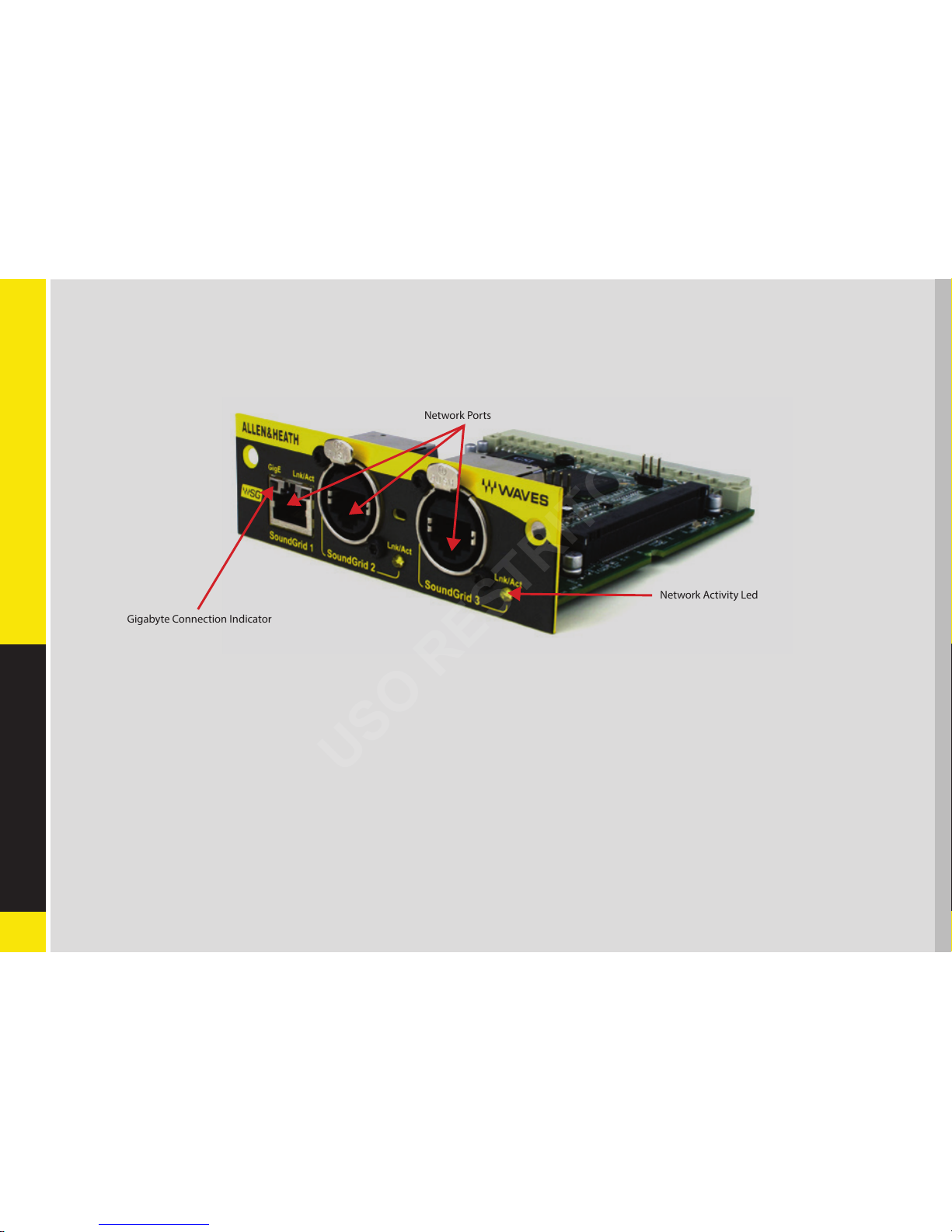
SoundGrid Ports 1-3 (Ethernet) connect the SoundGrid Network.
Status LED: SoundGrid Ports 2 and 3 have a network activity led only. Only SoundGrid Port 1 has a Gigabyte connection indicator.
Colors and respective status are as follows:
SoundGrid Ports 2 and 3:
■ Link/Act Led = ashing amber
SoundGrid Port 1:
■ Link/Act Led = ashing green
■ GigE (Gigabyte Connection Indicator) = solid green
Gigabyte Connection Indicator
Network Activity Led
Network Ports
USO RESTRITO
8
M-WAVES AUDIO INTERFACE
2. INSTALLATION AND CONFIGURATION OVERVIEW
The ASIO/Core Audio drivers and control panel for the Allen & Heath M-Waves are installed using the Allen & Heath M-Waves
installer, which also installs the SoundGrid driver and the SoundGrid Studio Application required for DAW recording and playback.
Allen & Heath M-Waves downloads page:
http://www.waves.com/downloads/allen-heath
2.1 Installing the M-Waves Card
1. Turn your console OFF.
2. In the back of your console, unscrew the protective cover from the Port B slot to which you will be installing.
3. Slide in the card carefully, until you feel it dock into place.
4. Make sure the card is seated rmly; screw it in for added protection.
5. Turn your console back on.
For further instructions, please refer to your Allen & Heath manual for the M-Waves card.
USO RESTRITO

9
M-WAVES AUDIO INTERFACE
2.2 Configuring the M-Waves in MultiRack SoundGrid
Access the M-Waves control panel via the Inventory window in the MultiRack SoundGrid application.
1. Launch the MultiRack SoundGrid application.
2. Enter the Preferences window by typing Ctrl+P (Windows) or Cmd+ (Mac), or from the appropriate application menus.
3. Under Local LAN Port, choose the adapter connected to the SoundGrid network and the M-Waves
card. Network adapters are displayed as MAC addresses and port names.
4. When you select the correct port, the message“SoundGrid Network Found”will appear on the
panel. Close this window.
5. Open the SoundGrid Inventory window from the Audio Menu (F2). The SoundGrid Inventory
window displays all SoundGrid I/O devices connected to your network.
6. Assign SoundGrid drivers in the Assign column. Use consecutive numbers for multiple devices, with
the rst unit assigned as number 1.
7. Assign SoundGrid DSP servers in the Assign column. The primary SoundGrid DSP server will be assigned as number 1. If you are using
a redundant SoundGrid DSP server, assign it as number 2.
8. Assign your M-Waves card/s in the Assign column. Use consecutive numbers for multiple
devices, with the rst unit assigned as number 1.
9. Click Settings to open the M-Waves Control Panel window.
USO RESTRITO

10
M-WAVES AUDIO INTERFACE
2.3 Configuring the M-Waves in SoundGrid Studio
This is a quick overview of what you need to know about SoundGrid Studio software to get your network up to speed. There’s
enough here to congure a simple network, assess network status, and set up your I/O devices. For more complex congurations,
please refer to the SoundGrid and SoundGrid Studio user guides.
2.3.1 Setting Up SoundGrid Studio
The SoundGrid Studio Application oversees the SoundGrid network and manages all network devices. To maintain network
eectiveness, the SoundGrid Studio Application is always running in the background. Bring SoundGrid Studio to the front by
clicking on the SoundGrid icon in the Mac Top Bar or the Windows System Tray.
MacPC
USO RESTRITO
Table of contents