manuals.online logo
Brands
  1. Home
  2. •
  3. Brands
  4. •
  5. Main Resource
  6. •
  7. Telephone
  8. •
  9. Main Resource Impact 8024S User manual

Main Resource Impact 8024S User manual

Other Main Resource Telephone manuals

Main Resource Axxess Series User manual

Main Resource

Main Resource Axxess Series User manual

Main Resource Isoetec Assembly instructions

Main Resource

Main Resource Isoetec Assembly instructions

Main Resource Isoetec Digial System M Series User manual

Main Resource

Main Resource Isoetec Digial System M Series User manual

Main Resource ISOET84300 User manual

Main Resource

Main Resource ISOET84300 User manual

Main Resource Axxent Series User manual

Main Resource

Main Resource Axxent Series User manual

Popular Telephone manuals by other brands

Philips BaseLine Pro manual

Philips

Philips BaseLine Pro manual

V-tech i6772 user guide

V-tech

V-tech i6772 user guide

BT FREELANCE XD 5100 quick start guide

BT

BT FREELANCE XD 5100 quick start guide

Uniden 1360 user guide

Uniden

Uniden 1360 user guide

Fanvil D800 user manual

Fanvil

Fanvil D800 user manual

Avaya IP500 user guide

Avaya

Avaya IP500 user guide

NEC Univerge SV9100 installation manual

NEC

NEC Univerge SV9100 installation manual

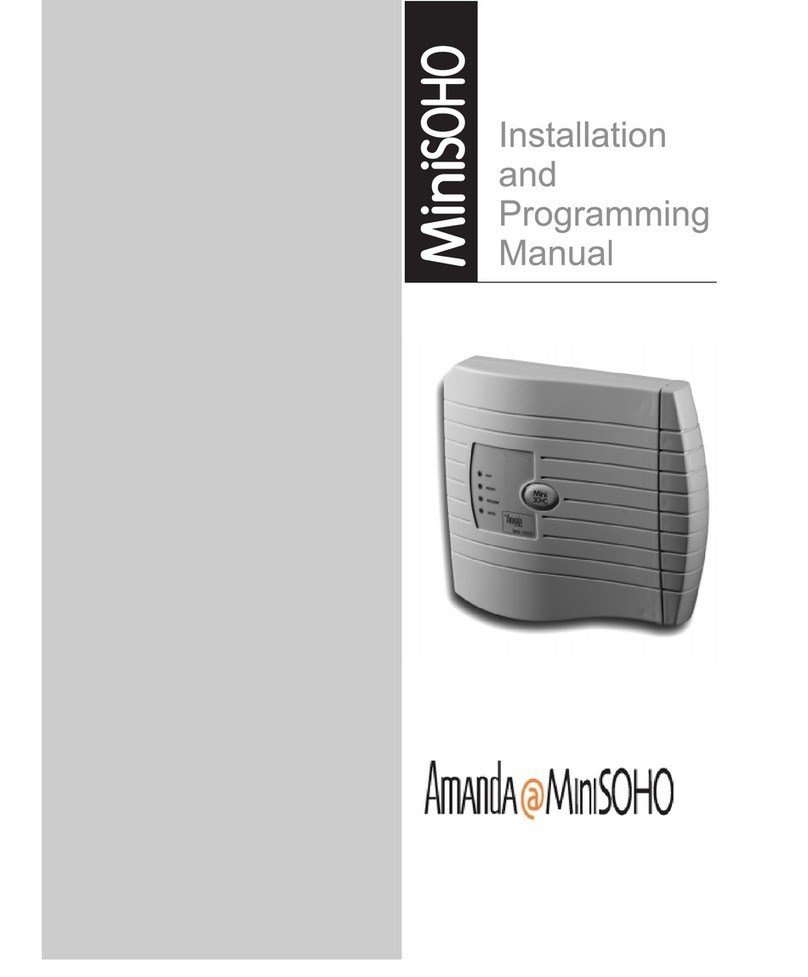
Amanda MiniSOHO Installation and programming manual

Amanda

Amanda MiniSOHO Installation and programming manual

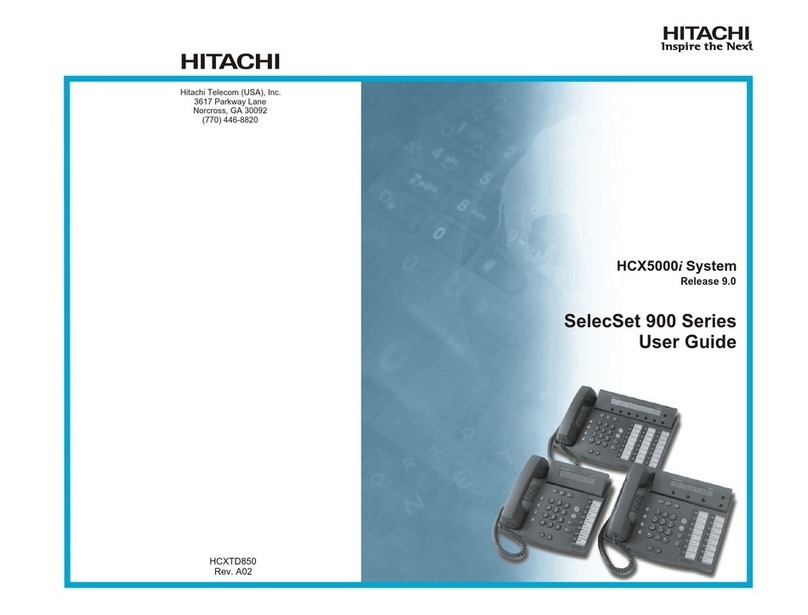
Hitachi SelecSet 900 Series user guide

Hitachi

Hitachi SelecSet 900 Series user guide

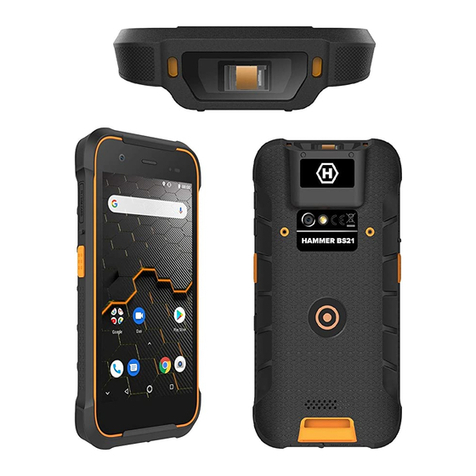
mPTech HAMMER BS21 quick start guide

mPTech

mPTech HAMMER BS21 quick start guide

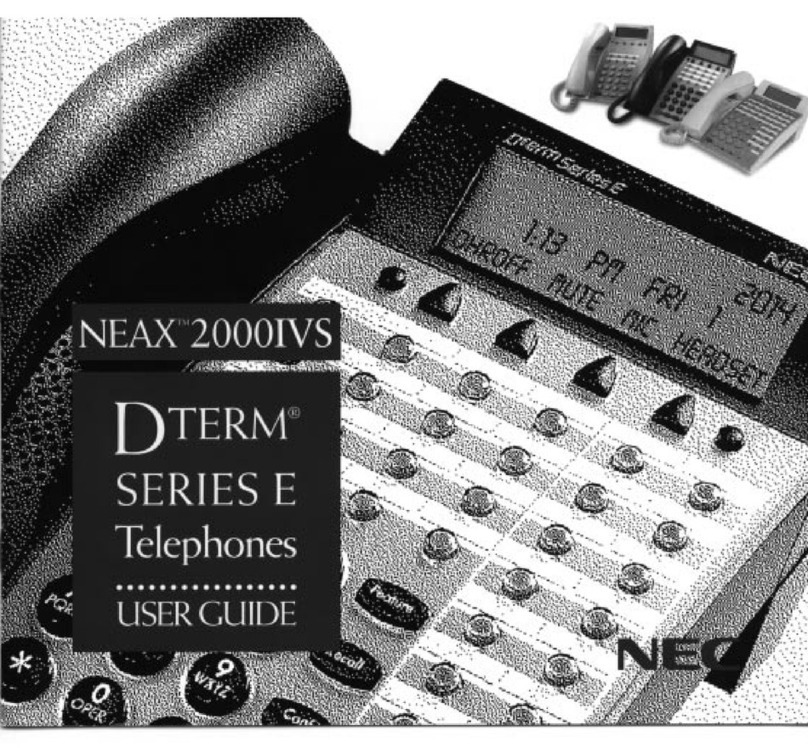
NEC 2000IVX user guide

NEC

NEC 2000IVX user guide

ooma Phone Genie quick start guide

ooma

ooma Phone Genie quick start guide

Siemens Gigaset S450 user guide

Siemens

Siemens Gigaset S450 user guide

Clarity RC100 operating instructions

Clarity

Clarity RC100 operating instructions

GE 2-9480 user guide

GE

GE 2-9480 user guide

Geemarc PHOTOPHONE 155 user guide

Geemarc

Geemarc PHOTOPHONE 155 user guide

Interquartz Gemini IQ333 operating instructions

Interquartz

Interquartz Gemini IQ333 operating instructions

SSS Siedle HT 840-0 operating instructions

SSS Siedle

SSS Siedle HT 840-0 operating instructions

manuals.online logo
manuals.online logoBrands
  • About & Mission
  • Contact us
  • Privacy Policy
  • Terms and Conditions

Copyright 2025 Manuals.Online. All Rights Reserved.

Courtesy of Main Resource, Inc. Visit us at www.MainResource.com or call 800 362-6740 for all your
telecom needs.
Page 1 of 16
Comdial Digitech DSU Impact Telephones
User’s Guide
A note on placing your phone: For best audio quality, place your phone not less than 8
inches from the edge of your desk and do not place anything directly beside or beneath the
phone.
Status Lights:
DSS or BLF buttons –
Red: station in use or in do not disturb
Flashing red: tation is receiving a call or is calling your extension
Fluttering red: station to station messaging has been set.
Line Buttons –
Green: line is in use at your station
Red: line is in use
Flashing red: a call is being received
Flashing orange: your line is receiving a call, take the phone off hook to answer
Blinking green: line is on hold at your extension
Blinking red: line is on hold at another station
Fluttering green: a call that was on hold at your station has been recalled
Courtesy of Main Resource, Inc. Visit us at www.MainResource.com or call 800 362-6740 for all your
telecom needs.
Page 2 of 16
Fluttering red: a call on that line is being recalled from home at another station.
Fixed Feature or Programmable Feature Button -
Red: the feature is on
Off: the feature is off.
Intercom Button -
teady red with quick flash: intercom is in use
Fluttering red: either the system is in night mode or auto redial is in use
Blinking red: others will receive an LCD message when calling your station
Flashing red: a call is incoming to your extension.
old Button -
Flashing red: message awaits pickup
Fluttering red: automatic station relocation has been set.
Speaker Button -
Lit steadily while phone is on hook and busy: speakerphone is on
Lit steadily with phone on hook but busy: background music is on
Lit steadily with phone off hook and busy: group listen is turned on.
Mute Button -
Lit steadily: mute is on.
Shift Button –
Lit steadily: shift mode is on (allows access to autodial numbers programmed under D buttons).
Answering Calls
Outside Calls –
Lift the handset if you have the line preference feature enabled. Otherwise, press the flashing red
line button and speak toward the speakerphone or lift the handset.
Intercom Calls –
A party on your phone system can call your extension through your speaker without causing your
phone to ring, (see the section on Blocking Voice Announced Calls to disable) or they may ring your
telephone.
If you hear the caller’s voice on your speaker, speak toward the phone or lift the handset. If your
phone rings in 2 short bursts, press the intercom button to talk or lift the handset.
Calls Ringing on Any Monitored Station –
If your phone offers the ability to monitor the status of other stations, a BLF light will flash when a
call is ringing on another station. You can answer a call ringing at any extension by pressing the
D button. If you later transfer the call, the BLF light goes out. You can retrieve the call by
pressing the TAP button.
Courtesy of Main Resource, Inc. Visit us at www.MainResource.com or call 800 362-6740 for all your
telecom needs.
Page 3 of 16
Calls Ringing at Another Station in your Group –
Your installer may configure the system so that stations are arranged in user groups. If this is the
case with your system, you can answer calls ringing at any station in your group. To answer:
1. Press Intercom
2. Dial “#4”
3. Either use the speakerphone or lift the handset.
Calls Ringing at Any Other Station -
To answer a call ringing at any other station:
1. Press Intercom
2. Dial “*4”
3. Dial the extension number where the call is ringing and answer the call as usual.
When an Intercom Caller Uses Subdued Off- ook Voice Announcement (SO VA) to Break
in to Your Call -
When on a handset call, the caller may speak over your handset receiver. If you are on a
speakerphone call, you will hear a ring burst and can go off-hook to receive the call. The caller you
were originally speaking to will not hear the OHVA caller.
To respond:
1. Press and hold the mute button and speak into the handset. The original party will no hear
your response.
2. Release the button to return to the original caller. Or, if the caller using OHVA has an LCD
on their phone, press the message key and then HVHLD to put them on hold, TKM G to
take a message, or CLBK to let them know you will call back.
3. If the caller does not have an LCD, their station will be disconnected with you press the
message key and attempt to send a text message. These responses may be programmed
as autodial buttons.
To block SO VA to your station, press BLOCK when the OHVA is initiated. The call will be
disconnected.
Using Caller I.D. –
If your phone is enabled for Caller I.D. service, the phone number for the incoming call will be
displayed on your LCD.
Making Calls
Manual Dialing –
Press a line button to select a line (if your telephone has prime line or idle preference feature
enabled, skip this step). Dial the number when you hear the dial tone.
Automatic Dialing Using Station Speed Dial –
Press the preprogrammed button. There is usually no need to select a line button as line selection
is usually stored as part of the speed dial number. To choose the number stored as a second
choice on that button, press hift and then the button.
Courtesy of Main Resource, Inc. Visit us at www.MainResource.com or call 800 362-6740 for all your
telecom needs.
Page 4 of 16
Automatic Dialing Using System Speed Dial –
Follow instructions for tation peed Dial above, but press “*” before dialing the speed dial
number.
If you manually choose a line for dialing, press the hold button before pressing the speed dial
button. If you use speed dial dialing after placing a call on hold, pause for a few seconds before
you press the speed dial button. Otherwise, the system will choose the line that you have on hold.
Redial -
To redial the last dialed number, press speaker or hang up to disconnect the call, press “#”. If
you hear a busy tone again, press “speaker” to disconnect, otherwise, the phone will ring and you
can answer the call by picking up the handset.
To redial once a minute for 10 minutes, press the ARDL button. The intercom light will flash. The
Intercom light flashes and you will hear either a ringing or busy tone over the monitor speaker.
Pick up the handset within 30 seconds to connect.
To cancel the automatic redial, lift and replace the handset or use the phone for another function.
Call Cost/Timer –
If enabled, you can press the cost button to display the cost of the current call. If call cost is not
enabled, press the timer button will show up as timer and will display the running duration of the
current call. To display the call time for the last call, press HOLD while the phone is idle. To show
the cost, press HOLD twice.
Intercom Calls –
Manually call a station by pressing the intercom button and dialing the extension number.
Automatically call by pressing the D button. These methods will cause that extension to ring.
To voice call - Manually call a station by pressing the intercom button, dialing the extension
number and speaking your announcement. Automatically call by pressing the D button and
speak your announcement.
Using Automatic Callback –
For intercom calls only. If the station you ring is either busy or ringing with no answer, you can
prompt the system to ring your phone when the extension you called becomes idle (when it was
busy) or when there is any activity on the extension (for no answer calls). This can also be used to
prompt a user whose line is in do not disturb to call you back when they are no longer in do not
disturb.
To use, make the intercom call and press CAMP. Your phone will disconnect from the attempted
call. When the phone you rang is available, your phone will ring with five ring bursts. Press
intercom to ring the other phone.
To use with calls made in the voice-announce mode, press intercom before the camp button.
To cancel, press intercom and dial “#6”.
Using Call Waiting –
To send a call waiting tone to a busy line and wait for an answer, press NEXT, then CWAIT and
remain on the line.

Courtesy of Main Resource, Inc. Visit us at www.MainResource.com or call 800 362-6740 for all your
telecom needs.
Page 5 of 16
Overriding a call –
If the extension you call is busy or in do not disturb mode, you can break through using the
executive override function provided the feature has been enabled on your system.
To use, when you get a busy signal, press Next, then OVER. When you get a do not disturb signal,
press OVER to disable the mode on the called station and either speak your announcement (if your
phone is in voice-first mode) or wait for an answer (if your phone is in tone-first mode).
Using a Subdued Off- ook Voice Announcement (SO VA) to Interrupt a Call –
If this feature is enabled on your system, you can break in to a call in progress to speak with the
internal party.
To use, press the OHVA button, wait for the tones and make the announcement. If you get a
busy tone, the called phone is in speakerphone and cannot be interrupted or that the called party
has blocked OHVA.
olding Calls
Note: When a call has been on hold for a specified period of time, you will hear 3 short ring busts on
your phone and the flash rate of the line button will increase. If the call was on exclusive hold, it will
be transferred to regular hold at the end of that specified time.
Place a Call on old –
Press HOLD.
Answer a Call Placed on old –
Press the flashing line button. If you do not see a flashing line button, press TAP.
Using Exclusive old -
Press HOLD twice.
Answer a Call Placed on Exclusive old –
Press the flashing line button. If you do not see the flashing line button, press TAP.
Place a Call on old at Another Extension (Directed old) –
While on the line, press INTERCOM, dial “*90” and dial the extension to which you wish to direct
the call.
Retrieve a Call Placed on old at Another Station –
Dial “*4” and the extension number of that telephone.
Answering a Call Placed on old at Your Station by a User at Another Station -
Press INTERCOM and dial “#90”.
Using Orbit to Place a Call in old Where it can be answered by Any User on the System
While on the line, press “INTERCOM *”. Dial the Orbit location destination (91-99). Announce the
destination number for pickup.
Courtesy of Main Resource, Inc. Visit us at www.MainResource.com or call 800 362-6740 for all your
telecom needs.
Page 6 of 16
Answer a Call Placed on old Using Orbit -
From any station, press “INTERCOM #”. Dial the Orbit location number (91-99).
Recalled old Calls –
Calls placed on hold (regular, exclusive, directed or orbit) will revert to manual hold after the time
period specified by system programming. At this time, you will hear 3 short rings on your phone.
Press HOLD to place the call on hold again, or press AN to answer.
Transferring Calls
To Screen and Transfer a Call –
While on the line, press TRN /CNF and dial the extension number of the party to receive the call
(or press the D button for the extension). Announce the call and press PEAKER or hang up.
If the Party is Busy –
If enabled on your system you may press:
RECON – to retrieve the call
OHVA – to break in to the call in progress and announce the call waiting
CAMP – to camp-on to that station
OVER – to join the conversation on the intercom call.
To Transfer a Call Without Screening –
1. Answer the call
2. Press TRN /CNF
3. Dial the extension or
4. Use the D button for the extension
5. Press PEAKER or hang up.
6. If the extension is busy, the call will camp-on to that extension and will be answered as
soon as the line is no longer in use.
If a transferred call is not answered in the specified period of time, it recalls to your phone. At this
time, you may press END to transfer it back to that extension, HOLD to place the call on hold at
your station or AN to answer the call.
Conference Calls
Calls involving up to 5 parties total, in any combination of internal and external lines may be made
on your system. Always connect the outside lines before the internal lines.
To Use –
Make the first call, press TRN /CNF, make the next call, press TRN /CNF. Repeat until all parties
are included. Make sure to connect external parties first.
To Continue an Intercom call After Outside Lines ave Left the Conference –
Press the line button of the remaining party.
To Pick Up a Call on old and Return them to the Conference –
Press TRN /CNF, then the line button and TRN /CNF again.
Courtesy of Main Resource, Inc. Visit us at www.MainResource.com or call 800 362-6740 for all your
telecom needs.
Page 7 of 16
To Disconnect from a Call Between You and Two Outside Lines –
Dial “#” and hang up.
To Rejoin –
Press one of the lighted line buttons.
Other Features of Your Comdial Digitech or DSU Telephone
Display Contrast Adjustment –
1. Press OPTION ,
2. Press NEXT twice
3. Press DI P
4. Press LIGHT or DARK until desired level is achieved.
5. Press PEAKER to save and end.
Block Voice Announce Calls –
1. Press OPTION
2. Press VAB
3. Press ON
4. Press PEAKER.
Cancel Block on Voice Announce –
1. Press OPTION
2. Press VAB
3. Press OFF
4. Press PEAKER to end.
Block SO VA while you are on a Call –
Press BLOCK.
Display the Button Functions for Your Station –
1. Press OPTION 6 times
2. Press QUERY
3. Press any button and read the function on the LCD display
4. Use HIFT to read autodial numbers stored under D buttons
5. Press PEAKER to end.
Account Codes –
If code entry is enabled, you may either be forced to enter an account code before dialing or
answering a call, or you may choose to do so to enhance reporting data.
To Use Account Codes with and Incoming Call:
1. Press INTERCOM
2. Dial “*04” (call is automatically placed on hold)
3. Dial the account code number or the preprogrammed ACCOUNT CODE button (call is not
automatically placed on hold)
4. Dial the account code number.
Courtesy of Main Resource, Inc. Visit us at www.MainResource.com or call 800 362-6740 for all your
telecom needs.
Page 8 of 16
To Use Account Codes With an Outgoing Call -
1. Press the line button
2. Press INTERCOM
3. Dial “*04” (call is automatically placed on hold)
4. Dial the account code then the outgoing call number
5. Alternately, press the preprogrammed ACCOUNT CODE button (call is not automatically
placed on hold), dial the account code and outgoing number.
Forward Calls
To Forward Calls to Another Extension:
1. Press OPTION
2. Then NEXT
3. And CFWD
4. Then PER (for just prime line and intercom calls) or ALL (to forward all calls)
5. And ET
6. Dial the extension of the party to receive your calls
7. Press PEAKER to end. When a call is forwarded from your extension, you will hear a short
ring burst to remind you that the call is being forwarded.
To Cancel Call Forwarding –
1. Press OPTION
2. Press NEXT
3. Press CFWD
4. Press PER (if prime line and intercom calls were forwarded only) or ALL (for all calls)
5. Press CLEAR and PEAKER to end.
Automatic Set Relocation –
If enabled, this feature allows you to move your telephone to another location and decide whether
Keep your previous programming or use the new location’s programming.
To Keep the Extension Number and Features From the Original Location –
Connect the phone and line cord to the jack in the new location. Press the flashing HOLD key or do
nothing until the HOLD light stops flashing. Your telephone in this new location will now use the
extension and features of the original location.
To Adopt the Extension Number and Programming of the New Location –
Connect the phone and line cord to the jack in the new location. Press the “#” button while the
HOLD light is still flashing.
Group Listening –
To Turn on the speaker while speaking over the handset (only the handset microphone remains
active) –
Press and hold PEAKER for 2 seconds.
To Cancel Group Listening –
Press and release PEAKER.
Monitoring Calls –
Courtesy of Main Resource, Inc. Visit us at www.MainResource.com or call 800 362-6740 for all your
telecom needs.
Page 9 of 16
If enabled, this feature allows a user to monitor a call in progress. You can also make a OHVA
call to a station, allowing you to assist the station user on a call. For this option, the called station
must be “observable” as set up in programming and your telephone needs to have a pre-
programmed OHVA button.
To Use Call Monitoring on a Call In Progress:
1. Press INTERCOM
2. Dial “#03”
3. Dial the extension number of the phone to be monitored
4. Press PEAKER to end.
To Use SO VA on a Call Being Monitored –
Press the pre-programmed OHVA button and speak. The external caller will not hear your
announcement. If the station you are observing is in using speakerphone mode, you may not be
able to use OHVA calling.
Mute –
Press MUTE. Press MUTE again to cancel.
Do-Not-Disturb Mode –
When you leave your station for an extended period of time and want another extension to handle
your calls, use off-duty or do-not-disturb mode. To use:
1. Press OPTION
2. Press NEXT
3. Press DND
4. Press ON
5. Press PEAKER.
To cancel, follow the first 3 of the preceding steps, then press OFF and PEAKER. When a call
comes through to your phone while Do-Not-Disturb mode is on, the INTERCOM light will flash and
the station attempting to call will be displayed in on the LCD. Pick up the call if desired. If you do
answer, when you hang up the call, you will be in Do-Not-Disturb mode until you cancel it.
Wrap-Up Mode –
Wrap-Up Mode is useful when you need time to complete paperwork after making a call and would
like to have another extension receive your calls. To Use, Press HOLD and then the pre-
programmed DND feature button (see programming instructions). To return to normal mode,
repeat.
Paging -
For Systems Equipped with an external paging unit:
1. Lift the handset
2. Press INTERCOM
3. Dial the extension number of the station programmed for paging (see programming
information) or press a preprogrammed paging button, or dial INTERCOM 89 for the special
paging port
4. Make your announcement and hang up.
Courtesy of Main Resource, Inc. Visit us at www.MainResource.com or call 800 362-6740 for all your
telecom needs.
Page 10 of 16
For Systems Equipped with all-call or zone paging (announcement is made over
telephone speakers) –
1. Lift the handset
2. Press INTERCOM
3. Dial “87” for all call or press INTERCOM and preprogrammed zone buttons or 84, 85 or 86
(zones 1-3) and make the announcement
4. tay on the line if you are awaiting a reply (“meet-me” page)
5. Hang up to end.
Reply to a “Meet-Me” Page
Lift the handset on any phone, press ITCM, dial 99 to be connected to the paging caller.
Volume Control
Volume Control utilizes the multipurpose control, which sets the volume of the ringer, the speaker,
the handset and the group listening volume. Your LCD will show the new setting. Default levels
will resume after the call is disconnected. ee “ et Default Volume Levels” below.
Ringer Volume –
While your extension is idle, press the VOLUME UP or DOWN button to adjust. There are 4 levels,
and depending on programming, there may be a ringer off level as well.
Speaker Volume –
While on a call using the speaker, press VOLUME UP or DOWN to adjust. There are 8 levels.
andset Volume -
While on a call using the handset, press VOLUME UP or DOWN. There are 13 levels to choose from.
eadset Volume –
While on a call using a headset, press VOLUME UP or DOWN. There are 13 levels.
Group Listening Volume –
While on a call using group listening, press VOLUME UP or DOWN. There are 8 levels of volume
available.
Set Default Volume Levels –
Press INTERCOM, choose speaker, headset, handset or group listen mode, press VOLUME UP or
DOWN. Dial “**5” (or “**7”, depending on your phone system’s setup) to set.
Personal Ring Tones -
Choose a personal ring tone so you can easily distinguish the ringing of your phone from that of
others around you. To use:
1. Press OPTION
2. NEXT (twice)
3. RING
4. Then UP or DOWN to choose a ring tone
5. Press PEAKER to set.
Background Music -
When programmed, you can choose to hear background music over your telephone speaker.
During calls, including voice announcements, background music is muted. To use: