7
INSTALL APPLICATION
5
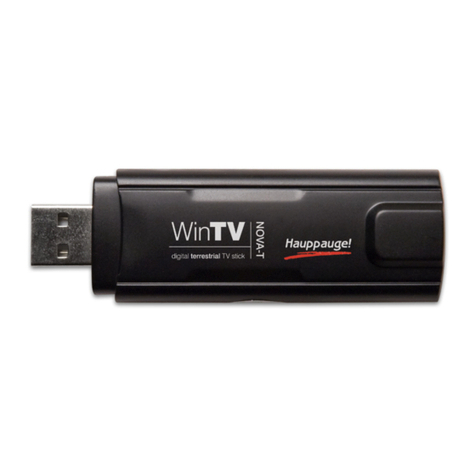
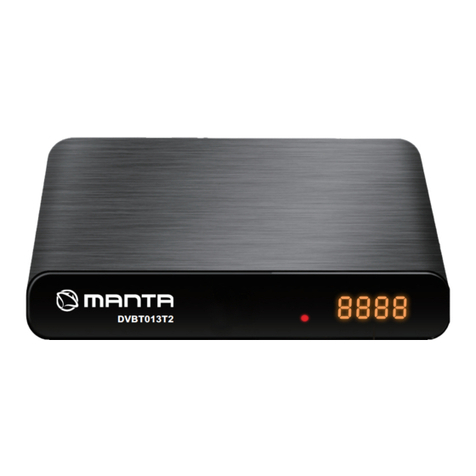
DEVICE OVERVIEW
THE DVB-T PLAYER SOFTWARE
6
CONTROL PANEL 8
!
SECURITY AND OPERATION
Select a language edition. Choose English and click "Next" to continue.
You may change the original setting route and folder name according to personal reference.
Click "Next" to continue.
Select the directory name for the shortcut and click on "Next".
Check the details to ensure that they are correct and click on "Next".
Please check "Yes, restart my computer now." Click "Finish" to continue.
Fill in user’s information in the column. Click "Next" to continue.
Enter product’s serial number and click "Next" to continue.
The serial number is located on the front of the CD-ROM cover.
Put the enclosed CD-ROM into your CD-ROM drive and double-click on "Setup".
Click "Next" to continue. Please read the license agreement carefully, then select "I agree to the terms of this
license agreement". Click "Next" to continue.
Note:
If you do not restart your computer now,
you must restart it later to complete the
installation process.
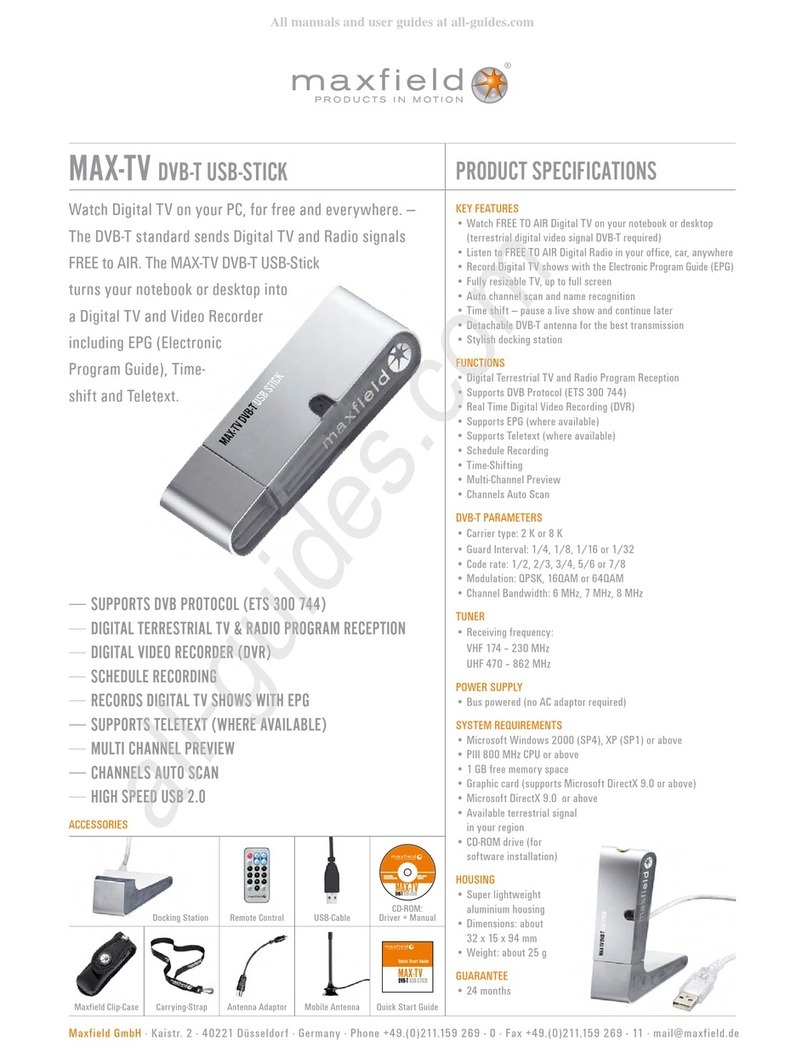
Status display
Remote Control sensor
Protective cap for the USB connector
Status display:
Green: Good DVB-T signal
Orange: Weak DVB-T signal
Flashing orange: Indicates remote-control control mode
Application Program
On and Off
Channel Control
Mute Mode
Number Input
Channel Return
Full Screen
Volume Control
After you finish the installation of the software, you will find an icon
"DVB-T Player". Start the program with double click. When the software
starts up for the first time, the "Setup" dialogue will appear with the tab
"Scan Channel". Select the setting you need and start the broadcasting
station search by pressing "Start". You may save all scanned channels
by clicking "Save as". Click "OK" to exit the operating panel.
- Country/Area: You may choose the location where you are.
- All: If you can not find your location.
- Range: You may define your own frequency range VHF or UHF.
- Single: If you know the exact frequency of a digital program.
Symbol Function
After you run the DTV software,
you can use the control panel as follows.
Symbol
Full screen
Delete number input
Multi-channel Preview
Channel up and down
Channel recall
Channel list
TimeShift
Open saving file
System property setup
Electronic program guide
End program
Play
Rewind, fast-forward
Stop
Pause
Video Recording
Photo capture
Mute
Volume up and down
Receive DVB-T broadcasting
Teletext
Minimise control panel
Function
Right Click Menu and Keyboard Shortcuts
Playback Enter Playback program
Pause Space Pause the playing
Stop S Stop playing
Record R Record the on-going program
Mute M Shot down sound
Fast-forward F Fast –forward the on-going program
Rewind B Rewind the on-going program
Next channel N Switch to next program
Previous channel P Switch to previous program
Channel recall L Switch to previous watching channel
My favorite Ctrl+M Open the favorite menu
Multi-channel browse Ctrl+W Provide multi-channel browse (non-Syncronized)
Choice of language Ctrl+L Provide language switch
Enable Subtitle Ctrl+S Display subtitle
Time shift T Start or pause time shift function
Capture G Capture single picture as photo
Setup E Start setup function
Display control panel O Display control panel or not
Display ratio Select display ratio either 4:3 or 16:9
Image size Choice of image size 60%,100% ,150%
Full screen W Switch full screen or window
Increase volume + Increase volume
Decrease volume - Decrease volume
Close to bar Ctrl+Z Close control panel to bar
About Ctrl+A Display DTV version information
Help H On-line help
Close Ctrl+X Close DTV playing software 150%
IMPORTANT!
Please make back-up copies of your files!
Maxfield GmbH is not liable for data loss due to
damaged products or memory modules and hard drives
which are damaged or unreadable.
Do not store or operate the unit in areas of high
humidity or wet areas, near strong magnetic fields
or near sources of heat.
Handling of the unit
- Do not make any changes or modifications to your unit.
This can result in malfunctions.
- Do not drop the unit and do not apply force to it in any form.
This can damage the unit.
- Do not operate the unit in the following places:
- Bathrooms and other areas of high humidity
- Dusty places
- Very hot locations where the unit is exposed to
direct sunlight.
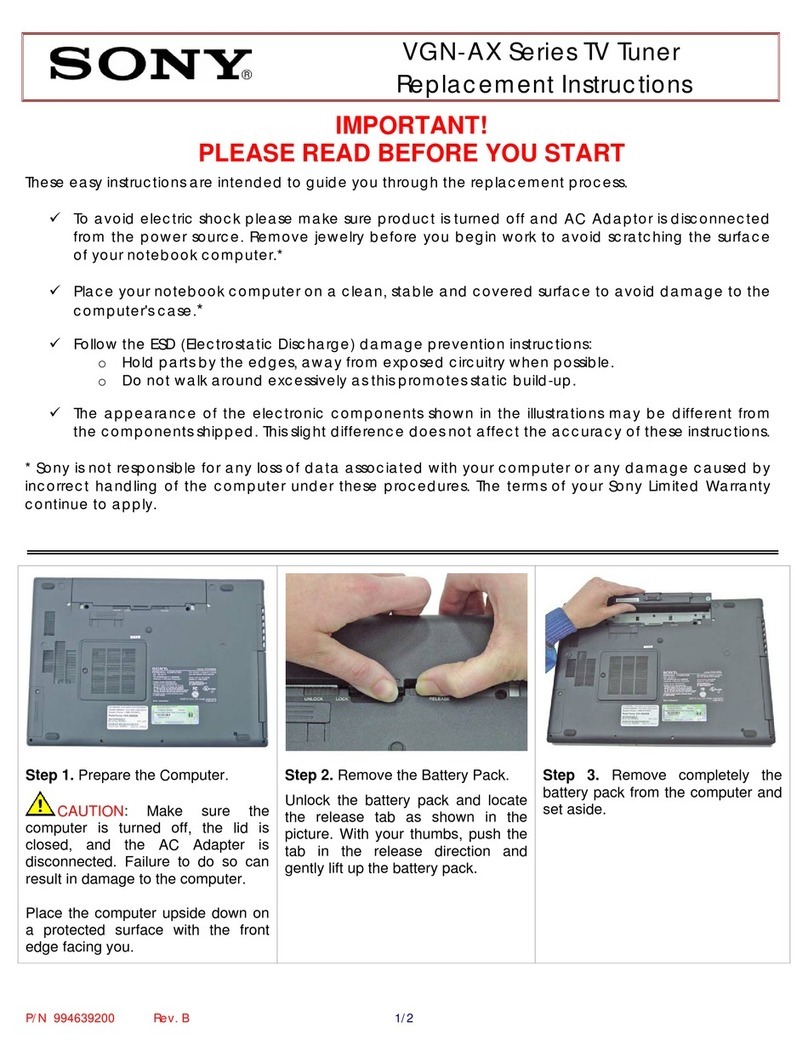
If the device is not functioning properly...
It may be that the driver was not installed properly.
In the Windows System control panel, click on the "Hardware" tab and then click on "Device Manager".
Open the "Sound, video and game controllers" file.
"Digital TV Receiver" should appear on the list. If it does not, re-install the drivers.
Remove the MAX-TV DVB-T USB-Stick and then re-insert it in the USB port.
Please note that the period between removal and re-insertion must be at least 3 seconds.
Insert the DVB-T USB-Stick into another USB port on the PC.