
MicroNet DataDock 350 User manual

1
Part Number MA1036 Rev. D
Copyright
©
1996 by MicroNet Technology, Inc.
Printed in the U.S.A
November 1996
DataDock Storage Systems
User’s Guide

2DataDock Storage Systems
Federal Communications Commission
Radio Frequency Interference Statement
This equipment has been tested and found to comply with the limits for a Class B digital device, pursuant to
part 15 of the FCC Rules. These limits are designed to provide reasonable protection against harmful
interference in a residential installation. This equipment generates, uses and can radiate radio frequency
energy and, if not installed and used in accordance with the instructions, may cause harmful interference to
radio or television reception, which can be determined by turning the equipment off and on. The user is
encouraged to try to correct the interference by one or more of the following measures:
1. Re-orient or relocate the receiving antenna.
2. Increase the separation between the equipment and receiver.
3. Connect the equipment into an outlet on a circuit different from that to which the receiver is connected.
4. Consult the dealer or an experienced radio/TV technician for help.
Changes or modifications not expressly approved by the party responsible for compliance could void the user’s
authority to operate the equipment.
Use only shielded cables, certified to comply with FCC Class B limits, to attach this equipment. Failure to
install this equipment as described in this manual could void the user’s authority to operate the equipment.
Canadian Department of Communications Compliance: This equipment does not exceed Class B limits
per radio noise emissions for digital apparatus set out in the Radio Interference Regulation of the Canadian
Department of Communications. Operation in a residential area may cause unacceptable interference to radio
and TV reception requiring the owner or operator to take whatever steps are necessary to correct the interfer-
ence.
Conformité aux règiements du Départment Canadien de Communications: Cet équipement n’excéde
pas les limites de Classe B concernaut les bruits des émissions de radio pour le dispositif digital établies par le
Règlement d’Interference de Radio du Département Canadien de Communications. L’opération de cet
équipement dans un quartier résidential peut occasionner des parasites inacceptables dans la réception de la
radio ou de la télévision exigeant le propriétaire ou l’opérateur de faire toutes les nécessaires pour corriger cet
interference.
FTZ/BTZ German Postal Service Notice: We herby certify that the SB, SBS, SS, SBX, SBT, MO, MS,
MR, MT, MD, CPK, CPKT, CPKD, DD and DDW products are in compliance with Postal Regulation
1046/1984 and is RFI suppressed. The marketing and sale of the equipment was reported to the German
Postal Service. The right to retest this equipment to verify compliance with the regulation was given to the
German Postal Service.
Bescheinigung des Herstellers/Importeurs: Hiermit wird bescheinigt, daß der/die/das: SB, SBS, SS, SBX,
SBT, MO, MS, MR, MT, MD, CPK, CPKT, CPKD, DD, DDW in Übereinstimmung mit den
Bestimmungen der: VFG1046, VFG243 funk-enstört ist. Der Deutschen Bundespost wurde das
Inverkehrbringen dieses Gerätes angezeigt und die Berechtigung zur Überprüfung der Serie auf Einhaltung
der Bestimmungen eingeräumt. MicroNet Technology, Inc.

3
Limitations of Warranty and Liability
MicroNet Technology, Inc., has tested the software and hardware described in this manual and reviewed its
contents. In no event will MicroNet or its resellers be liable for direct, indirect, incidental, or consequential
damage resulting from any defect in the software, hardware, or manual, even if they have been advised of the
possibility of such damages. In particular, they shall have no liability for any program or data stored in or
used with MicroNet products, including the costs of recovering or reproducing these programs or data.
This warranty, in its entirety, is activated for three (3) years from the date the end-user purchases the
subsystem. During the specified warranty period, MicroNet guarantees that the product will perform
according to specifications determined by the manufacturer, and will be free of defects. Parts and labor of the
received product, and replacement parts and labor are guaranteed during the specified warranty period. The
warranty covers defects encountered in normal use of the product, and does not apply when damage occurs
due to improper use, abuse, mishandling, accidents, sand, dirt, excessive dust, water damage, or unauthorized
service. The product must be packed in its original packing material when shipped, or the warranty will be
void. In all cases, proof of purchase must be presented when a warranty claim is being made.
This manual and the software described in it are copyrighted by MicroNet Technology, Inc. All rights are
reserved. This documentation and the software described within may not, in whole or part, be copied,
photocopied, reproduced, translated, or reduced to any electronic medium or machine readable form without
prior consent in writing from MicroNet. MicroNet cannot guarantee you will receive revision notices for the
software described in this manual, even if you have returned a registration card. Periodically check with your
reseller for updates.
All trademarks are the property of their respective owners.
Technical Support Policy
If you have a problem installing your system or suspect it is malfunctioning, please contact the Authorized
MicroNet Reseller from whom you purchased the system. If the reseller fails to resolve the problem, call
MicroNet Technical Support for assistance at (714) 453-6060. Please have the model, serial number, date of
purchase, and the reseller’s name available before calling. If possible, call from a telephone near the system so
we can direct you in any necessary system corrections.
Returning Materials
If a reseller or MicroNet technical support person finds it necessary to have the system returned for testing or
servicing, a Return Materials Authorization (RMA) number will be issued. The RMA number must be placed
on the outside of the carton in large, visible letters near the address label. Return the complete system
including all cables and software. The system must be packed in the original packing materials and shipped
prepaid. MicroNet will repair the system and return it prepaid by similar common carrier and priority. Please
record the RMA number and make reference to it when inquiring on the status of the system. A returned
unit found to be fault-free will carry a $75.00 charge for service and repackaging.

4DataDock Storage Systems
Welcome From MicroNet Technology
We are pleased that you have chosen one of our high-performance DataDock storage systems. Our systems are
designed for speed, reliability, compatibility, and performance. We think you will find the system easy to
install, and a productive addition to your computer system.
This manual presumes that you are familiar with standard computer operations; this includes copying files,
opening documents, clicking with the mouse, and organizing files or folders within other folders. If you are
unfamiliar with these operations, please consult theUser’s Guide that was supplied with your computer
system. Your computer dealer and local user’s groups are also good sources of information. After you are
comfortable with the operation of your computer, continue reading this manual which describes hardware
installation and software operation.
Thank you again for choosing a MicroNet Technology system. Please fill out the enclosed registration card
and mail it to the address below. Mailing the registration card registers your subsystem and provides us with
helpful information.
Your comments assist us in improving and updating our products. Please feel free to share any comments
with us.
Please send comments to:
MicroNet Technology, Inc.
Attn: Customer Service Department
51 Discovery
Irvine, CA 92618
Phone: (949) 453-6060

5
Table of Contents
Section 1 - Installation
Unpacking...................................................................................................................6
Registration .................................................................................................................6
System Requirements .................................................................................................6
Choosing a Location....................................................................................................6
SCSI Adapter Card Installation..................................................................................7
DataDock Hardware Installation ..............................................................................7
Section 2 - How to use the DataDock
Supported Modules...................................................................................................20
Using Hard Disk Modules........................................................................................20
Using Removable Media Modules ...........................................................................22
Using Software..........................................................................................................24
Section 3 - Features
DataDock Front Panel..............................................................................................25
DataDock Rear Panel ...............................................................................................26
DataDock Mode Settings..........................................................................................28
Hard Disk Module Front Panel................................................................................29
DataDock Module Rear Panel..................................................................................30
Section 4 - Maintenance & Care
Maintenance and Care ..............................................................................................31
Section 5 - Troubleshooting
Problems & Solutions ...............................................................................................32
Getting Help..............................................................................................................33

6DataDock Storage Systems
Section 1 - Installation
Unpacking
After opening the shipping container, use the packing slip to verify receipt of the listed items. Retain the
shipping container and packing material for reuse.
!
The equipment warranty will be void if the system is shipped without the original shipping
material or material of equal shock resistance.
Registration
Please fill out the registration card and mail it to MicroNet Technology. Mailing the registration card
registers your subsystem in our database and provides us with helpful information. This information is not
sold or distributed.
System Requirements
MicroNet DataDock storage systems are compatible with Macintosh, IBM compatible, SGI and
Sun computers.
Choosing a Location
Place the DataDock unit in its permanent operating location near the computer.
DataDock desktop systems are designed to operate on a horizontal orientation only. It is shipped from the
factory with four feet on the bottom of the unit. These feet are made of special high friction material that
prevents the DataDock from sliding across the desktop when inserting and removing modules.
Horizontal DataDock orientation.

7
SCSI Adapter Card Installation
If you will be connecting your DataDock unit to the computer using a SCSI adapter card(s), install the
adapter(s) in an available slot in the computer prior to beginning DataDock Installation. Refer to the
adapter’s user documentation for this procedure.
This step should be ignored if you will be connecting the DataDock to the computer’s built-in
SCSI port.
DataDock Hardware Installation
There are two types of configurations for the DataDock, they are single channel and dual channel. A single
channel configuration is one where the DataDock unit has only one SCSI cable (path or channel) connecting it
to the computer. This cable connects to the computer’s SCSI port, or the external SCSI connector of a SCSI
adapter card installed in the computer.
A dual channel installation is one where the DataDock unit has two SCSI cables (channels) connecting it to
the computer. You can create two separate SCSI buses using:
•2single channel SCSI cards
•1dual channel SCSI card
• 1 single channel SCSI card & the computer’s built-in external SCSI port
• 1 internal SCSI port adapter & the computer’s built-in external SCSI port
A dual channel configuration can significantly increase the performance of the same drives used in a single
channel configuration. This type of configuration increases performance and reliability when using RAID
software with the DataDock.

8DataDock Storage Systems
DD and DD525 (Narrow SCSI) Single Channel Installation
Follow the directions below to properly install your DataDock.
!
(Macintosh)AnySCSIMountingExtensions(INITS)in the extensions folder should beremoved
before DataDock installation to ensure proper operation of your DataDock.
1. Power off the computer and its attached peripherals.
“Peripherals” include devices such as modems, printers, scanners, hard disk drives, CD-ROM drives, and
DAT drives.
2. Set the DataDock’s mode switch to position 2 if it will be connected to a Macintosh, otherwise set
it to position 1.
DataDock rear panel, (Narrow).
3. If the DataDock will be connected to a Macintosh, connect the small end of the supplied 25 to 50-
pin SCSI cable to the SCSI port on the rear of the Macintosh, then connect its opposite end to
the bottom SCSI connector on the rear of the DataDock.
4. If the DataDock will be connected to a SCSI card, connect the high density end of the 50 to 50-pin
SCSI cable supplied with your card to the SCSI connector of the adapter card, then connect its
opposite end to the bottom SCSI connector on the rear of the DataDock.
Product Label
SCSI JumperSCSI Connectors
ID Switches
Mode Switch
Emergency Module
Release Levers
CoolingFan
AC Power
Receptacle
Fuse
AC Power Switch

9
5. If the DataDock is the only device on the SCSI bus, connect the supplied active terminator to the
unused SCSI connector on the rear of the DataDock, otherwise daisy chain the additional SCSI
devices to the DataDock’s open SCSI connector and connect an active terminator to the last device
in the chain.
Terminator (Narrow).
6. Set the SCSI ID switches on the rear of the DataDock to ID numbers that are not in use by
other SCSI devices on the same bus. The SCSI ID number is changed by pressing the switch’s
push buttons.
In Macintosh systems, ID 0 and 3 are usually assigned to the internal hard disk and CD-ROM drive,
respectively. In IBM PC systems, ID 0 and 1 are usually reserved for boot drives. In both systems, ID 7 is
reserved for the system and cannot be used.
!
Two SCSI devices sharing the same SCSI ID will cause problems to occur.
SCSI ID switch.
7. Ensure the DataDock’s power switch is in the off position (“0” pressed inwards), then connect the
supplied power cord from the DataDock to a grounded outlet.
The universal power supply in the DataDock automatically adjusts to any input from 90 to 240 volts and
any frequency from 50 to 60 Hz, so no adjustment is necessary.
AC Power cord.
Pushbuttonselectors

10 DataDock Storage Systems
8. Turn on the DataDock power switch, then insert a DataDock module into each DataDock bay
that you intend to use.
The POWER indicator on the DataDock’s front panel will illuminate and the TEMP alarm will flash and
beep once to indicate that it is functioning correctly. The module will automatically latch into place and
power up. The triangular button for that module will flash until it has completed its power up sequence.
Inserting a hard drive module into the DataDock.
9. Turn on the computer’s peripherals, then start-up the computer.
If you have a Macintosh computer, this completes installation. To complete DataDock installation for Sun,
SGI, and IBM compatibles, refer to the DataDock for (your operating system) supplements. These
supplements describe how to properly configure the system and prepare DataDock modules for use in
yourenvironment.
If you intend to regularly use a re-writable disk cartridge, such as a Jaz, SyQuest, or re-writable optical, in
the DataDock, it is recommended that you prepare the cartridge with DataDock compatible disk utility
software. This prevents long term mounting problems. In Macintosh applications, re-writable disks can be
prepared using the MicroNet Utility Auto.. feature.
!
Before preparing media, remember to backup its data. Disk utilities permanently erase data
during the preparation procedure.
This manual suits for next models
1
Table of contents
Other MicroNet Storage manuals

MicroNet
MicroNet PR10000SC320 User manual
MicroNet
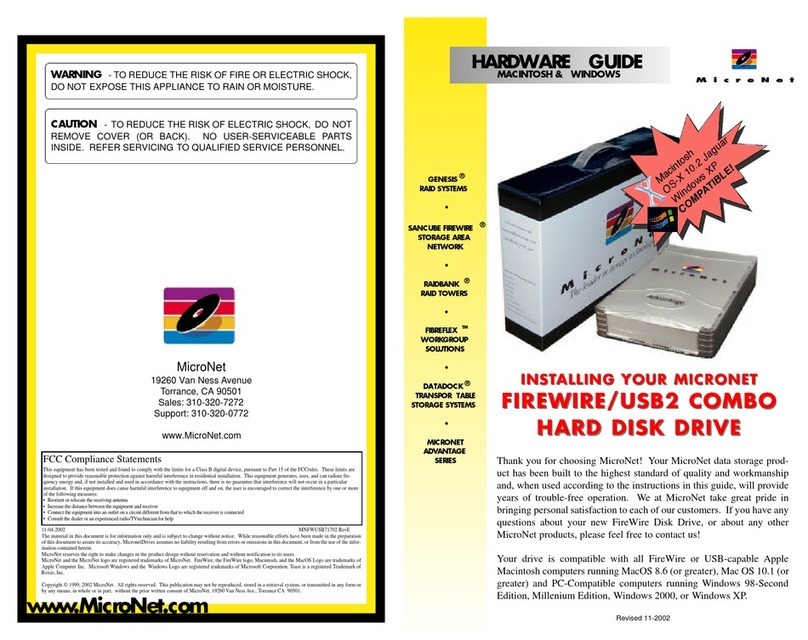
MicroNet Hard disk drive User manual
MicroNet
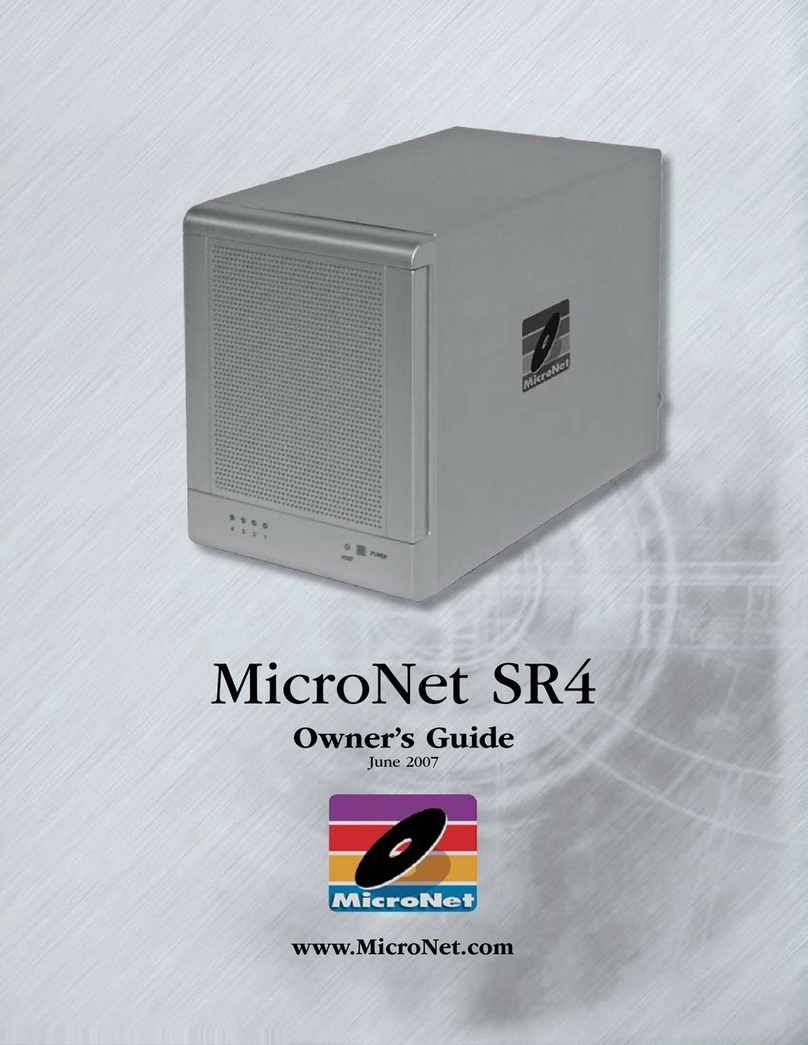
MicroNet SR42000X User manual
MicroNet
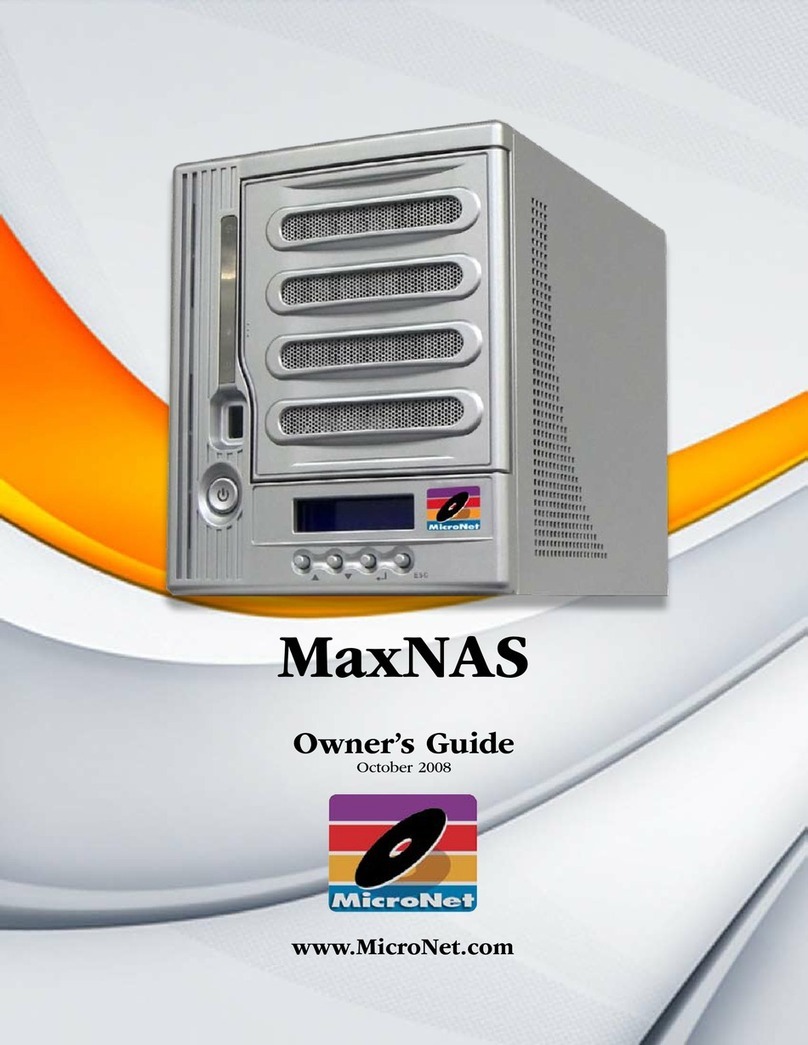
MicroNet MaxNAS User manual
MicroNet
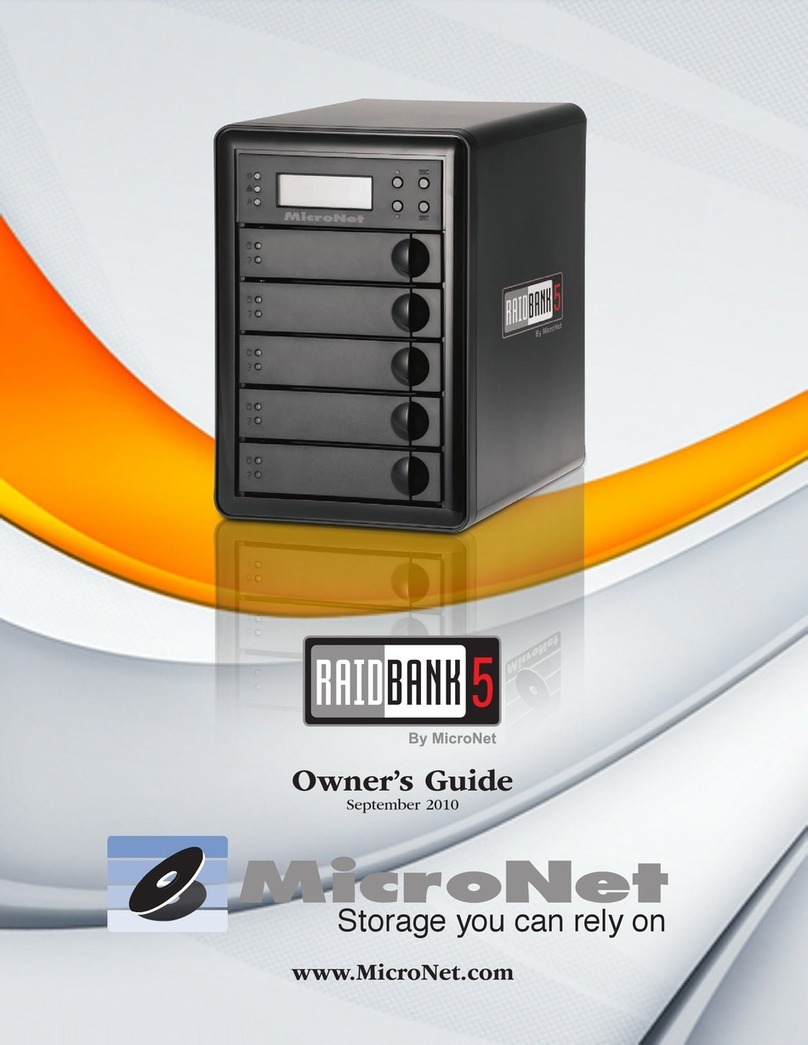
MicroNet RAIDBANK 5 User manual

MicroNet
MicroNet PR10000SATA User manual

MicroNet
MicroNet Network Device RAIDBank4 User manual

MicroNet
MicroNet SCB-1000GB4 User manual
MicroNet
MicroNet apple Installation instructions
MicroNet
MicroNet MAXNAS R8 User manual


















