Minolta MNCD36 User manual

INTRODUCTION
Congratulations on purchasing your Minolta Camcorder! The contents of this manual are
subject to change without notice. Note that the example screens and product illustrations
shown in this User’s Guide may differ somewhat from the screens and configuration of the
actual camera. Please visit our website at www.minoltadigital.com for the latest updates.
This manual contains proprietary information protected by copyright. All rights are reserved.
No part of this manual may be reproduced by any mechanical, electronic or other means, in
any form, without prior written permission of Elite Brands Inc. © 2019.
------------------------------
The Minolta MNCD36 Car Camcorder integrates multi-functions of 1080p HD video capture,
high resolution photo capture and a compact form factor. It adopts video decoding technology
of high performance and compression ratios to deliver excellent video quality. This
camcorder is intended for in-vehicle shooting, which effectively enables the collection of
evidence for driving accidents, daily life, traveling and outdoor activities. The Minolta
MNCD36 allows you to record video when mounted to your car’s windshield in a wide, large
angle.
This quick guide explains how to use your camcorder and provides additional information,
including precautions and technical specifications. Please read through it carefully and
understand this quick guide before use. Keep it properly stored away for reference.
Safety and Handling Precautions
Do not take apart or attempt to service the camcorder yourself.
Do not expose the camcorder to moisture, or extreme temperatures.
Allow the camera to warm up when moving from cold to warm temperatures.
Do not touch and put pressure on the camera lens.
Do not expose the lens to direct sunlight for extended periods.
Do not use abrasive chemicals, cleaning solvents or strong detergents to clean the
product. Wipe the product with a slightly damp soft cloth.
When the camera is used for an extended period of time, it is normal for the camera body
to feel warm.
Do not subject the LCD monitor to impact.
To prevent the risk of fire or electric shock, do not expose this appliance to rain or
moisture.

1. GETTING STARTED
1.1 Overview
1
Display
2
Status Indicators
3
OK / Record
4
Mode
5
Lock File
6
Power
7
Reset
8
Microphone
9
USB Port
10
Mount Port
11
Memory Card Slot
12
Up
13
Menu
14
Down
15
Lens
16
Speaker

1.2Button and Functions Explanation
Button
Function
Description
1
Display
Shows the current view and menu, options
and different statuses of each mode.
2
Status Indicators
Indicator for power, charging and recording.
3
OK / Record
OK button in menus, Record button in
shooting modes.
4
Mode
Button used for cycling between Video,
Photo and Playback modes.
5
Lock File
Button used for locking a video file during a
recording.
6
Power
Press for 3 seconds to power on or off. Tap
once during a recording to disable the LCD
monitor for conserving power. Tap again to
enable the LCD monitor again.
7
Reset
Press for 10 seconds to reset your
camcorder to factory default settings.
8
Microphone
Built-in microphone for audio capture during
video recording.
9
USB Port
Power port and data transfer port for
transferring media to your computer.
10
Mount Port
Mount port for attaching the windshield
suction cup mount.
11
Memory Card
Slot
Storage slot for inserting your MicroSD
memory card.
12
Up
Button used during menu navigation and
playback use.
13
Menu
Button used for accessing and exiting all
menus and submenus.
14
Down
Button used during menu navigation and
playback use.
15
Lens
Front capture device for all video and photo.
16
Speaker
Built-in speaker output for playback of video
files when audio recording is enabled.
1.3Memory Card Insertion and Removal
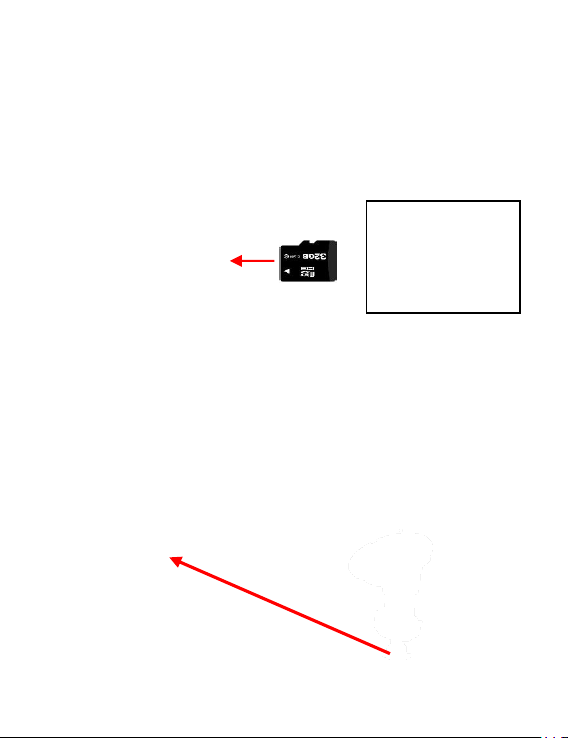
1. Ensure the camcorder is powered off.
2. Insert a MicroSD memory card into the MicroSD card slot with the gold pins facing the
display screen. Do not force it through the MicroSD card into the slot as it can only be
inserted in one direction. Once successfully inserted, it will click in.
3. To remove the MicroSD card, simply push the MicroSD card in and it will bounce back
out of the slot.
1.4Windshield Suction Cup Mount
The included windshield mount is included for mounting your camcorder to your windshield.
The mount can only be insert in one way. Simply attach the smaller plastic end of the mount
to the front of your camcorder, and the suction cup side to the top of your windshield. Before
applying to your windshield, make sure that your windshield is clean and free of any dirt or
debris.
NOTE: If the suction cup loses its grip over time, thoroughly clean the clear suction are with
soap and water. After cleaning, allow it to dry for 2 hours and reapply it to your windshield.
Do not remove or
insert the memory card
when recording. Do
so may cause the card
to become damaged
or cause data loss.

1.5Startup
1.5.1 In-Car Use
Connect the included auxiliary DC power adaptor to your car’s power port. Plug the USB
plug into the camcorder’s USB port. Charging will begin immediately. Please note that the
camcorder’s internal battery has a very limited capacity and is only intended for use in
emergency use situations.
1.5.2 USB Cord / Computer Use
Connect the included USB cable to a free USB port on your computer, and connect the
other end of the cable into the camcorder’s USB port. The battery may be charged while
the camcorder is powered on or off.
While charging, the red power indicator LED will illuminate. When charging is complete, the
power indicator LED will automatically turn off.
2. USING YOUR CAMCORDER
Quick Use Instructions
Simply insert the MicroSD memory card into the MicroSD card slot, and insert the auxiliary
power adaptor into the camcorder’s USB port and your car’s power port. The camcorder will
automatically power on and begin recording a video file.
To start or stop recording at any time, press the OK/RECORD button. You may also remove
the auxiliary DC power adaptor at any time to automatically save a recording and power the
camcorder off. Just mount it to your windshield, plug in the power and drive!

3. CAMCORDER OPERATION
Once you have inserted the MicroSD memory card and plugged your camcorder into a power
source, your camcorder will automatically power on. You may also manually power your
camcorder on or off by pressing the POWER button.
There are 3 operation modes available for use. To cycle through the different modes, simply
press the MODE button. Your camcorder’s screen will show the current mode in the display’s
upper left corner. Modes cannot change while a video is being recorded. The recording
must stop first before changing to another mode.
3.1 Video Mode
Once your camcorder powers on, it will default to Video Mode and begin recording
automatically. To start or stop recording at any time, press the OK/RECORD button. To
manually capture video when cycling from another mode, enter VIDEO Mode and press the
OK/RECORD button to begin recording video again.
3.2 Photo Mode
To capture a photo, enter PHOTO Mode. Press the OK/RECORD button to instantly capture
a photo.
3.3 Playback Mode
To review your video and photo files, enter PLAYBACK Mode. The most recent file recorded
will be displayed first.
Press the UP and DOWN buttons to cycle through available playback files of photos and
videos.
Press the MODE button again to exit PLAYBACK mode.
Playing Back Video Clips
Press the OK/RECORD button to play or pause a video clip in PLAYBACK mode.
To fast forward, press the DOWN button while video is playing back.
To rewind, press the UP button while video is playing back.
To delete a file or to protect a file from deletion, press the MENU button.

3.4Main Screen and Icons Explanation
VIDEO MODE
PHOTO MODE
1. VIDEO Mode
2. Loop Recording Enabled
3. Motion Detection Enabled
4. Exposure Value
5. Park Mode Enabled
6. Recording Active
7. Current Date
8. Current Time
9. Current Battery Level
10. Memory Card Inserted
11. Microphone Enabled
12. Current Video Resolution
13. Recording Time Elapsed
1. PHOTO Mode
2. Exposure Value
3. Automatic White Balance
4. Automatic ISO Enabled
5. Digital Image Stabilization
Enabled
6. Current Battery Power
7. Number of Pictures
Remaining
8. Current Photo Resolution
9. Current Image Quality
10. Memory Card Inserted

4. MENU & SETTINGS INTERFACE
4.1 Video Mode Settings
Overview
Your camcorder comes preset with some user-adjustable settings to fine tune and customize
how you would like your videos to be captured. The settings are already optimized and preset
for the easiest experience.
Before you begin, ensure you are in VIDEO mode . From the main screen, press the
MODE button once. The current mode will be displayed in the upper right corner of the
display. To cycle through the different modes, simply press the MODE button again.
NOTE: The settings menu cannot be accessed while the camcorder is recording a video file.
If the camcorder is recording a file, you must stop recording before the settings menu can be
accessed. To stop recording at any time, press the OK/RECORD button.
4.1.1 Video Resolution
Your camcorder has a number of preset resolution and frames per second rates. A higher
resolution will produce a higher quality and lager video file.
1. In VIDEO mode, press the MENU button. Select ‘Video Resolution’ by using the UP or
DOWN buttons. Press the OK/RECORD button to enter the ‘Video Resolution’
submenu.
2. Press the UP or DOWN buttons again to navigate the submenu, and select a setting.
You can select from 1080p (highest quality), 720p (medium quality), and 480p (low
quality)
3. Press the OK/RECORD button to confirm your selected setting.
4. To exit the settings menu, press the MENU button twice and your camcorder will return
to the main status screen of the current mode.
4.1.2 Loop Recording
This setting allows you to set a maximum duration for each video clip recorded. Once you
select an option, your camcorder will record video clips in this time interval only. Once your
selected duration recording time is reached, the camcorder will end the recording and begin
recording a new video file seamlessly.

1. In VIDEO mode, press the MENU button. Select ‘Loop Recording’ by using the UP or
DOWN buttons. Press the OK/RECORD button to enter the ‘Loop Recording’
submenu.
2. Press the UP or DOWN buttons again to navigate the submenu, and select a setting.
You can select from OFF, 1 Minute Loop, 3 Minute Loop and 5 Minute Loop.
3. Press the OK/RECORD button to confirm your selected setting.
4. To exit the settings menu, press the MENU button twice and your camcorder will return
to the main status screen of the current mode.
4.1.3 Audio Recording
This setting allows you to select the built-in microphone ON or OFF during a video recording.
Once you select an option, your camcorder will either record audio within the video file, or
record a video file without the audio.
1. In VIDEO mode, press the MENU button. Select ‘Audio Recording’ by using the UP or
DOWN buttons. Press the OK/RECORD button to enter the ‘Audio Recording’
submenu.
2. Press the UP or DOWN buttons again to navigate the submenu, and select a setting.
You can select from OFF and ON.
3. Press the OK/RECORD button to confirm your selected setting.
4. To exit the settings menu, press the MENU button twice and your camcorder will return
to the main status screen of the current mode.
4.1.4 Motion Detection
This setting automatically begins recording if movement is detected in front of the camcorder
lens. Once recording, the camcorder will stop recording if not further movement is detected
within a 10-second period of the last movement registered. You may also manually stop
recording anytime by pressing the OK/RECORD button during a recording.
1. In VIDEO mode, press the MENU button. Select ‘Motion Detection’ by using the UP or
DOWN buttons. Press the OK/RECORD button to enter the ‘Motion Detection’
submenu.
2. Press the UP or DOWN buttons again to navigate the submenu, and select a setting.
You can select from OFF and ON.
3. Press the OK/RECORD button to confirm your selected setting.
4. To exit the settings menu, press the MENU button twice and your camcorder will return
to the main status screen of the current mode.
Table of contents
Other Minolta Dashcam manuals
Minolta
Minolta MNCD337N User manual
Minolta
Minolta MN100HDZ User manual

Minolta
Minolta MNCD410T User manual

Minolta
Minolta MNCD245T User manual
Minolta
Minolta MNCD406X User manual
Minolta
Minolta MNCD50 User manual
Minolta
Minolta MNCD53 User manual
Minolta
Minolta MNCD338T User manual

Minolta
Minolta MNCD42 User manual
Minolta
Minolta MNCD2K10 User manual