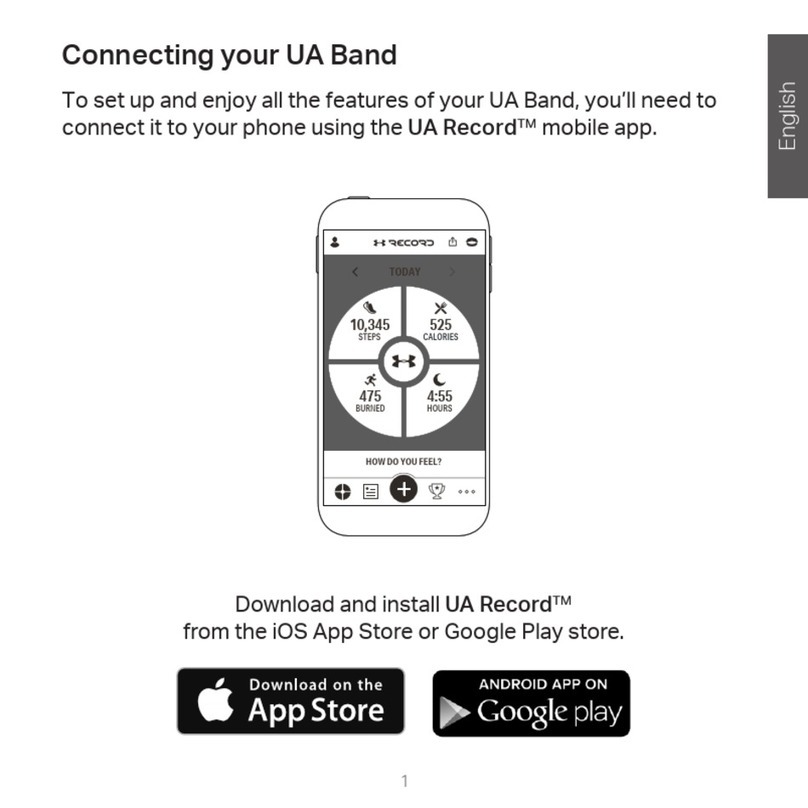
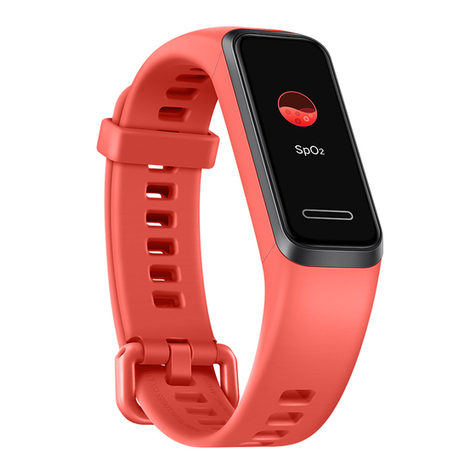
PAIRING MIO SLICE TO YOUR SMARTPHONE
JUST WORKS
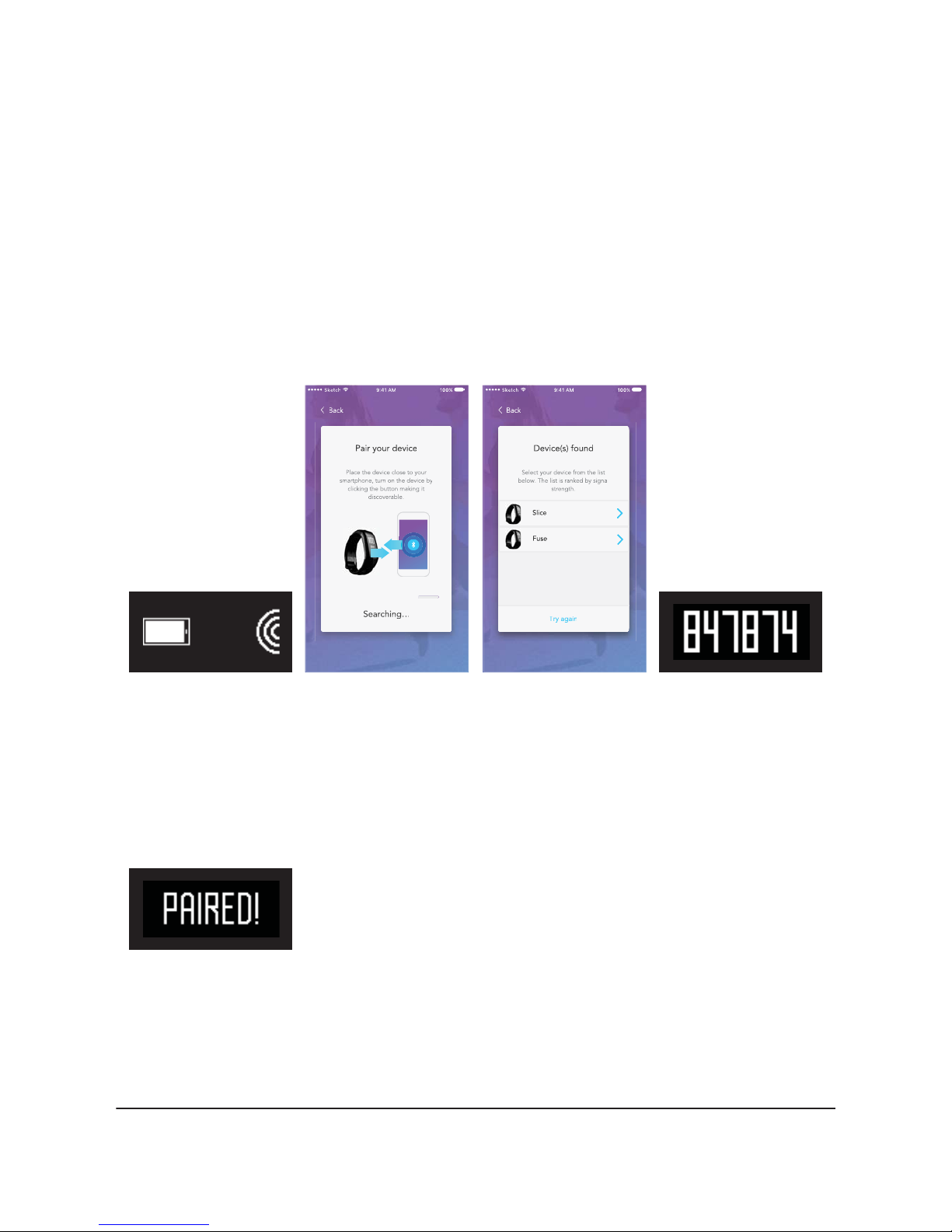
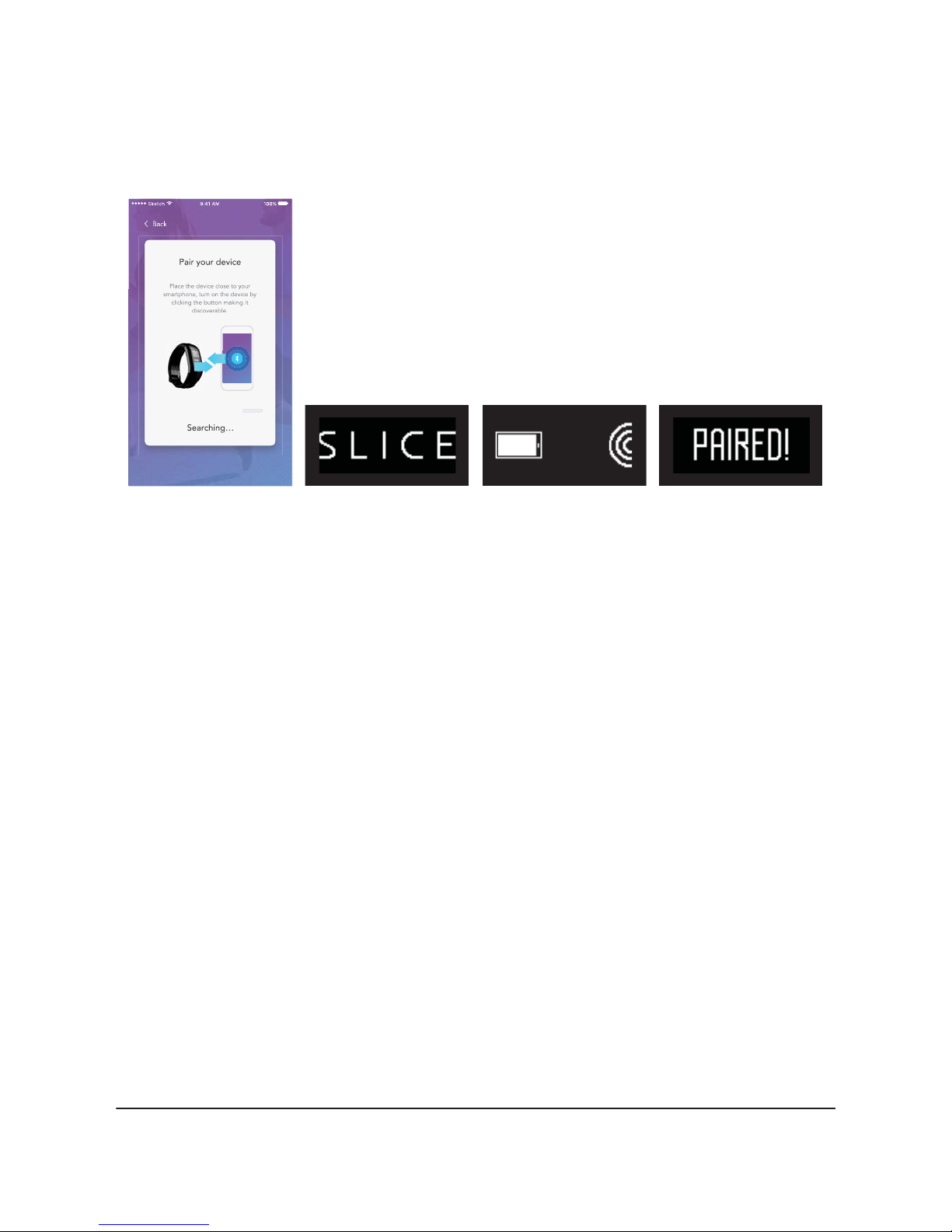
1. The app will discover
SLICE automatically via
Bluetooth. Be sure to keep
your SLICE as close as
possible to your phone.
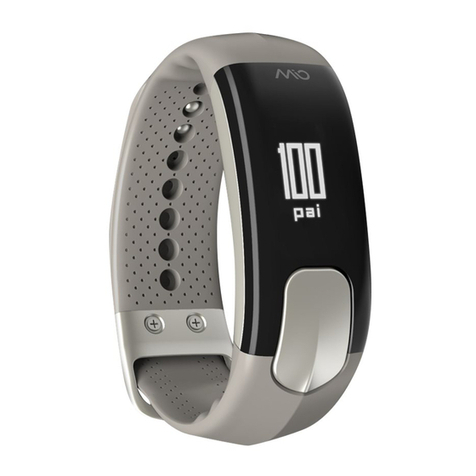
2. Press the button on
SLICE.
3. After it displays the
SLICE logo, it will enter
pairing mode for 60
seconds.
4. Your SLICE is now paired to
your phone and will reconnect
automatically when it is within
range. Your SLICE cannot be
connected to another phone.
Mio SLICE User Guide 7
TROUBLE WITH PAIRING MIO SLICE TO YOUR PHONE
Try the following tips if you have trouble pairing Mio SLICE to your smartphone:
• Check that you are connecting to the correct SLICE device. Before pairing is complete, SLICE is listed
with a serial number appended to the name. You can compare this to your device serial number, found
on the back of your SLICE.
• Check that your phone is compatible with the Mio PAI app at mioglobal.com/compatibility.
• Force close the Mio PAI app and re-open it. Follow the app’s prompts to retry the pairing process.
• Open your phone’s Bluetooth settings and forget SLICE if it appears in the list of paired devices.
Re-open the Mio PAI app and follow the app’s prompts to retry the pairing process.
• Force close the Mio PAI app and re-open it. Follow the app’s prompts to retry the pairing process.
• Force close all apps on your phone and re-open the Mio PAI app. Follow the app’s prompts to retry
the pairing process.
• Perform a factory reset on the SLICE (refer to Resetting Mio SLICE & Pairing To A New Phone) ). Note
that this will erase all data stored on your SLICE.
UPDATING MIO SLICE
After pairing, the app will automatically update Mio SLICE if a new firmware version is available. Keep the
Mio PAI app open and your SLICE close to the phone until the update is complete.
Resetting Mio SLICE & Pairing To A New Phone