Modecom FreeWay User manual

MODECOM GPS
MODECOM GPS
NAVIGATOR
NAVIGATOR
USER’S MANUAL
USER’S MANUAL

www.modecom.eu
2
MODECOM GPS NAVIGATOR
TABLE OF CONTENTS:
Before You Start 4
Precautions and Notices 4
Overview 5
PART I. BASIC OPERATION 6
1. Getting Started 6
2. Basic Operations 12
3. System Settings 14
PART II. MEDIA 22
4. Using MP3 Player 22
5. Using Photo Viewer 27
6. Using Video Player 34

3
MODECOM GPS NAVIGATOR
Thank you for purchasing the Modecom Freeway GPS.
This highly innovative and useful device designed for mobile
navigation oers many functionalities which let you travel fast
and safely. In addition to excellent navigation features and in-
tuitive and friendly menus, the Freeway Navigator also provides
attractive media playing functions that can make your journey
more fun.
The Freeway Navigator provides many features useful for drivers,
such as GPS positioning, location searching, and calculating and
planning optimum routes that can be recorded and reviewed.
Many users appreciate unique functionalities of the Freecom
Navigator, as it can simply help drivers in reading maps, searching
destination points, and determining optimum routes. Touch-
operated controls make the device very easy to use. Also, during
the trip, the Modecom Freeway informs the driver by voice mes-
sages where and which way he should drive. This makes your tra-
veling more easy and saves your time.
Our navigators have a built-in mp3 player, a photo viewer and a
video player, so you can listen to your favorite music, view photos
and play videos. Media les can be stored on memory cards. Also,
a calculator function can be used.
The Modecom Freeway features carefully designed menus that
makes the device friendly and easy to operate. The device can be
customized by setting one of many available languages and one
of several time zones. Professional-level quality of operation and
media support make the Modecom Freeway one of the most up-
to-date GPS solutions available on the market.
Simple and modern design of the Modecom Freeway will certain-
ly satisfy even the most demanding users.
Mode Com cares about the product quality to satisfy both cur-
rent and future customer needs. Our customers has been accu-
stomed to high quality, advanced technology and reliability of
our products. For you, we are creating things exceptional in eve-
ry respect.

www.modecom.eu
4
MODECOM GPS NAVIGATOR
Choose a better future – choose Mode Com!
The information contained here subject to changes without no-
tice.
Trademarks
All brand and product names are trademarks or registered trade-
marks of their respective companies.
Note
The information in this manual is subject to change without no-
tice.
BEFORE YOU START
Precautions and Notices
• For your own safety, do not operate the controls of the product
while driving.
• Use this product prudently. The product is intended to be used
only as a navigation aid. It is not for precise measurement of di-
rection, distance, location or topography.
• The calculated route is for reference only. It is the user’s respon-
sibility to follow the trac signs and local regulations while dri-
ving.
• When you get out of the car, do not leave your device on the da-
shboard in direct sunlight. The overheating of the battery can
cause malfunction and/or danger.
• GPS is operated by the United States government, which is solely
responsible for the performance of GPS. Any change to the GPS
system can aect the accuracy of all GPS equipments.
• GPS satellite signals cannot pass through solid materials (except
glass). When you are inside a tunnel or building, GPS positioning
is not available.
• A minimum of 4 GPS satellite signals is needed to determine cur-
rent GPS position. Signal reception can be aected by situations
such as bad weather or dense overhead obstacles (e.g. trees and
tall buildings).
• The wireless devices might interfere the reception of satellite si-
gnals and cause the reception of the signal to be unstable. For

5
MODECOM GPS NAVIGATOR
better signal reception, it is recommended to use a car anten-
na (option).
• A car holder is needed when using the device in a car. It is recom-
mended that you place the device in an appropriate place, so as
not to obstruct the driver’s view, or deployment of airbags.
• When battery runs out, the device will automatically turn o the
power. So, when plug-in the car charger or power adaptor, ple-
ase reset the ON/OFF switch to turn on the device.
Overview
GPS Navigation Features
• Electronic maps with roads, freeways, highways, railways, rivers, la-
kes, points of interest, etc.
• GPS positioning
• Optimal route calculation and trip plan
• Friendly and ecient navigation with step-by-step, voice, and vi-
sual guidance
• Various ways for searching a location on the map
- Using a known address
- Using a POI (point of interest)
- Using Favorites (personal stored locations)
- Using History (previous destinations)
• Recording and playback of journeys
• Viewing modes for dierent needs and situations:
- 2D or 3D
- Daytime or nighttime view
- Turn-by-turn view of the route
- Driving direction of the route
Other Features
• MP3 Player: playing MP3 music.
• Photo Viewer
• Movie Player: playing movies in Wmv. Asf. Mpeg format
• Calculator

www.modecom.eu
6
MODECOM GPS NAVIGATOR
PART I.
BASIC OPERATION
Part I guides you through the process of getting your device running,
familiarizes you with the external components, and tells you how to
customize system settings.
1. Getting Started
This chapter gives you step by step instruction for the initial startup
and introduces you to the external components of your device.
1.1 Setting the ON/OFF Switch
The ON/OFF switch should be set to the ON position for normal ope-
ration. Pull out the stylus pen and use it to slide the ON/OFF switch
to the ON (left) position.
CAUTION: Always leave the ON/OFF switch in the ON position for nor-
mal operation.
1.2 Connecting to AC Power and
Charging the Battery
Fully charge the battery before using your device for the rst time.
1. Connect the adapter cable to the connector on the left side of your
device.
2. Plug the AC adapter into a wall outlet.
• The charge indicator is blinking orange when charging is in pro-
gress. Do not disconnect your device from AC power until the batte-
ry is fully charged. This will take a couple of hours.
On / O Switch Reset

7
MODECOM GPS NAVIGATOR
1.3 Using Your Device in a Vehicle
A car holder and a car charger are supplied with your device.
Using the Car Holder
CAUTION:
1. Select an appropriate location for the car holder. Never place the
holder in a place where it can block the driver’s eld of view.
2. If the car’s windshield is tinted with a reective coating, an exter-
nal antenna (optional) may be needed to route the antenna to the
top of the car through a window. When closing the car window, be
careful not to pinch the antenna cable. (Cars with an anti-jam win-
dow design may automatically leave adequate space as needed.)

www.modecom.eu
8
MODECOM GPS NAVIGATOR
The car holder consists of a bracket and a dashboard stand. Use the
car holder to mount your device in a vehicle.
Note: Subject to varied congurations, the car holders might be dif-
ferent.
Connecting the Car Charger
The car charger supplies power to your device when you are using
the device in a car.
CAUTION: To protect your device against current surges, connect the
car charger only after the car engine has been started.
1. Insert the plug of the charger into the charging socket on the left
side of the unit.
2. Connect the other end to the cigarette lighter socket and charge
your device.
1.4 Understanding Hardware
Features
NOTE: Depending upon the specic model purchased, the color of
your device may not exactly match the device shown in this ma-
nual.

9
MODECOM GPS NAVIGATOR
Front Components
Ref Component Description
1 Charge
Indicator
• Battery Full – Orange (continuous)
• Battery in charging -- Orange (blinking)
2 GPS signal
indicator
• GPS Signal in allocating – Yellow (blinking)
• GPS Signal allocation nished – Yellow
(continuous)
4 Touch
Screen
• Displays the output of your device. Tap the
screen with the stylus pen to select menu
commands or enter information.
Charge
Indicator
Touch
screen
GPS signal
indicator

www.modecom.eu
10
MODECOM GPS NAVIGATOR
Back Panel Components
Ref Component Description
1 Speaker Sends out music, sounds and voice.
2 ON/OFF Switch The main power/battery cuto switch.
3 Reset Button Restarts your device (soft reset).
Left-Side Components
Ref Component Description
1 External Antenna
Connector
This connector (under rubber dust
cover) allows use of an optional exter-
nal antenna with magnetic mount,
which may be positioned on top of
the car for better signal reception in
areas with poor reception.
2 Headphone
Connector
Connects to stereo headphones.
On / O Switch ResetSpeaker
External antenna
Connector
Headphone
Connector
Power
Connector
Stylus
Pen
Table of contents
Languages:
Other Modecom GPS manuals
Modecom
Modecom FreeWAY MX User manual
Modecom
Modecom FreeWay SX2 User manual
Modecom
Modecom FreeWay SX2 User manual
Modecom
Modecom FreeWAY SX2 HD User manual
Modecom
Modecom FreeWAY MX4 User manual
Modecom
Modecom FreeWay MX3 User manual
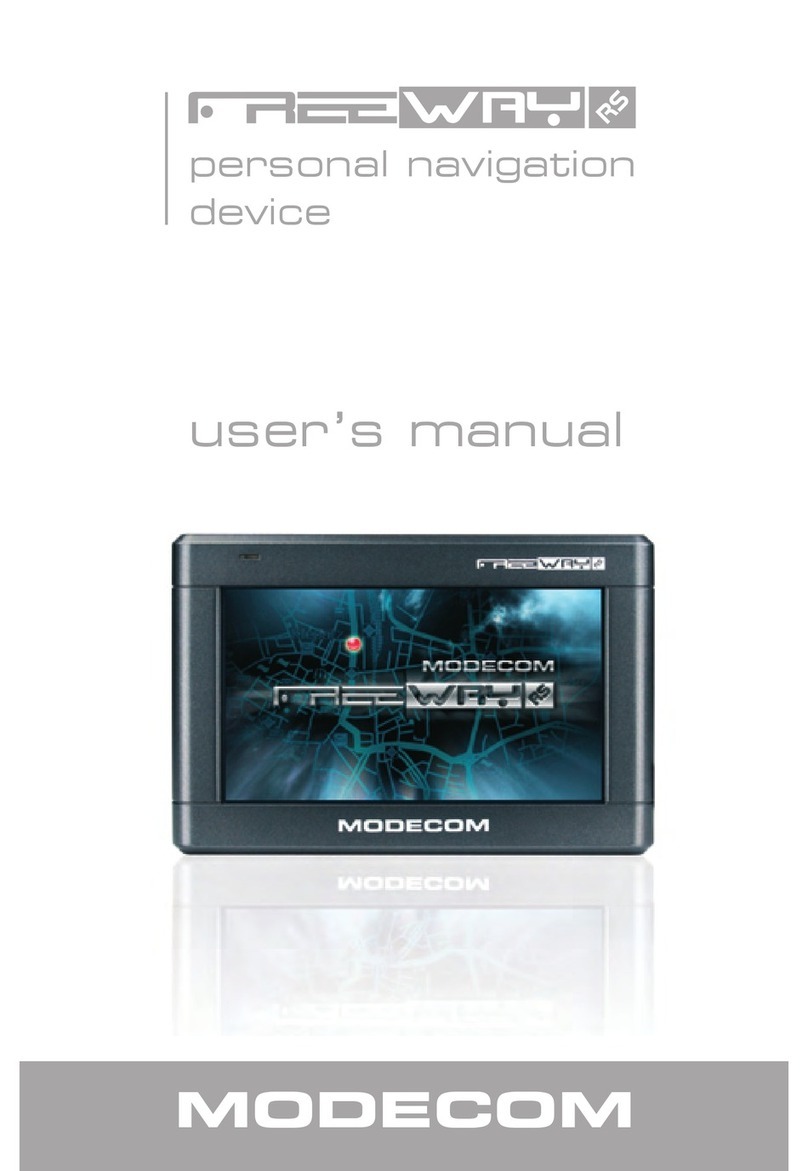
Modecom
Modecom FreeWay RS User manual
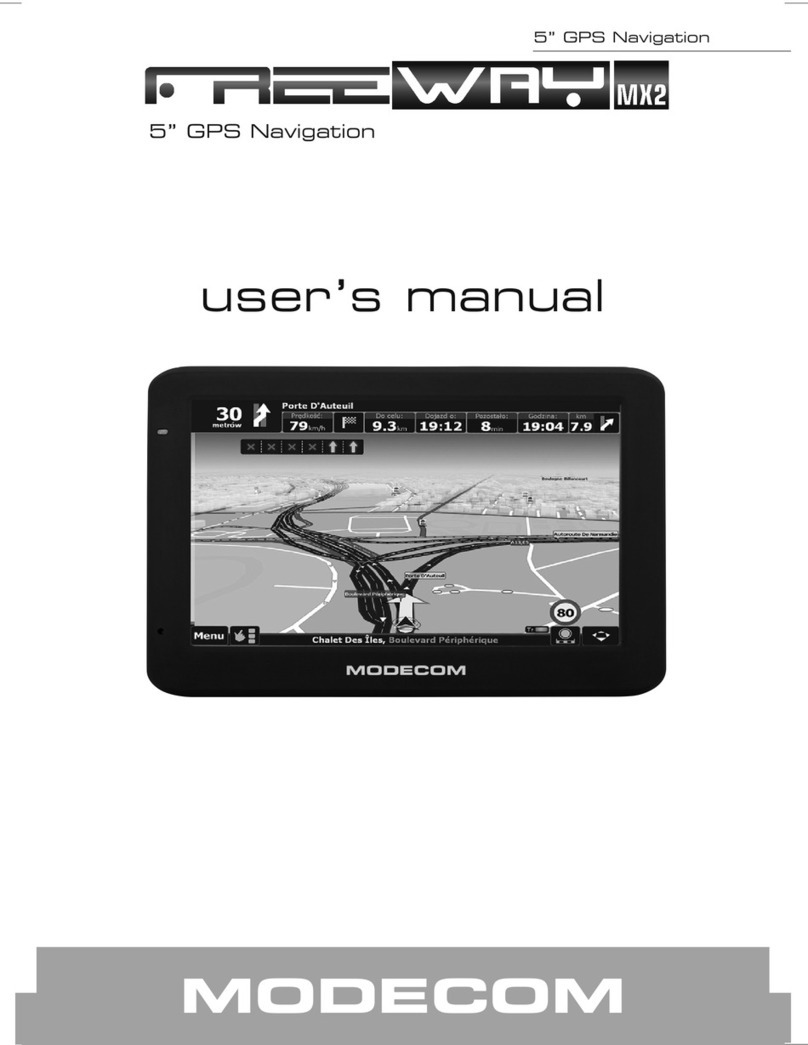
Modecom
Modecom 5 GPS navigation User manual
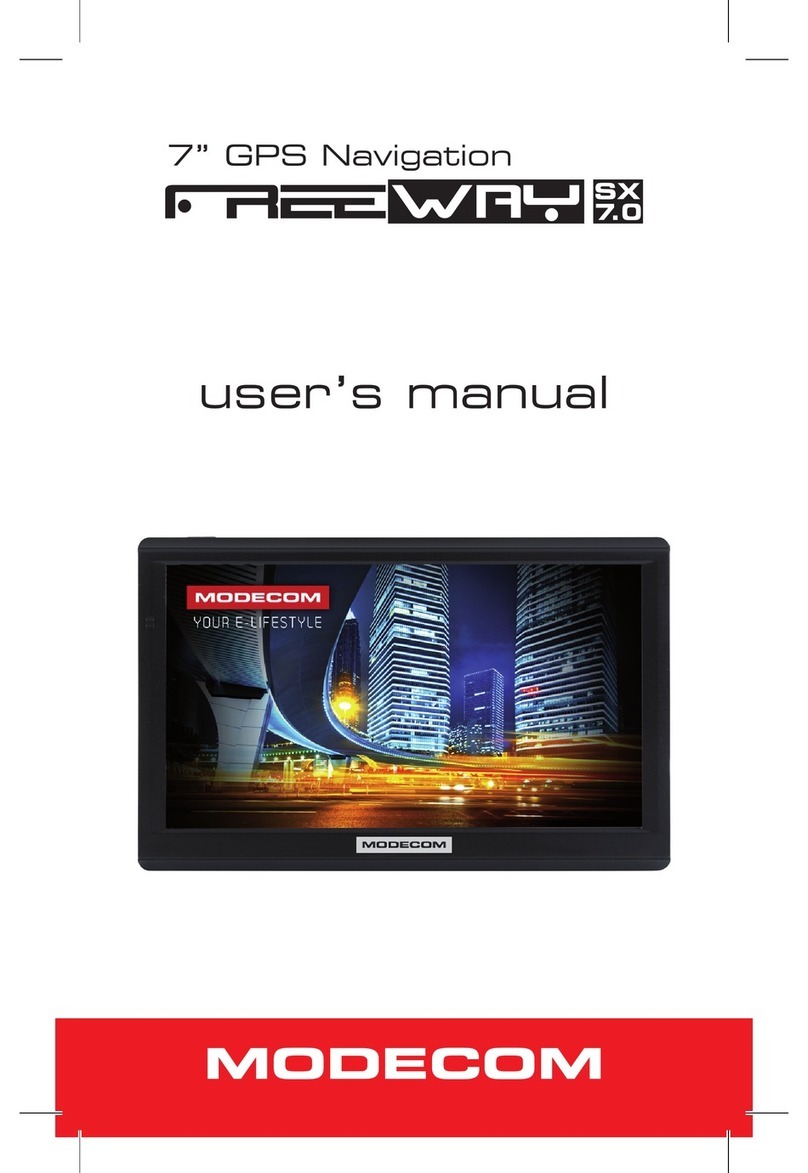
Modecom
Modecom FREEWAY SX 7.0 User manual
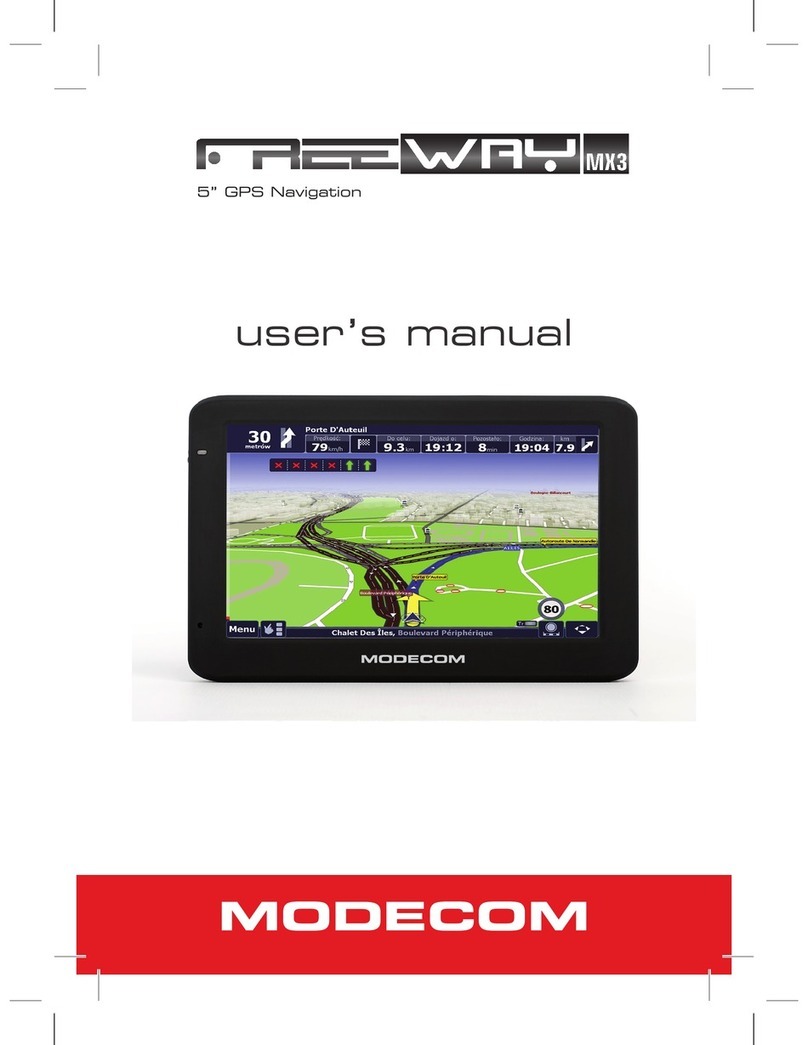
Modecom
Modecom FreeWay MX3 User manual