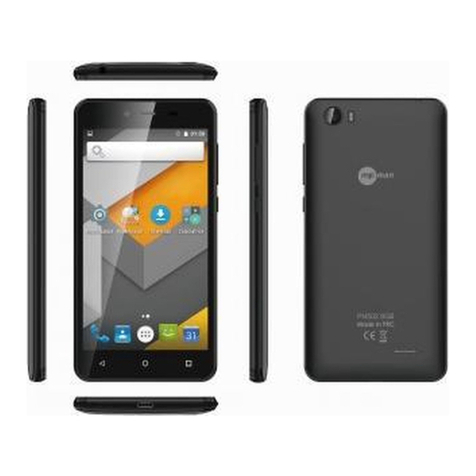
MPMAN PH460
Connect to a wireless network to browse internet
1. On the Home screen, tap enu> ‘Settings”.
2. Tap Wireless & networks.
3. Tap Wi-Fi to activate.
4. Tap Wi-Fi settings>Network notification to start detecting networks. The available
networks will then be listed.
5. Tap Add Wi-Fi network to add a connection. Note: Connecting to a secured network
will prompt for the password. Enter the password then tap Connect.
12. Settin up and Email Account.
1. Go ain enu >Email>Others. (If you are using Gmail, Yahoo, Hotmail or icrosoft
Exchange email accounts, please tap that email service provider’s name directly.)
2. Enter your E-mail address and Password, and then tap Next.
3. Select account type, then confirm Incoming server settings (If you are using Gmail,
Yahoo, Hotmail or icrosoft Exchange email accounts, a Attention screen will be
prompted, tap OK), the phone will automatically retrieve the e-mail settings. Note: If
successful, the E-mail setup wizard displays a successful message, (If you are using
Gmail, Yahoo, Hotmail or icrosoft Exchange email accounts, please set account
name and outgoing messages display name, then tap Done). If e-mail settings are
not found, tap Edit details.
4. Enter Your Account Name and the Outgoing messages display name, then tap Done.
13. Sendin and Receivin Emails
Composing and sending E-mails
1. On the Home screen, go ain enu >Email, then tap an e-mail account..
2. Tap enu>Compose.
3. In the ‘To’ field, enter the recipient’s e-mail address.
4. Enter Subject.
5. Compose your e-mail.
6. Tap Send.
Adding attachments to an e-mail message
1. Press enu> Add attachment.
2. Select items to attach.
Receiving e-mails
E-mails are automatically received in Inbox folder when your phone is connected to a
wireless network.
1. Go ain menu>mail, then tap an e-mail account.
2. Press enu> Refresh.
14. Usin the Browser
5