Saving Menu and Startup Settings
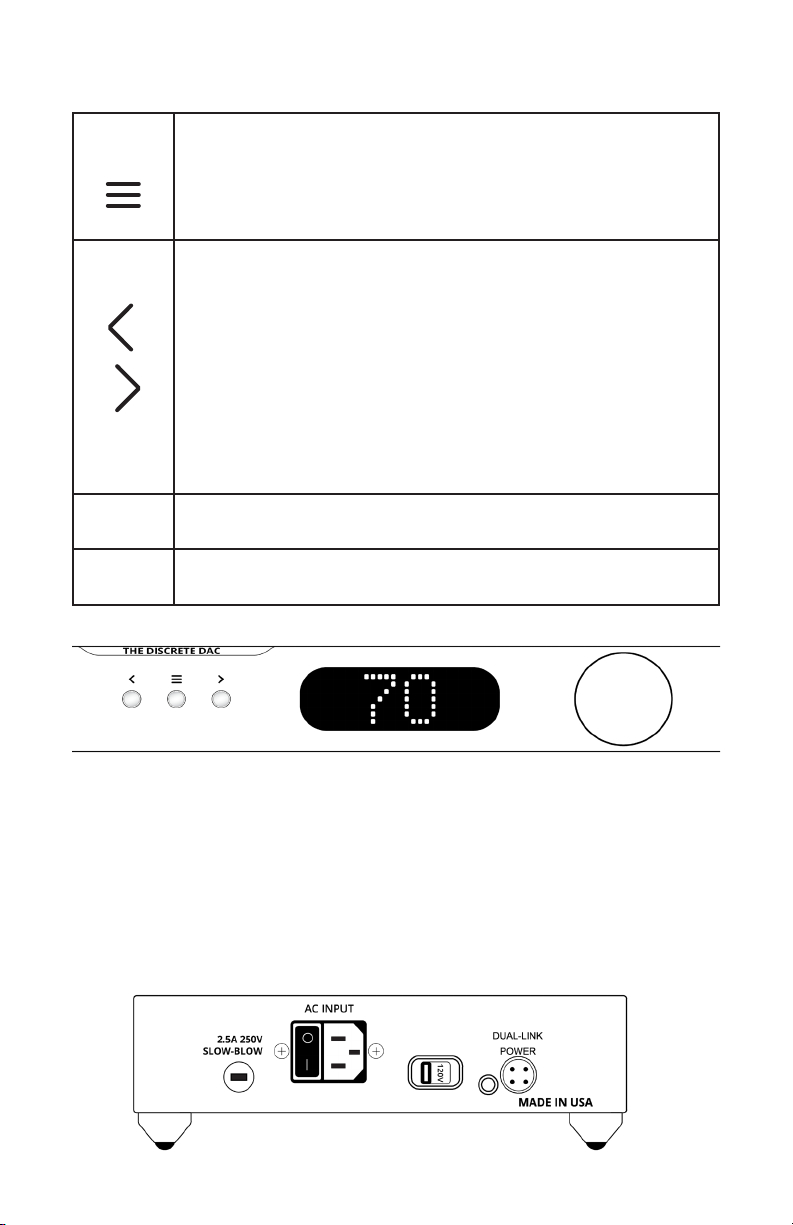
When changing settings in the menu, use the enter button in the
center of your volume wheel on the remote, or the right arrow on the
DAC faceplate to conrm settings in the DAC menu. After you have
made your changes in the DAC menu, use the menu button to exit
the DAC menu completely to save the changes you have made while
in the DAC menu.
The DAC will not save any of your settings until you exit the menu.
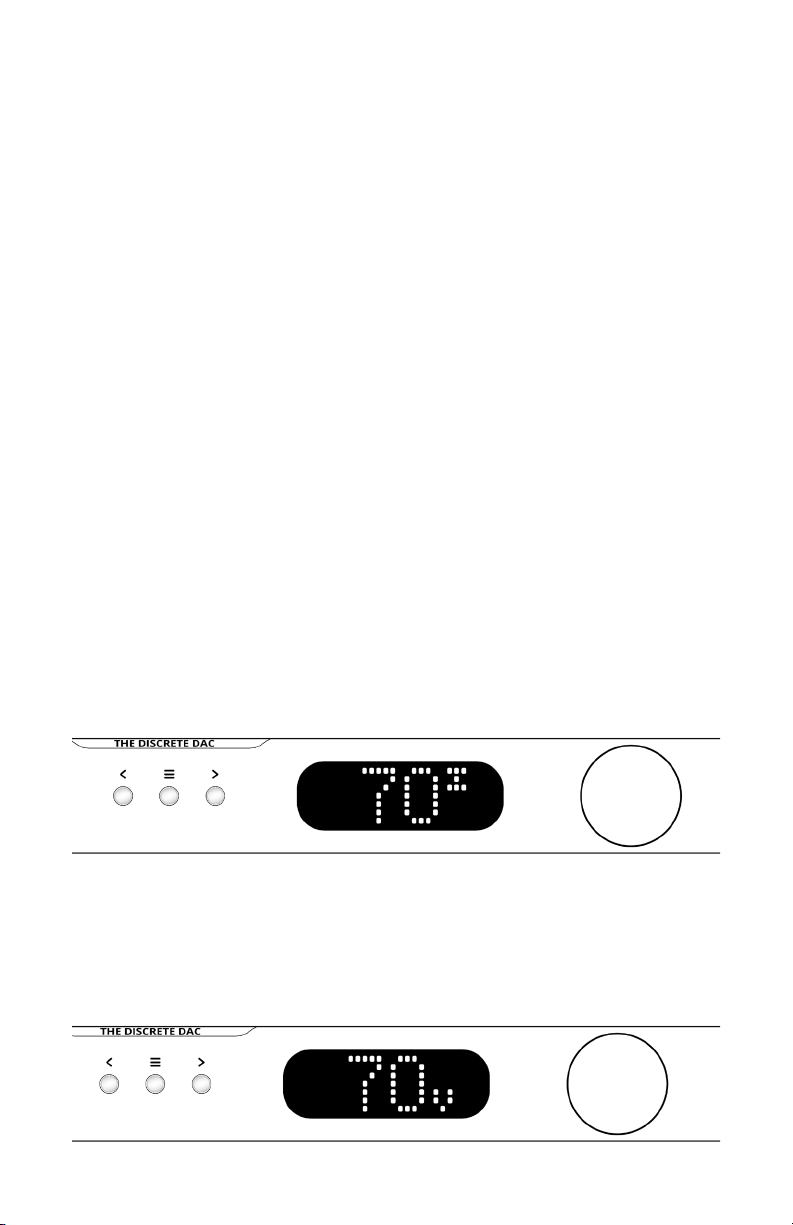
The “Action Buttons” on your remote change certain settings on
your DAC without navigating the DAC menu (Phase Invert and Video
Mode). However, these settings reset every time the DAC is reset or
powered o. If you would like these settings to persist through resets
or power os, you simply have to choose the action button setting
that you wish to be default and then enter and exit the DAC menu by
double clicking the Menu button on your remote or DAC faceplate.
If at any point the DAC seems to be improperly setup or you want to
start fresh with your settings and functions, there is a “Reset” option
near the end of the DAC menu. Simply select this and conrm “YES”
before closing the DAC menu and restarting the unit.
Phase Invert
Phase invert is a button located on the remote to allow the user an easy
way to invert the audio phase. This is a situational based feature that is
not always needed, but can be used to x certain recording or system
setup requirements.
Video Mode
Video mode is a button located on the remote to reduce signal latency
and compensate for lip-sync delays when using your DAC for audio and
video simultaneously. It is best to only use this feature when needed
because the reduced latency causes reduced jitter rejection.