7
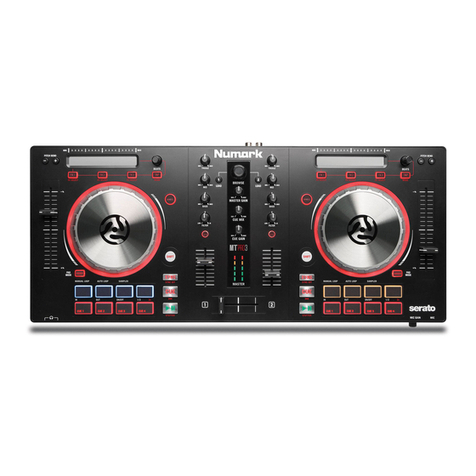
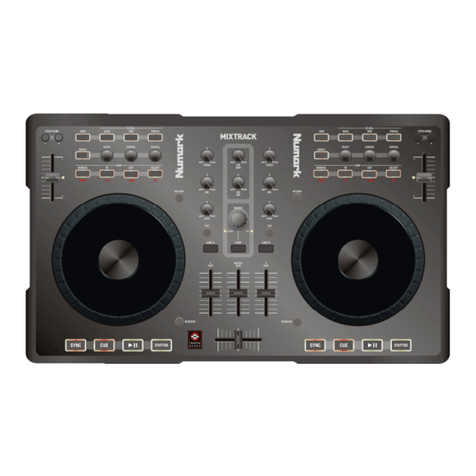
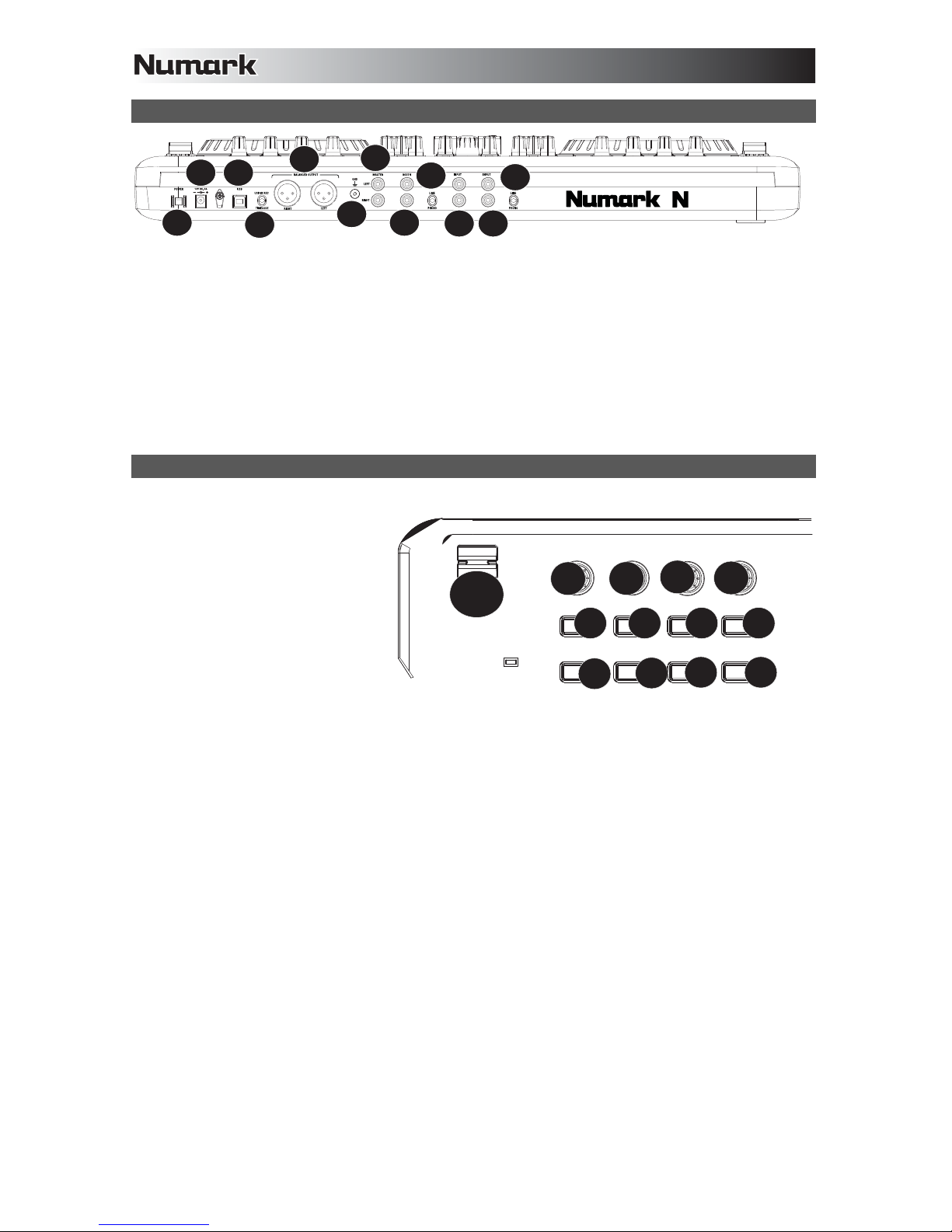
15. VIDEO TRANSITION – When the Shift
button is pressed along with this the video
transition type in the software will be
adjusted.
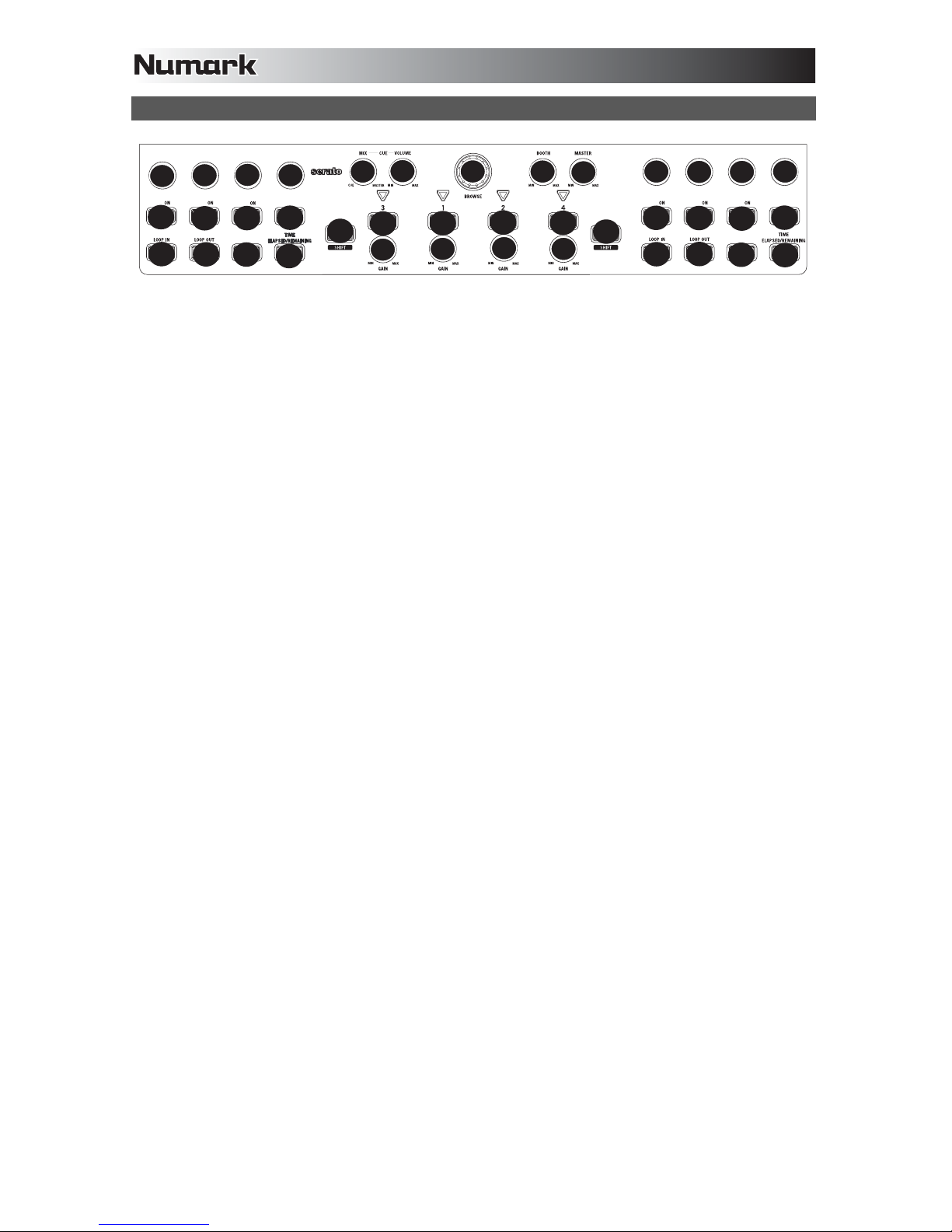
16. BOOTH – Adjusts the level of the signal
going to the Booth output.
17. MASTER - Adjusts the level of the signal
going to the Master output.
18. LOAD – Assigns a track to a deck.
19. GAIN – Adjusts the channel level.
20. CHANNEL TREBLE – Adjusts the high
(treble) frequencies of the corresponding
channel.
21. MID – Adjusts the mid-range frequencies of
the corresponding channel.
22. BASS – Adjusts the low (bass) frequencies
of the corresponding channel.
23. CUE – Sends pre-fader audio to the Cue
Channel for headphone monitoring.
24. FADER – Adjusts the audio level on the
corresponding channel.
25. PITCH RANGE – Adjusts the percent
range of the pitch control.
26. KEYLOCK – This feature allows you to
change the speed of the song without
changing the key. The key of the song will
lock to the position of the pitch fader when
Keylock is engaged.
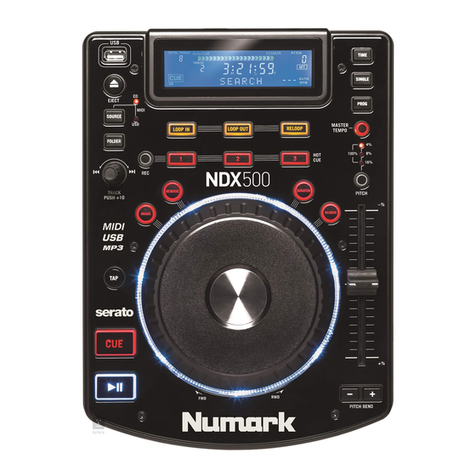
27. SCRATCH/SEARCH – Turn this knob to
scroll through lists of tracks and directories
in the software. When a directory is
selected, press the knob to
enter it. (Press BACK to move
up to the previous level.) If a
directory is currently selected,
the FOLDER LED will
illuminate. If a track is currently
selected, the FILE LED will
illuminate.
28. TAP – When Shift is held with
TAP, this will bring the TRACK
VIEW back (when EFFECTS
or LOOPS are being accessed
the DECK view will change
automatically. Pressing TAP
with Shift returns the view to
TRACK INFO.
29. SYNC – Syncs the tempo of
both decks together.
30. PITCH BEND – Press or hold
down either of these buttons to
temporarily adjust the track's
playback speed. When
released, the track playback
will return to the speed
designated by the PITCH
FADER.
31. CUE – Sends pre-fader audio
to the Cue Channel for
headphone monitoring.
32. PLAY/PAUSE– Starts or
resumes playback if the Deck is paused. Pauses playback if the Deck is playing.
33. VIDEO FADE – Fades in/out the video signal.
34. XFADER ASSIGN – Assigns a deck to the left or right side of the crossfader. When SHIFT is held, these
controls become VIDEO FADE ASSIGNS, allowing you to assign a video deck either side of the crossfader.
35. INPUT (PC-LINE) – Select whether to monitor the PC signal or line input signal.
36. CROSSFADER – Blends audio playing between the assigned Decks.
37. SHIFT – Used to access multiple functions assigned to buttons or knobs.
38. DECK – Changes between Decks 1/3 or 2/4 respectively (if software supports 4 Decks)
39. PLATTER – Touch- sensitive control wheels used to manipulate the sound source.
VIDEO TRANSITION
TREBLE
MID
BASS
TREBLE TREBLE TREBLE
MID MID MID
BASS BASS BASS
POWER
USB
CUE CUE CUE CUE
14 15 16
MIX-CUE-VOLUME
LOAD LOAD LOA D LOAD
17
18
21
22
23
24
19
20
24 24 24
23 23 23
22 22 22
21 21 21
20 20 20
19 19 19
18 18 18
DECK
INPUT
PC LINE
VID FADE
X-FADER ASSIGN
CUE
- PITCH BEND +
SYNC
TAP
SCRATCH
SEARCH
PITCH RANGE
KEYLOCK
CUE 2
EFFECT SAMPLE 3 SAMPLE 4
DELETE CUE 1 CUE 3
LOOP IN LOOP OUT RELOOP SMART
1/2 2X LEFT RIGHT
EFFECT
37
38
35
34
33
31 32
25
26
27
28
29
30
39
36