manuals.online logo
Brands
  1. Home
  2. •
  3. Brands
  4. •
  5. ON Semiconductor
  6. •
  7. Microcontroller
  8. •
  9. ON Semiconductor EVBUM2306/D User manual

ON Semiconductor EVBUM2306/D User manual

Other ON Semiconductor Microcontroller manuals

ON Semiconductor IoT Development Kit User manual

ON Semiconductor

ON Semiconductor IoT Development Kit User manual

ON Semiconductor Q32M210 User manual

ON Semiconductor

ON Semiconductor Q32M210 User manual

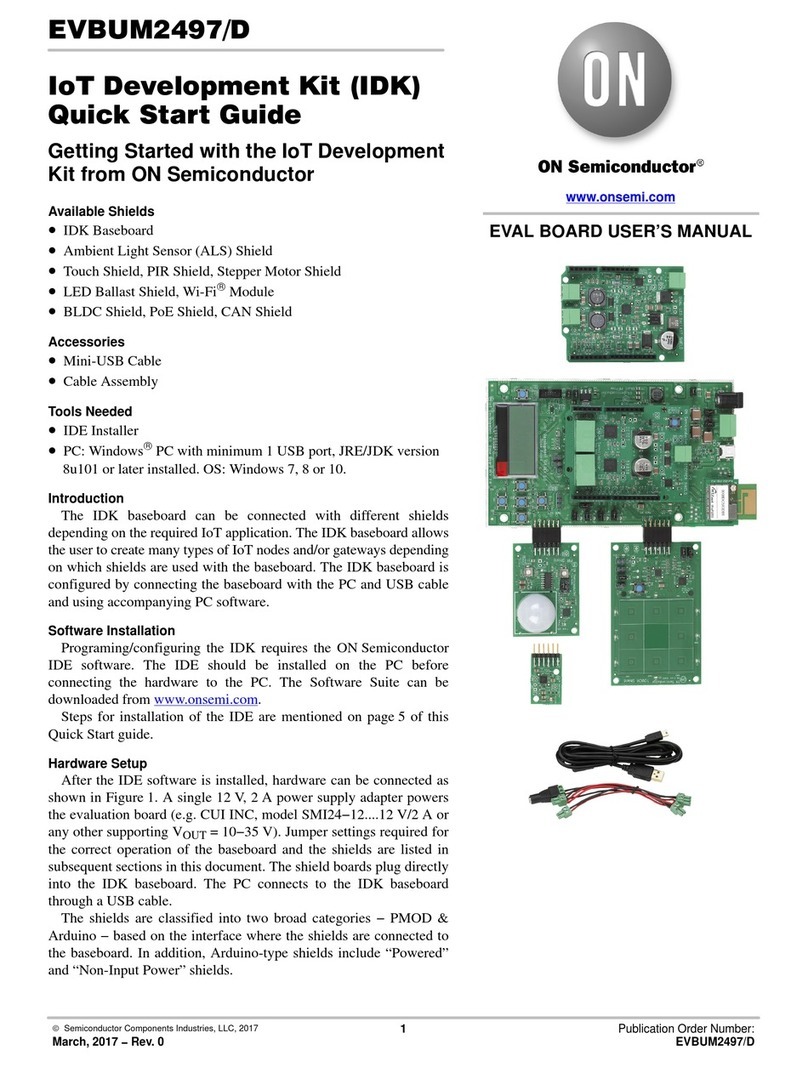
ON Semiconductor EVBUM2497/D User manual

ON Semiconductor

ON Semiconductor EVBUM2497/D User manual

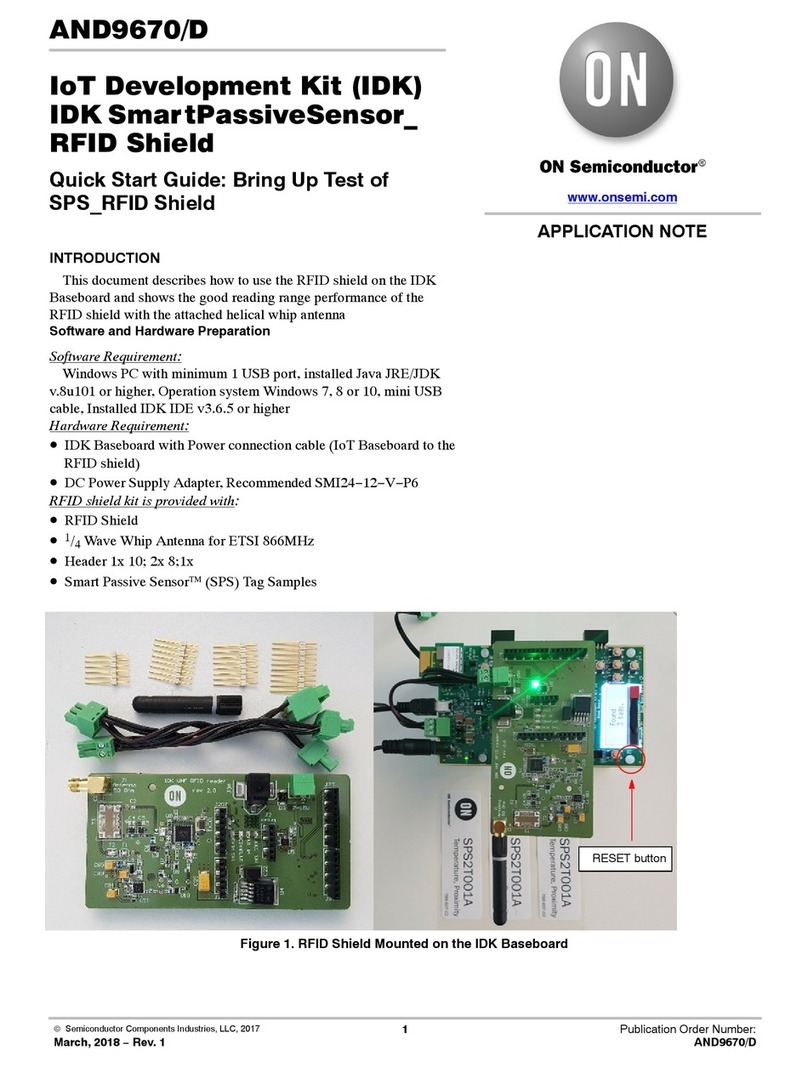
ON Semiconductor AND9670/D User manual

ON Semiconductor

ON Semiconductor AND9670/D User manual

Popular Microcontroller manuals by other brands

Microsemi IGLOO nano Starter Kit user guide

Microsemi

Microsemi IGLOO nano Starter Kit user guide

GOWIN DK START GW1NSR-LV4CQN48PC7I6 V 1.1 user guide

GOWIN

GOWIN DK START GW1NSR-LV4CQN48PC7I6 V 1.1 user guide

HETRONIC ERGO-S Service manual

HETRONIC

HETRONIC ERGO-S Service manual

Laird BL654PA user guide

Laird

Laird BL654PA user guide

Novatek NT6861 manual

Novatek

Novatek NT6861 manual

Lantronix Intrinsyc Open-Q 865XR SOM user guide

Lantronix

Lantronix Intrinsyc Open-Q 865XR SOM user guide

Nuvoton ISD61S00 ChipCorder Design guide

Nuvoton

Nuvoton ISD61S00 ChipCorder Design guide

STMicrolectronics ST7 Assembler Linker user manual

STMicrolectronics

STMicrolectronics ST7 Assembler Linker user manual

Texas Instruments Chipcon CC2420DK user manual

Texas Instruments

Texas Instruments Chipcon CC2420DK user manual

NEC 78GK0S/K 1+ Series Application note

NEC

NEC 78GK0S/K 1+ Series Application note

Mikroe SEMITECH N-PLC Click Application note

Mikroe

Mikroe SEMITECH N-PLC Click Application note

Intel Agilex user guide

Intel

Intel Agilex user guide

DIGITAL-LOGIC MICROSPACE manual

DIGITAL-LOGIC

DIGITAL-LOGIC MICROSPACE manual

Texas Instruments TMS320F2837 D Series Workshop Guide and Lab Manual

Texas Instruments

Texas Instruments TMS320F2837 D Series Workshop Guide and Lab Manual

CYPRES CY14NVSRAMKIT-001 user guide

CYPRES

CYPRES CY14NVSRAMKIT-001 user guide

Espressif Systems ESP8266EX Programming guide

Espressif Systems

Espressif Systems ESP8266EX Programming guide

Abov AC33M8128L user manual

Abov

Abov AC33M8128L user manual

Silicon Laboratories C8051F800 user guide

Silicon Laboratories

Silicon Laboratories C8051F800 user guide

manuals.online logo
manuals.online logoBrands
  • About & Mission
  • Contact us
  • Privacy Policy
  • Terms and Conditions

Copyright 2025 Manuals.Online. All Rights Reserved.

©Semiconductor Components Industries, LLC, 2015
September, 2015 − Rev. 1 1Publication Order Number:
EVBUM2306/D
EVBUM2306/D
MatrixCamt
Video Development Kit
User's Guide
Overview
MatrixCam Video Development Kit is a low power, smart 1080p
video streaming device over Wi-Fi®and Ethernet, targeting the
Internet of Things (IoT) market with an open architecture.
To make it an intelligent streaming device, PIR sensor is integrated
to detect movement and to wake up the system to start video
streaming. The system has the additional option for wake up through
Bluetooth®Low Energy (BLE). On wake up, a push notification is
sent to a mobile device alerting the user to view live stream or still
image indicating activity. The product will have different resolution
selection options for video streaming. The product supports
microSDtcard slot and cloud service option for storage and playback
of images/video clips. The camera connects to a cloud service with
support for both video on demand (VOD) and live streaming.
Additionally, user will be able to configure the IoT device using
a GUI or mobile application. To receive the requests from this GUI,
an embedded HTTP server is provided in the IoT device.
The following features will be controlled by the GUI:
•Network Configuration
•Video Configuration
•View Live Stream
•Cloud Storage
•microSD Card Recording and File List
•Firmware Upgrade
Features
•1/2.7-Inch 2.1 Mp/Full HD Digital Image Sensor: ON Semiconductor
AR023Z
•High-Performance Digital Media System-on-Chip (DM SoC)
Processor: TI DaVinciDM368 SoC
•Battery Power Supply Option: ON Semiconductor NCP1855 Battery
Charge Controller + LC709202F Industry State of Art Fuel Gauge
•Supported Resolutions: 1920 ×1080, 1280 ×720, 640 ×360,
320 ×180
•Supported Bitrates: 64 Kbps, 128 Kbps, 192 Kbps, 256 Kbps,
512 Kbps, 1 Mbps, 2 Mbps, 3 Mbps, 4 Mbps, 5 Mbps
•Supported Frame Rates: 5, 10, 15, 20, 25, 30
•Two Wake-Up Options: BLE (Bluetooth Application), PIR Motion
Detection
•Record Images to microSD Card
•Record Video Clips to microSD Card and Cloud
•Firmware Upgrade through Web-GUI and microSD Card
•File Recording in .AVI Format; Supporting Image Snapshot
www.onsemi.com
EVAL BOARD USER’S MANUAL
Figure 1. MatrixCam VDK
•Live Stream to Androidtand iOS®
•Support 2-Way Audio
•Support Wireless Network
(Wi-Fi/802.11/b/g) Mobile
•Multi-Level Users Management and
Passwords Definition
•Support Multiple Network Protocols:
HTTP/TCP/IP/DDNS/SNTP/DHCP/FTP
Package Content
The MatrixCamtVDK contains the
following list of items:
•Camera (1 pc)
•LAN Cable (1 pc)
•Micro-USB Cable (1 pc)
•8 GB microSD Card & Adapter (1 pc)
EVBUM2306/D
www.onsemi.com
2
PC Hardware Requirements
Minimum PC hardware requirements for proper
functionality of the MatrixCam VDK:
•CPU: 2.06 GHz or Above
•DDRAM Memory: 256 MB or Above
•Network Card: 10 MBit/s
•Video Card: 64 MB or Above Memory
•Wi-Fi Adapter
PC Operational Systems and Web-Browsers
Supported
•Windows®System (7, 8, 10):
♦Mozilla Firefox®: Version 36 and Above Supported
(Recommended)
♦Internet Explorer®(IE): Version 8 and Above
Supported, Recommended Versions: IE 10/11/12
•MacOs®System (10.10.x):
♦Safari®: Version 8.x and Above Supported
•Linux®System (Ubuntu 12.04):
♦Mozilla Firefox: Version 36 and Above Supported
Product Views
Explanatory notes to Figure 2a−d:
1. Mic Input
2. LEDs Indicator (see Table 1 for More Details)
3. Lens + AR023Z Digital Image Sensor
4. PIR Sensor
5. Li-Ion Battery Inserted in the MatrixCam VDK
Base Compartment
6. Micro-USB Interface to Power the MatrixCam
VDK from a PC
7. Ethernet RJ45 10/100 Mbps LAN Port
8. Reset Button
9. Power Button
10. Rotary Arm to Change Tilt of the Camera
11. Speaker
12. Micro-USB Interface for Debugging via Terminal
Emulator Program
13. microSD Card Slot
Figure 2. Product Views
1
2
4
3
5
LED1
LED2
LED3
a. Front View b. Rear View
c. Left-Side View d. Right-Side View
11
212
5
11
10
9
6
7
9
8
EVBUM2306/D
www.onsemi.com
3
Hardware Instructions
Follow the steps below to set up your MatrixCam VDK
hardware to ensure proper operation:
1. Plug in the micro-USB cable into the camera (Rear
view, slot 6) and then into USB slot in your PC to
power the MatrixCam VDK.
2. Plug in the LAN network cable into the camera
and then into your PC Ethernet RJ45 slot.
3. Optionally, you can plug-in another micro-USB
cable into the camera (Left-side view, slot 12) and
then into USB slot in your PC for debugging via
terminal emulator program.
4. Optionally, you can insert a microSD card
(Right-side view, slot 13) into the particular slot to
be able to record/store video images and
snapshots.
Table 1. LED SCHEME
State LED3 LED2 LED1
Charging ON
Full Charge/Charge Connected OFF
Device/Usage Error FLASHING
Device(DM368) ON ON
Device(DM368) OFF OFF
Device Booting (DM368 Turning ON) FLASHING
ON/OFF Button Pressed (For Turning ON) FLASHING FLASHING
Any Recording ON
Wi-Fi Error/Not Connected FLASHING
1. Following cases will trigger Device/Usage Error situation: microSD card storage issue; Wired network issue; Multiple-boot failure and
reaches secondary firmware; Low battery indication.
Software Instructions
For video streaming, the MatrixCam VDK GUI requires
the VLC multimedia player to be installed:
•Windows System: Install the VLC 32-bit version
(http://www.videolan.org, freeware). Please ensure the
web plug-in Active X is selected during the installation.
When particular browser is opened, a pop-box appears
on screen asking for permission to run the plug-in.
Allow (Enable) the plug-in for enabling the MatrixCam
VDK live streaming.
•MacOs System: Download the mentioned browser
plug-in to embed the VLC player (download the VLC
web plug-in from
http://www.videolan.org/vlc/download−macosx.html).
•Linux System: Execute command ‘sudo apt-get install
browser-plugin-vlc’ in terminal of LINUX system. Go
to the MatrixCam VDK GUI (see the steps below in
next section) and enable the VLC web plug-in.
Note: We recommend installing terminal emulator program
for debugging the DaVinciDM368 communication via
serial port (terminal emulator program emulates serial port):
•Windows System: Download and install the Tera Term
software (free of charge).
•Linux System: Install minicom serial communication
program (see APPENDIX installation steps).
•MacOs System: Refer to the following link to install on
Mac: http://pbxbook.com/other/mac−tty.html. Same
procedure to be followed as mentioned for Linux
System.
MatrixCam VDK Start Up
Push and hold the power button for a few seconds to power
it up. LED2 and LED3 flash at this time.
•PIR Interrupt: Making a movement in front of camera
will trigger the PIR sensor and wake up the MatrixCam
VDK (LED2 starts blinking). As soon as motion is
detected, recording will start if a microSD card (Class 6
or above) is inserted.
Note: It is not possible to trigger the PIR sensor till 2 minutes
initialization period after power up.
•BLE Interrupt: First download the BLE application
depending on used Bluetooth supported mobile device:
♦Android mobile device (Motorola Nexus 5, 6 or 7 is
recommended): nRF Master Control Application
(http://play.google.com/store/apps/details?id=no.nor
dicsemi.android.mcp&hl=en)
♦iOS iPhone®: nRF UART Application
(http://itunes.apple.com/us/app/nrf−uart/id61459490
3?mt=8)
♦iOS iPad®: Adafruit Bluefruit LE Connect
Application
Further, enable the Bluetooth of the mobile device. Open
the BLE application and search for OSMU_ICDK name in
the next step. Connect to MatrixCam VDK. The BLE trigger
will happen and this will wake up the board (LED2 starts
blinking). Recording for the specified time interval (by
default 2 minutes) will start while assuming a microSD card
(Class 6 or above) is inserted.
•You can now access the MatrixCam VDK GUI
(see the next section).

EVBUM2306/D
www.onsemi.com
4
Figure 3. LAN Network Adapter Settings (Windows)
GUI Interface Initiation
To access the GUI interface, first set up your local PC
LAN network adapter.
Windows System (Figure 3):
1. Go to Network and Sharing Center (Control
Panel −>Network and Internet −>Network and
Sharing Center).
2. Go to Change Adapter Settings and change your
local LAN network adapter settings:
IP address: 192.168.1.xxx (xxx = from 1 to 253,
make sure xxx p168 since 192.168.1.168 is the
MatrixCam VDK default static IP address)
Subnet mask: 255.255.255.0 (default subnet mask
of the MatrixCam VDK)
Default gateway: 192.168.1.1
DNS server:
3. Push the power button to power on the camera.
LED3 and LED2 flash.
4. Use either the BLE or the PIR interrupt to wake up
the camera (see the section above).
5. Open up supported web-browser and enter the IP
address of the MatrixCam VDK: 192.168.1.168.
The GUI log-in page will pop up (Figure 4).
MacOs System:
1. Open Network Settings to set up network settings
(Figure 5). Go to System Preferences −>Network
Settings.
2. Repeat the steps 2, 3, 4, 5 above to access the GUI
log-in page.
Figure 4. Log-In Page
Figure 5. LAN Network Adapter Settings (MacOS)
EVBUM2306/D
www.onsemi.com
5
Linux System:
1. Open Network Connections to set up network
settings (Figure 6). Go to
System −>Preferences −>Network Connections.
2. Repeat the steps 2, 3, 4, 5 above to access the GUI
log-in page.
Administrator Login
Enter your account and password on the log-in page as
shown in Figure 4. By default, administrator’s username is:
admin and password is: admin. Click “Log in” to enter the
“Live view” screen (Figure 7). To change password, press
“Reset Password” icon located at the top right hand corner
of the page (Figure 7). Confirm the new password by
pressing “Apply” tab in the “Reset Password” page.
Changing the default administrator password is strongly
recommended at the first login.
Figure 6. LAN Network Adapter Settings (Linux)
Figure 7. Live View in the GUI
EVBUM2306/D
www.onsemi.com
6
Figure 8. The List of Users with Their Privileges
Figure 9. System Page
Visitor/Standard User Login
The MatrixCam VDK allows up to 9 user accounts to be
created besides the admin account. Only admin can change
the user account settings, including username/password
configuration and privileges. The “Users” page in the
“Configuration” menu displays the list of users (if created)
with their privileges (Figure 8).
System Settings
The basic system information is available in the “System”
page. User can set time and date either manually or
synchronize with a PC within the same page (Figure 9).
Press “Apply” tab to confirm any change.
EVBUM2306/D
www.onsemi.com
7
Network Settings − Static IP Address
The MatrixCam VDK static IP address is 192.168.1.168
by default. Follow the steps in section “GUI Interface
Initiation” described above to access the GUI using static IP
settings. Default static IP settings can be found in Figure 10.
Network Settings − Steps to Enable DHCP
Follow the procedure below to enable Dynamic Host
Configuration Protocol (DHCP) for automatic assignment
of the MatrixCam VDK IP address:
1. Start up the MatrixCam VDK and access the GUI
using static IP address.
2. Log in (Username: admin; Password: admin)
3. Go to “Configuration” menu.
4. Press “Network” tab and enable DHCP
(Figure 10).
5. Click on “Apply/Save” tab and click on “OK” to
confirm the action.
6. The MatrixCam VDK will reboot and get DHCP
IP address.
7. Open the GUI using the DHCP IP address.
NOTE: It is assumed a 300 Mbps router (for instance TP-LINK) is
properly configured in DHCP mode (DHCP server) at first.
Connect the MatrixCam VDK with router’s LAN port via
a LAN network cable. Use another LAN network cable for
PC-router LAN connection to check the MatrixCam VDK
DHCP IP address (you can optionally check the
MatrixCam VDK DHCP IP either via router’s interface or
via Windows Explorer in your PC). You can also check the
MatrixCam VDK DHCP IP by connecting USB debug
cable. Open respective terminal based on your OS and
type Login as “root”. Type “ifconfig” on terminal and check
IP address of eth0. This is the new DHCP IP address
assigned to the MatrixCam VDK by router.
Network Settings − Steps to Enable Wi-Fi Streaming
through GUI
Follow the procedure below to enable Wi-Fi streaming
through GUI:
1. Access the GUI interface.
2. Go to “Configuration” menu.
3. Press “Network” tab.
4. Go to “WiFi” tab and enable Wi-Fi.
5. Click on “Search” button.
6. Click on desired ESSID to be connected or
optionally enter the ESSID in the text field.
7. Select the Network Security type as: NONE, WEP
or WPA
8. Enter the desired AP/router password (“Key”).
9. Set the “IP Mode” preferably to “DHCP” mode to
get DHCP Wi-Fi IP address (static Wi-Fi
IP address option is also available).
10. Click on “Apply/Save” tab and click on “OK” to
confirm the action.
11. Wait at least 30 seconds. You will get the Wi-Fi IP
address in the field provided at the webpage. You
will see “Status” field change from “Not
Connected” to “Connected”.
12. Use the Wi-Fi IP address to see the GUI interface.
13. Wi-Fi streaming is enabled (you can now unplug
the MatrixCam VDK LAN network cable).
NOTE: It is assumed your local wireless network is properly
configured using a 300 Mbps router (for instance TP-LINK)
when attempting Wi-Fi streaming through GUI.
Figure 10. Network Page − Static IP Settings
EVBUM2306/D
www.onsemi.com
8
Network Settings − Steps for WAN Streaming
through GUI
Follow the steps below to access the GUI interface
remotely (WAN):
1. Access the GUI interface.
2. Go to “Configuration” menu.
3. Press “Network” tab.
4. Select “DHCP/Static IP Settings” depending upon
your router configuration.
5. Go to “Port Settings” tab and enable the check box
for “UPnP Port Forwarding” (WAN), Figure 11.
6. Click on “Apply/Save” tab and “OK” to confirm
the action.
7. Go to your router configuration page.
8. Get the Public IP WAN address for the router
(establish WAN network connection before).
9. Now user can access the board/live video from
anywhere using that router Public IP WAN
address, followed by RTSP port (RTSP port
default is 8551).
Example: Let us consider user’s router Public IP WAN
address is 180.59.64.34. Client can then access the
MatrixCam VDK by typing 180.59.64.34:8551 to
web-browser (it is assumed client’s device is connected to
the same WAN network).
NOTE: It is assumed your LAN and WAN network is properly
configured using a 300 Mbps router (for instance TP-LINK)
when attempting WAN streaming through GUI.
Figure 11. Network Page − Port Settings
Using an Android Device to Connect to
the MatrixCam VDK
An Android device can be used to interact with the
MatrixCam VDK for the following functions:
Viewing the Live Stream
a. Install the VLC multimedia player to your Android
based mobile device from Google®PlayStore
(http://play.google.com/store/apps/details?id=org.
videolan.vlc&hl=en).
b. Connect Android based mobile device to Wi-Fi
ESSID of the same router connected to the
MatrixCam VDK.
c. Start up the VLC multimedia player and choose
“Open Network Stream” under “Media”
bookmark.
d. If both the MatrixCam VDK and Android Device
are on the same LAN: Enter the MatrixCam VDK
IP address to see the live streaming from the
MatrixCam VDK.
e. If the MatrixCam VDK has to be accessed from
the WAN: Enter the router WAN IP address
followed by RTSP port number (8551) in
“Network” section to see the live streaming from
the MatrixCam VDK.
Receiving Push Notifications
Please refer to the Cloud Integration Guide, “Cloud Push
Notification” section for more details (AND9264/D).
Waking Up the MatrixCam VDK using Bluetooth Low
Energy (BLE)
a. Install the Nordic BLE App from the Google
PlayStore.
b. Wake up the MatrixCam VDK (see “MatrixCam
VDK Start-up” section for more details)
NOTE: Recommended Android Devices are: Nexus 5/6/7.
Using an iOS Device to Connect to the MatrixCam VDK
An iOS Device can be used to interact with the MatrixCam
VDK for the following functions:
Viewing the Live Stream
a. Connect iOS based mobile device to Wi-Fi ESSID
of the same router connected to the MatrixCam
VDK.
b. Install the VLC multimedia player app from the
AppStore (http://itunes.apple.com/us/app/vlc−
for−ios/id650377962?mt=8).
c. Start up the VLC multimedia player and choose
“Open Network Stream” under “Media” bookmark.
EVBUM2306/D
www.onsemi.com
9
d. If both the MatrixCam VDK and Android Device
are on the same LAN: Enter the MatrixCam VDK
IP address to see the live streaming from the
MatrixCam VDK.
e. If the MatrixCam VDK has to be accessed from
the WAN: Enter the router WAN IP address
followed by RTSP port number (8551) in
“Network” bookmark to see the live streaming
from the MatrixCam VDK.
Waking Up the MatrixCam VDK using Bluetooth Low
Energy (BLE)
a. Install the Nordic BLE App from the AppStore.
b. Wake up the MatrixCam VDK (see “MatrixCam
VDK Start-up” section)
Steps to Enable Audio & Audio Settings
Follow the steps below to enable audio (internal
microphone) on the MatrixCam VDK:
1. Access the GUI interface.
2. Go to “Configuration” menu.
3. Press “Audio” tab (Figure 12).
4. Click to enable audio and configure encoding
technique used, sample rate, bit rate and
input/output volume.
5. Click on “Apply” tab and click on “OK” to
confirm the action.
6. Go back to “Live View” screen – audio should be
now ON (verify the internal MIC functionality).
Figure 12. Audio Configuration Settings
Figure 13. Talkback Feature
EVBUM2306/D
www.onsemi.com
10
Two-Way Audio (“Talkback”)
The MatrixCam VDK features a “talkback” function, i.e.
two-way audio streaming is possible. The talkback feature
can work only under Windows System using Internet
Explorer web-browser for now and other web-browsers will
be supported in the future. Follow the steps below to enable
talkback function:
1. Access the GUI interface.
2. Click on the Talkback button present on top of the
GUI “Live View” screen and wait for the Talkback
button to turn green (Figure 13). Now two-way
audio is enabled and you can utilize the feature.
Video Encoding and Video Parameters
Video encoding is a process of codifying the bits of data
that make up a digital video recording into format
compatible with most common types of web-players (VLC
player) and mobile devices. User can set following video
encoding controls (Figure 14):
•Video Mode: High-Dynamic-Range (HDR) mode,
Linear mode
•Compression Format: H.264 default
•Resolution: 180p, 360p, 720p, 1080p
•Frames per Second (fps): 5, 10, 15, 20, 25, 30
•Rate Control: Variable Bit Rate (VBR), Constant Bit
Rate (CBR)
•Bit Rate: 64 KBps, 128 KBps, 256 KBps, 512 KBps,
1 MBps, 2 MBps, 3 MBps, 4 MBps, 5 MBps
NOTES: 1. Click on “Apply/Save” tab and click on “OK” to confirm
any change, otherwise changes do not take effect.
2. HDR mode is currently not available and will be included
in future release.
In addition, user can adjust/tune video stream appearance
as needed under “Video Parameters” tab (Figure 15). User
has to click on “Apply” tab and click on “OK” to confirm any
change. User can restore the settings to default video
parameters by pressing “Default” button.
Figure 14. Video Encoding Controls