Uploading Programs
Now we will go over how to upload programs onto the Bucky Glow.
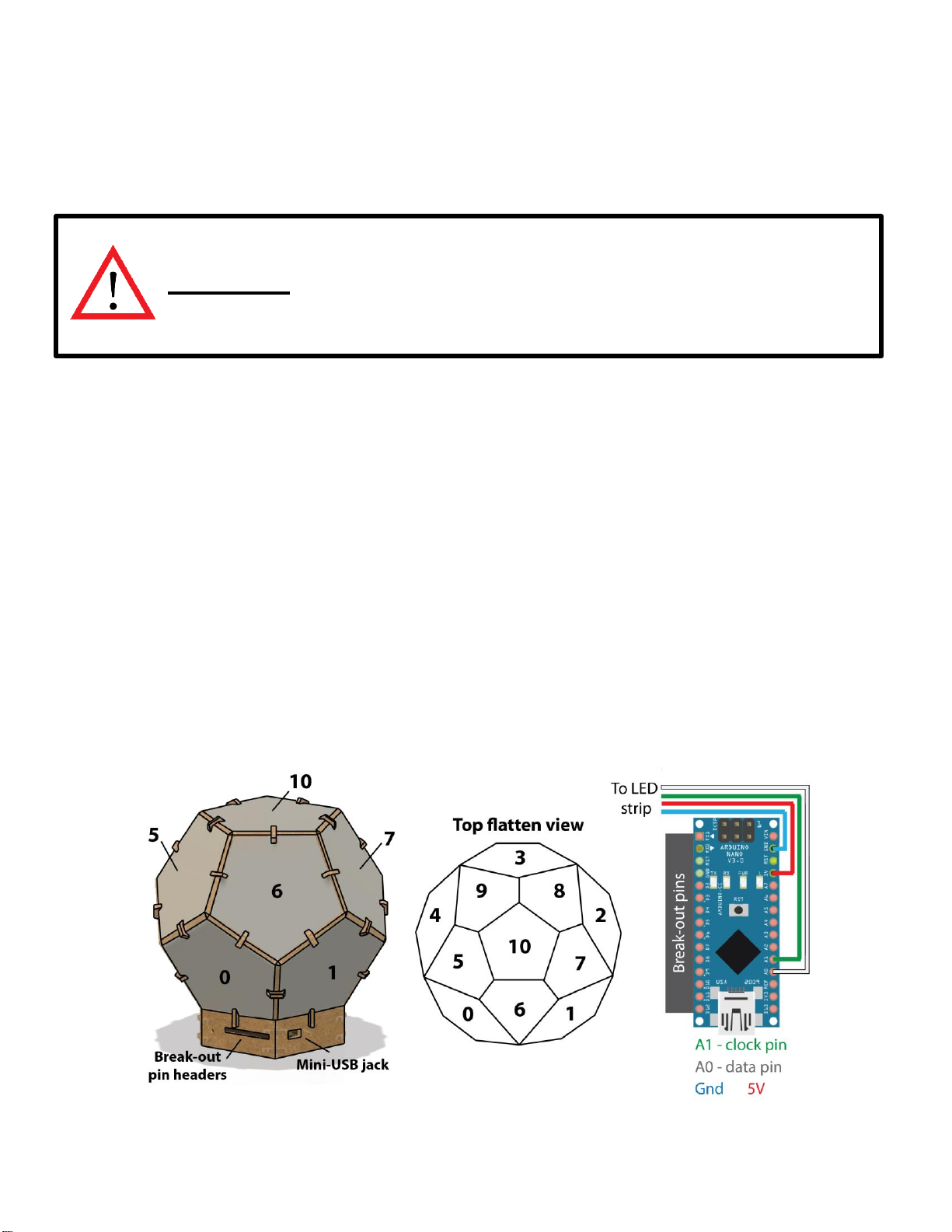
Connect your BuckyGlow to your computer via the miniUSB cable.
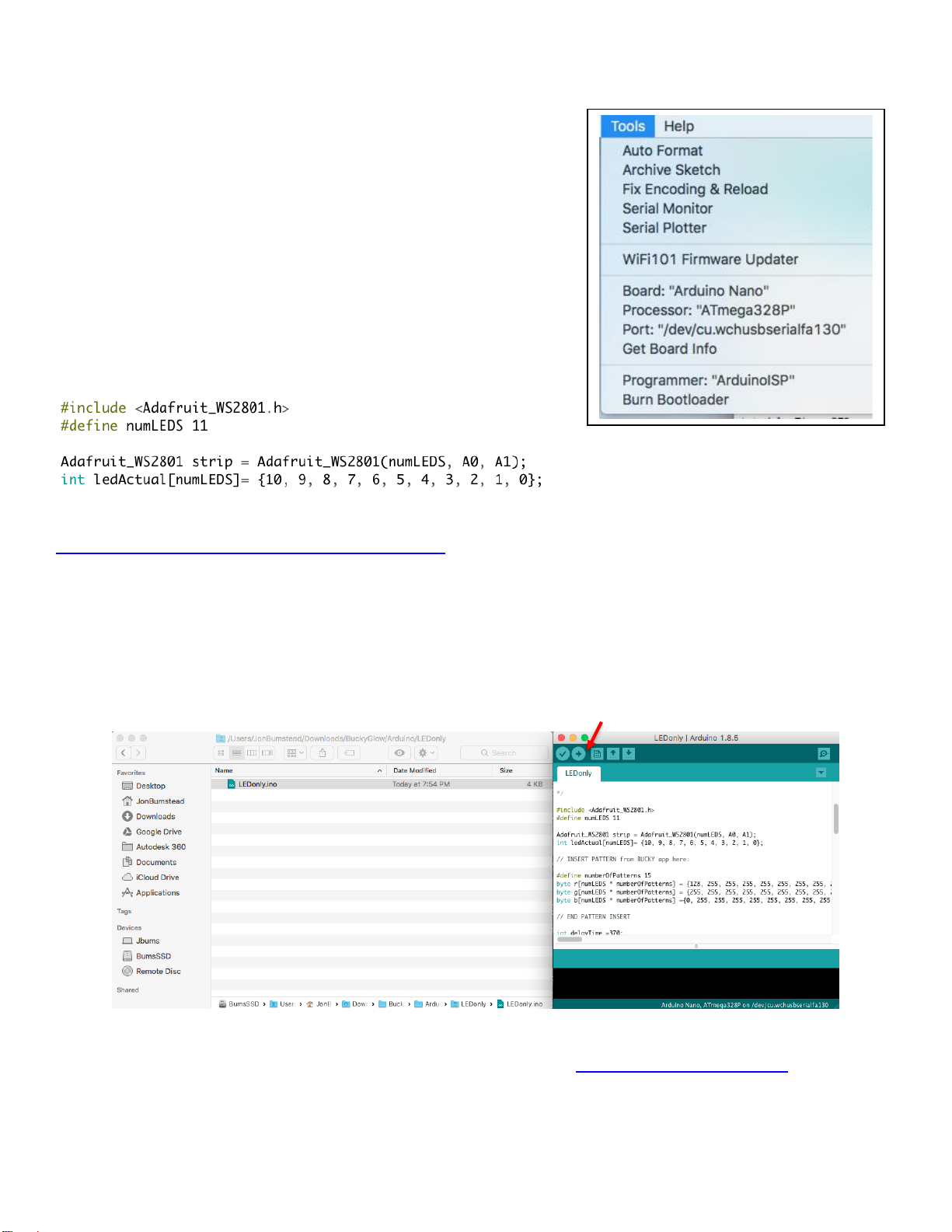
Open the Arduino IDE and go to Tools.
Under Board, select “Arduino Nano.”
Under Processor, select “ATmega328P”
Under Port, select the port that your BuckyGlow is connected to.
Now that the settings are correct, you are ready to start coding your
Bucky Glow! Go to FileNew to create a sketch. Any program will
likely require the Adafruit WS2801 library so that you can easily
control the LED strip. The following code initializes the LED strip.
Because the LEDs start from top to bottom, it is helpful to reverse
the upload of the pattern to the Bucky Glow by using an array (the
ledActual array shown below).
Full documentation of the WS2801 LED strip library can be found here:
https://github.com/adafruit/Adafruit-WS2801-Library
Example programs:
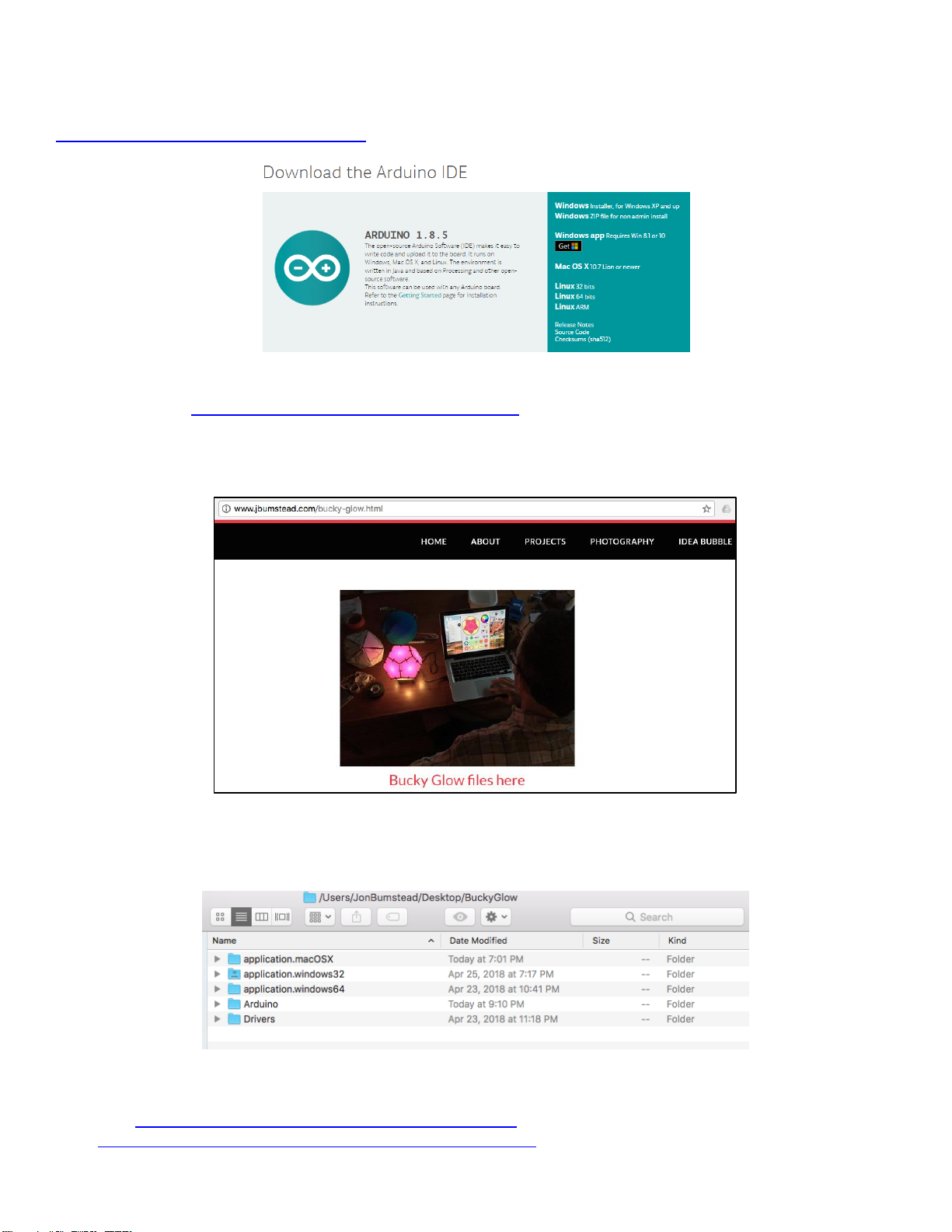
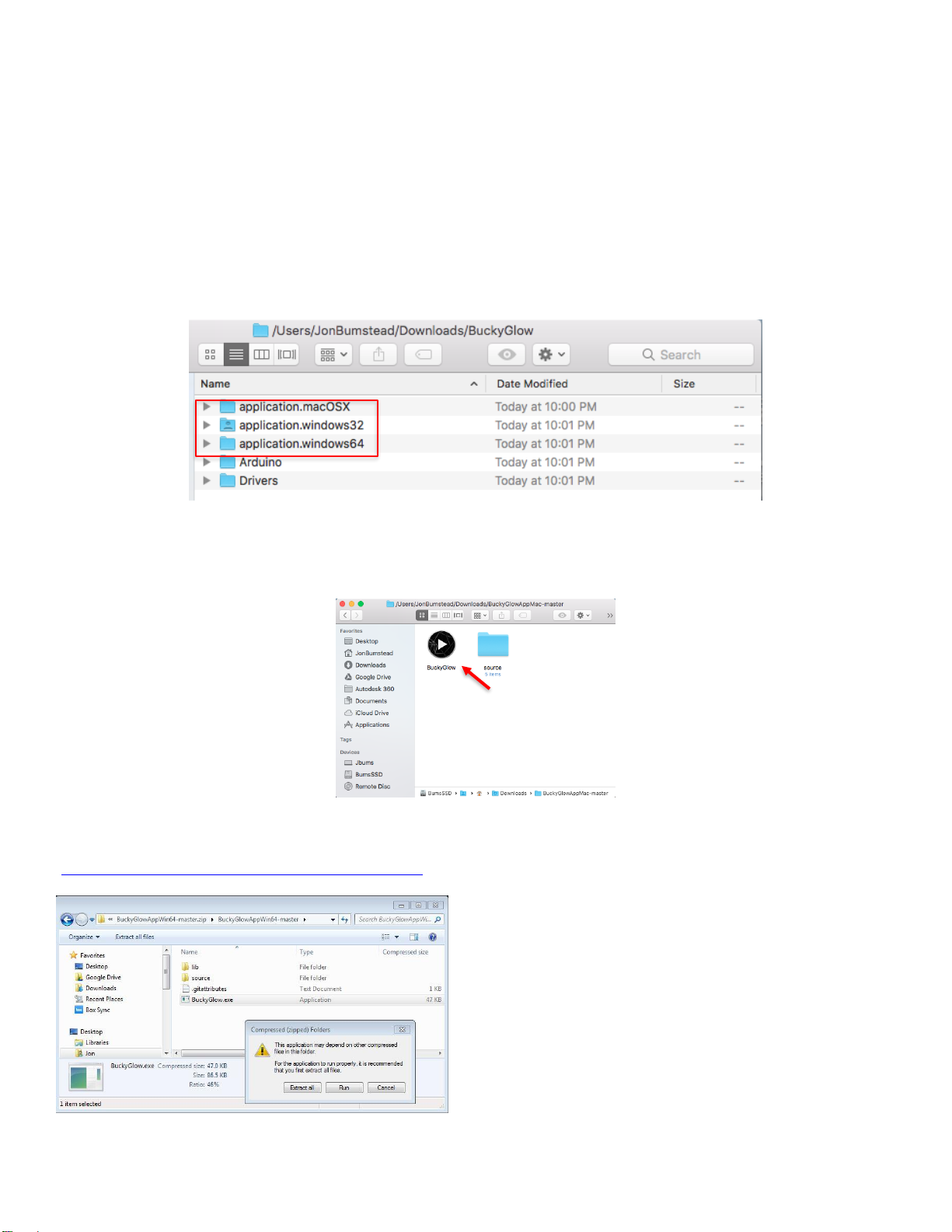
One Bit Kit has several example programs for getting started with the Bucky Glow. From the zip file you
downloaded from our website, open the “Arduino” folder. Open the .ino files in one of the folders and upload
the program by clicking the arrow key in the Arduino IDE (there is a red arrow pointing to it in figure below). A
brief description of each program is listed in the README document.
The program being uploaded in the image shown below displays a sequence of patterns on the Bucky Glow
You can also visit our Github to download or clone Bucky Glow files: https://github.com/OneBitKit