manuals.online logo
Brands
  1. Home
  2. •
  3. Brands
  4. •
  5. Opticon
  6. •
  7. Barcode Reader
  8. •
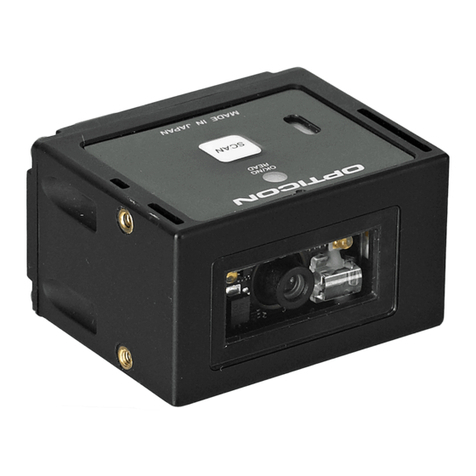
  9. Opticon NFT 1125 Series User manual

Opticon NFT 1125 Series User manual

Other manuals for NFT 1125 Series

1

This manual suits for next models

1

Other Opticon Barcode Reader manuals

Opticon 25-USBQSTART-01 User manual

Opticon

Opticon 25-USBQSTART-01 User manual

Opticon OPL 9712 User manual

Opticon

Opticon OPL 9712 User manual

Opticon OPN-3102i User manual

Opticon

Opticon OPN-3102i User manual

Opticon NFT 1125 Series User manual

Opticon

Opticon NFT 1125 Series User manual

Opticon OPN2002 User guide

Opticon

Opticon OPN2002 User guide

Opticon MDI-4000 Series User manual

Opticon

Opticon MDI-4000 Series User manual

Opticon CS1504 User manual

Opticon

Opticon CS1504 User manual

Opticon OPR 2001 User manual

Opticon

Opticon OPR 2001 User manual

Opticon NLV 2001 User manual

Opticon

Opticon NLV 2001 User manual

Opticon LPN 1736 User manual

Opticon

Opticon LPN 1736 User manual

Opticon OPL 7836 User manual

Opticon

Opticon OPL 7836 User manual

Opticon OPI 4002 User manual

Opticon

Opticon OPI 4002 User manual

Opticon OPI-2101 User manual

Opticon

Opticon OPI-2101 User manual

Opticon LGZ 7225 User manual

Opticon

Opticon LGZ 7225 User manual

Opticon OPR 2001 User manual

Opticon

Opticon OPR 2001 User manual

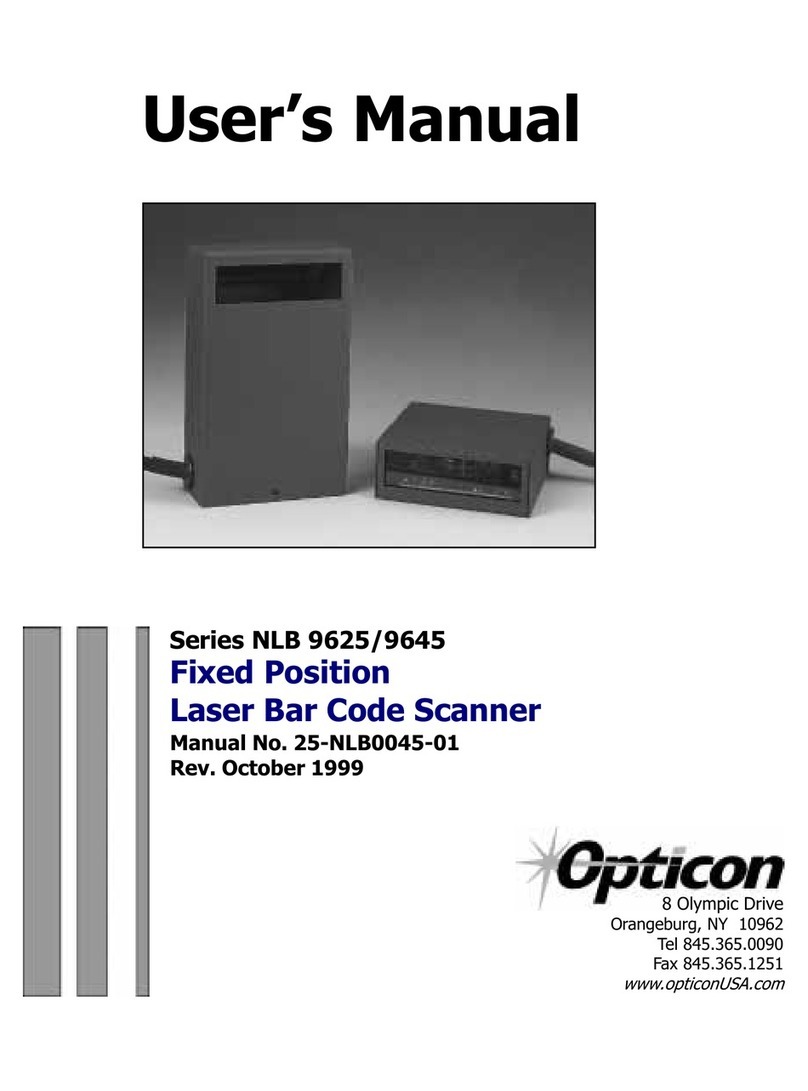
Opticon NLB 9625 User manual

Opticon

Opticon NLB 9625 User manual

Opticon C 37 User manual

Opticon

Opticon C 37 User manual

Opticon OPR 3201 User manual

Opticon

Opticon OPR 3201 User manual

Opticon OPR 2001 User manual

Opticon

Opticon OPR 2001 User manual

Opticon NLV-4001 User manual

Opticon

Opticon NLV-4001 User manual

Opticon OPN2005 User manual

Opticon

Opticon OPN2005 User manual

Opticon CRD972X User manual

Opticon

Opticon CRD972X User manual

Opticon OPI 2002 User manual

Opticon

Opticon OPI 2002 User manual

Opticon NLB-1000 User manual

Opticon

Opticon NLB-1000 User manual

Popular Barcode Reader manuals by other brands

Microscan HS-2D user manual

Microscan

Microscan HS-2D user manual

SICK CLV62x Online help

SICK

SICK CLV62x Online help

Datalogic Gryphon GBT4200 Quick reference guide

Datalogic

Datalogic Gryphon GBT4200 Quick reference guide

WaveMark SmartWand SW1500 manual

WaveMark

WaveMark SmartWand SW1500 manual

Zebex Z-3191BT Quick connection guide

Zebex

Zebex Z-3191BT Quick connection guide

RTscan RT211 Integration guide

RTscan

RTscan RT211 Integration guide

Motorola SYMBOL DS6707 Product reference guide

Motorola

Motorola SYMBOL DS6707 Product reference guide

Godex BP300 user manual

Godex

Godex BP300 user manual

Godex RT800i Series user manual

Godex

Godex RT800i Series user manual

Generalscan X Series quick start guide

Generalscan

Generalscan X Series quick start guide

POSMicro Datalogic PowerScan D7100 manual

POSMicro

POSMicro Datalogic PowerScan D7100 manual

NCR RealPOS user guide

NCR

NCR RealPOS user guide

Motorola SE3300 Integration guide

Motorola

Motorola SE3300 Integration guide

Nordson CBC 5100 manual

Nordson

Nordson CBC 5100 manual

Motorola Symbol LS3008 Product reference guide

Motorola

Motorola Symbol LS3008 Product reference guide

Meec tools OBD-II / VAG operating instructions

Meec tools

Meec tools OBD-II / VAG operating instructions

SICK CLP 100 operating instructions

SICK

SICK CLP 100 operating instructions

Royal Tag SA I-Read user manual

Royal Tag SA

Royal Tag SA I-Read user manual

manuals.online logo
manuals.online logoBrands
  • About & Mission
  • Contact us
  • Privacy Policy
  • Terms and Conditions

Copyright 2025 Manuals.Online. All Rights Reserved.

Users Manual
Series NFT 1125/2135
Miniature CCD
Fixed Position Scanners
Manual No. 25-NFT1121-01
Rev. August 1999
8 Olympic Drive
Orangeburg, NY 10962
Tel 845.365.0090
Fax 845.365.1251
www.opticonUSA.com
* This page left intentionally blank for repagenation *
Contents
Section 1 Introduction and Getting Started ..................................... 1
Product Overview ............................................................................. 1
Quick Start-Up Procedure .................................................................. 1
Section 2 Technical Specifications ................................................... 3
Physical Specifications....................................................................... 3
Symbologies Supported..................................................................... 3
Optical Specifications ........................................................................ 3
Electrical Specifications ..................................................................... 4
RS232 Communications Specifications ................................................ 4
Connector Pin-Outs........................................................................... 5
Environmental Specifications ............................................................. 5
Section 3 Positioning the Scanner ................................................... 7
Getting Optimum Performance........................................................... 7
Measuring Scanner Performance ...................................................... 10
Application Notes: .......................................................................... 11
Tips for Achieving High Throughput ................................................. 11
Tips for Insuring Highest Data Integrity ............................................ 11
Tips for Verifying the Presence of a Bar Code.................................... 12
Section 4 Configuring the Scanner ................................................. 13
Programming Menus & Commands................................................... 13
Default Settings.............................................................................. 13
Section 5 Application Engineering Support .................................... 15
Technical Assistance and Support..................................................... 15
Common Causes of Poor Performance .............................................. 15
Modified and/or Customized Scanners .............................................. 15
Appendix A Programming Menus & Commands ............................. 17
Appendix B Dimensional Drawings ................................................ 53
Appendix C Optical Performance Charts ........................................ 55
* This page left intentionally blank for repagenation *
Organization of this Manual
This manual provides the necessary instructions for installation and use of Opticon NFT-1125/
2135 Series Fixed Position Scanners. The manual is organized as follows:
Section 1 Introduction and Getting Started
Describes the general operation of a NFT-1125/2135 Series scanner. Also provides a Quick
Start-Up Procedure that allows you to begin using the scanner immediately.
Section 2 Technical Specifications
Provides complete specifications, including mechanical details, optical performance, RS232
communications and other technical data.
Section 3 Positioning Scanner for Optimum Performance
Provides detailed instructions and tips for mounting and positioning the scanning to obtain
the best scanning performance. Application Notes describe guidelines for maximizing specific
characteristics.
Section 4 Configuring the Scanner
Describes how various parameters can be programmed to customize the scanner for your
specific application.
Section 5 Application Engineering Support
Discusses the most common questions and concerns when adapting a NFT-1125/2135 Series
scanner in your application.
Appendices Detailed Supporting Information
Provides detailed information in specific areas such as the programming commands for
configuring various parameters of the
NFT-1125/2135 Series scanner.
* This page left intentionally blank for repagenation *
Manual No. 25-NFT1121-01
Series NFT-1121/2135 Mini CCD Fixed Position Scanners
Section 1
Introduction and Getting Started
Product Overview
The NFT-1125/2135 Series Fixed Position Scanners are miniature, 100/200 scans per second bar code
readers designed to be easily incorporated into host equipment. CCD scanning technology features 100%
solid state design with absolutely no moving parts. Durability and reliability are assured.
Advanced 16-bit microprocessor technology coupled with Opticons proven decoding algorithms result in high
speed operation with superior accuracy. The scanners are fully programmable allowing the user to customize
parameters including changing communication settings, selecting symbologies, adding prefixes and
appending suffixes. Programmable settings can be downloaded from the host CPU or computer directly to
the scanner.
The NFT-1125/2135 Series scanners are encased in compact, rugged steel enclosures. The compact size permits
installation in the tightest areas. Scanners are available in both front and side view configurations allowing great
flexibility in mounting and positioning the scanner for optimum performance.
Quick Start-Up Procedure
This section is for those who wish to start using the scanner before reading the complete manual. In only a few
steps the scanner will be operable.
1) Turn off the power to your PC and connect the scanner to an RS232 communications port. Note: You must
provide +5 Volt DC power to the scanner. This can be accomplished using the power supply and patch cable
available from Opticon. Turn on the power to the PC.
2) Using communications software (e.g., Procom), set the following communication parameters:
9600 baud, 1 Start / Stop Bit, 8 Data Bits,
No Parity, No Handshaking, No Flow Control
3) If you are operating in a Microsoft Windows 3.1 environment, skip to Step 5.
4) If you are operating in a Microsoft Windows 95 environment, you can set the communication
parameters using Hyper Terminal as follows:
♦Open Hyper Terminal. This can be done from Start→Programs→Accessories
♦Select Hypertrm.exe to create a New Connection
♦In the Connection Description dialog screen enter a name for the new file. If desired, select an
Icon. Click OK
♦In the Phone Number dialog screen, in the box entitled: Connect using. select the communication
port, for example, Direct to Com 1 Click OK
♦In the Com 1 Properties screen, enter the appropriate Port Settings:
Bits per second = 9600
Data bits = 8
Parity = None
Stop Character = 1
Handshaking = None
Click OK
♦The Hyperterminal folder you just created will open. From the File pull-down menu, select
Properties then click on the Setting Tab
Page 1
Manual No. 25-NFT1121-01
Series NFT-1121/2135 Mini CCD Fixed Position Scanners
♦In the Properties Settings dialog screen:
Select Terminal keys for the Function, arrow and control key
Select ANSI for Emulation,
The Backscroll buffer line can remain at the default 500
♦Click on the ASCII Setup button
In the ASCII Setup screen, select Echo typed locally so that any keyboard commands you input will
appear on your screen. Click OK. This returns you to the Properties Setting. Click OK.
Your PC and the scanner should now communicate. Skip to Step 6.
5) In a Microsoft Windows 3.1 environment, set the communication parameters using the Terminal
function of Windows.
♦From Windows Program Manager Main Menu, select Terminal
♦From the Terminal menu, select Settings
♦From the Settings menu, select Terminal Emulation
♦Set the emulation to TTY (generic)
♦From the Settings menu, select Terminal Preferences and select the following:
Terminal Modes: Line Wrap, Local Echo, Sound
CR /LF: Inbound, Outbound
Columns: 80
♦From the Settings menu, select Communications
♦Select the COM port and set communication parameters as shown in Step 2, including no flow control
6) To verify that the scanner and the PC are communicating properly, send the following command from
your PC keyboard to activate the scanners buzzer.
Send the command: <Escape> V5 <Carriage Return>
Note: Be sure to use capital letters, e.g. V5, not v5.
The buzzer should sound, indicating that good communications have been established.
7) A red scanning light should be visible. If it is not visible, the scanner may be in a mode that requires a
Trigger Command from the PC to activate it. You can exit that mode by sending the following command
from your PC keyboard:
<Escape> S7 <Carriage Return>
In this Trigger Disabled mode, the red scanner light is always illuminated. You are now ready to scan
bar codes.
8) Position the red light of the scanner over the bar code symbol to be read. When the bar code symbol is
decoded, the scanner will beep and transmit the data to the screen of your PC. You may have to move
the scanner closer or farther away from the bar code symbol in order to locate the best reading distance.
This Quick Start-Up procedure will get you started. However, in order to best understand the full capabilities
of this scanner, you should read the complete manual.
Page 2

Manual No. 25-NFT1121-01
Series NFT-1121/2135 Mini CCD Fixed Position Scanners
Section 2
Technical Specifications
Physical Specifications
Case Material Steel, painted dark gray
Dimensions (LxWxH)
1126/2126 Side View 3.0 x 2.7 x 1.1 in (76 x 68 x 76 mm)
1127/2127 Front View 2.9 x 2.7 x 1.0 in (74 x 68 x 26 mm)
Weight 8.8 ounces (250 grams) without cable
Cable Length 6 ft (2.8m) with DB25 pin female connector
Mounting 6 threaded (M-3) mounting holes. Mounting fasteners should not extend more
than 5mm into the case
Symbologies Supported
Codabar
Code 39
Code 93
Code 128
Standard 2 of 5
Interleaved 2 of 5
MSI / Plessey
UPC / EAN / JAN
Optical Specifications
Scan Rate 1126/1127 100 scans per/sec.
2126/2127 200 scans per/sec.
Wavelength of
LED Illumination 660 nanometers
Read Sensor 2048 pixel CCD linear array
Focal Distance (nominal)1126 Side View 0.5 inches
1127 Front View 0.3 inches
2126 Side View 1.43 inches
2127 Front View 1.28 inches
Skew Angle 0°to 45°(see Avoiding Specular Reflection and notes)
Rotation +15°
Pitch Angle +6°
Area of
Specular Reflection +2 to +9°around X axis (see diagram Section 3)
Max. Bar Code
Curvature 0.6 inch radius min. for 10.4 mil EAN-8 label
0.8 inches for 10.4 mil EAN-13 label
Page 3
Manual No. 25-NFT1121-01
Series NFT-1121/2135 Mini CCD Fixed Position Scanners
Electrical Specifications
Operating Voltage +5VDC + 10%
Current Consumption
Dynamic 40 mA typical / 80 mA maximum
Static 15 mA maximum
Surge 1.5 A maximum, 0.75A/25 µS
RS232 Communications Specifications
RS232 Data Transmission Format
RS232 Transmit/Receive Character Format
RS232 Data Format
RS232 Signal Level
Page 4
Parameter Default Optional Settings
Timing Asynchronous
No. of Start Bits 1 bit
No. of Stop Bits 1 bit 1 or 2 bits
No of Data Bits 8 bits 7 or 8 bits
Parity None Odd / Even / None
Baud Rate 9600 baud 150 to 19200 baud
Handshaking None Hardware / Software / None
TXD/
RXD Start
Bit LSB 7 or 8
Data Bits MSB Parity
Bit Stop
Bit
Transmit: Decoded Data CR
Receive: ESC Command CR
RS232C Level
Signal Name I/O Mark/Off Space/On
TXD Out -5 to 15 +5 to +15
RXD In -3 to 15 +3 to +15