manuals.online logo
Brands
  1. Home
  2. •
  3. Brands
  4. •
  5. Orcon
  6. •
  7. Modem
  8. •
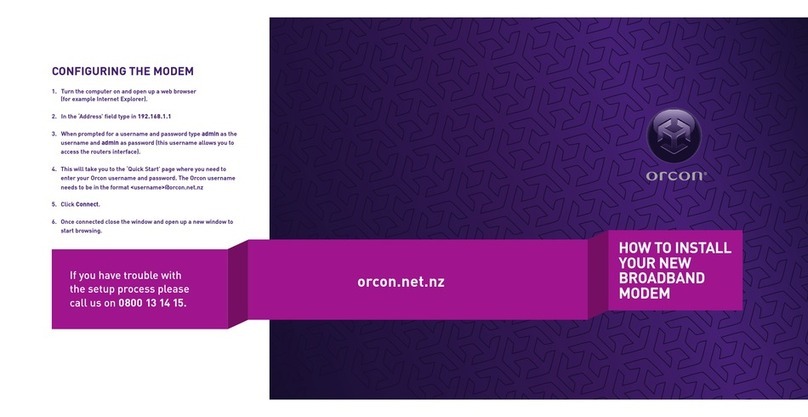
  9. Orcon orcongenius User manual

Orcon orcongenius User manual

Other Orcon Modem manuals

Orcon DM11Pv2 User manual

Orcon

Orcon DM11Pv2 User manual

Orcon GENIUS Instruction sheet

Orcon

Orcon GENIUS Instruction sheet

Orcon GENIUS Instruction sheet

Orcon

Orcon GENIUS Instruction sheet

Popular Modem manuals by other brands

Paradyne COMSPHERE 3810 User guide supplement

Paradyne

Paradyne COMSPHERE 3810 User guide supplement

Zhone 6411-A1-xxx Technical specifications

Zhone

Zhone 6411-A1-xxx Technical specifications

Air 802 Linux USB?ADG?2 user guide

Air 802

Air 802 Linux USB?ADG?2 user guide

ETEK TD-8011 user manual

ETEK

ETEK TD-8011 user manual

Arris Touchstone CM8200 user guide

Arris

Arris Touchstone CM8200 user guide

3Com EtherLink 3C900B Installation and operating instructions

3Com

3Com EtherLink 3C900B Installation and operating instructions

Axxera DMH25 Operation manual

Axxera

Axxera DMH25 Operation manual

Lantronix M110 Series Command reference

Lantronix

Lantronix M110 Series Command reference

Megasat HD Stick 510se user manual

Megasat

Megasat HD Stick 510se user manual

Davicom DM562AP Operation manual

Davicom

Davicom DM562AP Operation manual

NetComm IG1000 Specifications

NetComm

NetComm IG1000 Specifications

Intelimax MA-2060 user manual

Intelimax

Intelimax MA-2060 user manual

ELPRO 905U-E user manual

ELPRO

ELPRO 905U-E user manual

SMC Networks D3CM1604V Administrator's manual

SMC Networks

SMC Networks D3CM1604V Administrator's manual

Telstra Wi-Fi 4G Advanced Pro X user guide

Telstra

Telstra Wi-Fi 4G Advanced Pro X user guide

Thrane&Thrane imarsat EXPLORER 300 user manual

Thrane&Thrane

Thrane&Thrane imarsat EXPLORER 300 user manual

Samsung AceLink SAM-335A user guide

Samsung

Samsung AceLink SAM-335A user guide

Enfora Enabler-G Integration guide

Enfora

Enfora Enabler-G Integration guide

manuals.online logo
manuals.online logoBrands
  • About & Mission
  • Contact us
  • Privacy Policy
  • Terms and Conditions

Copyright 2025 Manuals.Online. All Rights Reserved.

1
ORCONGENIUS
TM
SET UP GUIDE
2
Orcon Genius is super smart, so you don’t need to be
Einstein to set it up. Just follow the instructions below
and you will soon be up and running with high speed
internet and calling.
THANK YOU FOR CHOOSING
ORCON GENIUS.
IMPORTANT:
You will know that your service is active when you receive a text and/or
email telling you that your Orcon Genius connection is complete. This will
be sent to the email and/or mobile entered during sign-up.
This is when you can install your Orcon Genius (not before).
BEFORE YOU BEGIN
Please follow the appropriate instructions in this booklet to connect your
modem, depending on whether you have ordered either:
• ADSL/VDSL
or
• UFB
The modem set up will take approximately 5 minutes followed by another
5-10 minutes as Orcon Genius communicates with our systems.
3
2. PHONE CABLE
1. POWER CABLE
3. ETHERNET CABLE
ADSL/VDSL SET UP
1. Connect the power adapter to the black power port on the device. Plug the power
adapter into the wall socket. Turn the modem power button on (located on the side
of the device) and wait for the green power light to illuminate.
2. Plug the wide end of the grey phone cable into your dedicated DSL jack-point
(for VDSL), or any jack-point (for ADSL). Plug the narrow end of the same cable into
the DSL port on the back of the modem.
3. Plug one end of the yellow Ethernet cable into one of the Ethernet ports on the
back of the modem, and the other end into the Ethernet port on your PC or
Laptop (please refer to PC user guide or PC manufacturer if you are unsure
where this is located).
Note: You don’t need a line filter like you may have been using with a previous
broadband setup.
Your setup should look like this.
4. Orcon Genius will now communicate with our systems to finish setting up your
broadband connection.
To connect wirelessly use the
wireless setup guide on page 9.
POWER
SOCKET
VDSL SPLITTER /
ADSL JACKPOINT
4
2. ETHERNET CABLE
ONT
POWER
SOCKET
1. POWER CABLE
3. ETHERNET CABLE
UFB SET UP
1. Connect the power adapter to the black power port on the device. Plug the power
adapter into the wall socket. Turn the modem power button on (located on the side
of the device) and wait for the green power light to illuminate.
2. Plug one of the yellow Ethernet cables (which can be found in your Orcon Genius
box) into the WAN socket located on the back of the device. Plug the other end
of the same cable into port 1 of the newly installed UFB ONT. (This is the device
installed by a technician when fibre was connected to your property)
3. Plug one end of the yellow Ethernet cable into one of the modem’s Ethernet ports,
and the other into the Ethernet port on your PC or laptop (please refer to PC user
guide or PC manufacturer if you are unsure where this is located).
Your setup should look like this.
4. Orcon Genius will now communicate with our systems to finish setting up your
broadband connection.
Your particular ONT may
look different from the
one shown, however you
should still plug your
router into port 1.
To connect wirelessly use the
wireless setup guide on page 9.
5
GETTING ORCON GENIUS CONNECTED
Hooray! You have successfully completed the physical set up process for Orcon
Genius. This is the first time you connect so you will need to wait 3-5 minutes to
allow Orcon Genius to download its configuration settings for broadband and voice.
We suggest you make yourself a cup of tea, and then have a crack at this
Sudoku puzzle.
The following lights should be illuminated on the Netcomm device.
You should now be able access the internet… what will you do first? Email your mum?
Watch cat videos on YouTube? Or perhaps a spot of Facebook stalking?
To set up your Orcon Genius phone turn the page.
7 1
9 8 7
4 6
2
82
25
6
8 6
1 9
7 2 9
6
82 4
7
6 2
1 6
1 8
9 5
6 3
Having trouble setting up?
Call us on 0800 13 14 15.
ADSL/
VDSL
UFB
6
ORCON GENIUS PHONE
Now that you’re up and running on the internet, it’s time to set up your
Orcon Genius phone.
• Plug the RJ11-RJ11 (narrow plugs at both ends) phone cable from the
Orcon Genius box into the grey Telephone 1 socket on the back of your
Orcon Genius modem.
• Connect the other end of the cable into the matching socket on your phone.
Note: some phones will not have the same socket type as this cable, in this case you
will need to source a new phone or correct cable from your local electronics store.
POWER CABLE
PHONE CABLE OR
ETHERNET CABLE
PHONE
CABLE
7
Note: we recommend you follow steps 3-5 to make sure your Orcon Genius is
super secure and safe.
CONTENTS
1. GET TO KNOW GENIUS
2. HOW TO SET UP WIRELESS
3. HOW TO DRIVE ORCON GENIUS MANUALLY
4. HOW TO CHANGE YOUR ORCON GENIUS SSID & WIRELESS PASSWORD
5. HOW TO CHANGE YOUR ORCON GENIUS DEVICE PASSWORD
ORCON GENIUS
– MORE DETAILED INFO
8
1. Power
The power light indicates that your
Genius device has a working power
source. Flashing orange indicates that
it’s powering up. Once completed it
should be solid green.
2. DSL
The DSL light indicates an active DSL
service on the line. This light will not be
illuminated on a UFB connection.
3. Internet
The internet light shows you when the
router is connected to the internet. If
the light is off or flashing the modem
is either not connected, or attempting
to connect. If the light is solid green,
you are successfully connected to the
internet.
4. WAN
The WAN light indicates an active
broadband service on the line. It should
be solid green once your UFB service
installation has been completed.
5. Ethernet
When a computer is properly connected
to the Ethernet port on the rear of
the router, the corresponding lights
will illuminate. A solid light means a
computer or a network enabled device
is connected. When information is being
sent over the port, the light will blink
rapidly.
6. Wi-Fi
The wireless status light shows you
when the Orcon Genius Wi-Fi network is
enabled.
7. WPS
WPS allows for the easy establishment
of a secure wireless home network.
Because the Orcon Genius comes with
secure Wi-Fi auto-configured, this
feature is turned off by default.
8. USB
When a USB storage device is
connected to the Orcon Genius, this
light will illuminate.
9. Telephone
This phone light indicates that your
Orcon Genius phone service is ready to
use.
CHAPTER 1
GET TO KNOW GENIUS
1 2 3 4 5 6 7 8 9

9
The Orcon Genius wireless signal is on by default and secured using a unique
password printed on the base of the modem.
Please note: if you want a different password you can change this, see Chapter 4.
Using your wireless capable device (i.e. Laptop, Smartphone, Tablet device) search
for the following network: ORCON-WIRELESS and connect to it.
When prompted for a password, enter the serial number located on the bottom of the
device, as per the images below.
Over the page we’ve included some instructions for connecting a computer running
Windows 8, Windows 7 or Mac OSX to your wireless network.
For help connecting any other devices, please refer to the manufacturer or consult
your user documentation.
CHAPTER 2
HOW TO SETUP WIRELESS
10
WIRELESS COMPUTER SET UP
WINDOWS 8
1. Click on the Wireless Network icon in the system tray of your computer.
2. A menu will appear with the wireless networks currently in range. Look for the
name of your network and click on it (in this case it’s Orcon-Wireless).
3. Ensure the Connect Automatically option is ticked and then click on the
connect button.
4. Next you’ll be required to enter your wireless network password (this is the serial
number located on the bottom of the device by default). Click Next.
5. Once loaded, click on the Wireless Network icon in your computer’s system tray
to confirm the connection to your modem’s wireless network.
6. Connection to your modem’s wireless network is now complete. Try using a
browser to surf to a website.