manuals.online logo
Brands
  1. Home
  2. •
  3. Brands
  4. •
  5. Orimag
  6. •
  7. Projector
  8. •
  9. Orimag P6 User manual

Orimag P6 User manual

Popular Projector manuals by other brands

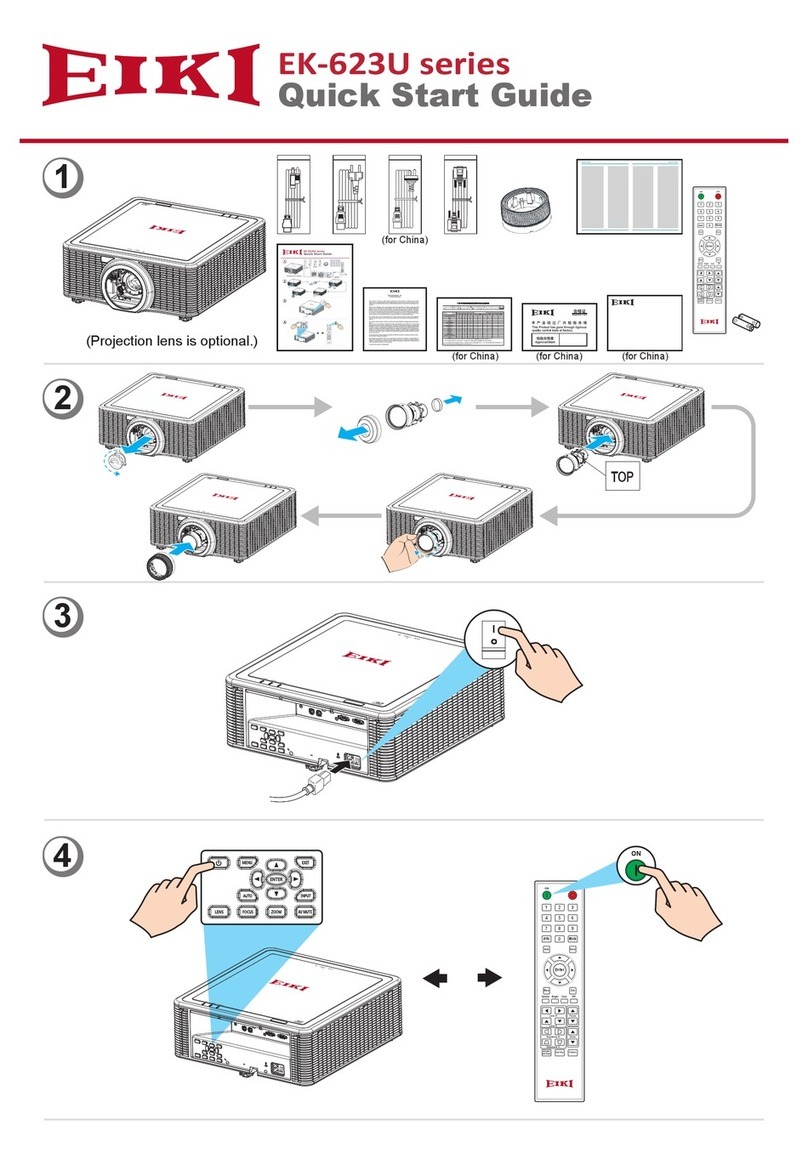
Eiki LC-X985 Specification sheet

Eiki

Eiki LC-X985 Specification sheet

InFocus LitePro 610 quick start

InFocus

InFocus LitePro 610 quick start

Epson EH-TW5900 datasheet

Epson

Epson EH-TW5900 datasheet

FOREVER MLP-100 manual

FOREVER

FOREVER MLP-100 manual

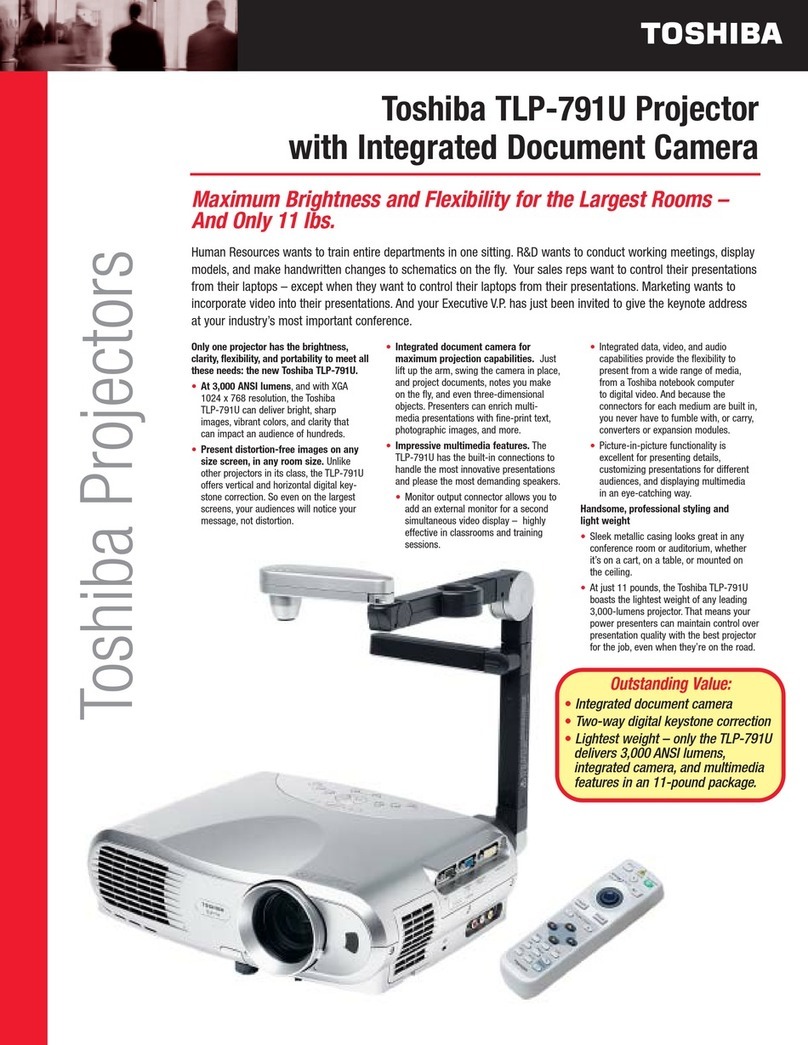
Toshiba TDP-MT8U Specifications

Toshiba

Toshiba TDP-MT8U Specifications

Mitsubishi XD500U specification

Mitsubishi

Mitsubishi XD500U specification

Kodak Ektapro 3020 Illustrated parts list

Kodak

Kodak Ektapro 3020 Illustrated parts list

Toshiba TDP-EW25U Specifications

Toshiba

Toshiba TDP-EW25U Specifications

Barco iQ PRO G500 supplementary guide

Barco

Barco iQ PRO G500 supplementary guide

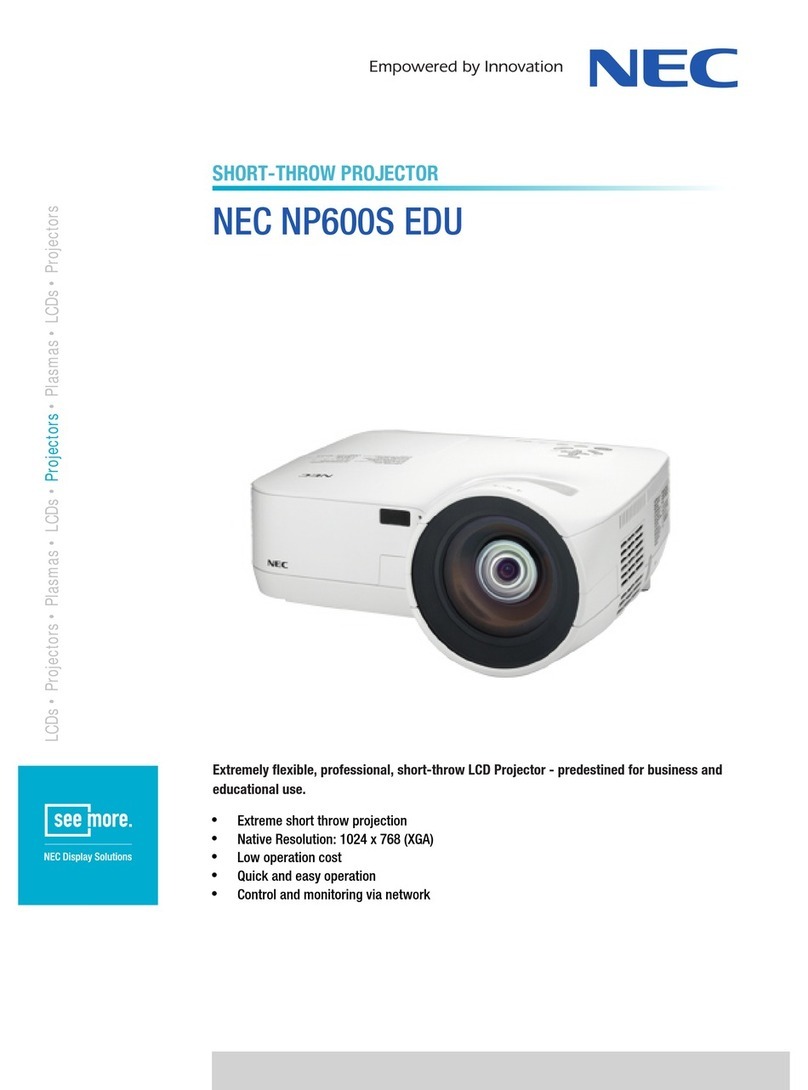
NEC Showcase Series HT1100 user manual

NEC

NEC Showcase Series HT1100 user manual

Philips LC1341 user guide

Philips

Philips LC1341 user guide

Epson PowerLite 1266 user guide

Epson

Epson PowerLite 1266 user guide

MAGINON DLP 1400S user manual

MAGINON

MAGINON DLP 1400S user manual

Toshiba TLP-380 owner's manual

Toshiba

Toshiba TLP-380 owner's manual

Philips PicoPix PPX2480/EU user manual

Philips

Philips PicoPix PPX2480/EU user manual

Hitachi CP-X605 Series Specifications

Hitachi

Hitachi CP-X605 Series Specifications

Optoma TW1692 user manual

Optoma

Optoma TW1692 user manual

Kodak EKTAPRO instruction manual

Kodak

Kodak EKTAPRO instruction manual

manuals.online logo
manuals.online logoBrands
  • About & Mission
  • Contact us
  • Privacy Policy
  • Terms and Conditions

Copyright 2025 Manuals.Online. All Rights Reserved.

Smart Projector
P6
Operationguidance
P6 Projector
UserManual
2Introduction ofappearanceIntroduction ofappearance
Up
Enter
Back
Down
Right
Left
Power
Vent
Reset
Speaker
Speaker
TFCard Slot
FocusAdjustment
Dissipation Vent Micro USBRecharging Interface
Vent
EarJack
Recharging
Indicator
31.Howtoturnon/off
Power
2.ProjectionFocus/BrightnessAdjustment
1.Clickand holdthe powerbuttonfor 5
secondstoturn on or offthe projector
1.Rollclockwiseor anti-clockwisethe
focusadjustmentuntilhaving vivid
projection image.
2.Goto Setting”page,and then Brightness
Setting”toadjustprojection
FocusAdjustment
4Recharging
Specifications
RechargingIndicator
MicroUSB RechargingInterface
LEDon forbeing recharged,whileLEDoff for
recharged fully.
Brightness: 80 ANSILumens
Screen Size:5inch~120inchProjection Size:5”-200”
Resolution:VGA640X480(Throw Ratio:4:3ContrastRatio:1000:1)
Lamplife: 30,000hours
Wirelessconnection: Wifi2.4
Battery:Max1.5hoursuse
8ohm/1w Speaker
OtherI/Ointerfaces:USBOTG,3.5mm Earphone jack
AvailableMirroring:Miracast,AirPlay,Windows
ExternalTFCard:Max128G
5
WifiSetting
GotoSetting page,and then the Wi-FiSetting.Pickup anetwork after
all localconnectivities are searched.Connection wouldbeshowed on
the right-top side,oncepassword entered isright.
Setting
Setting Setting
P6-6F7CSE
P6-6F7CSE P6-6F7CSE
Ayhttp//:192.168.49.4Ayhttp//:192.168.49.4
Wi-Fisetting
Wi-Fisetting
BrightnessSetting
Language
OnlineUpdate
Deviceinfo
BrightnessSetting
Language
OnlineUpdate
Deviceinfo
Searching...........
Searchingallavailable connectivities
Successfullyconnection
wouldbeshowedhere.
i
i
i
i
i
6MiracastMirroring ForAndroidPhones
1.Orimag P6is onlyallowed tomiracastthe phonesofAndroid4.4or above.
Miracastwouldbe renamed asSmartview or elseinstead ofMiracast itself,
dependson differentphones.
Miracast
ChooseAndroidandwillshowthebelowmenuismirroningconnecting
P6-6F7CSE
Ayhttp//:192.168.49.4
Enter Android/windows”page and keepprojector staying inthispage,as showed below;
2.4GAycodis2.4GWifiSupport forAndroid OS4.2 orlater
1.TurnonWi-fi 2.Gotodisplaysetting,
enable Miracast
3.Select-P6-XXXXXX
WithaMiracastenabled Androiddevice,you can mirroryourcontentstothe projector
Settings Wirelessdisplay Deviceslist
Sound VPN p6
Airplanemode
Mobilehotspot
Display
Language
WLAN Miracast P6-XXXXXX
A
i

7
i
A
Miracastconnections--Androidmobilephone
2.Enablescreen projection on phone.Searchlocalwifihotspots tofindout
OrimagP6’sconnectivity,commonlyitisnamedas P6-******”,and enter
withoutpassword.Here isdone the connectionbetween P6and anAndroid
Phone.
(Note:The demostration phone isMeizuM463C.)
P6-6F7CSE
P6-6F7CSE
Connected
AvailableDevices
P6-6F7CSE
Ayhttp//:192.168.49.1
Miracast
Support forAndroid OS4.2orlater
1.TurnonWi-fi 2.Gotodisplaysetting,
enable Miracast
3.Select-P6-XXXXXX
WithaMiracastenabledAndroiddevice,you canmirroryour contentstotheprojector
Settings
Sound
Display
Language
WLAN
Wirelessdisplay
VPN
Airplane mode
Mobilehotspot
Miracast
P6
P6-XXXXXX
showing
AutomaticAdjust
Screen Standby
Text Size
Projection screen
Projection screen
2.4GAycodis2.4GWifi
8AirpalyMirroring forIphones
Hereis donetoo theprojection ofthe phone.
Note:projectionquality might besubjectedto
the connectivity.
9MiracastDisconnection
Turnoff screen projection on the phone,toquitthe projection.
P6-6F7C SE
Projection screen
Projection screen
10 AirpalyMirroring forIphones
Enter the Apple”page,and keep staying inthispage.
iphone
p6-xxxxxx
iphone
p6-xxxxxx
Mirroring
Airplay (iOSII)
Supportios 5.0orlatter
P6-6F7CSE
Ayhttp//:192.168.49.1
2.4GAycodis 2.4GWifi
CastsIOSdevice’slocalimages,videosorthird partyvideo data to the projector
BothIOSdeviceandprojector areconnectedtoyour homeWIFI
1.Swipeuponcontrolpanel
and pressAirplayicon
2.Select P6-XXXXXX andenableMirroringif youprefer
Andthenthirdpartyvideoappthatsupports
Airplaypress Airplayicon.
i