manuals.online logo
Brands
  1. Home
  2. •
  3. Brands
  4. •
  5. Panasonic
  6. •
  7. DVD Player
  8. •
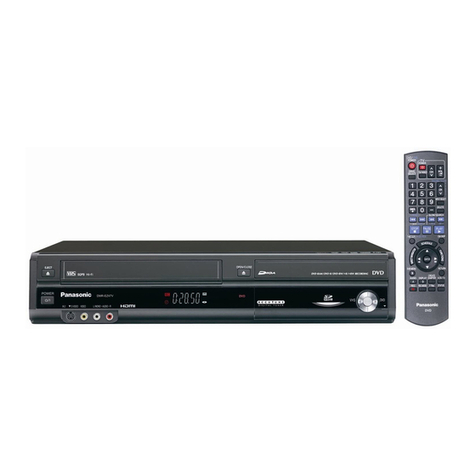
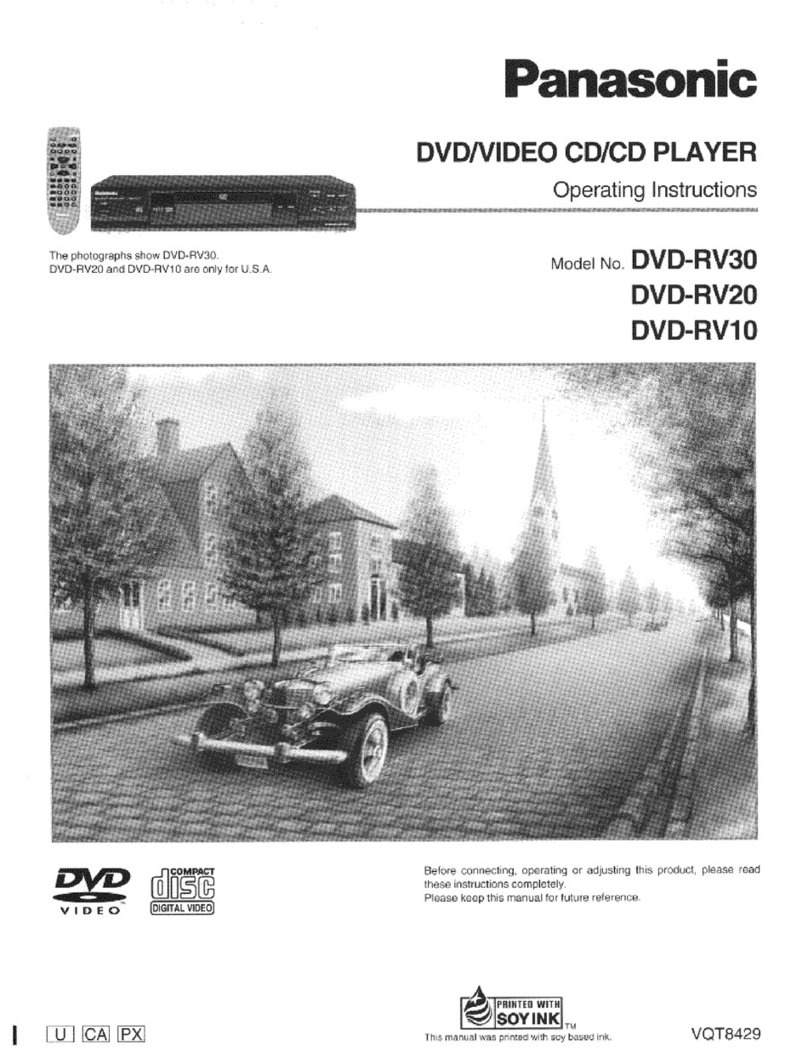
  9. Panasonic DVDF61P User manual

Panasonic DVDF61P User manual

This manual suits for next models

2

Other Panasonic DVD Player manuals

Panasonic DVDRV31 - DIG. VIDEO DISCPLAYE User manual

Panasonic

Panasonic DVDRV31 - DIG. VIDEO DISCPLAYE User manual

Panasonic DVD S-29 DVD-S29 User manual

Panasonic

Panasonic DVD S-29 DVD-S29 User manual

Panasonic DVD-RV22PP User manual

Panasonic

Panasonic DVD-RV22PP User manual

Panasonic DVD-S100 User manual

Panasonic

Panasonic DVD-S100 User manual

Panasonic DVD-S35S - Ultra-Slim Progressive-Scan DVD User manual

Panasonic

Panasonic DVD-S35S - Ultra-Slim Progressive-Scan DVD User manual

Panasonic DMPBD10A - BD/DVD PLAYER User manual

Panasonic

Panasonic DMPBD10A - BD/DVD PLAYER User manual

Panasonic DVD-K510 User manual

Panasonic

Panasonic DVD-K510 User manual

Panasonic DVD-XV10 User manual

Panasonic

Panasonic DVD-XV10 User manual

Panasonic DVD-RV20 User manual

Panasonic

Panasonic DVD-RV20 User manual

Panasonic DVDLX110 - PORTABLE DVD PLAYER User manual

Panasonic

Panasonic DVDLX110 - PORTABLE DVD PLAYER User manual

Panasonic DVD-S26 User manual

Panasonic

Panasonic DVD-S26 User manual

Panasonic DVD-CV40 User manual

Panasonic

Panasonic DVD-CV40 User manual

Panasonic SC-VK880 User manual

Panasonic

Panasonic SC-VK880 User manual

Panasonic DVD-LS91PP User manual

Panasonic

Panasonic DVD-LS91PP User manual

Panasonic SL-DT100GCS User manual

Panasonic

Panasonic SL-DT100GCS User manual

Panasonic DVD-RV20 User manual

Panasonic

Panasonic DVD-RV20 User manual

Panasonic DVD-S700 Operating instructions

Panasonic

Panasonic DVD-S700 Operating instructions

Panasonic DVD-KA84 User manual

Panasonic

Panasonic DVD-KA84 User manual

Panasonic DVD-S35 User manual

Panasonic

Panasonic DVD-S35 User manual

Panasonic DVDRA60 - DIG. VIDEO DISCPLAYE User manual

Panasonic

Panasonic DVDRA60 - DIG. VIDEO DISCPLAYE User manual

Panasonic DVD-S24 User manual

Panasonic

Panasonic DVD-S24 User manual

Panasonic DVD-S500EB-K User manual

Panasonic

Panasonic DVD-S500EB-K User manual

Panasonic DVD-S500 User manual

Panasonic

Panasonic DVD-S500 User manual

Panasonic PVD4741 - DVD/VCR DECK User manual

Panasonic

Panasonic PVD4741 - DVD/VCR DECK User manual

Popular DVD Player manuals by other brands

Yamaha DVD S540 - Progressive Scan DVD Player Service manual

Yamaha

Yamaha DVD S540 - Progressive Scan DVD Player Service manual

Yamakawa DVD-MP12i user manual

Yamakawa

Yamakawa DVD-MP12i user manual

Philips DVP3042/12 user manual

Philips

Philips DVP3042/12 user manual

Philips DVP5900/37B Quick use guide

Philips

Philips DVP5900/37B Quick use guide

Roadstar DVD-2020H Service manual

Roadstar

Roadstar DVD-2020H Service manual

Beko DVD 2006 user manual

Beko

Beko DVD 2006 user manual

Atak DVDA2015 instruction manual

Atak

Atak DVDA2015 instruction manual

LG DV257K owner's manual

LG

LG DV257K owner's manual

auna 10005069 manual

auna

auna 10005069 manual

Philips MCD700/61 user manual

Philips

Philips MCD700/61 user manual

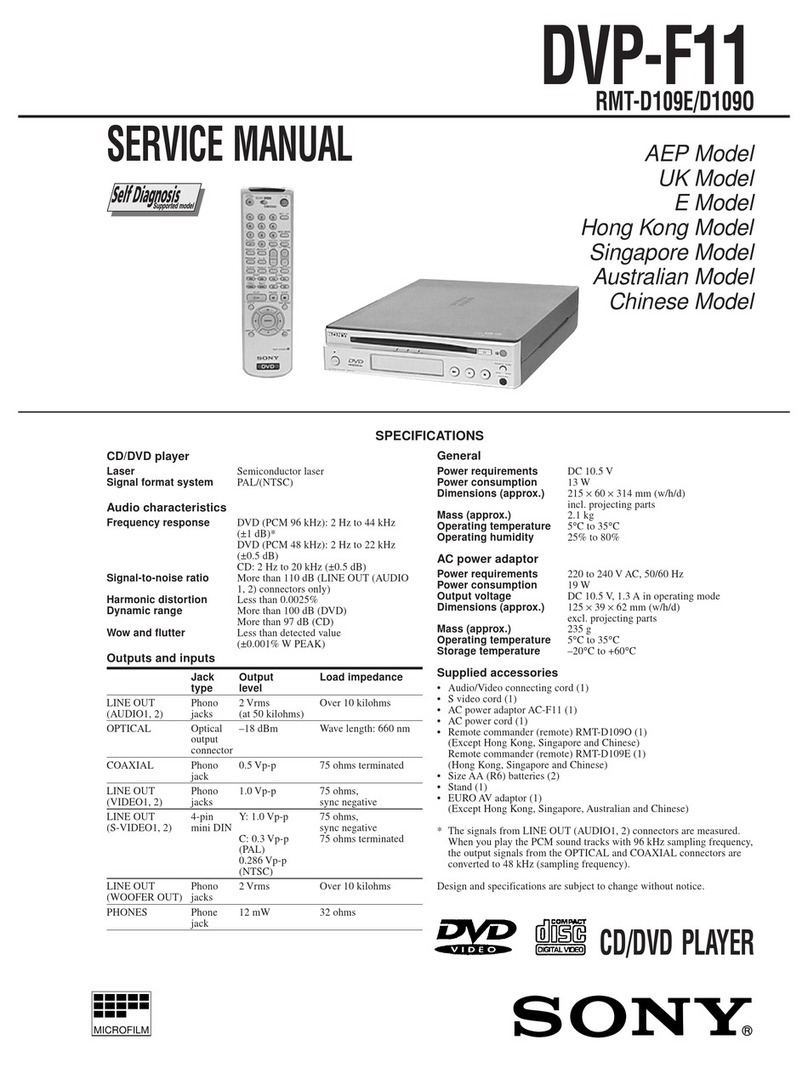
Sony DVP-F11 Service manual

Sony

Sony DVP-F11 Service manual

Toshiba SD-2300U owner's manual

Toshiba

Toshiba SD-2300U owner's manual

LENCO DVP-740 X2 user manual

LENCO

LENCO DVP-740 X2 user manual

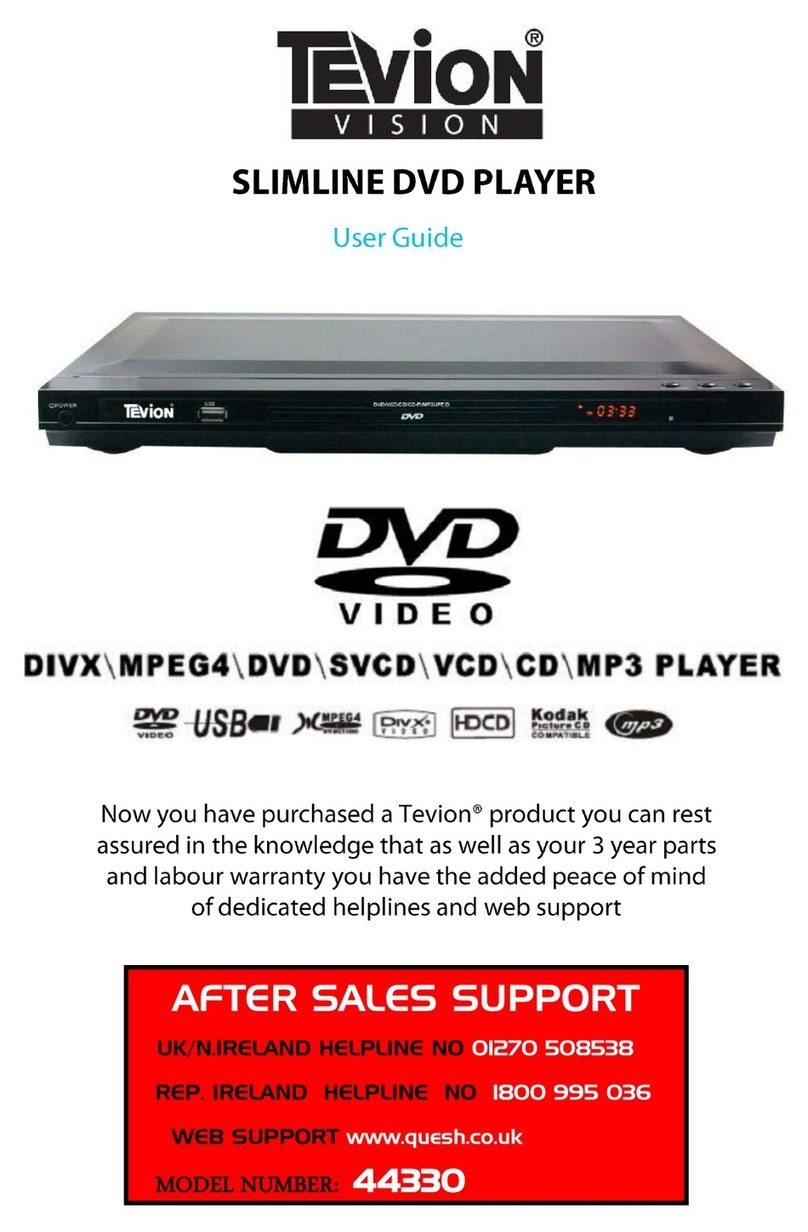
Tevion 44330 user guide

Tevion

Tevion 44330 user guide

Aiwa XD-DV370 operating instructions

Aiwa

Aiwa XD-DV370 operating instructions

Sony DVP S530D operating instructions

Sony

Sony DVP S530D operating instructions

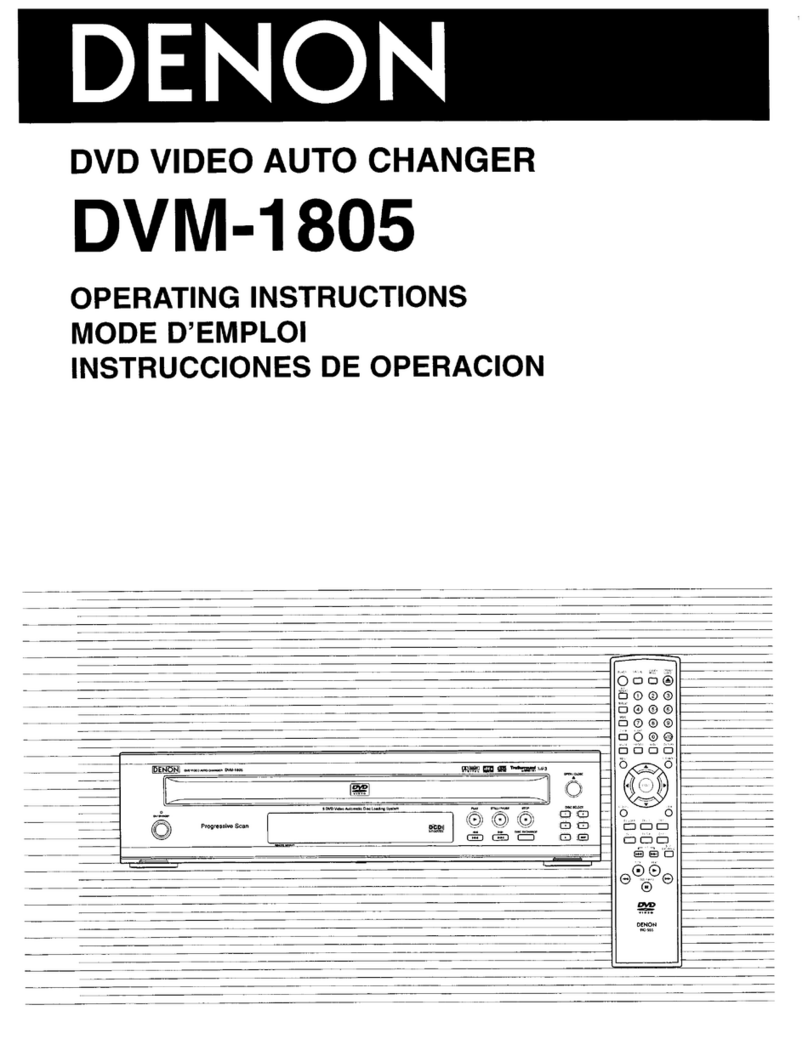
Denon DVM-1805 - DVD Changer operating instructions

Denon

Denon DVM-1805 - DVD Changer operating instructions

Toshiba SD-3815 owner's manual

Toshiba

Toshiba SD-3815 owner's manual

manuals.online logo
manuals.online logoBrands
  • About & Mission
  • Contact us
  • Privacy Policy
  • Terms and Conditions

Copyright 2025 Manuals.Online. All Rights Reserved.

The illustration shows the unit for U.S.A. and Canada.
DVD/CD PLAYER
Operating Instructions
Model No. DVD-F65/DVD-F61
PRELIMINARY
123
456
789
0
10
SLEEP
DISC DISC1 DISC2 DISC3
SETUP
OPEN/CLOSE
SEQUENTIAL
FL SELECT
GROUP
DIRECT NAVIGATOR
TOP
MENU
DISPLAY
SUBTITLE
PLAY MODE
ZOOM POSITION
MEMORY
DOUBLE
RE-MASTER
AUDIO
ANGLE/PAGE
QUICK REPLAY
RETURN
MENU
ENTER
PLAY LIST
CANCEL
DISC4 DISC5
S
K
I
P
S
L
O
W
/
S
E
A
R
C
H
S
T
O
P
P
L
A
Y
P
A
U
S
E
POWER Í/I
CD SEQUENTIAL
DISC
DOUBLE RE-MASTER
;∫
1
:/65/9
DISC EXCHANGE DISC SKIP
<
OPEN/CLOSE
1
2 3 4 5
®
Dear customer
Thank you for purchasing this product. For optimum performance and
safety, please read these instructions carefully before connecting,
operating or adjusting this product. Please keep this manual for future
reference.
[For\U.S.A.]
IMPORTANT SAFETY INSTRUCTIONS . . . . . . . . . . . . . . . . . 3
Control reference guide . . . . . . . . . . . . . . . . . . . . . . . . . . . . . 3
Accessories. . . . . . . . . . . . . . . . . . . . . . . . . . . . . . . . . . . . . . . 4
Connection . . . . . . . . . . . . . . . . . . . . . . . . . . . . . . . . . . . . . . . 4
Disc information . . . . . . . . . . . . . . . . . . . . . . . . . . . . . . . . . . . 6
The remote control . . . . . . . . . . . . . . . . . . . . . . . . . . . . . . . . . 7
Quick setup . . . . . . . . . . . . . . . . . . . . . . . . . . . . . . . . . . . . . . . 7
Basic play . . . . . . . . . . . . . . . . . . . . . . . . . . . . . . . . . . . . . . . . 8
Navigation menus. . . . . . . . . . . . . . . . . . . . . . . . . . . . . . . . . 10
Convenient features . . . . . . . . . . . . . . . . . . . . . . . . . . . . . . . 12
Changing play sequence . . . . . . . . . . . . . . . . . . . . . . . . . . . 14
Using On-Screen Menu Icons . . . . . . . . . . . . . . . . . . . . . . . 15
Changing settings . . . . . . . . . . . . . . . . . . . . . . . . . . . . . . . . 18
Troubleshooting guide. . . . . . . . . . . . . . . . . . . . . . . . . . . . . 20
Maintenance . . . . . . . . . . . . . . . . . . . . . . . . . . . . . . . . . . . . . 21
Limited Warranty (ONLY FOR U.S.A.). . . . . . . . . . . . . . . . . 22
Product Service . . . . . . . . . . . . . . . . . . . . . . . . . . . . . . . . . . 22
Guía de referencia rápida en español. . . . . . . . . . . . . . . . . 23
(Spanish Quick Reference)
Glossary . . . . . . . . . . . . . . . . . . . . . . . . . . . . . . . . .Back cover
Specifications . . . . . . . . . . . . . . . . . . . . . . . . . . . . . Back cover
The warranty for the U.S.A. is on page 22.
En la página 23 hay una guía de referencia rápida en
español.
RQT6726-P
As an ENERGY STAR Partner,
Panasonic has determined that
this product meets the ENERGY STAR
guidelines for energy efficiency.
®
®
Table of contents
Getting started
Basic operations
Advanced operations
Reference
These operating instructions are applicable to models DVD-F65
and DVD-F61 for a variety of regions.
Unless otherwise indicated, illustrations in these operating
instructions are of the unit for U.S.A. and Canada.
Region numbers
Are allocated to DVD players and software according to where they
are sold. See page 6 for the region number for your unit.
The model number and serial number of this product can be found
on either the back or the bottom of the unit. Please note them in the
space provided below and keep for future reference.
MODEL NUMBER ______________________________________
SERIAL NUMBER ______________________________________
PPC UP GN
GCS
Getting started
RQT6726
2
(Inside of product)
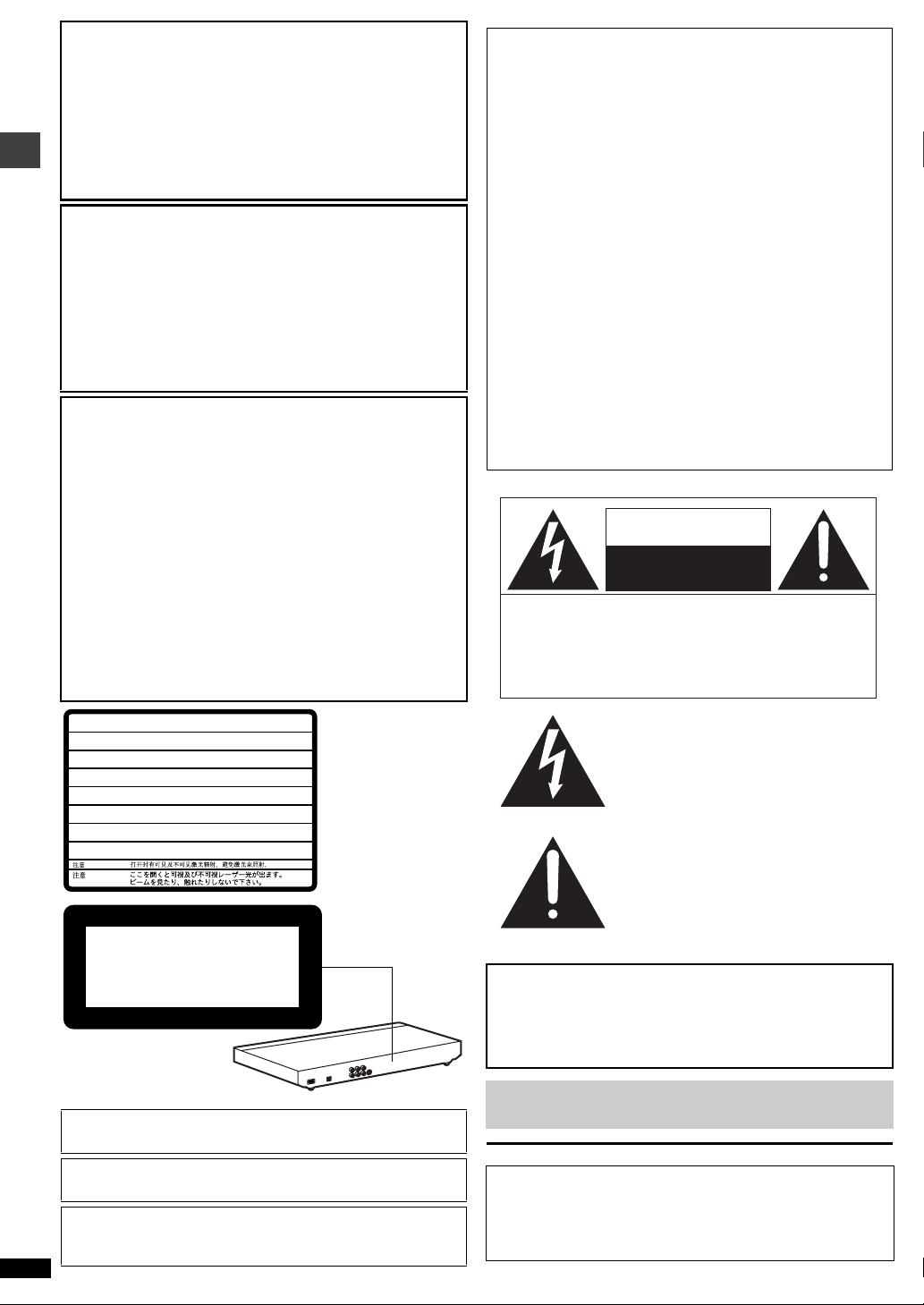
THE FOLLOWING APPLIES ONLY IN THE U.S.A.
THE FOLLOWING APPLIES ONLY IN THE U.S.A. AND CANADA
For U.S.A. and Canada
User memo:
CAUTION!
THIS PRODUCT UTILIZES A LASER.
USE OF CONTROLS OR ADJUSTMENTS OR
PERFORMANCE OF PROCEDURES OTHER THAN
THOSE SPECIFIED HEREIN MAY RESULT IN
HAZARDOUS RADIATION EXPOSURE.
DO NOT OPEN COVERS AND DO NOT REPAIR
YOURSELF. REFER SERVICING TO QUALIFIED
PERSONNEL.
WARNING:
TO REDUCE THE RISK OF FIRE, ELECTRIC
SHOCK OR PRODUCT DAMAGE, DO NOT
EXPOSE THIS APPARATUS TO RAIN,
MOISTURE, DRIPPING OR SPLASHING AND
THAT NO OBJECTS FILLED WITH LIQUIDS,
SUCH AS VASES, SHALL BE PLACED ON
THE APPARATUS.
CAUTION!
≥DO NOT INSTALL OR PLACE THIS UNIT IN A
BOOKCASE, BUILT-IN CABINET OR IN ANOTHER
CONFINED SPACE. ENSURE THE UNIT IS WELL
VENTILATED. TO PREVENT RISK OF ELECTRIC
SHOCK OR FIRE HAZARD DUE TO OVERHEATING,
ENSURE THAT CURTAINS AND ANY OTHER
MATERIALS DO NOT OBSTRUCT THE VENTILATION
VENTS.
≥DO NOT OBSTRUCT THE UNIT’S VENTILATION
OPENINGS WITH NEWSPAPERS, TABLECLOTHS,
CURTAINS, AND SIMILAR ITEMS.
≥DO NOT PLACE SOURCES OF NAKED FLAMES,
SUCH AS LIGHTED CANDLES, ON THE UNIT.
≥DISPOSE OF BATTERIES IN AN ENVIRONMENTALLY
FRIENDLY MANNER.
Units for Asia
THIS UNIT IS INTENDED FOR USE IN TROPICAL CLIMATES.
Units for Australia and N.Z.
THIS UNIT IS INTENDED FOR USE IN MODERATE CLIMATES.
This product may receive radio interference caused by mobile
telephones during use. If such interference is apparent, please
increase separation between the product and the mobile telephone.
CAUTION LASER RADIATION WHEN OPEN.
DO NOT STARE INTO BEAM. FDA 21 CFR / Class II
VISIBLE AND INVISIBLE LASER RADIATION WHEN OPEN.
AVOID EXPOSURE TO BEAM. IEC60825-1 / Class 3b
SYNLIG OCH OSYNLIG LASERSTRÅLNING NÄR DENNA DEL ÄR
ÖPPNAD. BETRAKTA EJ STRÅLEN.
SYNLIG OG USYNLIG LASERSTRÅLING VED ÅBNING.
UNDGÅ UDSÆTTELSE FOR STRÅLING.
SYNLIG OG USYNLIG LASERSTRÅLING NÅR DEKSEL ÅPNES.
UNNGÅ EKSPONERING FOR STRÅLEN.
AVATTAESSA OLET ALTTIINA NÄKYVÄÄ JA NÄKYMÄTÖN
LASERSÄTEILYLLE. ÄLÄ KATSO SÄTEESEEN.
SICHTBARE UND UNSICHTBARE LASERSTRAHLUNG, WENN
ABDECKUNG GEÖFFNET. NICHT DEM STRAHL AUSSETZEN.
RAYONNEMENT LASER VISIBLE ET INVISIBLE EN CAS
D’OUVERTURE. EXPOSITION DANGEREUSE AU FAISCEAU.
RQLXS0054
–
–
–
–
–
–
–
–
–
–
CAUTION
VARNING
ADVARSEL
ADVARSEL
VARO!
VORSICHT
ATTENTION
CLASS 1
LASER PRODUCT
The laser product label has
not been attached to
products for the U.S.A. and
Canada.
CAUTION:
This equipment has been tested and found to comply with the limits
for a Class B digital device, pursuant to Part 15 of the FCC Rules.
These limits are designed to provide reasonable protection against
harmful interference in a residential installation. This equipment
generates, uses and can radiate radio frequency energy and, if not
installed and used in accordance with the instructions, may cause
harmful interference to radio communications. However, there is no
guarantee that interference will not occur in a particular installation.
If this equipment does cause harmful interference to radio or
television reception, which can be determined by turning the
equipment off and on, the user is encouraged to try to correct the
interference by one or more of the following measures:
≥Reorient or relocate the receiving antenna.
≥Increase the separation between the equipment and receiver.
≥Connect the equipment into an outlet on a circuit different from that
to which the receiver is connected.
≥Consult the dealer or an experienced radio/TV technician for help.
Any unauthorized changes or modifications to this equipment would
void the user’s authority to operate this device.
This device complies with Part 15 of the FCC Rules. Operation is
subject to the following two conditions: (1) This device may not
cause harmful interference, and (2) this device must accept any
interference received, including interference that may cause
undesired operation.
CAUTION:
TO PREVENT ELECTRIC SHOCK MATCH
WIDE BLADE OF PLUG TO WIDE SLOT,
FULLY INSERT.
Before moving the unit, ensure the disc trays are empty.
Failure to do so will risk severely damaging the discs and the unit.
DATE OF PURCHASE __________________________________
DEALER NAME _______________________________________
DEALER ADDRESS ___________________________________
_____________________________________________________
TELEPHONE NUMBER _________________________________
The lightning flash with arrowhead
symbol, within an equilateral triangle, is
intended to alert the user to the presence
of uninsulated “dangerous voltage” within
the product’s enclosure that may be of
sufficient magnitude to constitute a risk of
electric shock to persons.
CAUTION
CAUTION: TO REDUCE THE RISK OF ELECTRIC
SHOCK, DO NOT REMOVE SCREWS.
NO USER-SERVICEABLE PARTS
INSIDE.
REFER SERVICING TO QUALIFIED
SERVICE PERSONNEL.
The exclamation point within an
equilateral triangle is intended to alert the
user to the presence of important
operating and maintenance (servicing)
instructions in the literature accompanying
the appliance.
RISK OF ELECTRIC SHOCK
DO NOT OPEN

Getting started
RQT6726
3
IMPORTANT SAFETY INSTRUCTIONS
Read these operating instructions carefully before using the unit. Follow the safety instructions on the unit and the applicable safety instructions listed
below. Keep these operating instructions handy for future reference.
1) Read these instructions.
2) Keep these instructions.
3) Heed all warnings.
4) Follow all instructions.
5) Do not use this apparatus near water.
6) Clean only with dry cloth.
7) Do not block any ventilation openings. Install in accordance with the
manufacturer’s instructions.
8) Do not install near any heat sources such as radiators, heat
registers, stoves, or other apparatus (including amplifiers) that
produce heat.
9) Do not defeat the safety purpose of the polarized or grounding-type
plug. A polarized plug has two blades with one wider than the other.
A grounding-type plug has two blades and a third grounding prong.
The wide blade or the third prong are provided for your safety. If the
provided plug does not fit into your outlet, consult an electrician for
replacement of the obsolete outlet.
10) Protect the power cord from being walked on or pinched particularly
at plugs, convenience receptacles, and the point where they exit from
the apparatus.
11) Only use attachments/accessories specified by the
manufacturer.
12) Use only with the cart, stand, tripod, bracket, or
table specified by the manufacturer, or sold with the
apparatus. When a cart is used, use caution when
moving the cart/apparatus combination to avoid
injury from tip-over.
13) Unplug this apparatus during lightning storms or when unused for
long periods of time.
14) Refer all servicing to qualified service personnel. Servicing is
required when the apparatus has been damaged in any way, such as
power-supply cord or plug is damaged, liquid has been spilled or
objects have fallen into the apparatus, the apparatus has been
exposed to rain or moisture, does not operate normally, or has been
dropped.
≥Buttons such as 3function the same as those on the remote control.
≥The actual marking of the standby/on switch depends on the area.
Illustrations in these operating instructions use the markings shown in
the above illustration.
Page
1Standby/on button (Í). . . . . . . . . . . . . . . . . . . . . . . . . . . . . . . . . . . 7
2Disc select button (DISC), Disc buttons (DISC 1–DISC 5) . . . . . . 9
3Sequential button (SEQUENTIAL). . . . . . . . . . . . . . . . . . . . . . . . . . 9
4FL select button (FL SELECT). . . . . . . . . . . . . . . . . . . . . . . . . . . . . 9
5Group button (GROUP) . . . . . . . . . . . . . . . . . . . . . . . . . . . . . . . . . . 9
6Cancel button (CANCEL) . . . . . . . . . . . . . . . . . . . . . . . . . . . . . . . . 14
7Skip buttons (:, 9SKIP) . . . . . . . . . . . . . . . . . . . . . . . . . . . . 8
8Stop button (∫STOP) . . . . . . . . . . . . . . . . . . . . . . . . . . . . . . . . . . . 8
9Top menu, Direct navigator button
(TOP MENU, DIRECT NAVIGATOR). . . . . . . . . . . . . . . . . . . . . . 8, 11
:Cursor buttons (3, 4, 2, 1), Enter button (ENTER). . . . . . . . . . 7
;Display button (DISPLAY) . . . . . . . . . . . . . . . . . . . . . . . . . . . . . . . 15
<Audio button (AUDIO) . . . . . . . . . . . . . . . . . . . . . . . . . . . . . . . . . . 12
=Subtitle button (SUBTITLE) . . . . . . . . . . . . . . . . . . . . . . . . . . . . . . 12
>Play mode button (PLAY MODE). . . . . . . . . . . . . . . . . . . . . . . . . . 14
?Zoom button (ZOOM) . . . . . . . . . . . . . . . . . . . . . . . . . . . . . . . . . . . 13
@Sleep button (SLEEP) . . . . . . . . . . . . . . . . . . . . . . . . . . . . . . . . . . 13
ASetup button (SETUP) . . . . . . . . . . . . . . . . . . . . . . . . . . . . . . . . 7, 19
BDrawer open/close button (<OPEN/CLOSE) . . . . . . . . . . . . . . . . 8
CNumbered buttons (1–9, 0, S10) . . . . . . . . . . . . . . . . . . . . . . . . . . . 9
DSlow/Search buttons (6, 5SLOW/SEARCH) . . . . . . . . . . . . . 8
EPlay button (1PLAY). . . . . . . . . . . . . . . . . . . . . . . . . . . . . . . . . . . . 8
FPause button (;PAUSE). . . . . . . . . . . . . . . . . . . . . . . . . . . . . . . . . 8
GMenu, Play list button (MENU, PLAY LIST) . . . . . . . . . . . . . . . 8, 11
HReturn button (RETURN) . . . . . . . . . . . . . . . . . . . . . . . . . . . . . . . . . 7
IAngle/page button (ANGLE/PAGE) . . . . . . . . . . . . . . . . . . . . . 12, 13
JQuick replay button (QUICK REPLAY) . . . . . . . . . . . . . . . . . . . . . . 9
KPosition memory button (POSITION MEMORY). . . . . . . . . . . . . . . 9
LDouble re-master button (DOUBLE RE-MASTER). . . . . . . . . . . . 13
MDrawer . . . . . . . . . . . . . . . . . . . . . . . . . . . . . . . . . . . . . . . . . . . . . . . . 8
NFL Display . . . . . . . . . . . . . . . . . . . . . . . . . . . . . . . . . . . . . . . . . . . . . 9
OStandby/on switch (Í/I). . . . . . . . . . . . . . . . . . . . . . . . . . . . . . . . . . 7
Press to switch the unit from on to standby mode or vice versa. In
standby mode, the unit is still consuming a small amount of power.
P[Units\sold\outside\the\U.S.A.\and\Canada]
Standby indicator (Í)
When the unit is connected to the AC mains supply, this indicator
lights up in standby mode and goes out when the unit is turned on.
QDisc indicators (DISC 1–5) . . . . . . . . . . . . . . . . . . . . . . . . . . . . . . . 8
RSkip, Search buttons (4, 5). . . . . . . . . . . . . . . . . . . 8
SDisc exchange button (DISC EXCHANGE). . . . . . . . . . . . . . . . . . . 9
TDisc skip button (DISC SKIP) . . . . . . . . . . . . . . . . . . . . . . . . . . . . . 8
URemote control signal sensor
Control reference guide
CANCEL
123
456
789
0
10
DISC1 DISC2 DISC3
DISC4 DISC5
SLEEP
DISC
SETUP
OPEN/CLOSE
SEQUENTIAL
FL SELECT
GROUP
DIRECT NAVIGATOR
TOP
MENU
DISPLAY
SUBTITLE
PLAY MODE
ZOOM POSITION
MEMORY
DOUBLE
RE-MASTER
AUDIO
ANGLE/PAGE
QUICK REPLAY
RETURN
MENU
ENTER
PLAY LIST
S
K
I
P
S
L
O
W
/
S
E
A
R
C
H
S
T
O
P
P
L
A
Y
P
A
U
S
E
1
2
3
4
5
6
7
8
9
:
;
<
=
>
?
B
A
@
C
D
E
F
G
H
I
J
K
L
POWER Í/I
CD SEQUENTIAL
DISC
DOUBLE RE-MASTER
;∫
1
:/65/9
DISC EXCHANGE DISC SKIP
<
OPEN/CLOSE
1
2 3 4 5
MN
TB
RQOP S
L3 8FE U
5
4
5
4
Disc tray number
Getting started
RQT6726
4
Accessories
Please check and identify the supplied accessories. Use numbers indicated in parentheses when asking for replacement parts.
(Only for U.S.A.) To order accessories contact 1-800-332-5368 or web site (http://www.panasonic.com).
(For other areas) To order accessories, call the dealer from whom you have made your purchase.
∏1 Remote control
U.S.A. and Canada (N2QAJB000070)
Other areas (N2QAJB000071)
∏1 AC power supply cord
U.S.A. and Canada (RJA0065-A)
Australia and N.Z. (RJA0035-2X)
Asia (RJA0019-2X)
∏1 Audio/video cable (K2KA6CA00001)
∏2 Remote control batteries
[Note]
The included AC power supply cord is for use with this unit only. Do not
use it with other equipment.
Before connection
≥Disconnect the AC power supply cord.
≥Turn off all equipment and read the appropriate operating instructions.
≥The equipment connections described are examples.
≥Peripheral equipment and optional cables sold separately unless
otherwise indicated.
This page explains how to connect the unit to a television and set it up so you hear the audio through the television’s speakers. To get the full benefit
from the powerful multi-channel audio found on DVDs, you should connect an amplifier and speakers.
Connection
Connection to a television
AUDIO
IN
L
VIDEO
IN
DIGITAL AUDIO OUT
(PCM/BITSTREAM)
AUDIO
OUT
COMPONENT VIDEO OUT
(480P/480I)
VIDEO OUT S VIDEO OUT
OPTICAL
AC IN
LY
RP
R
PB
R
Do not place the unit on amplifiers or equipment
that may become hot.
The heat can damage the unit. Television
Audio/video cable
(included)
red white yellow
red white yellow
Basic connection to a television
COMPONENT VIDEO OUT terminal
These terminals can be used for either interlace or progressive output (➜page 7)
and provide a purer picture than the S VIDEO OUT terminal. Connection using these
terminals outputs the color difference signals (PB/PR) and luminance signal (Y)
separately in order to achieve high fidelity in reproducing colors.The description of
the component video input terminals depends on the television or monitor (e.g. Y/PB/
PR, Y/B-Y/R-Y, Y/CB/CR). Connect to terminals of the same color.
[Units\for\the\U.S.A.\and\Canada]
≥After making this connection, change the black level for a better picture.
(➜page 18, Video—Black Level Control)
Video cable (not included)
Television’s
COMPONENT VIDEO
IN terminals
For better pictures
When making this connection, ensure you connect the audio cables to the corresponding audio input terminals on the television.
S video cable (not included)
S VIDEO OUT terminal
The S video terminal achieves a more vivid picture than
the VIDEO OUT terminal by separating the chrominance
(C) and luminance (Y) signals. (Actual results depend
on the television.)
Television’s
S VIDEO IN
terminal
Connect your unit directly to your television.
Do not connect the unit through your video cassette recorder when setting up your home
entertainment system, because the picture may not be played correctly due to the copy guard.
Getting started
RQT6726
5
Connection
Enjoy the powerful movie theater and hall-like sound available with multiple channel audio found on DVDs by connecting an amplifier and speakers.
∫Recording Output
Digital recording ➜Connection [A] to digital
recording equipment
≥With DVD, the following conditions must be met: athe disc doesn’t have
protection preventing digital recording, and bthe recording equipment
can handle signals with a sampling frequency of 48 kHz.
≥You cannot record WMA/MP3.
When recording DVDs, make the following settings.
–Advanced surround: OFF (➜page 17)
–PCM Down Conversion: Yes (➜page 19)
–Dolby Digital/DTS Digital Surround/MPEG§: PCM (➜page 19)
§MPEG: Units for Australia and N.Z.
Analog recording ➜Connection [B] to a cassette deck
or other recording equipment
There are no limitations on recording analog signals as there are with digital
signals.
Conserving power
This unit consumes a small amount of power, even when it is turned off.
[U.S.A.[and\Canada[ : approx. 0.6 W
[Other\areas] : approx. 2.8 W
To save power when the unit is not to be used for a long time, unplug it
from the household AC outlet.
Home Theater – Enjoying more powerful sound
DIGITAL AUDIO OUT
(PCM/BITSTREAM)
AUDIO
OUT
OPTICAL
L
R
AB
AUX IN
L
R
DIGITAL AUDIO OUT
(PCM/BITSTREAM)
AUDIO
OUT
COMPONENT VIDEO OUT
(480P/480I)
VIDEO OUT S VIDEO OUT
OPTICAL
AC IN
LY
RP
R
PB
(DVD) IN
Digital connection Analog connection
Insert fully, with this
side facing up.
Optical digital audio cable
Do not bend sharply when
connecting.
Amplifier
To enjoy multi-channel surround
sound
Connect an amplifier with a built-in
decoder or a decoder-amplifier
combination.
Change the settings in “Digital output”
(➜page 19).
≥You can only use DTS Digital Surround
decoders that are compatible with DVD.
To enjoy stereo or Dolby Pro Logic
Connect a digital amplifier or system
component.
Change the settings in “Digital output”
(➜page 19).
To enjoy stereo or Dolby Pro Logic
Connect an analog amplifier or system
component.
Amplifier or system
component
Audio cable
Speakers (example)
Connect three or more speakers
for surround sound.
Power connection
AC IN
AC power supply cord (included)
To household AC outlet
Getting started
RQT6726
6
Disc information
∫Discs that can be played
§DVD-F61 is not compatible with WMA, JPEG, or HighMAT. References to them apply only to DVD-F65.
Use discs with the above logos and that conform to specifications. The unit cannot play other discs correctly. Do not use irregularly shaped discs (e.g.
heart-shaped), as these can damage the unit.
It may not be possible to play CD-R, CD-RW, DVD-R and DVD-RAM in all cases due to the type of disc or condition of the recording.
∫Discs that cannot be played
DVD-ROM, CD-ROM, CDV, CD-G, iRW, DVD-RW, CVD, SACD, Divx
Video Discs, Photo CD, DVD-RAM that cannot be removed from their
cartridge, 2.6-GB and 5.2-GB DVD-RAM, and “Chaoji VCD” available on
the market including CVD, DVCD and SVCD that do not conform to
IEC62107.
∫Region number
The player plays DVD-Video marked with labels containing the region
number or “ALL”.
∫Built-in decoders
This unit has Dolby Digital and DTS decoders so you can
enjoy these systems in stereo without connecting a
separate decoder.
∫Video systems
Units for Asia, Australia and N.Z.:
≥This unit can play PAL and NTSC, but your television must match the
system used on the disc.
≥PAL discs cannot be correctly viewed on an NTSC television.
≥This unit can convert NTSC signals to PAL 60 for viewing on a PAL
television (➜page 18, Video—NTSC Disc Output).
≥Output is interlace (576I) when playing PAL discs.
Units for the U.S.A. and Canada:
NTSC is used. This unit converts still pictures on PAL system DVD-Audio
discs for play on NTSC video systems. The picture is compressed to show
it in its entirety, but this may cause it to be stretched vertically.
∫Playing DVDs and Video CDs
The producer of these discs can control how they are played so you may
not always be able to control play as described in these operating
instructions (for example if the play time is not displayed or if a Video CD
has menus). Read the disc’s instructions carefully.
∫DVD-RAM discs
The DVD-RAM you can play on this unit are those recorded with DVD
video recorders, DVD video cameras, personal computers, etc. using
Version 1.1 of the Video Recording Format (a unified video recording
standard).
≥Remove discs from their cartridges before use and return them when
you are finished, making sure that the labels of the disc and cartridge
face the same way.
≥Some parts of the disc, for example where one program ends and
another begins, may not play smoothly.
∫DVD-R discs
Panasonic DVD-R recorded and finalized on a Panasonic DVD video
recorder or DVD video camera are played as DVD-Video on this unit.
∫CD-R and CD-RW discs
This unit can play CD-R/RW (audio recording disc) recorded with CD-DA,
video CD, SVCD (conforming to IEC62107), WMA, MP3, or JPEG. Close
the session or finalize after recording.
See page 11 for more information about WMA, MP3, and JPEG.
∫HighMAT discs
This unit is compatible with HighMAT discs containing WMA, MP3, and/or
JPEG files.
∫Disc structure
Disc structure and the labels given to the items on discs depend on the
disc type.
Track: the smallest division on DVD-Audio, CDs, and Video CDs, or a
single WMA/MP3 file.
Chapter: the smallest division on DVD-Video.
Group: collections of tracks on DVD-Audio and equivalent to folders or
albums on data discs.
Title: the largest division on DVD-Video, usually an entire movie.
Program: the division on DVD-RAM equivalent to a single recording.
Picture: a single JPEG file.
Play list: the largest grouping on a HighMAT disc, or a group of scenes
on DVD-RAM.
Scene: DVD-RAM program sections specified and grouped into play
lists on a DVD video recorder.
Content: covers tracks and pictures on HighMAT discs.
∫To clean discs
DVD-Audio, DVD-Video, Video CD, CD
Wipe with a damp cloth and then wipe
dry.
DVD-RAM, DVD-R
≥Clean only with an optional DVD-RAM/PD disc cleaner (LF-K200DCA1,
where available).
≥Never use cloths or cleaners for CDs etc.
∫Handling precautions
≥Do not write on the label side with a ball-point pen or other writing
instrument.
≥Do not use record cleaning sprays, benzine, thinner, static electricity
prevention liquids or any other solvent.
≥Do not attach labels or stickers to discs. (Do not use discs with exposed
adhesive from tape or left over peeled-off stickers.)
≥Do not use scratch-proof protectors or covers.
≥Do not use discs printed with label printers available on the market.
DVD-RAM DVD-Audio DVD-Video DVD-R SVCD Video CD CD CD-R/RW
Shown as
“DVD-VR” on the
display
Conforming to
IEC62107
`
[RAM] [DVD-A] [DVD-V] [VCD] [CD] [WMA]§[MP3]
[JPEG]§
Region Number Example
U.S.A. and
Canada 1
Asia
3
Australia
and N.Z. 4
24
1
1ALL
36
2
3ALL
46
2
4ALL
Getting started
RQT6726
7
The remote control
∫Batteries
≥Insert so the poles (iand j) match those in the remote control.
≥Do not use rechargeable type batteries.
Do not:
≥mix old and new batteries.
≥use different types at the same time.
≥heat or expose to flame.
≥take apart or short circuit.
≥attempt to recharge alkaline or manganese batteries.
≥use batteries if the covering has been peeled off.
Mishandling of batteries can cause electrolyte leakage which can damage
items the fluid contacts and may cause a fire.
Remove if the remote control is not going to be used for a long period of
time. Store in a cool, dark place.
∫Use
Aim at the sensor (➜page 3, Control reference guide), avoiding
obstacles, at a maximum range of 7 m (23 feet) directly in front of the unit.
The QUICK SETUP screen appears when you press [SETUP] the first
time after purchase and assists you to make necessary settings.
Preparation
Turn on the television and select the appropriate video input on the
television to suit the connections for the player.
[1] Press [Í] to turn on the unit.
[2] Press [SETUP] to show the QUICK SETUP
screen.
e.g. Units for U.S.A. and
Canada
[3] Press [3, 4, 2, 1] to select the menu language
and press [ENTER].
[4] Press [3, 4] to select “Yes” to continue and
press [ENTER].
[5] Press [3, 4, 2, 1] to select the item and press
[ENTER].
≥Audio Language (➜page 18)
≥Subtitle Language (➜page 18)
≥TV Aspect (➜below)
≥Progressive Out (➜page 18)
[6] Press [ENTER] and then [SETUP] to end the
settings.
To return to the previous screen
Press [RETURN].
To access this screen again later
➜page 18, Others—QUICK SETUP
∫TV Aspect
Select “4:3” (regular) or “16:9” (widescreen) to suit your television.
If you have a regular 4:3 television, you can also select how video on
some discs is shown (➜page 18, Video—TV Aspect).
≥4:3 Pan&Scan (Factory preset)
Widescreen software is expanded to fill the screen
of a 4:3 aspect television (unless prohibited by the
producer of the disc).
≥4:3 Letterbox
Widescreen software is shown in the letterbox style
on a 4:3 aspect television.
∫To enjoy progressive video
1. Connect to the component video input terminals on a 480P
compatible television. (Video will not be displayed correctly if
connected to an incompatible television.)
2. In QUICK SETUP, set “Progressive Out” to “Enable”.
3. Change Video output mode to “480P” (➜page 17).
≥All televisions manufactured by Panasonic and that have 480P input
connectors are compatible. Consult the manufacturer if you have
another brand of television.
≥If the unit is connected to the television through VIDEO OUT or S
VIDEO OUT, output will be interlace, irrespective of the settings.
R6, AA, UM-3
Quick setup
[1]
[3] • [4]
[5] • [6]
[2] • [6]
RETURN
POWER Í/I
CD SEQUENTIAL
DISC
DOUBLE RE-MASTER
;∫
1
:/65/9
DISC EXCHANGE DISC SKIP
<
OPEN/CLOSE
1
2 3 4 5
[1]
CANCEL
123
456
789
0
10
DISC1 DISC2 DISC3
DISC4 DISC5
SLEEP
DISC
SETUP
OPEN/CLOSE
SEQUENTIAL
FL SELECT
GROUP
DIRECT NAVIGATOR
TOP
MENU
DISPLAY
SUBTITLE
AUDIO
ANGLE/PAGE
QUICK REPLAY
RETURN
MENU
ENTER
PLAY LIST
S
K
I
P
S
L
O
W
/
S
E
A
R
C
H
S
T
O
P
P
L
A
Y
P
A
U
S
E
SELECT
SETUP
ENTER RETURN
QUICK SETUP
Select the menu language.
English
Français
Español
Basic operations
RQT6726
8
Basic play
Preparation
Turn on the television and select the appropriate video input on the
television to suit the connections for the player.
[1] Press [Í] to turn on the unit.
[2] Press [<] to open the drawer and place the
disc(s) label-up on the disc tray(s).
To load discs on the other trays, press
[DISC SKIP] on the main unit.
≥If the disc contains both audio data
(WMA and MP3) and JPEG, check
“Mixed Disc—Audio & Stills” setting in
the SETUP menu (➜page 18). Select
“Stills (JPEG)” or “Audio (MP3/WMA)”.
≥Load double-sided discs so the label for
the side you want to play is facing up.
[3] Press [<] to close the drawer.
A disc indicator lights to show a disc is on the tray.
[4] Press [1] (PLAY).
Play begins. It is normal for sound and pictures to take time to start.
[CD] (CD text only) [WMA] [MP3]
Track information appears on the television. Press [SUBTITLE] to
turn the display on or off.
When the disc finishes playing
If the next disc doesn’t start playing, select the disc using the disc
type screen (➜page 9).
≥If “$” appears on the television
The operation is prohibited by the unit or disc.
≥Discs continue to rotate while menus are displayed even after playing an
item. Press [∫] when you finish to preserve the unit’s motor and your
television screen.
≥To prevent damage
Do not;
–load more than one disc per tray.
–touch the drawer or the carousel while they are in motion
–rotate the carousel by hand.
–close the drawer by hand.
CANCEL
123
456
789
0
10
DISC1 DISC2 DISC3
DISC4 DISC5
SLEEP
DISC
SETUP
OPEN/CLOSE
SEQUENTIAL
FL SELECT
GROUP
DIRECT NAVIGATOR
TOP
MENU
DISPLAY
SUBTITLE
PLAY MODE
ZOOM POSITION
MEMORY
DOUBLE
RE-MASTER
AUDIO
ANGLE/PAGE
QUICK REPLAY
RETURN
MENU
ENTER
PLAY LIST
S
K
I
P
S
L
O
W
/
S
E
A
R
C
H
P
L
A
Y
P
A
U
S
E
S
T
O
P
DISC1-DISC5
[1] [2] • [3]
[4]
MENU
QUICK
REPLAY
POSITION
MEMORY
6, 5
;
DISC
GROUP
TOP MENU
SUBTITLE
:, 9
3, 4, 2, 1
ENTER
∫
SEQUENTIAL
FL SELECT
RETURN
POWER Í/I
CD SEQUENTIAL
DISC
DOUBLE RE-MASTER
;∫
1
:/65/9
DISC EXCHANGE DISC SKIP
<
OPEN/CLOSE
1
2 3 4 5
[1] [4] [2]•[3]
[2] 4, 5
CD SEQUENTIAL
DISC
SKIP
DISC
EXCHANGE
∫;
Numbered
buttons
Disc
indicators
1
5
1
5
Play starts from the
disc in the front-left
position.
DVD
TITLE
CHAP
V
DISC
1
–
Disc indicator
Disc No. in the
play position
Disc type
Stop Press [∫].
“!” flashes on the display. Press [1] (PLAY) to
restart from this position or [∫] to clear it.
DVD-Video: Press [1] (PLAY) again to review
chapters (➜page 9).
Pause Press [;].
Press [1] (PLAY) to restart.
Skip Press [:] (backward) or [9] (forward).
Group skip [JPEG]
Press [4] (backward) or [3] (forward).
Disc skip
Press [DISC SKIP] on the main unit.
Search Press [6] (backward) or [5] (forward).
Press [1] (PLAY) to restart.
Slow-
motion
While paused, press [6] (backward) or [5]
(forward).
Press [1] (PLAY) to restart.
Frame-
by-
frame
While paused, press [2] (backward) or [1] (forward).
Press and hold to change in succession.
Or, press [;] repeatedly for forward frame-by-frame.
Menus Press [3, 4, 2, 1] to select an item and [ENTER] to
confirm.
Or, press the numbered buttons.
Press [TOP MENU] to show the top menu.
Press [MENU] to show a menu.
Press [RETURN] to show a menu. [VCD]
Notes
≥On the main unit, press [4] or [5] to perform skip,
and press and hold to perform search and slow-motion.
≥The speed of search and slow-motion increases up to 5 steps.
≥Slow-motion and frame-by-frame only work on moving pictures.
≥You can turn off the sound during search (➜page 18, Audio—
Audio during Search).
When playing Video CDs
≥You cannot move backwards during slow-motion and frame-by-
frame.
≥Pressing buttons to perform skip, search or slow-motion may take
you to a menu screen.
Basic operations
RQT6726
9
Check the discs loaded and select a disc to play.
1Press [DISC].
Disc type screen
2Press the disc button ([DISC 1] – [DISC 5]).
To clear the screen
Press [DISC].
Press [FL SELECT].
Each time you press the button:
[VCD] [CD] [WMA] [MP3]
The unit usually plays the disc in the play position and then stops. Turn
sequential play on to play all loaded discs, except for DVDs and JPEG
discs.
Press [SEQUENTIAL].
Each time you press the button:
SEQ on () SEQ off
≥On the main unit, press [CD SEQUENTIAL].
≥HighMAT menus and Video CD playback control are
disabled.
≥You cannot change the mode during program or random play.
≥Sequential Mode turns off when you switch the unit to standby.
Main unit only
1Press [DISC EXCHANGE].
The drawer opens and the disc in the play position comes to the
front-left position.
2Change the disc in the front-left position.
3Press [DISC EXCHANGE].
You can change the other discs without interrupting play.
Main unit only
1Press [<] to open the drawer.
2Press [DISC SKIP] to rotate the carousel.
The carousel moves one tray clockwise and each subsequent press
moves it two trays in alternate directions.
3Change the disc and press [<].
[RAM] [DVD-A] [DVD-V] [VCD] [CD]
Press the numbered buttons.
To select a 2-digit number
e.g. 23: [S10] ➜[2] ➜[3]
[WMA] [MP3] [JPEG]
Press the numbered buttons then press [ENTER].
e.g. 123: [1] ➜[2] ➜[3] ➜[ENTER]
≥This works only when stopped with some discs.
≥When playing DVD-Audio and you want to start play from a track in a
different group, select the group first (➜right).
[DVD-A] [WMA] [MP3] [JPEG]
1Press [GROUP].
2Press [3, 4] to
select the group
number and press
[ENTER].
3Press [3, 4] to
select the track/picture number and press
[ENTER].
≥You can also select the group and track/picture number with the
numbered buttons.
≥Playing bonus groups
Some discs contain bonus groups. If a password screen appears after
selecting a group, enter the password with the numbered buttons. Refer
also to the disc’s jacket.
[RAM] [DVD-A] [DVD-V] [VCD] [CD] [WMA] [MP3]
(When the elapsed play time is displayed)
[JPEG]
Memorize positions on up to five discs to restart play after switching the
unit to standby or changing discs.
During play
1Press [POSITION MEMORY].
2Press [Í] to switch the unit to standby, or
change the disc.
3When you are ready to play the disc again
Press [1] (PLAY) to restart from the position.
≥When you memorize the sixth position, the earliest position is replaced.
≥This function does not work while playing some DVDs or play lists on
DVD-RAM.
≥You cannot recall the position in Sequential Mode.
One of these messages appears.
Press [1] (PLAY) again to review the first few seconds of the chapters up
to the one where you memorized the position. Play then resumes from the
memorized position.
Do not press [1] (PLAY) if you do not want to review chapters.
[RAM] [DVD-A] [DVD-V] [VCD] [CD] [WMA] [MP3]
Skip back a few seconds within the current item (program, track or title).
[JPEG]
Skip back a few pictures.
During play
Press [QUICK REPLAY].
≥This feature may not work while playing some parts of a disc or at all
with some discs.
Disc type screen
Changing the main unit display
Sequential play
Changing the disc in the play position
Changing other discs during play
Starting play from a selected item
1
DVD-V
2
VCD
3
CD
4
NoDisc
5
–––
Not yet
read
Empty
DISC
1
DVD
V
–
DVD
TITLE
CHAP
V
DISC
1
–
Program/Play list/Group/Title/
Chapter/Track/Picture/Content
number display Time display
SEQ
Selecting groups to play
Position Memory function
Chapter Review [DVD-V]
Replaying a scene—QUICK REPLAY
11118
e.g. [MP3]
Group No.
Track No. in group
Track No. in disc
Total No. of
tracks on disc
Position memorized
Flashes as you
memorize a position.
Press PLAY to Preview Chapters Press PLAY to Chapter Review
Basic operations
RQT6726
10
Navigation menus
These menus help you find items to play.
[CD] (CD text only) [WMA] [MP3] [JPEG]
1Press [TOP MENU].
“0” indicates the track currently playing.
2Press [3,4] to select the track or [3, 4, 2, 1]
to select the picture, and press [ENTER].
To show other pages, press [3, 4, 2, 1] to select “Prev” or “Next”
and press [ENTER].
≥After listing all the tracks or pictures in one group, the list for the
next group appears.
To exit the menu
Press [TOP MENU].
You can use the text information recorded on these discs to find a track to play.
While the menu is displayed
1
Press [
1
] while a track
is highlighted to display
the contents screen
.
2Press [2, 1] to move
through the tracks and
press [ENTER].
To return to the menu
Press [RETURN].
Example: finding a track including the word “LOVE”.
While the menu is displayed
1Press [3, 4] to
select “Find”
and press
[ENTER].
2Press [3, 4] to select “L” and press [ENTER].
Only uppercase appear but the search also includes lower case.
Characters change in alphanumeric order each time you press [3].
≥Press [:, 9] to skip between A, E, I, O and U.
≥Press [2] to erase a character.
≥You can erase the asterisk (¢) to search for the first word in a title.
≥You can enter numbers with the numbered buttons.
Repeat this step to enter “O”, “V”, and “E”.
3Press [1] to select “Find” and press [ENTER].
The search results screen appears.
4Press [3, 4] to select the track and press
[ENTER].
To return to the menu
Press [RETURN].
While the menu is displayed
1[WMA] [MP3]
Press [1] while a track is highlighted to display
a tree screen.
[JPEG]
Press [3, 4, 2, 1] to select “Tree” and press
[ENTER].
2Press [3, 4, 2, 1] to select a group and press
[ENTER].
The audio navigation menu/album display for the group appears.
To return to the menu
Press [RETURN].
DVD-F61 is not compatible with WMA, JPEG, or HighMAT.
References to them apply only to DVD-F65.
Playing WMA/MP3/JPEG and CD text
If the disc contains both audio data (WMA and MP3) and JPEG,
check “Mixed Disc—Audio & Stills” setting in the SETUP menu
(➜page 18). Select “Stills (JPEG)” or “Audio (MP3/WMA)”.
To use the contents screen to find a track
[CD]
(CD text only)
CANCEL
123
456
789
0
10
DISC1 DISC2 DISC3
DISC4 DISC5
SLEEP
DISC
SETUP
OPEN/CLOSE
SEQUENTIAL
FL SELECT
GROUP
DIRECT NAVIGATOR
TOP
MENU
DISPLAY
RETURN
MENU
ENTER
PLAY LIST
S
K
I
P
S
L
O
W
/
S
E
A
R
C
H
S
T
O
P
P
L
A
Y
P
A
U
S
E
TOP MENU, MENU,
PLAY LIST
RETURN
:, 9
3, 4, 2, 1
ENTER
DIRECT
NAVIGATOR
DISPLAY
Numbered
buttons
001 Both Ends Freezing
002 Lady Starfish
003 Life on Jupiter
004 Metal Glue
005 Paint ItYellow
006 Pyjamamama
007 Shrimps from Mars
008 Starperson
009 Velvet Cuppermine
010 Ziggy Starfish
NextPrev
1
2
3
4
5
6
7
8
9
10
No Group: 001 My favorite Tree
Find
SELECT
ENTER RETURN
G 1
T 1
Total 1
SELECT
NUMBER
09
MENU
NextPrev Tree
Group: 001 Penguins Picture: filename00..
SELECT
ENTER RETURN
G 1
P 1
Total 1

SELECT
NUMBER
09
JPEG ALBUM
7
6
1 2 3
4
8
5
9
WMA/MP3 Audio navigation menu JPEG Album display
SELECT
ENTER RETURN
T 10/14
MEN Contents
Track 10 Title/Artist
Pink Island
Long John Platinum
Disc Title/Artist
SHIPWRECKED
ORIGINAL SOUNDTRACK
Track title search [CD] (CD text only) [WMA] [MP3]
To use the tree screen to find a group [WMA] [MP3] [JPEG]
MPEG Layer-3 audio decoding technology licensed from Fraunhofer
IIS and Thomson multimedia.
Windows Media, and the Windows logo
are trademarks, or registered trademarks
of Microsoft Corporation in the United
States and/or other countries.
WMA is a compression format developed
by Microsoft Corporation. It achieves the
same sound quality as MP3 with a file size
that is smaller than that of MP3.
Another Pineapple
Board The Golden Ship
Fall In The Frozen Season
Violet Sky
Pink Island
NextFindPrev
6
7
8
9
10
SELECT
ENTER RETURN
SELECT
NUMBER
Find
A
Tree
G 7/16
MP3 music
001 My favorite
001 Brazilian pops
002 Chinese pops
003 Czech pops
004 Hungarian pops
005 Liner notes
006 Japanese pops
007 Mexican pops
008 Philippine pops
009 Swedish pops
001 Momoko
002 Standard number
001 Piano solo
002 Vocal
SELECT
ENTER RETURN
G 8
T 14
Total 123
SELECT
NUMBER
09
MENU
You cannot select groups
that contain no compatible
files.