TDP43MY Quick Guide: PA26235A01_01 Page: 3 of 4 3-2010
Red/Orange/Green Indicator Lights
Out of labels, out of ribbon or ribbon not seated properly.
If labels are loaded they may not be under the optical sensor.
Cover not locked into place
There is possibly a problem with the label gap sensor. Try to clean the print
head with cleaning pen.
Possible label jam.
Possible software problem.
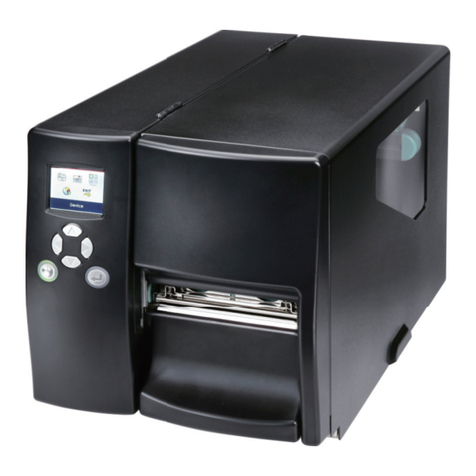
Initializing the TDP43MY
Placing TDP43MY in Continuous Tape Mode
1. Properly load the tape and ribbon into the TDP43MY printer.
2. Lock down the printer cover.
3. Press and hold Green button on the front of the Printer and Power the TDP43MY printer ON.
4. Indicator light needs to flash three times, then release the Green Feed Button
5. When printer starts feeding continuous tape, pop the top of the printer open, then press it back down
securely locking it into place. The printer will print “No Gap Detected” then print the dump information.
Press the Feed Button one more time.
6. Send one label to print as a test, this will also feed out media, again pop the top of the printer, then press
it back down securely locking it into place. The printer will print “No Gap Detected” and then it will print
your label. **
You are now ready to print your desired labels using Easy-Mark or Pan-Mark Labeling software.
Placing TDP43MY in Die Cut Label Mode
1. Properly load the tape and ribbon into the TDP43MY printer.
2. Lock down the printer cover.
3. Press and hold Green button on the Printer and Power the TDP43MY printer ON.
4. Indicator light needs to flash three times, then release the Green Feed Button
5. Printer will feed label media then print initialization information “Dump Mode”. Press Green Button Once
and “Out of Dump” should be printed.
6. Send one label to print as a test, this will also feed out media. Once the test has printed, continue with
your print job. **
You are now ready to print your desired labels using Easy-Mark or Pan-Mark Labeling software.
Printing Continuous Media on the Vista Driver for the TDP43MY
Note: Depending on your media the settings will be different. (T400X000VW1Y is assumed in this example)
7. We will select format T400X000***-10. A 4” wide by 10” long continuous media.
8. Enter your text.
9. Go to “File->Print…” and select “TDP43MY” from the drop down menu.
10. Click on the “Properties” button.
11. In the default “Options” tab note near the bottom of the screen the “Size” options.
12. Select the correct width and height for your continuous label. In this case Width = 4.00, Height = 10.00.
13. Click the “OK” button.
14. Click the “OK” button to print.
15. You have now successfully printed on continuous media.
**Tip: To avoid waste when switching between labels, keep the initialization and first
print strip of labels as a leader. The leader can be used again and again.