Use the Digital Desktop4
Activation and power-save mode4.1
The Digital Desktop is operated with a
power supply (Philips LFH 155); the Digital
Desktop is switched on and o by connecting
or disconnecting the device from the power
network.
If the device remains inactive for longer than
15 minutes, it automatically switches to the
power save mode and the display is switched o.
Reactivate the device by pressing any button.
Transcription4.2
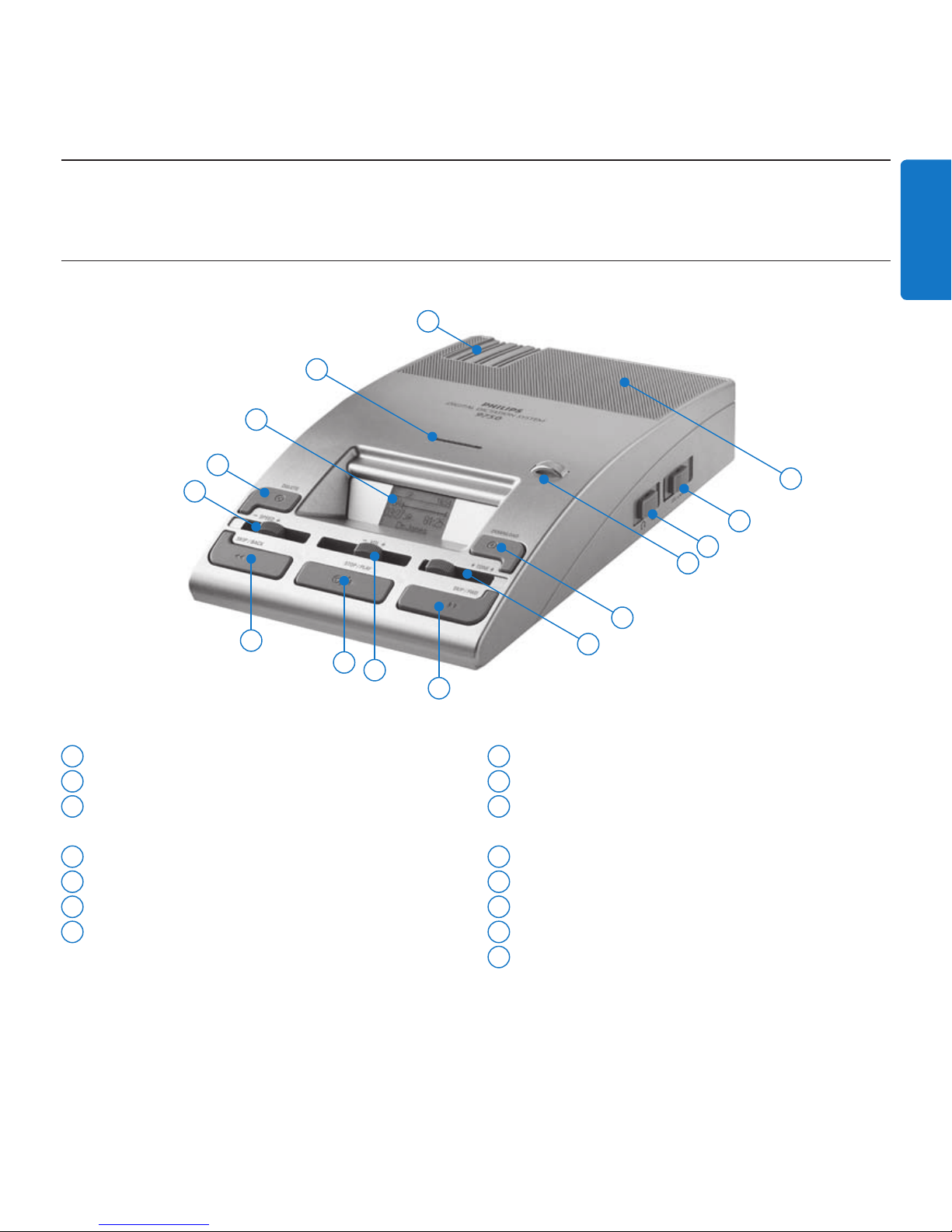
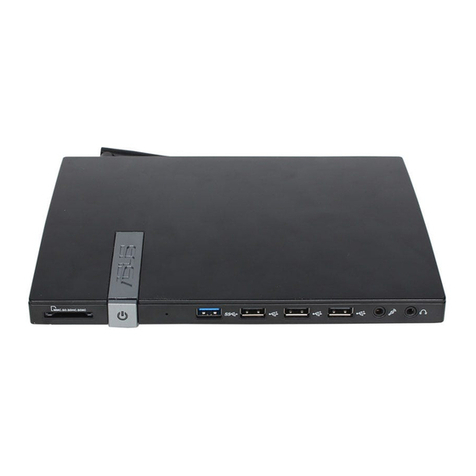
Move the1 JOG DIAL 4or press the SKIP/
BACK 10 or SKIP/FWD button 7while
stopped to select the file to play and locate
the beginning of the recording.
Press the2 STOP/PLAY button 9to start
playback.
A3 djust the volume (VOL 8), tone (TONE
6) and speed (SPEED 11 ) during playback
using the corresponding sliders.
To fast rewind, press and hold the4
SKIP/BACK button 10 while playing. Release
the SKIP/BACK button to start playback.
To fast forward, press and hold the5
SKIP/FWD button 7while playing. Release
the SKIP/FWD button to start playback.
Press the6 STOP/PLAY button 9to stop
playback.
DNote
You can set the value for the automatic
backspace during playback of a recording with
the ABS slider 2:
Playback does not begin where the• recording
was stopped, rather a few seconds earlier.
To turn o the automatic backspace, set the•
slider to 0.
Use the foot control4.3
The Philips foot control is designed to oer an
ergonomic, hands-free tool for playback and
recording of files for transcription.
Installation4.3.1
Connect the plug of the foot control to1
the foot control socket 19 of the Digital
Desktop.
Transcribe using the foot control4.3.2
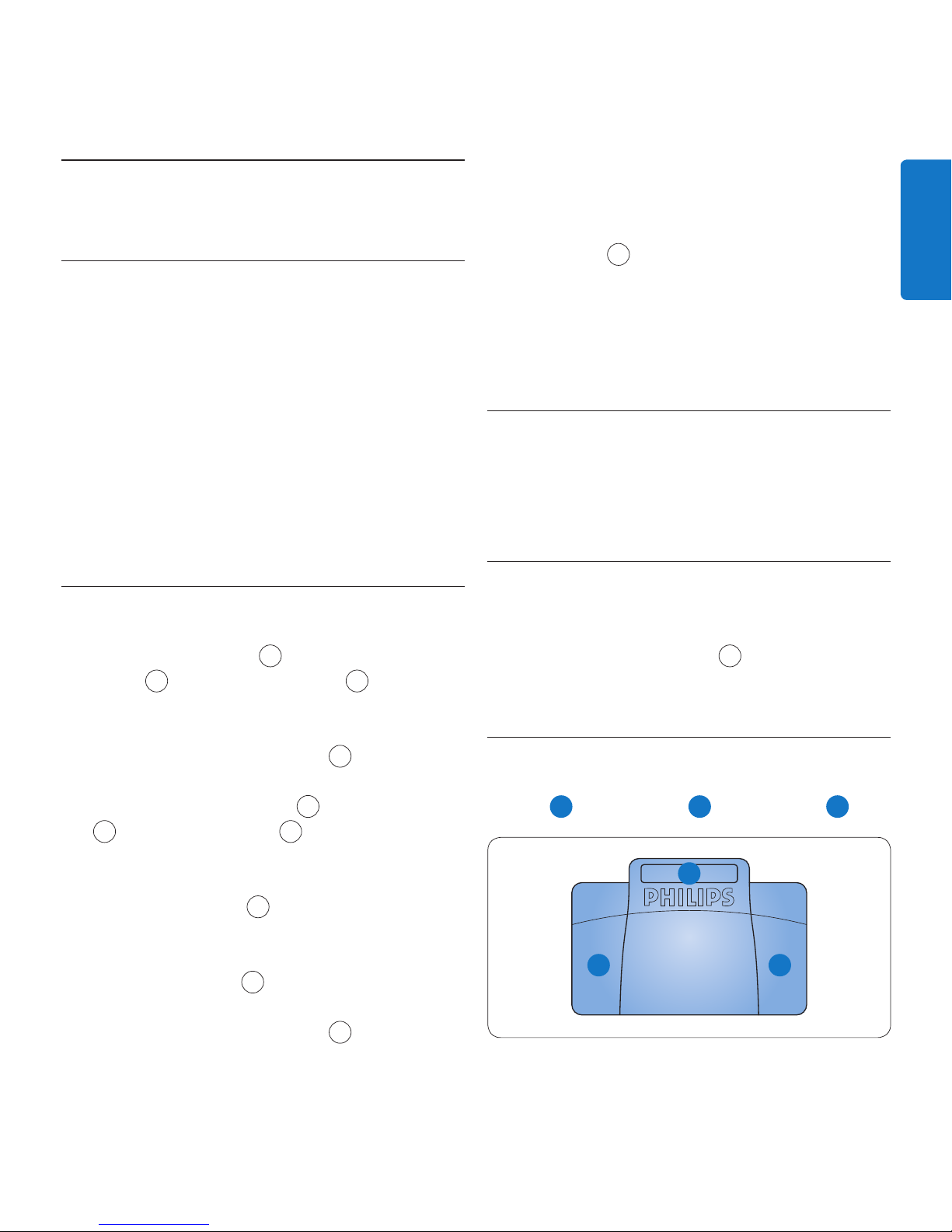
The foot control 2210 has three pedals: fast
rewind 1, fast forward 2and playback 3.
2
1 3