Platinet LTE modem with WiFi Router MANUAL
4
connected.
Red flashes
1. Indicates failed to connect 4G/3G network
(for the reasons like that network can’t be
found, network signals is weak, SIM card
can’t be detected, etc.)
2. When the device is starting up.
5 WIFI status indicator
Yellow
Always on Indicate WIFI starts up normally.
Flash Indicate some terminals connect to WIFI
successfully.
Always off
1. When device works in Dongle mode.
2. In WIFI mode, the WIFI module is sleeping.
3. In WIFI mode, the WIFI module works
abnormally.
3 Management Web Page
NOTE: Management web page is only used when U5 works in WIFI mode.
Management web page can read or set parameters of 4G/3G and WIFI network, monitor
network status, restore factory settings, etc.
For detailed usage of management web page, please refer to the help menu after login in web
page.
The method of login in web page:
1) Connect mobile phone or computer to WIFI hotspot provided by U5.
2) Open browser software. Note: management web page may be displayed abnormally on
different browsers or different versions of software. The suggested browser is Chrome.
3) Input “http://192.168.100.1” in address bar of browser with a carriage return, the login
page will be displayed. The default user name and password are “admin”. Users can
modify password through management web page.
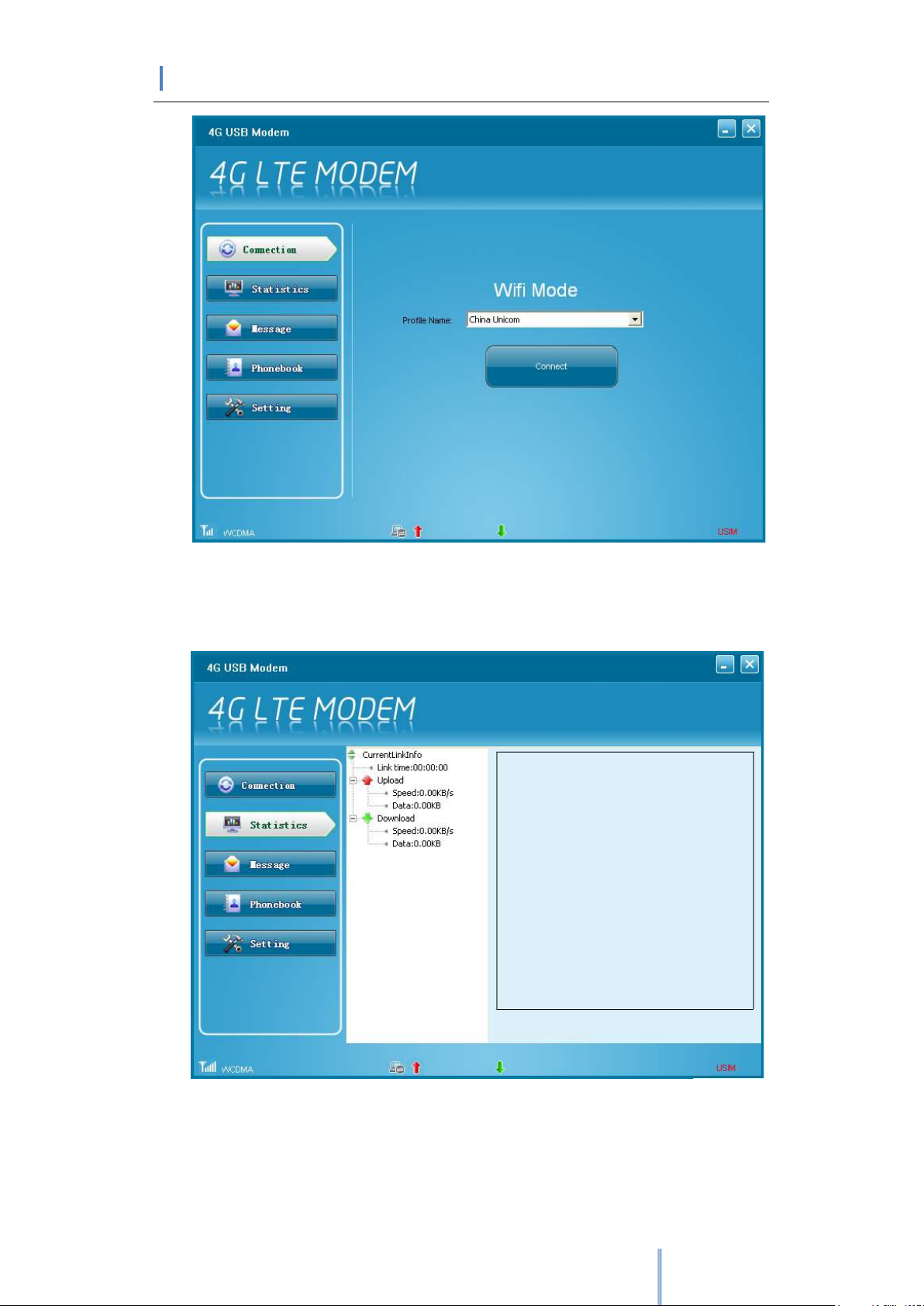
4 UI Software
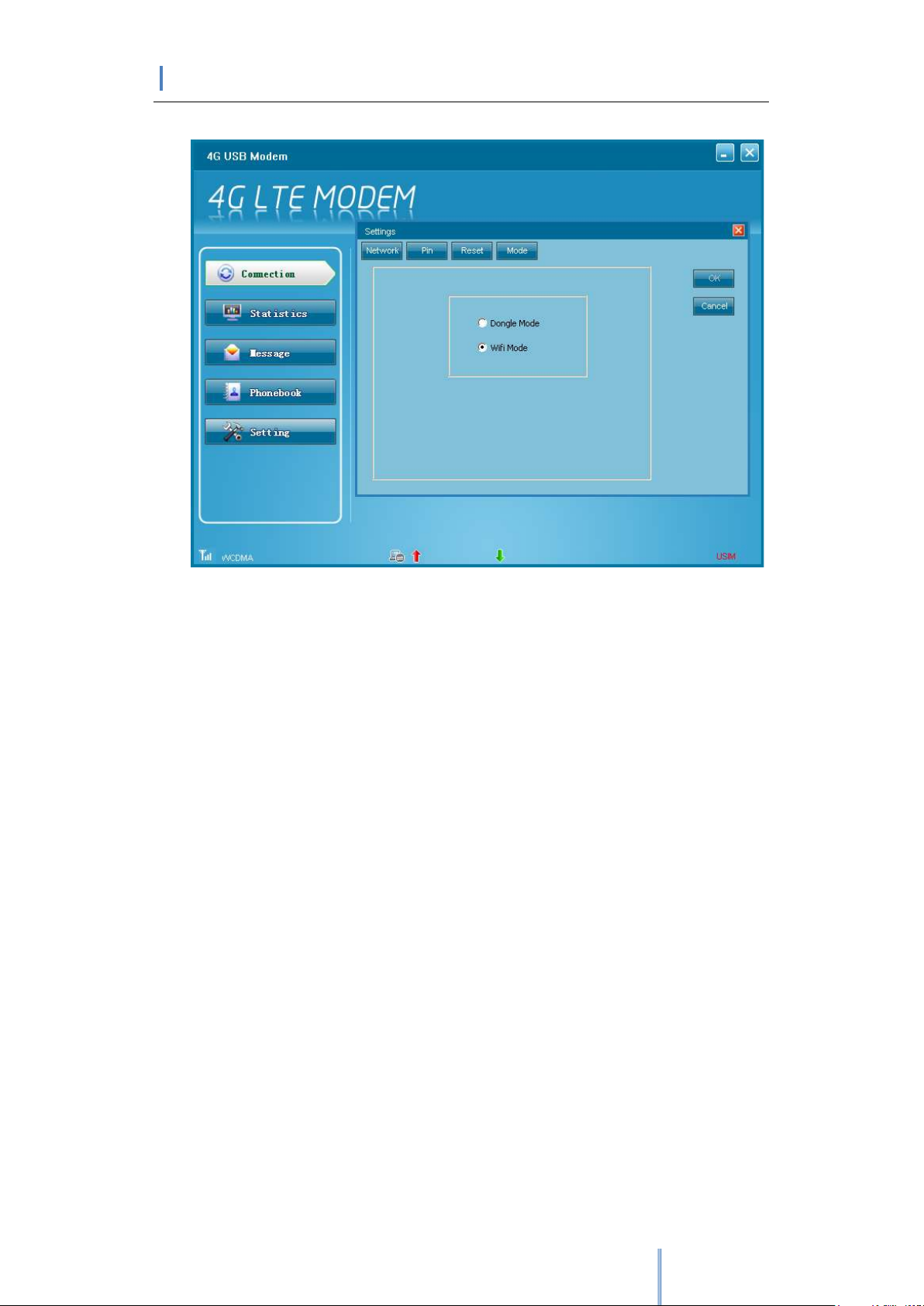
UI software can be used to switch U5 work mode (that is, Dongle mode and WIFI mode),
restore factory settings, and maintain 4G/3G network connections in Dongle mode, and
maintain short messages or phonebooks.
4.1 Installation of UI Software
NOTE: For different OS, the installation process may have difference. Here is an example
operated on Windows XP. If the installation process is different with the following
description, please refer to the installation prompt messages.
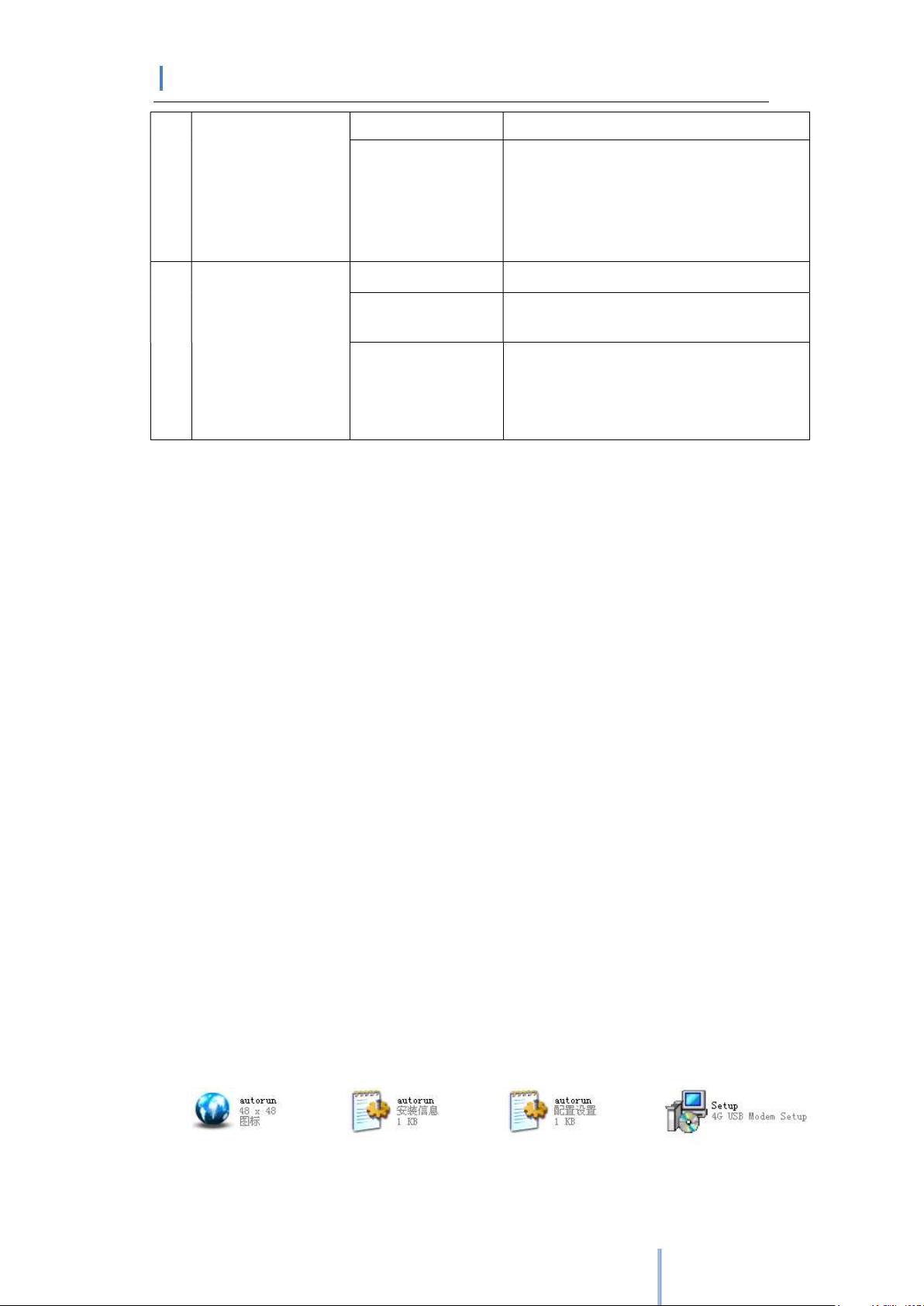
1. Insert U5 into USB of computer, then the installation files of UI software will
automatically display. Please refer to Figure 4-1.
Figure 4-1 Installation Files